
Iceberg Table
Oracle Semantic Search using Vectors on Iceberg Tables
In my previous blog posts I’ve explored how to use Iceberg Tables and how to integrate these in with your Data Lake. Additionally, I showed how to setup your Oracle Data Lake (Database) to access the data stored in Iceberg Tables stored in OCI Object Storage. To access this Iceberg Table data from the Oracle Database we created an External Table. This allows us to query the Iceberg Table data as if it was internal to the database. With all new releases there is continuous improvement in the features and to make them easier to use. One such new feature (as of 23.26.1) is the ability to read vector data types from an External Table. This new feature is called or referred to as ‘Vectors on Ice’.
With Oracle Database External Tables now supporting vector embedding stored in Iceberg Tables, means you can generate vector embeddings with your preferred embedding model (external to Oracle using your faviourite tool/library), store them in Iceberg Tables in cloud object storage (OCI Object Storage, AWS S3, etc.), and run semantic search from Oracle AI Database, accessing vector data stored within the database and externally with the minimum of data movement and with similar SQL queries.
Summary: Vectors on Ice lets you ask semantic questions of your data lake using the same SQL and vector search tooling you already use in Oracle Database, without copying or moving the data.
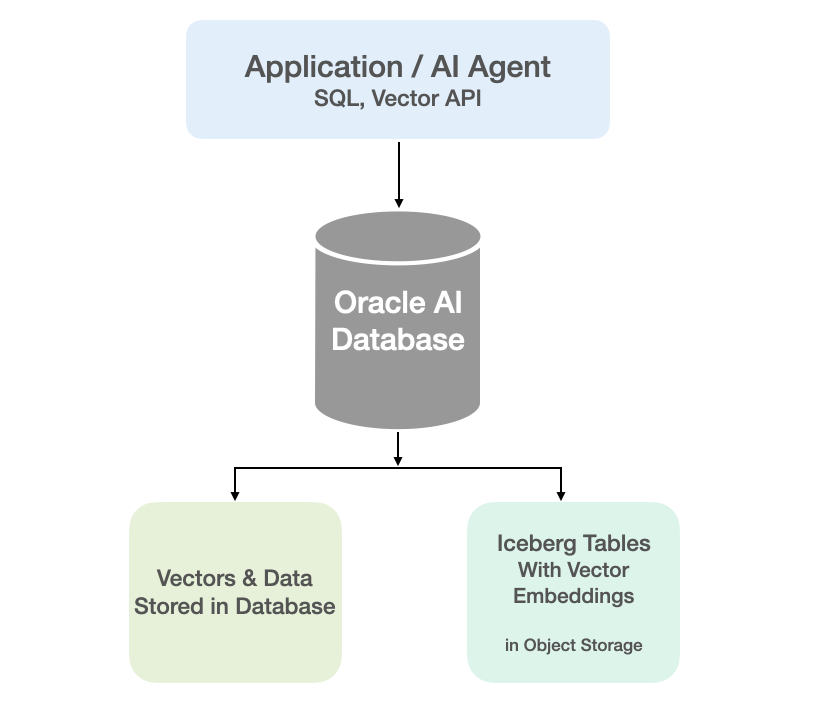
Oracle vector indexes can be created to speed up semantic search over the vectors in the Iceberg Tables. You don’t need to copy Iceberg data into an Oracle Database to use them or to update the Vector Index. The vector indexes are stored standalone in the database and (depending on the type of Vector Index used) can automatic sync as data is added to the files on Object Storage. The syncing of the Vector Index is not immediately updated but is updated based on a background process, so you can look on this index being eventually consistent. In might happen fairly quickly or during large write periods in might take seconds to a few minutes to get fully up-to-date.
Let’s have a look at an example of this. The following example builds upon my example in my previous posts which walked through the setup sets needed for gaining access to Object Storage, etc
CREATE TABLE IF NOT EXISTS external_vector_file ( id VARCHAR(10) PRIMARY KEY, text_desc VARCHAR2(1000), vec_embedding VECTOR(1024, float32) ) ORGANIZATION EXTERNAL ( TYPE ORACLE_BIGDATA DEFAULT DIRECTORY DATA_PUMP_DIR ACCESS PARAMETERS ( com.oracle.bigdata.credential.name=OCI_CRED com.oracle.bigdata.fileformat=parquet com.oracle.bigdata.access_protocol=iceberg ) LOCATION ('<path-to-iceberg-table>/metadata/v1.metadata.json') ) REJECT LIMIT UNLIMITED;
and to create a Vector Index on this external file
CREATE VECTOR INDEX external_vector_file_idx_ivf ON external_vector_file (vec_embedding)ORGANIZATION NEIGHBOR PARTITIONS;
We can now run our SQL queries on this external vector data. This query assumes we have the same vector embedding model loaded into the database.
SELECT id, text_desc, vector_distance(vec_embedding, vector_embedding(my_onnx_model using :INPUT_TERM as data) DISTFROM external_vector_fileORDER BY DISTFETCH FIRST 10 ROWS ONLY;
Why is this important? This allows organisations that already store vectors or embeddings in Iceberg Tables, as part of an existing ML pipeline, and who want to query them, performing semantic search, alongside the data in their Oracle Database, can now do so with the minimum of setup. This brings the benefits of Semantic Search to a wider audience within the organisation.
Exploring Apache Iceberg – Part 5 – Iceberg Tables and Oracle Autonomous Database
I’ve been writing a series of posts on using Apache Iceberg tables, and this fifth post will focus on using the Iceberg Tables in the Oracle LakeHouse Databae or Oracle Autonomous Data Warehouse database. Make sure to check out the previous posts as some of the steps needed to create the Iceberg files and some initital setup in an Oracle Autonomous Database. Here’s the link to Part-4.
For the example below I’ve already pre-loaded the Iceberg Table catalog and associated set of files. For this I’ve uploaded the files into a bucket called ‘iceberg-lakehouse’ and you’ll see references to this in the examples below.
One of the first things you’ll need to to is to grant certain privileges to your schema to allow it to use the Lakehouse features, like working with Iceberg Tables, setting up the Access Control Lists if needed and to have access to the DBMS_CATALOG package.
Here is the url for the ‘iceberg-lakehouse’. I’ve removed my nampespace from the url. When you setup your own one the part with <namespace> will contain the name of for your tenency.
https://objectstorage.us-ashburn-1.oraclecloud.com/n/<namespace>/b/iceberg-lakehouse/o/
The schema I’m using the the database is called ‘brendan’. Yes I could have been more creative!
Grant the DWROLE to the schema that will contain the external table to the Iceberg Table. Do this using ADMIN. Permissions on DBMS_CLOUD is also needed.
grant DWROLE to brendan;grant execute on DBMS_CLOUD to brendan;
While still connected to ADMIN, we need to configure an Access Control List (ACL) for the Lakehouse schema.
BEGIN DBMS_NETWORK_ACL_ADMIN.APPEND_HOST_ACE( host => 'objectstorage.us-ashburn-1.oraclecloud.com', lower_port => 443, upper_port => 443, ace => xs$ace_type( privilege_list => xs$name_list('http'), principal_name => 'BRENDAN', -- the Lakehouse schema principal_type => xs_acl.ptype_db ) );END;
My tenency is based in Ashburn, and that’s why you see ‘us-ashburn-1’ listed in the value for host, given in the above example. You’ll need to change that to your region.
As the ‘BRENDAN’ schema we can define Credentials to autenticate to OCI Object Storage.
BEGIN DBMS_CLOUD.CREATE_CREDENTIAL( credential_name => 'LAKEHOUSE_CRED', username => '<your cloud username>', password => '<generated auth token>' );END;
Now we can create an External Table to point to our Iceberg Table.
BEGIN DBMS_CLOUD.CREATE_EXTERNAL_TABLE( table_name => 'ICEBERG_TABLE', credential_name => 'LAKEHOUSE_CRED', file_uri_list => 'https://objectstorage.us-ashburn-1.oraclecloud.com/n/<namespace>/b/iceberg-lakehouse/o/', format => '{"access_protocol": {"protocol_type": "iceberg"}}' );END;
We can not query the Iceberg Table like a regular table.
select * from iceberg_table;
Important: When work with the scenario above, it is assumed the Iceberg Table contains only one table. Another limitation is, if the structure of the Iceberg Table changes you will need to re-create the external table. As you can imagine that is not ideal, although you can schedule that to happen as needed.
To over come those limitations and to allow for the Iceberg Catalog to contain multiple tables, and for those to be picked up automatically, we need to use the package DBMS_CATALOG. This allows use to work with multiple tables within the catalog and it will also pickup any schema changes to those Iceberg Tables. Let’s have a look at doing this.
There are two steps needed before creating the external table. Both create credentials to point to the external Iceberg REST catalog and another to point to the bucket in object storage where the data files are located.
-- create credential for the REST API link to the catalogBEGIN DBMS_CLOUD.CREATE_CREDENTIAL( credential_name => 'ICEBERG_CATALOG_CRED', username => '<username for REST API>', password => '<password for REST API>' );END;
The REST API details can be found in your OCI accout under Users & Security-> Users.
The OCI Object Storage Credentials is where the data files are stored in an OCI bucket. We can now mount the Iceberg Catalog
BEGIN DBMS_CATALOG.MOUNT_ICEBERG( catalog_name => 'ICEBEG_CATALOG', endpoint => '<endpoint for the catalog>', catalog_credential => 'ICEBERG_CATALOG_CRED', data_storage_credential => '<OCI Object Storge Credential>' );END;
Once mounted we can explore the tables available in the Catalog using,
select * from all_tables@ICEBERG_CATALOG;
When querying the tables in the catalog, it will resolve to the latest snapshot. [see previous posts on how the catalog and the following tabl was created]
select * from sales_db.orders@ICEBERG_CATALOG;
If we want the Iceberg table to be used as an External Table in the database we can create it using the following.
BEGIN DBMS_CATALOG.CREATE_EXTERNAL_TABLE( catalog_name => 'ICEBERG_CATALOG', table_name => 'ICEBERG_ORDERS', schema_name => 'sales_db', table_name => 'orders' );END;
It is now a bit easier to include in our queries.
select * from ICEBERG_ORDERS;


You must be logged in to post a comment.