
OCI Gen AI – How to call using Python
Oracle OCI has some Generative AI features, one of which is a Playground allowing you to play or experiment with using several of the Cohere models. The Playground includes Chat, Generation, Summarization and Embedding.
OCI Generative AI services are only available in a few Cloud Regions. You can check the available regions in the documentation. A simple way to check if it is available in your cloud account is to go to the menu and see if it is listed in the Analytics & AI section.

When the webpage opens you can select the Playground from the main page or select one of the options from the menu on the right-hand-side of the page. The following image shows this menu and in this image, I’ve selected the Chat option.

You can enter your questions into the chat box at the bottom of the screen. In the image, I’ve used the following text to generate a Retirement email.
A university professor has decided to retire early. write and email to faculty management and HR of his decision. The job has become very stressful and without proper supports I cannot continue in the role. write me an email for this
Using this playground is useful for trying things out and to see what works and doesn’t work for you. When you are ready to use or deploy such a Generative AI solution, you’ll need to do so using some other coding environment. If you look toward the top right hand corner of this playground page, you’ll see a ‘View code’ button. When you click on this Code will be generated for you in Java and Python. You can copy and paste this to any environment and quickly have a Chatbot up and running in few minutes. I was going to say a few second but you do need to setup a .config file to setup a secure connection to your OCI account. Here is a blog post I wrote about setting this up.
Here is a copy of that Python code with some minor edits, 1) to remove my Compartment ID, 2) I’ve added some message requests. You can comment/uncomment as you like or add something new.
import oci

# Setup basic variables
# Auth Config
# TODO: Please update config profile name and use the compartmentId that has policies grant permissions for using Generative AI Service
compartment_id =  <add your Compartment ID>
CONFIG_PROFILE = "DEFAULT"
config = oci.config.from_file('~/.oci/config', CONFIG_PROFILE)

# Service endpoint
endpoint = "https://inference.generativeai.us-chicago-1.oci.oraclecloud.com"

generative_ai_inference_client = oci.generative_ai_inference.GenerativeAiInferenceClient(config=config, service_endpoint=endpoint, retry_strategy=oci.retry.NoneRetryStrategy(), timeout=(10,240))
chat_detail = oci.generative_ai_inference.models.ChatDetails()

chat_request = oci.generative_ai_inference.models.CohereChatRequest()
#chat_request.message = "Tell me what you can do?"
#chat_request.message = "How does GenAI work?"
chat_request.message = "What's the weather like today where I live?"
chat_request.message = "Could you look it up for me?"
chat_request.message = "Will Elon Musk buy OpenAI?"
chat_request.message = "Tell me about Stargate Project and how it will work?"
chat_request.message = "What is the most recent date your model is built on?"


chat_request.max_tokens = 600
chat_request.temperature = 1
chat_request.frequency_penalty = 0
chat_request.top_p = 0.75
chat_request.top_k = 0
chat_request.seed = None


chat_detail.serving_mode = oci.generative_ai_inference.models.OnDemandServingMode(model_id="ocid1.generativeaimodel.oc1.us-chicago-1.amaaaaaask7dceyanrlpnq5ybfu5hnzarg7jomak3q6kyhkzjsl4qj24fyoq")
chat_detail.chat_request = chat_request
chat_detail.compartment_id = compartment_id
chat_response = generative_ai_inference_client.chat(chat_detail)
# Print result
print("**************************Chat Result**************************")
print(vars(chat_response))
When I run the above code I get the following output.
NB: If you have the OCI Python package already installed you might need to update it to the most recent version
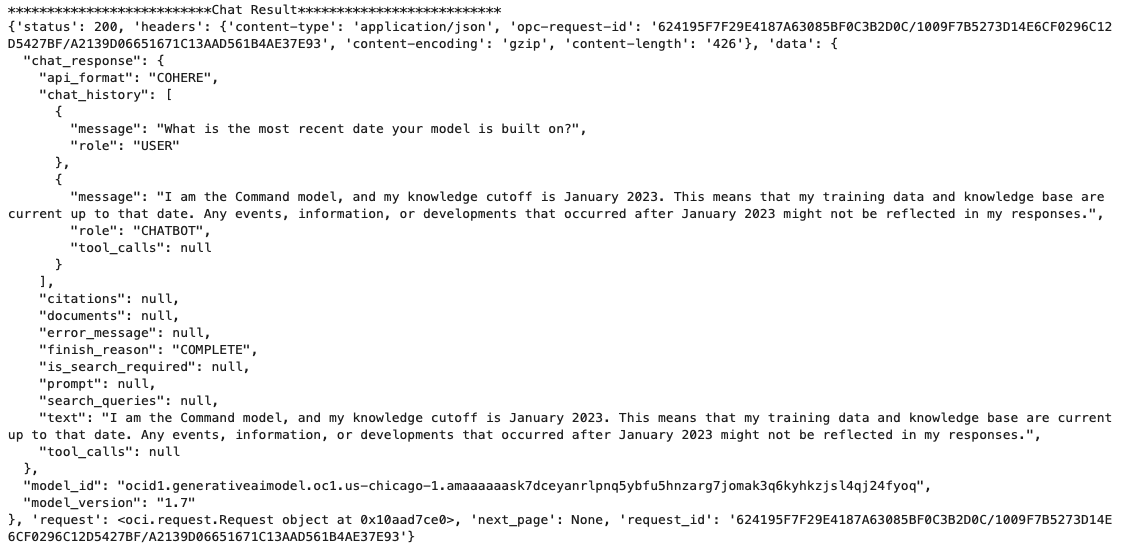
You can see there is a lot generated and returned in the response. We can tidy this up a little using the following and only display the response message.
import json
# Convert JSON output to a dictionary
data = chat_response.__dict__["data"]
output = json.loads(str(data))

# Print the output
print("---Message Returned by LLM---")
print(output["chat_response"]["chat_history"][1]["message"])
That’s it. Give it a try and see how you can build it into your applications.
 Ora-lytics