
Month: April 2017
OUG Ireland Meetup 11th May
The next OUG Ireland Meetup is happening on 11th May, in the Bank of Ireland Grand Canal Dock. This is a free event and is open to every one. You don’t have to be a member to attend.
Following on from a very successful 2 day OUG Ireland Conference with over 250 attendees, we have organised our next meetup. This was mentioned during the opening session of the conference.

We typically have 2 presentations at each Meetup and on 11th May we have:
1. Oracle Analytics Cloud Service.
Oralce Analytics Cloud Service was only released a few weeks ago and we some local people who have been working with the beta and early adopter releases. They will be giving us some insights on this new product and how it compares with other analytics products like Oracle Data Visualization and OBIEE.
Running Oracle DataGuard on RAC on Oracle 12c
The second presentation will be on using Oracle DataGuard on RAC on Oracle 12c. We have a very experienced DBA talking about his experiences of using these products how to workaround some key bugs and situations to be aware of for administration purposes. Lots of valuable information to be gained.
There will be some food and refreshments available for you to enjoy.
The Meetup will be in Bank of Ireland, Grand Canal Dock. This venue is a very popular locations for Meetups in Dublin.

Setting up Oracle Database on Docker
A couple of days ago it was announced that several Oracle images were available on the Docker Store.
This is by far the easiest Oracle Database install I have every done !
You simply have no excuse now for not installing and using an Oracle Database. Just go and do it now!
The following steps outlines what I did you get an Oracle 12.1c Database.
1. Download and Install Docker
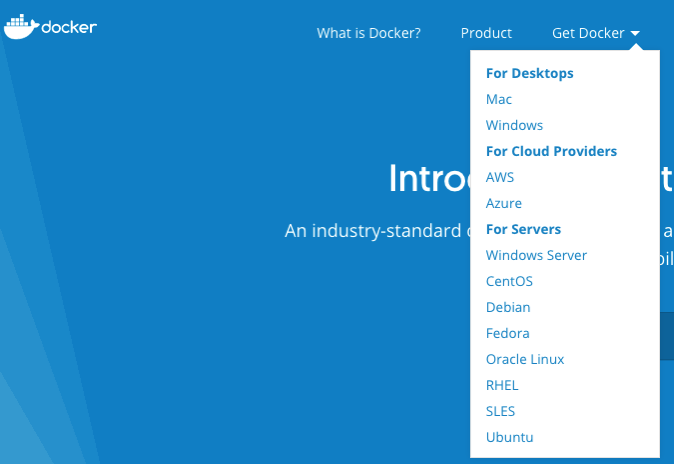
There isn’t much to say here. Just go to the Docker website, select the version docker for your OS, and just install it.
You will probably need to create an account with Docker.
After Docker is installed it will automatically start and and will be placed in your system tray etc so that it will automatically start each time you restart your laptop/PC.
2. Adjust the memory allocation
From the system tray open the Docker application. In the Advanced section allocate a bit more memory. This will just make things run a bit smoother. Be a bit careful on how much to allocate.
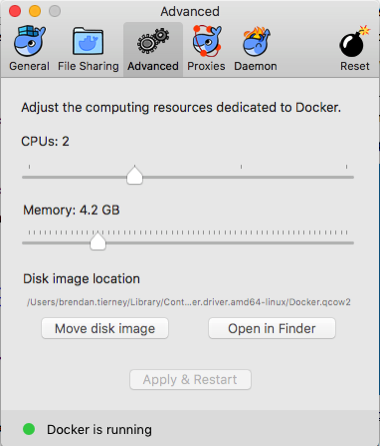
In the General section check the tick-box for automatically backing up Docker VMs. This is assuming you have back-ups setup, for example with Time Machine or something similar.
3. Download & Edit the Oracle Docker environment File
On the Oracle Database download Docker webpage, click on the the Get Content button.
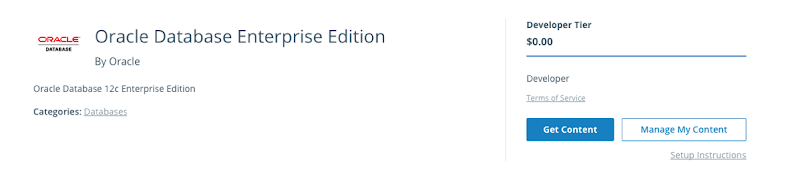
You will have to enter some details like your name, company, job title and phone number, then click on the check-box, before clicking on the Get Content button. All of this is necessary for the Oracle License agreement.
The next screen lists the Docker Services and Partner Services that you have signed up for.
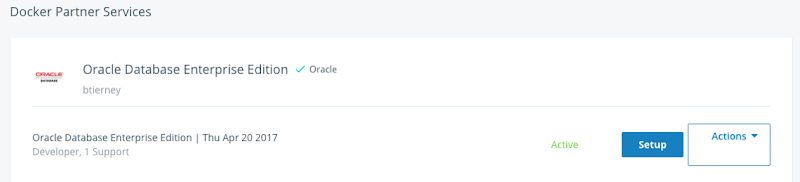
Click on the Setup button to go to the webpage that contains some of the setup instructions.
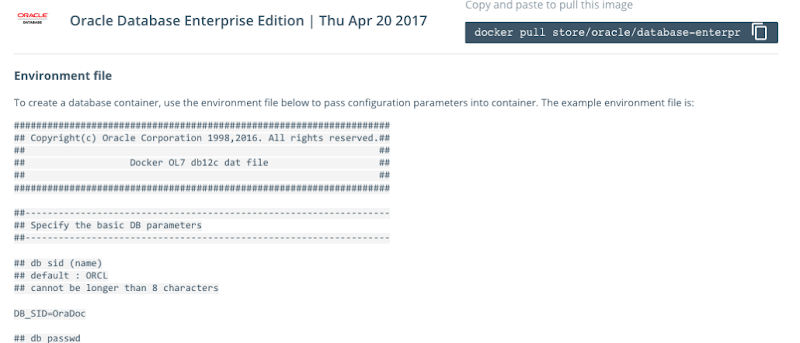
The first thing you need to do is to copy the sample Environment File. Create a new file on your laptop/desktop and paste the environment file contents into the file. There are a few edits you need to make to this file. The following is the edited/modified Environment file that I created and used. The changes are for DB_SID, DB_PASSWD and DB_DOMAIN.
####################################################################
## Copyright(c) Oracle Corporation 1998,2016. All rights reserved.##
##                                                                ##
##                   Docker OL7 db12c dat file                    ##
##                                                                ##
####################################################################

##------------------------------------------------------------------
## Specify the basic DB parameters
##------------------------------------------------------------------

## db sid (name)
## default : ORCL
## cannot be longer than 8 characters

DB_SID=ORCL

## db passwd
## default : Oracle

DB_PASSWD=oracle

## db domain
## default : localdomain

DB_DOMAIN=localdomain

## db bundle
## default : basic
## valid : basic / high / extreme
## (high and extreme are only available for enterprise edition)

DB_BUNDLE=basic

## end
I called this file ‘docker_ora_db.txt‘
4. Download and Configure Oracle Database for Docker
The following command will download and configure the docker image
$ docker run -d --env-file ./docker_ora_db.txt -p 1527:1521 -p 5507:5500 -it --name dockerDB121 --shm-size="8g" store/oracle/database-enterprise:12.1.0.2
This command will create a container called ‘dockerDB121’. The 121 at the end indicate the version number of the Oracle Database. If you end up with a number of containers containing different versions of the Oracle Database then you need some way of distinguishing them.
Take note of the port mapping in the above command, as you will need this information later.
When you run this command, the docker image will be downloaded from the docker website, will be unzipped and the container setup and ready to run.

5. Log-in and Finish the configuration
Although the docker container has been setup, there is still a database configuration to complete. The following images shows that the new containers is there.

To complete the Database setup, you will need to log into the Docker container.
docker exec -it dockerDB121 /bin/bash
Then run the Oracle Database setup and startup script (as the root user).
/bin/bash /home/oracle/setup/dockerInit.sh
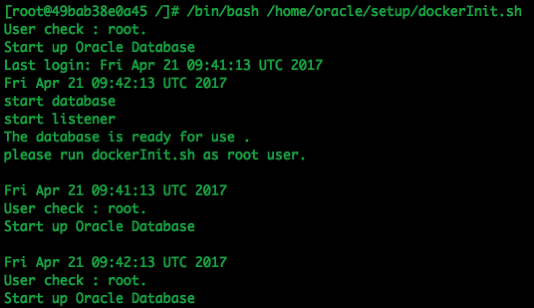
This script can take a few minutes to run. On my laptop it took about 2 minutes.
When this is finished the terminal session will open as this script goes into a look.
To run any other commands in the container you will need to open another terminal session and connect to the Docker container. So go open one now.
6. Log into the Database in Docker
In a new terminal window, connect to the Docker container and then switch to the oracle user.
su - oracle
Check that the Oracle Database processes are running (ps -ef) and then connect as SYSDBA.
sqlplus / as sysdba
Let’s check out the Database.
SQL> select name,DB_UNIQUE_NAME from v$database;

NAME	  DB_UNIQUE_NAME
--------- ------------------------------
ORCL	  ORCL


SQL> SELECT v.name, v.open_mode, NVL(v.restricted, 'n/a') "RESTRICTED", d.status
     FROM v$pdbs v, dba_pdbs d
     WHERE v.guid = d.guid
     ORDER BY v.create_scn;


NAME			       OPEN_MODE  RES STATUS
------------------------------ ---------- --- ---------
PDB$SEED		       READ ONLY  NO  NORMAL
PDB1			       READ WRITE NO  NORMAL
And the tnsnames.ora file contains the following:
ORCL =   (DESCRIPTION =
    (ADDRESS = (PROTOCOL = TCP)(HOST = 0.0.0.0)(PORT = 1521))
     (CONNECT_DATA =
      (SERVER = DEDICATED)
       (SERVICE_NAME = ORCL.localdomain)     )   )

PDB1 =   (DESCRIPTION =
     (ADDRESS = (PROTOCOL = TCP)(HOST = 0.0.0.0)(PORT = 1521))
      (CONNECT_DATA =
       (SERVER = DEDICATED)
       (SERVICE_NAME = PDB1.localdomain)     )   )
You are now up an running with an Docker container running an Oracle 12.1 Databases.
7. Configure SQL Developer (on Client) to
access the Oracle Database on Docker
You can not use your client tools to connect to the Oracle Database in a Docker Container. Here is a connection setup in SQL Developer.
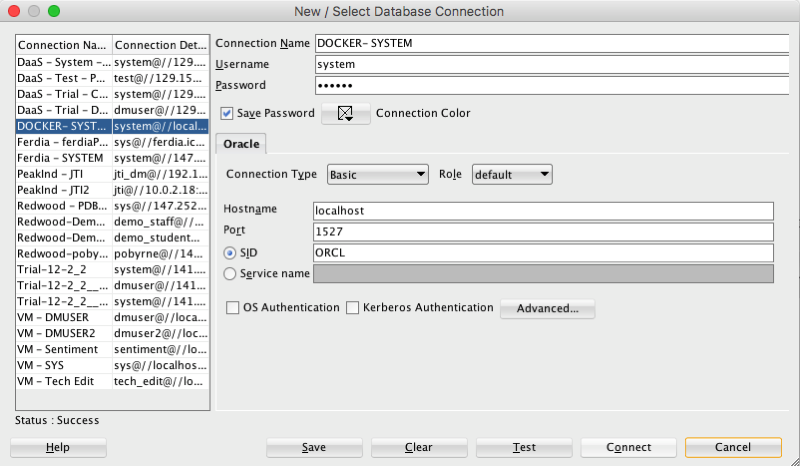
Remember that port number mapping I mentioned in step 4 above. See in this SQL Developer connection that the port number is 1527.
Thats it. How easy is that. You now have a fully configured Oracle 12.1c Enterprise Edition Database to play with, to have fun and to explore all the wonderful features of the Oracle Database.
ODM Model View Details Views in Oracle 12.2
A new feature for Oracle Data Mining in Oracle 12.2 is the new Model Details views.
In Oracle 11.2.0.3 and up to Oracle 12.1 you needed to use a range of PL/SQL functions (in DBMS_DATA_MINING package) to inspect the details of a data mining/machine learning model using SQL.
Check out these previous blog posts for some examples of how to use and extract model details in Oracle 12.1 and earlier versions of the database
Association Rules in ODM-Part 3
Extracting the rules from an ODM Decision Tree model
Instead of these functions there are now a lot of DB views available to inspect the details of a model. The following table summarises these various DB Views. Check out the DB views I’ve listed after the table, as these views might some some of the ones you might end up using most often.
I’ve now chance of remembering all of these and this table is a quick reference for me to find the DB views I need to use. The naming method used is very confusing but I’m sure in time I’ll get the hang of them.
NOTE: For the DB Views I’ve listed in the following table, you will need to append the name of the ODM model to the view prefix that is listed in the table.
table, th, td {
border: 1px solid black;
border-collapse: collapse;
text-align: left;
}
| Data Mining Type | Algorithm & Model Details | 12.2 DB View | Description |
|---|---|---|---|
| Association | Association Rules | DM$VR | generated rules for Association Rules |
| Frequent Itemsets | DM$VI | describes the frequent itemsets | |
| Transaction Itemsets | DM$VT | describes the transactional itemsets view | |
| Transactional Rules | DM$VA | describes the transactional rule view and transactional itemsets | |
| Classification | (General views for Classification models) | DM$VT
DM$VC |
describes the target distribution for Classification models
describes the scoring cost matrix for Classification models |
| Decision Tree | DM$VP
DM$VI DM$VO DM$VM |
describes the DT hierarchy & the split info for each level in DT
describes the statistics associated with individual tree nodes Higher level node description describes the cost matrix used by the Decision Tree build |
|
| Generalized Linear Model | DM$VD
DM$VA |
describes model info for Linear Regres & Logistic Regres
describes row level info for Linear Regres & Logistic Regres |
|
| Naive Bayes | DM$VP
DM$VV |
describes the priors of the targets for Naïve Bayes
describes the conditional probabilities of Naïve Bayes model |
|
| Support Vector Machine | DM$VL | describes the coefficients of a linear SVM algorithm | |
| Regression ??? | Doe | 80 | 50 |
| Clustering | (General views for Clustering models) | DM$VD
DM$VA DM$VH DM$VR |
Cluster model description
Cluster attribute statistics Cluster historgram statistics Cluster Rule statistics |
| k-Means | DM$VD
DM$VA DM$VH DM$VR |
k-Means model description
k-Means attribute statistics k-Means historgram statistics k-Means Rule statistics |
|
| O-Cluster | DM$VD
DM$VA DM$VH DM$VR |
O-Cluster model description
O-Cluster attribute statistics O-Cluster historgram statistics O-Cluster Rule statistics |
|
| Expectation Minimization | DM$VO
DM$VB DM$VI DM$VF DM$VM DM$VP |
describes the EM components
the pairwise Kullback–Leibler divergence attribute ranking similar to that of Attribute Importance parameters of multi-valued Bernoulli distributions mean & variance parameters for attributes by Gaussian distribution the coefficients used by random projections to map nested columns to a lower dimensional space |
|
| Feature Extraction | Non-negative Matrix Factorization | DM$VE
DM$VI |
Encoding (H) of a NNMF model
H inverse matrix for NNMF model |
| Singular Value Decomposition | DM$VE
DM$VV DM$VU |
Associated PCA information for both classes of models
describes the right-singular vectors of SVD model describes the left-singular vectors of a SVD model |
|
| Explicit Semantic Analysis | DM$VA
DM$VF |
ESA attribute statistics
ESA model features |
|
| Feature Section | Minimum Description Length | DM$VA | describes the Attribute Importance as well as the Attribute Importance rank |
Normalizing and Error Handling views created by ODM Automatic Data Processing (ADP)
- DM$VN : Normalization and Missing Value Handling
- DM$VB : Binning
Global Model Views
- DM$VG : Model global statistics
- DM$VS : Computed model settings
- DM$VW :Alerts issued during model creation
Each one of these new DB views needs their own blog post to explain what informations is being explained in each. I’m sure over time I will get round to most of these.
Managing memory allocation for Oracle R Enterprise Embedded Execution
When working with Oracle R Enterprise and particularly when you are using the ORE functions that can spawn multiple R processes, on the DB Server, you need to be very aware of the amount of memory that will be consumed for each call of the ORE function.
ORE has two sets of parallel functions for running your user defined R scripts stored in the database, as part of the Embedded R Execution feature of ORE. The R functions are called ore.groupApply, ore.rowApply and ore.indexApply. When using SQL there are “rqGroupApply” and rqRowApply. (There is no SQL function equivalent of the R function ore.indexApply)
For each parallel R process that is spawned on the DB server a certain amount of memory (RAM) will be allocated to this R process. The default size of memory to be allocated can be found by using the following query.
select name, value from sys.rq_config;

NAME                                VALUE
----------------------------------- -----------------------------------
VERSION                             1.5
MIN_VSIZE                           32M
MAX_VSIZE                           4G
MIN_NSIZE                           2M
MAX_NSIZE                           20M
The memory allocation is broken out into the amount of memory allocated for Cells and NCells for each R process.
If your parallel ORE function create a large number of parallel R processes then you can see that the amount of overall memory consumed can be significant. I’ve seen a few customers who very quickly run out of memory on their DB servers. Now that is something you do not want to happen.
How can you prevent this from happening ?
There are a few things you need to keep in mind when using the parallel enabled ORE functions. The first one is, how many R processes will be spawned. For most cases this can be estimated or calculated to a high degree of accuracy. Secondly, how much memory will be used to process each of the R processes. Thirdly, how memory do you have available on the DB server. Fourthly, how many other people will be running parallel R processes at the same time?
Examining and answering each of these may look to be a relatively trivial task, but the complexity behind these can increase dramatically depending on the answer to the fourth point/question above.
To calculate the amount of memory used during the ORE user defined R script, you can use the R garbage function to calculate the memory usage at the start and at the end of the R script, and then return the calculated amount. Yes you need to add this extra code to your R script and then remove it when you have calculated the memory usage.
gc.start <- gc(reset=TRUE)
...
gc.end <- gc()
gc.used <- gc.end[,7] - gc.start[,7] # amount consumed by the processing
Using this information and the answers to the points/questions I listed above you can now look at calculating how much memory you need to allocated to the R processes. You can set this to be static for all R processes or you can use some code to allocate the amount of memory that is needed for each R process. But this starts to become messy. The following gives some examples (using R) of changing the R memory allocations in the Oracle Database. Similar commands can be issued using SQL.
> sys.rqconfigset('MIN_VSIZE', '10M') -- min heap 10MB, default 32MB
> sys.rqconfigset('MAX_VSIZE', '100M') -- max heap 100MB, default 4GB
> sys.rqconfigset('MIN_NSIZE', '500K') -- min number cons cells 500x1024, default 1M
> sys.rqconfigset('MAX_NSIZE', '2M') -- max number cons cells 2M, default 20M
Some guidelines – as with all guidelines you have to consider all the other requirements for the Database, and in reality you will have to try to find a balance between what is listed here and what is actually possible.
- Set parallel_degree_policy to MANUAL.
- Set parallel_min_servers to the number of parallel slave processes to be started when the database instances start, this avoids start up time for the R processes. This is not a problem for long running processes. But can save time with processes running for 10s seconds
- To avoid overloading the CPUs if the parallel_max_servers limit is reached, set the hidden parameter _parallel_statement_queuing to TRUE. Avoids overloading and lets processes wait.
- Set application tables and their indexes to DOP 1 to reinforce the ability of ORE to determine when to use parallelism.
Understanding the memory requirements for your ORE processes can be tricky business and can take some time to work out the right balance between what is needed by the spawned parallel R processes and everything else that is going on in the Database. There will be a lot of trial and error in working this out and it is always good to reach out for some help. If you have a similar scenario and need some help or guidance let me know.
 Ora-lytics