
image processing
OCI:Vision – AI for image processing – the Basics
Every cloud service provides some form of AI offering. Some of these can range from very basic features right up to a mediocre level. Only a few are delivering advanced AI services in a useful way.
Oracle AI Services have been around for about a year now, and with all new products or cloud services, a little time is needed to let it develop from an MVP (minimum viable produce) to something that’s more mature, feature-rich, stable and reliable. Oracle’s OCI AI Services come with some pre-training models and to create your own custom models based on your own training datasets.
Oracle’s OCI AI Services include:
- Digital Assistant
- Language
- Speech
- Vision
- Document Understand
- Anomaly Detection
- Forecasting
In this post, we’ll explore OCI Vision, and what the capabilities are available with their pre-trained models. To demonstrate this their online/webpage application will be used to demonstrate what it does and what it creates and identifies. You can access the Vision AI Services from the menu as shown in the following image.
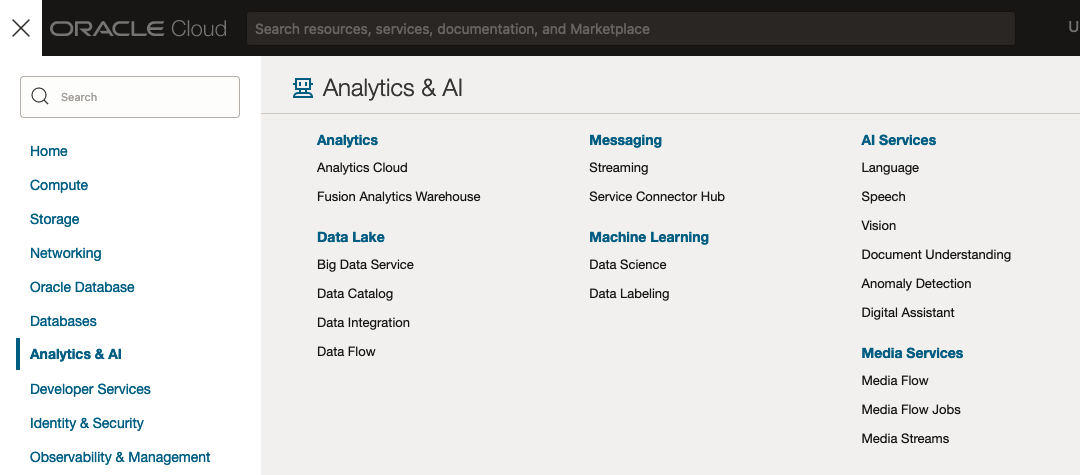
From the main AI Vision webpage, we can see on the menu (on left-hand side of the page), we have three main Vision related options. These are Image Classification, Object Detection and Document AI. These are pre-trained models that perform slightly different tasks.
Let’s start with Image Classification and explore what is possible. Just Click on the link.
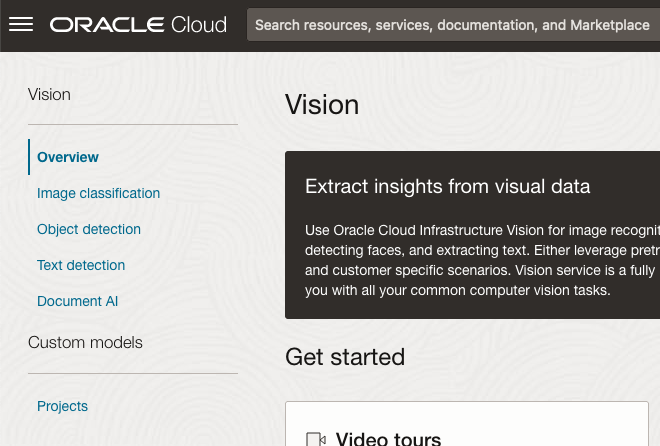
Note: The Document AI feature will be moving to its own cloud Service in 2024, so it will disappear from them many but will appear as a new service on the main Analytics & AI webpage (shown above).
The webpage for each Vision feature comes with a couple of images for you to examine to see how it works. But a better way to explore the capabilities of each feature is to use your own images or images you have downloaded. Here are examples.
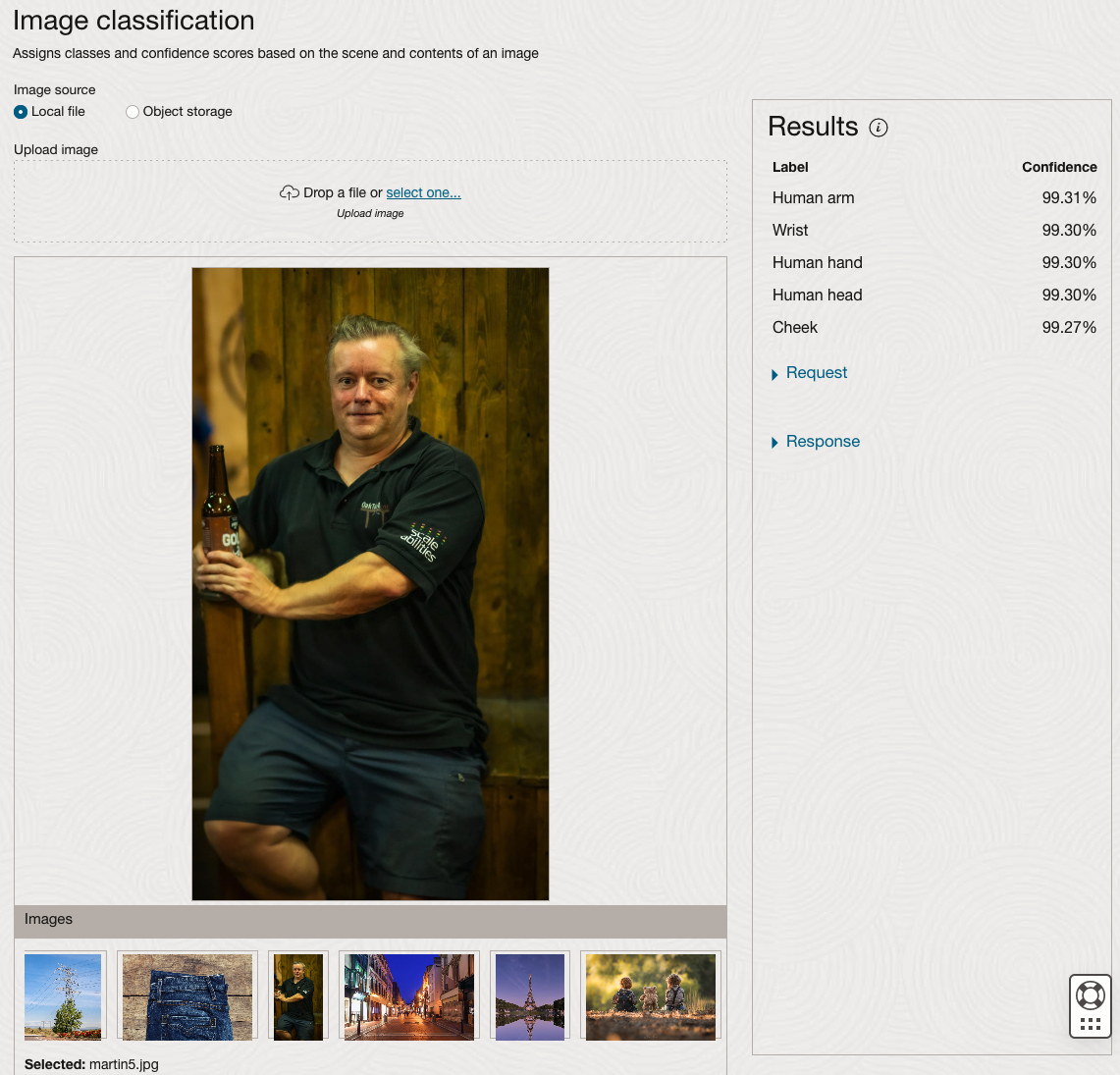
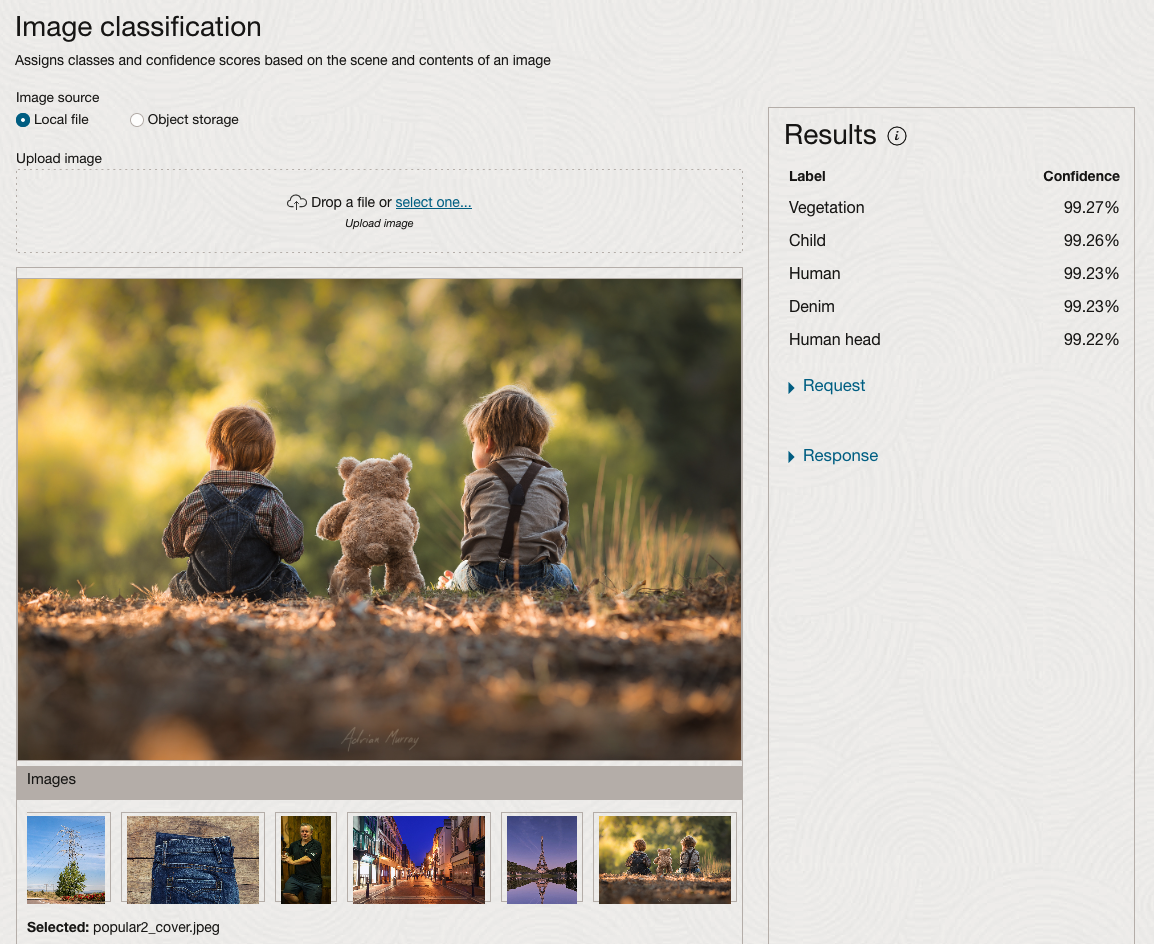
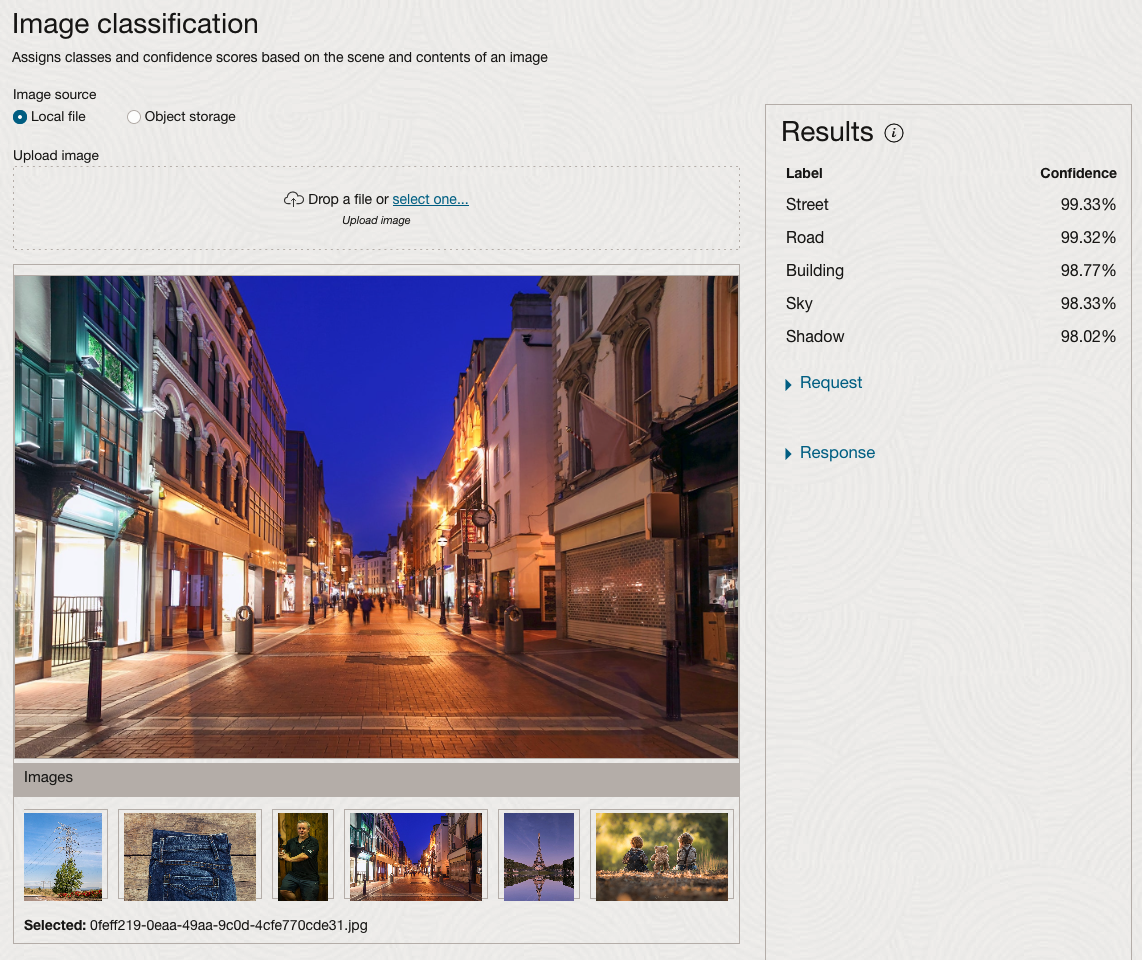
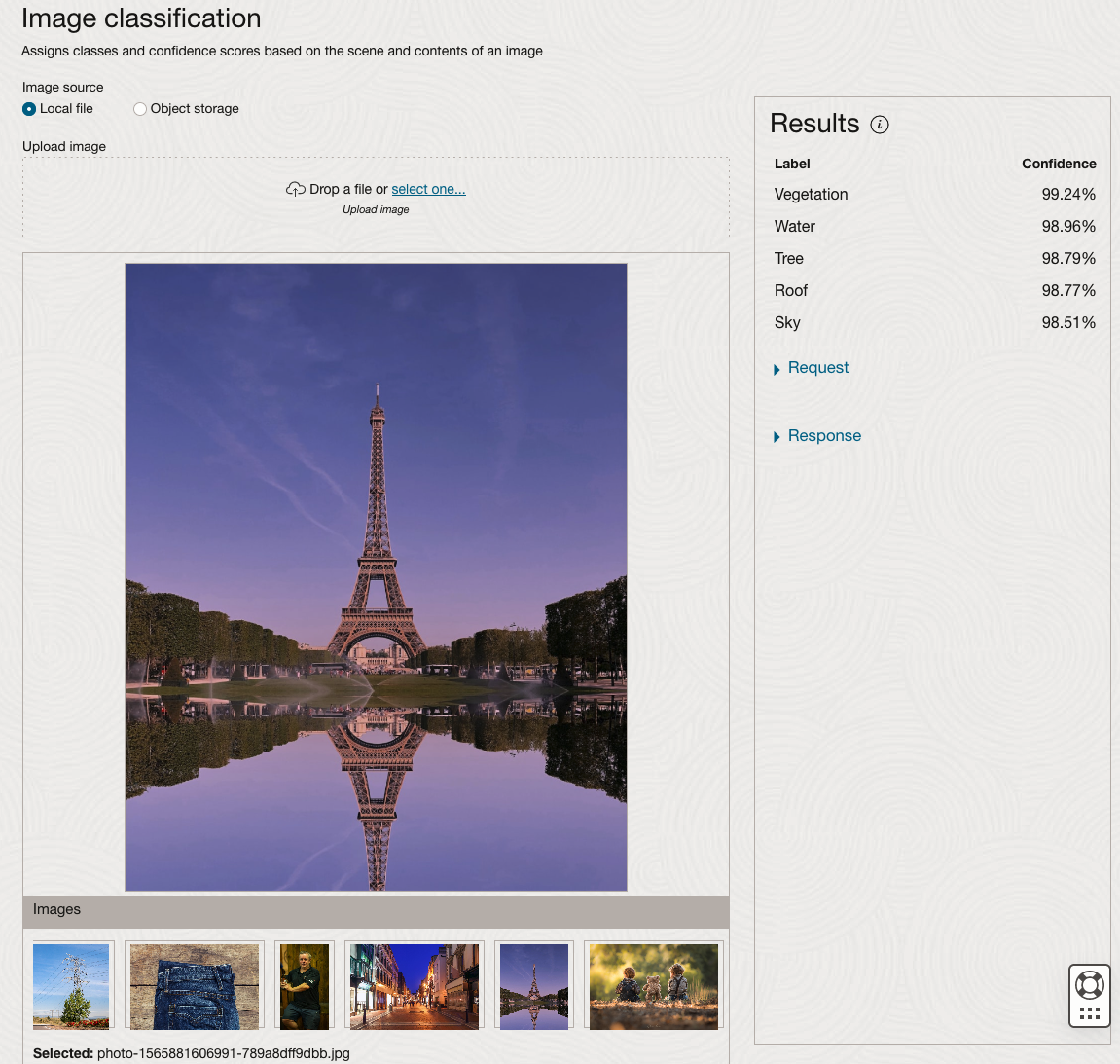
We can see the pre-trained model assigns classes and confidence for each image based on the main components it has identified in the image. For example with the Eiffel Tower image, the model has identified Water, Trees, Sky, Vegetation and Roof (of build). But it didn’t do so well with identifying the main object in the image as being a tower, or building of some form. Where with the streetscape image it was able to identify Street, Road, Building, Sky and Shadow.
Just under the Result section, we see two labels that can be expanded. One of these is the Response which contains JSON structure containing the labels, and confidences it has identified. This is what the pre-trained model returns and if you were to use Python to call this pre-trained model, it is this JSON object that you will get returned. You can then use the information contained in the JSON object to perform additional tasks for the image.
As you can see the webpage for OCI Vision and other AI services gives you a very simple introduction to what is possible, but it over simplifies the task and a lot of work is needed outside of this page to make the use of these pre-trained models useful.
Moving onto the Object Detection feature (left-hand menu) and using the pre-trained model on the same images, we get slightly different results.
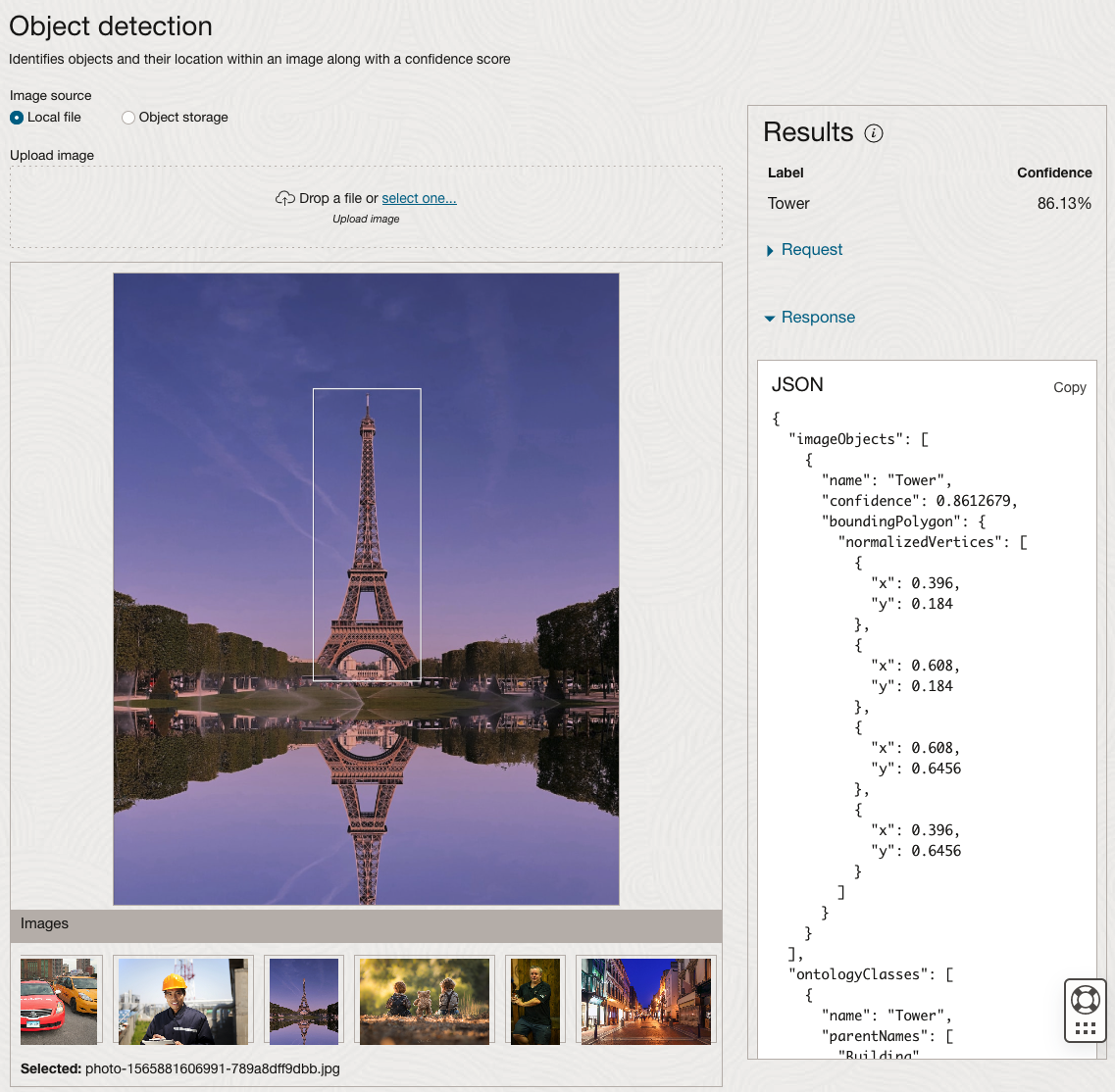
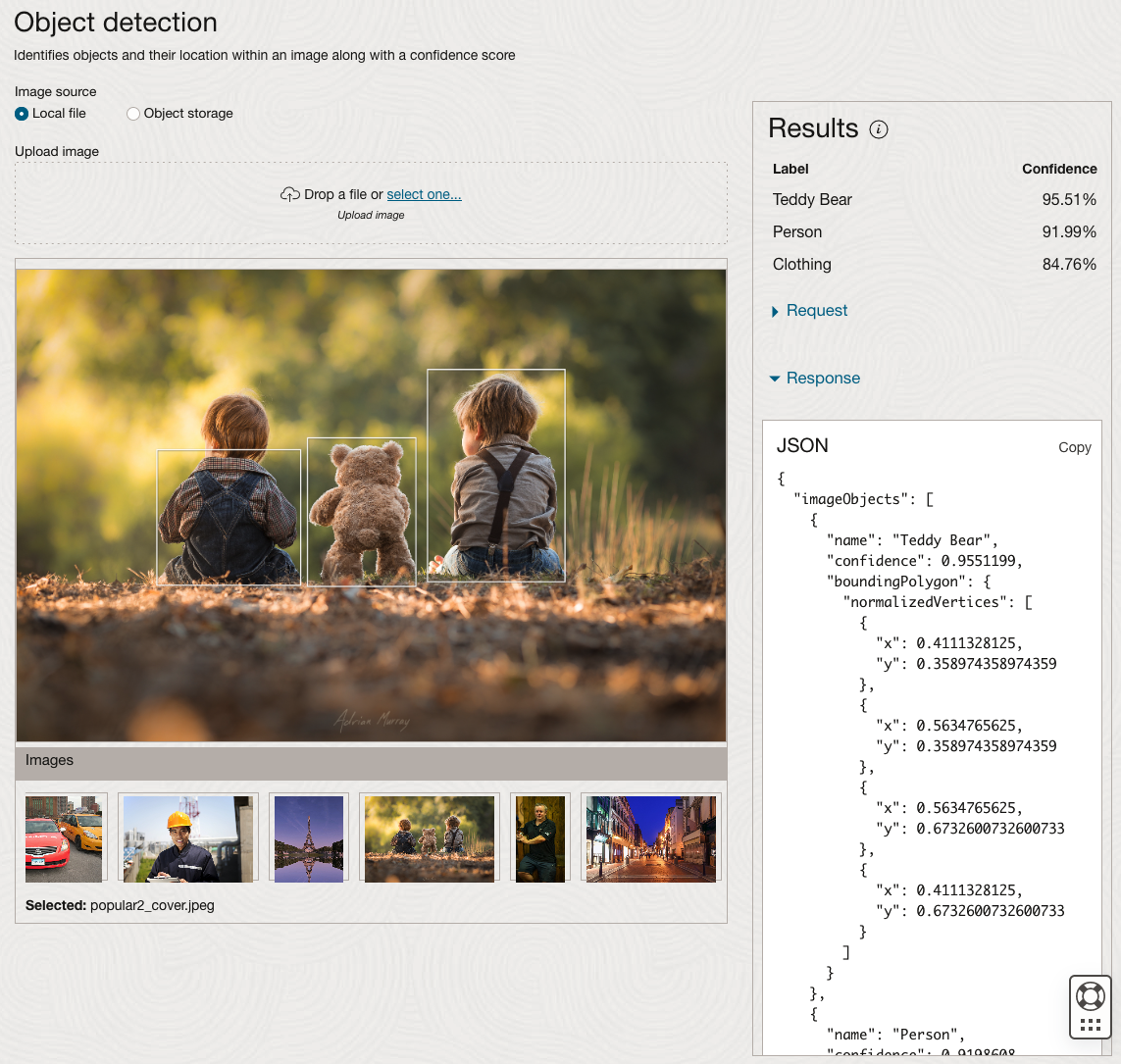
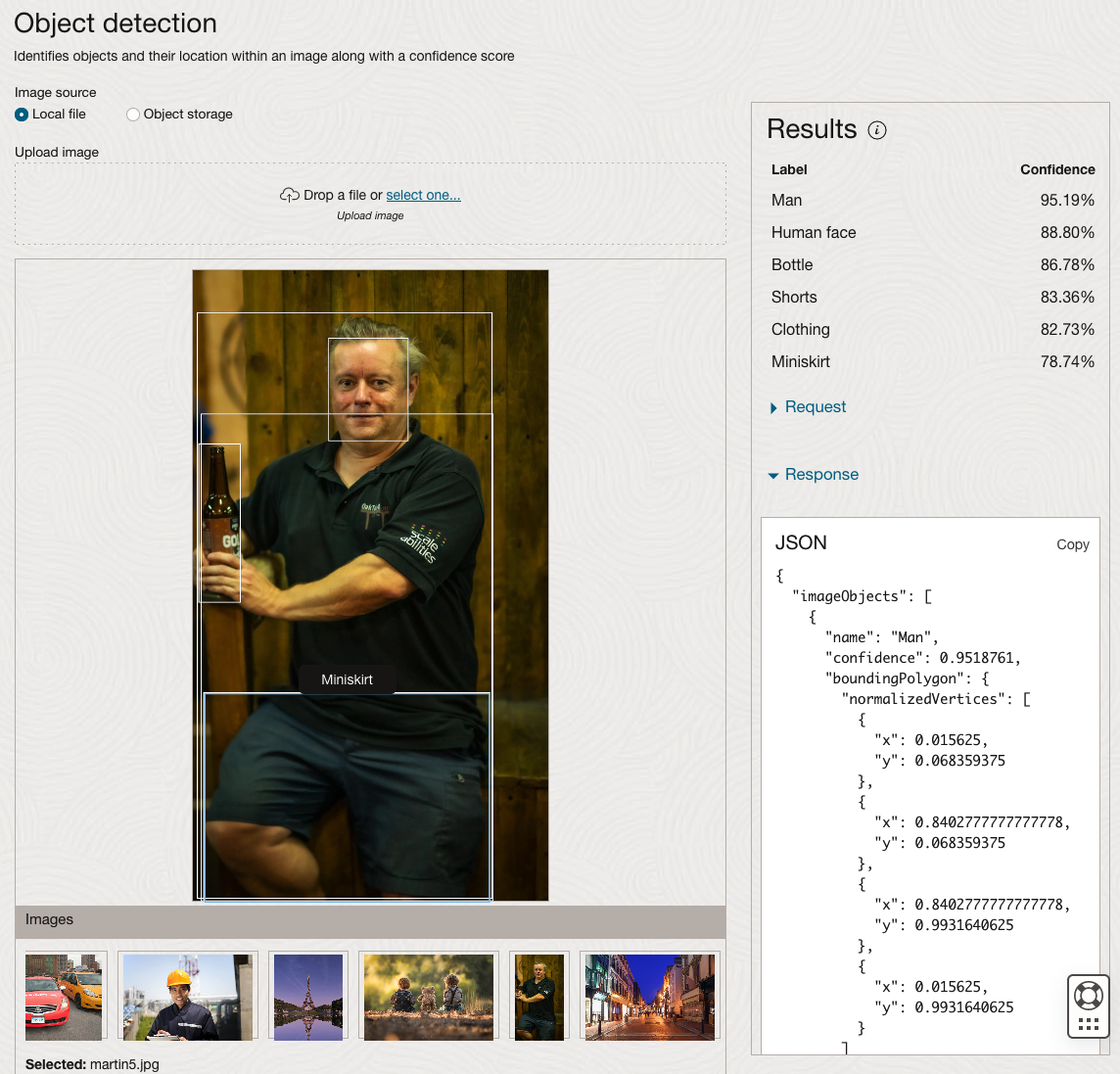
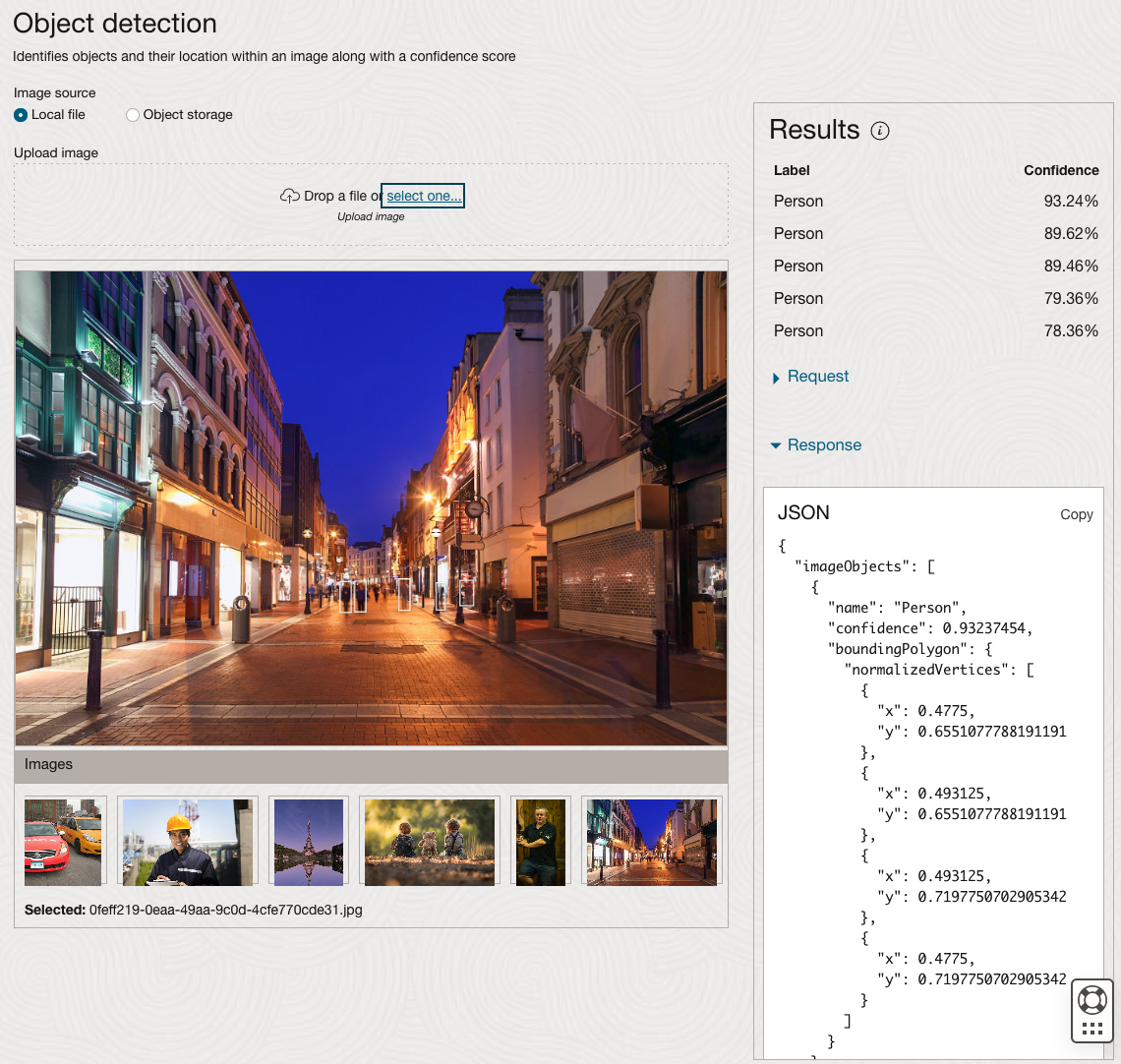
The object detection pre-trained model works differently as it can identify different things in the image. For example, with the Eiffel Tower image, it identifies a Tower in the image. In a similar way to the previous example, the model returns a JSON object with the label and also provides the coordinates for a bounding box for the objects detected. In the street scape image, it has identified five people. You’ll probably identify many more but the model identified five. Have a look at the other images and see what it has identified for each.
As I mentioned above, using these pre-trained models are kind of interesting, but are of limited use and do not really demonstrate the full capabilities of what is possible. Look out of additional post which will demonstrate this and steps needed to create and use your own custom model.
Preparing images for #DeepLearning by removing background
There are a number of methods available for preparing images for input to a variety of purposes. For example, for input to deep learning, other image processing models/applications/systems, etc. But sometimes you just need a quick tool to perform a certain task. An example of this is I regularly have to edit images to extract just a certain part of it, or to filter out all the background colors and/or objects etc. There are a a variety of tools available to help you with this kind of task. For me, I’m a Mac user, so I use the instant alpha feature available in some of the Mac products. But what if you are not a Mac user, what can you use.
I’ve recently come across a very useful Python library that takes all or most of the hard work out of doing such tasks, and has proved to be extremely useful for some demos and projects I’ve been working on. The Python library I’m using is remgb (Remove Background). It isn’t perfect, but it does a pretty good job and only in a small number of modified images, did I need to do some additional processing.
Let’s get started with setting things up to use remgb. I did encounter some minor issues installing it, and I’ve give the workarounds below, just in case you encounter the same.
pip3 install remgbThis will install lots of required libraries and will check for compatibility with what you have installed. The first time I ran the install it generated some errors. It also suggested I update my version of pip, which I did, then uninstalled the remgb library and installed again. No errors this time.
When I ran the code below, I got some errors about accessing a document on google drive or it had reached the maximum number of views/downloads. The file it is trying to access is an onix model. If you click on the link, you can download the file. Create a directory called .u2net (in your home directory) and put the onix file into it. Make sure the directory is readable. After doing that everything runs smoothly for me.
The code I’ve given below is typical of what I’ve been doing on some projects. I have a folder with lots of images where I want to remove the background and only keep the key foreground object. Then save the modified images to another directory. It is these image that can be used in products like Amazon Rekognition, Oracle AI Services, and lots of other similar offerings.
from rembg import remove
from PIL import Image
import os
from colorama import Fore, Back, Style

sourceDir = '/Users/brendan.tierney/Dropbox/4-Datasets/F1-Drivers/'
destDir = '/Users/brendan.tierney/Dropbox/4-Datasets/F1-Drivers-NewImages/'

print('Searching = ', sourceDir)

files = os.listdir(sourceDir)
for file in files:
    try:
        inputFile = sourceDir + file
        outputFile = destDir + file

        with open(inputFile, 'rb') as i:
            print(Fore.BLACK + '..reading file : ', file)
            input = i.read()
            print(Fore.CYAN + '...removing background...')
            output = remove(input)

        try:
            with open(outputFile, 'wb') as o:
                print(Fore.BLUE + '.....writing file : ', outputFile)
                o.write(output)
        except:
            print(Fore.RED + 'Error writing file :', outputFile)

except:
    print(Fore.RED + 'Error processing file :', file)

print(Fore.BLACK + '---')
print(Fore.BLACK + 'Finished processing all files')
print(Fore.BLACK + '---')
For this demonstration I’ve used images of the F1 drivers for 2022. I had collected five images of each driver with different backgrounds including, crowds, pit-lane, giving media interviews, indoor and outdoor images.
Generally the results were very good. Here are some results with the before and after.

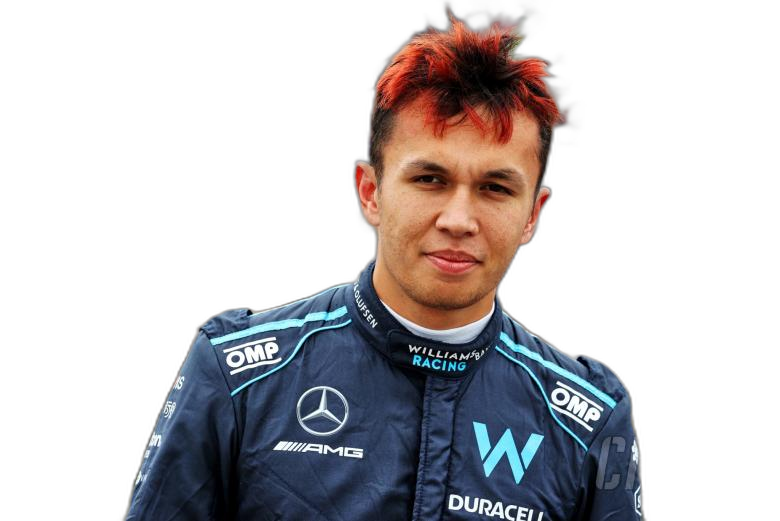







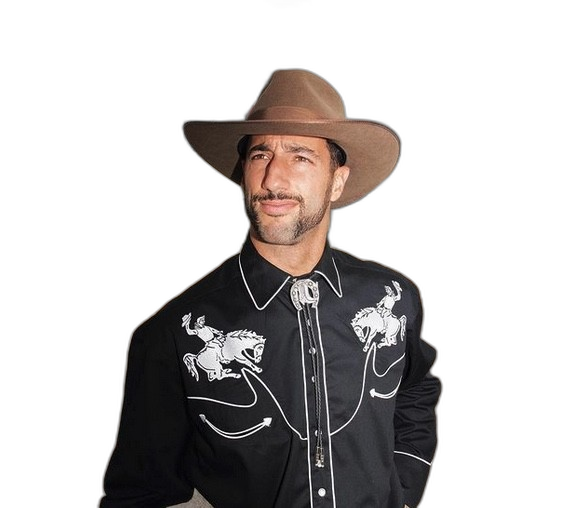

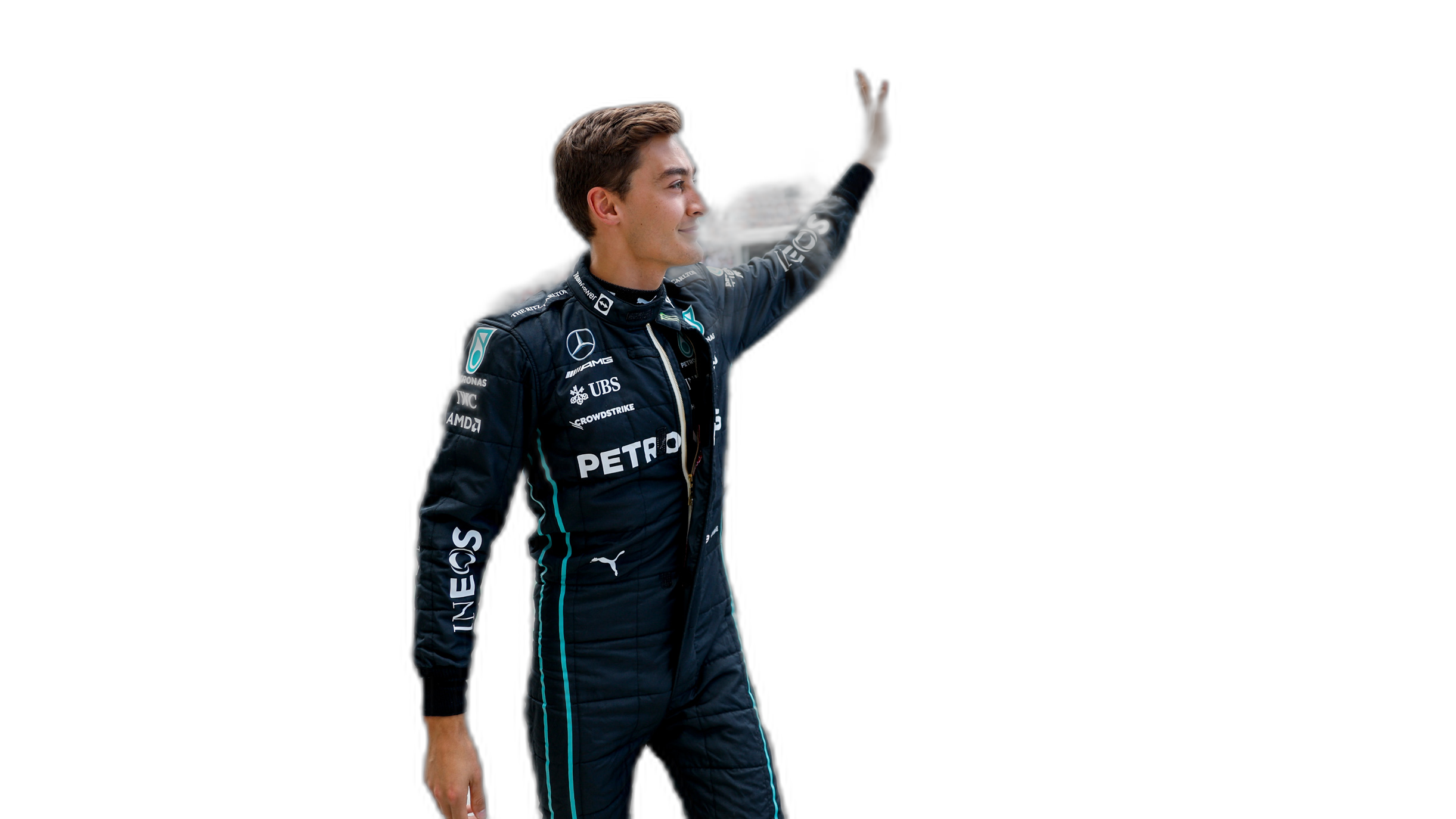
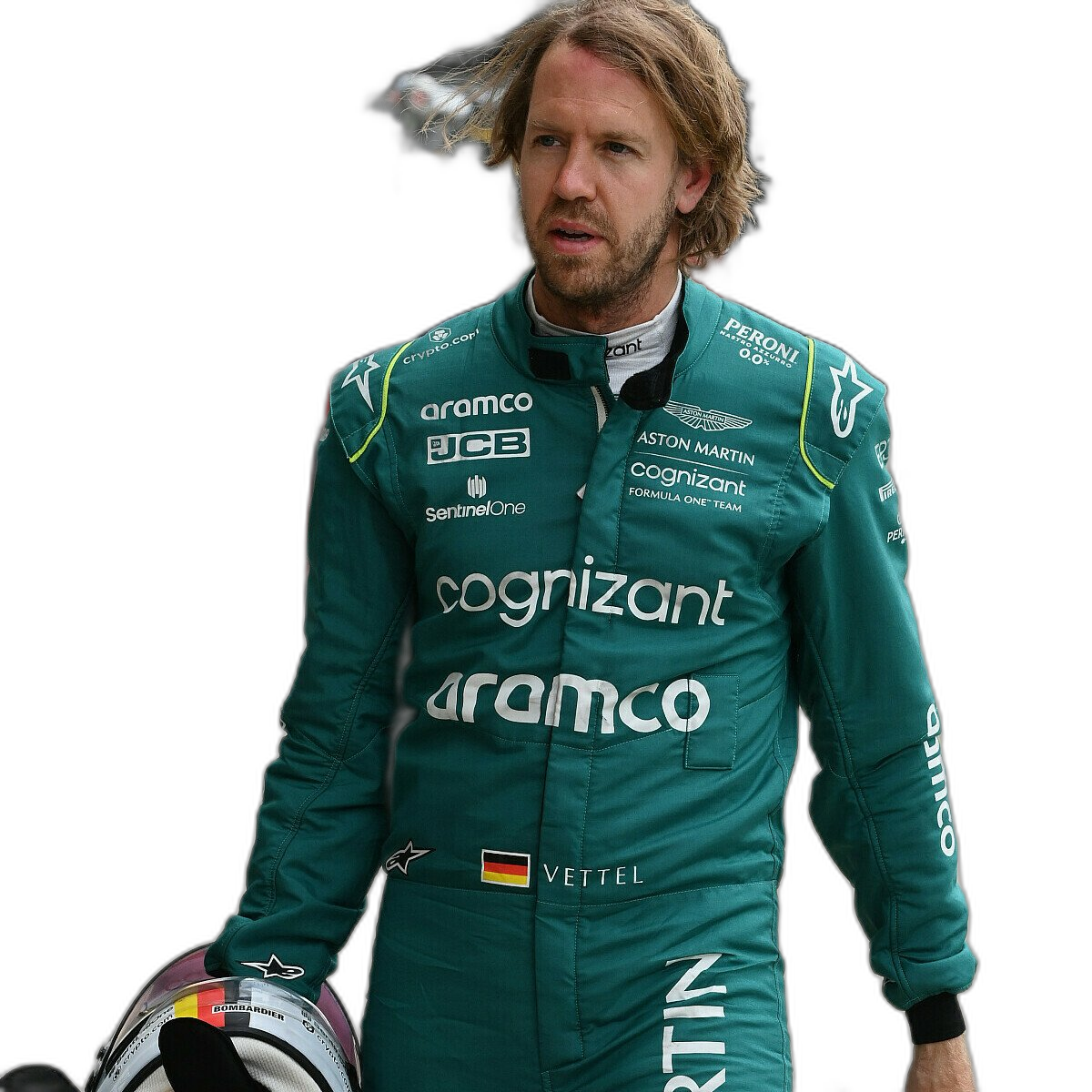
As you can see from these image there are some where a shadow remains and the library wasn’t able to remove it. The following images gives some additional examples of this. The first is with Bottas and his car, where the car wasn’t removed. The second driver is Vettel where the library captures his long hair and keeps it in the filtered image.



 Ora-lytics
You must be logged in to post a comment.