
LLM
Using Annotations to Improve Responses from SelectAI
In my previous posts on using SelectAI, I illustrated how adding metadata to your tables and columns can improve the SQL generated by the LLMs. Some of the results from those where a bit questionable. Going forward (from 23.9 onwards, although it might get backported), it appears that we need to add additional metadata to obtain better responses from the LLMs, by way of Annotations. Check out my previous posts on SelectAI at post-1, post-2, post-3, post-4, post-5.
Let’s have a look at how to add Annotations to support SelectAI with generating better responses.
NB: Support for additional LLMs is constantly being updated. Check out the current list here.
The following is an example from my previous post on adding table and column comments.
CREATE TABLE TABLE1(
c1  NUMBER(2) not null primary key,
c2  VARCHAR2(50) not null,
c3  VARCHAR2(50) not null);

COMMENT ON TABLE table1 IS 'Department table. Contains details of each Department including Department Number, Department Name and Location for the Department';

COMMENT ON COLUMN table1.c1 IS 'Department Number. Primary Key. Unique. Used to join to other tables';
COMMENT ON COLUMN table1.c1 IS 'Department Name. Name of department. Description of function';
COMMENT ON COLUMN table1.c3 IS 'Department Location. City where the department is located';

-- create the EMP table as  TABLE2
CREATE TABLE TABLE2(
c1  NUMBER(4) not null primary key,
c2  VARCHAR2(50) not null,
c3  VARCHAR2(50) not null,
c4  NUMBER(4),
c5  DATE,
c6  NUMBER(10,2),
c7  NUMBER(10,2),
c8  NUMBER(2) not null);

COMMENT ON TABLE table2 IS 'Employee table. Contains details of each Employee. Employees';

COMMENT ON COLUMN table2.c1 IS 'Employee Number. Primary Key. Unique. How each employee is idendifed';
COMMENT ON COLUMN table2.c1 IS 'Employee Name. Name of each Employee';
COMMENT ON COLUMN table2.c3 IS 'Employee Job Title. Job Role. Current Position';
COMMENT ON COLUMN table2.c4 IS 'Manager for Employee. Manager Responsible. Who the Employee reports to';
COMMENT ON COLUMN table2.c5 IS 'Hire Date. Date the employee started in role. Commencement Date';
COMMENT ON COLUMN table2.c6 IS 'Salary. How much the employee is paid each month. Dollars';
COMMENT ON COLUMN table2.c7 IS 'Commission. How much the employee can earn each month in commission. This is extra on top of salary';
COMMENT ON COLUMN table2.c8 IS 'Department Number. Foreign Key. Join to Department Table';
Annotations is a way of adding additional metadata for a database object. The Annotation is in the form of a <key, value>, which are both freeform text. The database object can have multiple Annotations.
ANNOTATIONS ([ADD|DROP] annotation_name [ annotation_value ] [ , annotation_name [ annotation_value ]... )For example, using Table 1 from about, which represents DEPT, we could add the following:
CREATE TABLE TABLE1(
...
c3  VARCHAR2(50) not null)
annotations (display 'departments');
We can also add annotations are column level.
CREATE TABLE TABLE1(
c1  NUMBER(2) not null primary key ANNOTATION(key 'Department Number'),
c2  VARCHAR2(50) not null ANNOTATION(display 'Department Name. Name of department. Description of function'),
c3  VARCHAR2(50) not null) ANNOTATION(display 'Department Location. City where the department is located');
At some point, only the Annotations will be passed to the LLMs, so in the meantime, you’ll need to consider the addition of Comments and Annotations.
Annotations have their own data dictionary views called USER_ANNOTATIONS, USER_ANNOTATIONS_USAGE.
Some care is needed to ensure consistency of Annotation definitions used across all database objects.
BOCAS – using OCI GenAI Agent and Stremlit
BOCAS stands for Brendan’s Oracle Chatbot Agent for Shakespeare. I’ve previously posted on how to go about creating a GenAI Agent on a specific data set. In this post, I’ll share code on how I did this using Python Streamlit.
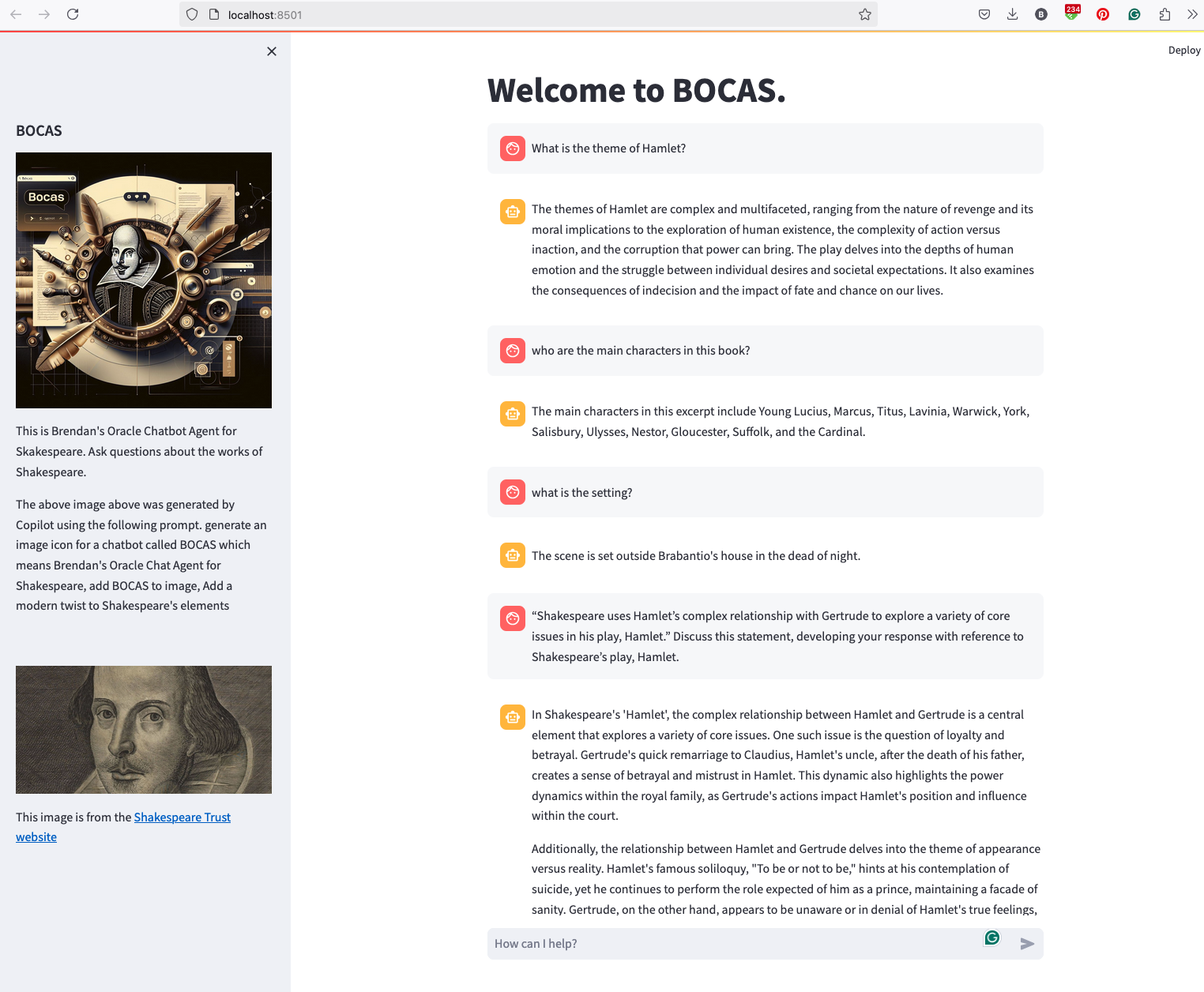
And here’s the code
import streamlit as st
import time
import oci
from oci import generative_ai_agent_runtime
import json


# Page Title
welcome_msg = "Welcome to BOCAS."
welcome_msg2 = "This is Brendan's Oracle Chatbot Agent for Skakespeare. Ask questions about the works of Shakespeare."
st.title(welcome_msg)

# Sidebar Image
st.sidebar.header("BOCAS")
st.sidebar.image("bocas-3.jpg", use_column_width=True)
#with st.sidebar:
#    with st.echo:
#        st.write(welcome_msg2)
st.sidebar.markdown(welcome_msg2)
st.sidebar.markdown("The above image above was generated by Copilot using the following prompt.  generate an image icon for a chatbot called BOCAS which means Brendan's Oracle Chat Agent for Shakespeare, add BOCAS to image, Add a modern twist to Shakespeare's elements")

st.sidebar.write("")
st.sidebar.write("")
st.sidebar.write("")
st.sidebar.image("https://media.shakespeare.org.uk/images/SBT_SR_OS_37_Shakespeare_Firs.ec42f390.fill-1200x600-c75.jpg")
link="This image is from the [Shakespeare Trust website](https://media.shakespeare.org.uk/images/SBT_SR_OS_37_Shakespeare_Firs.ec42f390.fill-1200x600-c75.jpg)"
st.sidebar.write(link,unsafe_allow_html=True)

# OCI GenAI settings
CONFIG_PROFILE = "DEFAULT"
config = oci.config.from_file('~/.oci/config', CONFIG_PROFILE)
###
SERVICE_EP = <your service endpoint>
AGENT_EP_ID = <your agent endpoint>
###

# Response Generator
def response_generator(text_input):
    #Initiate AI Agent runtime client
    genai_agent_runtime_client = generative_ai_agent_runtime.GenerativeAiAgentRuntimeClient(config, service_endpoint=SERVICE_EP, retry_strategy=oci.retry.NoneRetryStrategy())

    create_session_details = generative_ai_agent_runtime.models.CreateSessionDetails()
    create_session_details.display_name = "Welcome to BOCAS"
    create_session_details.idle_timeout_in_seconds = 20
    create_session_details.description = welcome_msg

    create_session_response = genai_agent_runtime_client.create_session(create_session_details, AGENT_EP_ID)

    #Define Chat details and input message/question
    session_details = generative_ai_agent_runtime.models.ChatDetails()
    session_details.session_id = create_session_response.data.id
    session_details.should_stream = False
    session_details.user_message = text_input

    #Get AI Agent Respose
    session_response = genai_agent_runtime_client.chat(agent_endpoint_id=AGENT_EP_ID, chat_details=session_details)

    #print(str(response.data))
    response = session_response.data.message.content.text
    return response

# Initialize chat history
if "messages" not in st.session_state:
    st.session_state.messages = []

# Display chat messages from history on app rerun
for message in st.session_state.messages:
    with st.chat_message(message["role"]):
        st.markdown(message["content"])

# Accept user input
if prompt := st.chat_input("How can I help?"):
    # Add user message to chat history
    st.session_state.messages.append({"role": "user", "content": prompt})
    # Display user message in chat message container
    with st.chat_message("user"):
        st.markdown(prompt)

    # Display assistant response in chat message container
    with st.chat_message("assistant"):
        response = response_generator(prompt)
        write_response = st.write(response)
        st.session_state.messages.append({"role": "ai", "content": response})
# Add assistant response to chat historyCalling Custom OCI Gen AI Agent using Python
In a previous post, I demonstrated how to create a custom Generative AI Agent on OCI. This GenAI Agent was built using some of Shakespeare’s works. Using the OCI GenAI Agent interface is an easy way to test the Agent and to see how it behaves. Beyond that, it doesn’t have any use as you’ll need to call it using some other language or tool. The most common of these is using Python.
The code below calls my GenAI Agent, which I’ve called BOCAS (Brendan’s Oracle Chat Agent for Shakespeare).
import oci
from oci import generative_ai_agent_runtime
import json
from colorama import Fore, Back, Style


CONFIG_PROFILE = "DEFAULT"
config = oci.config.from_file('~/.oci/config', CONFIG_PROFILE)

#AI Agent service endpoint
SERVICE_EP = <add your Service Endpoint>
AGENT_EP_ID = <add your GenAI Agent Endpoint>

welcome_msg = "This is Brendan's Oracle Chatbot Agent for Shakespeare. Ask questions about the works of Shakespeare."

def gen_Agent_Client():
    #Initiate AI Agent runtime client
    genai_agent_runtime_client = generative_ai_agent_runtime.GenerativeAiAgentRuntimeClient(config, service_endpoint=SERVICE_EP, retry_strategy=oci.retry.NoneRetryStrategy())

    create_session_details = generative_ai_agent_runtime.models.CreateSessionDetails()
    create_session_details.display_name = "Welcome to BOCAS"
    create_session_details.idle_timeout_in_seconds = 20
    create_session_details.description = welcome_msg

    return create_session_details, genai_agent_runtime_client

def Quest_Answer(user_question, create_session_details, genai_agent_runtime_client):
    #Create a Chat Session for AI Agent
    try:
        create_session_response = genai_agent_runtime_client.create_session(create_session_details, AGENT_EP_ID)
    except:
        create_session_details, genai_agent_runtime_client = gen_Agent_Client()
        create_session_response = genai_agent_runtime_client.create_session(create_session_details, AGENT_EP_ID)

    #Define Chat details and input message/question
    session_details = generative_ai_agent_runtime.models.ChatDetails()
    session_details.session_id = create_session_response.data.id
    session_details.should_stream = False
    session_details.user_message = user_question

    #Get AI Agent Respose
    session_response = genai_agent_runtime_client.chat(agent_endpoint_id=AGENT_EP_ID, chat_details=session_details)
    return session_response

print(Style.BRIGHT + Fore.RED + welcome_msg + Style.RESET_ALL)

ses_details, genai_client = gen_Agent_Client()

while True:
    question = input("Enter text (or Enter to quit): ")
    if not question:
        break
    chat_response = Quest_Answer(question, ses_details, genai_client)
    print(Style.DIM +'********** Question for BOCAS **********')
    print(Style.BRIGHT + Fore.RED + question + Style.RESET_ALL)
    print(Style.DIM + '********** Answer from BOCAS **********' + Style.RESET_ALL)
    print(Fore.MAGENTA + chat_response.data.message.content.text + Style.RESET_ALL)

print("*** The End - Exiting BOCAS ***")
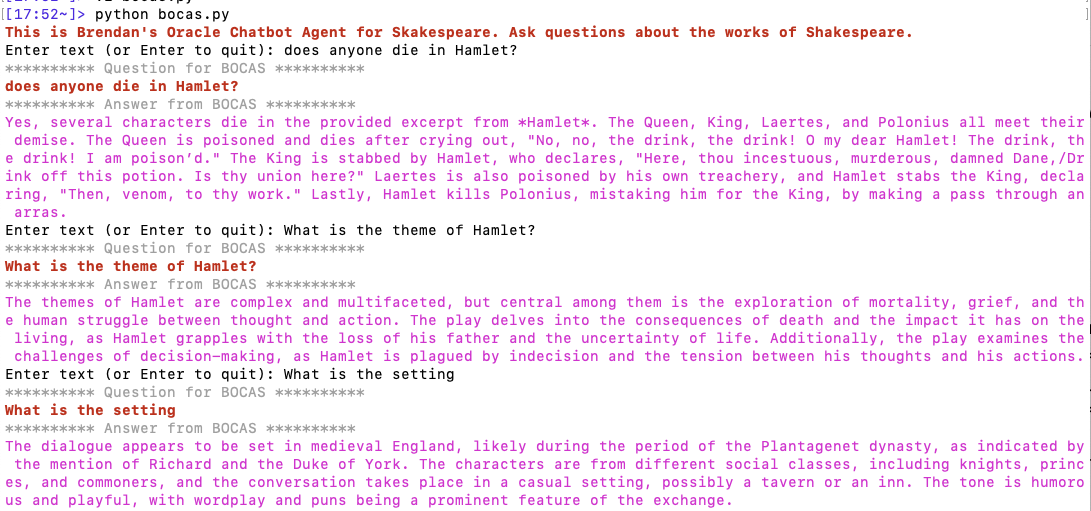
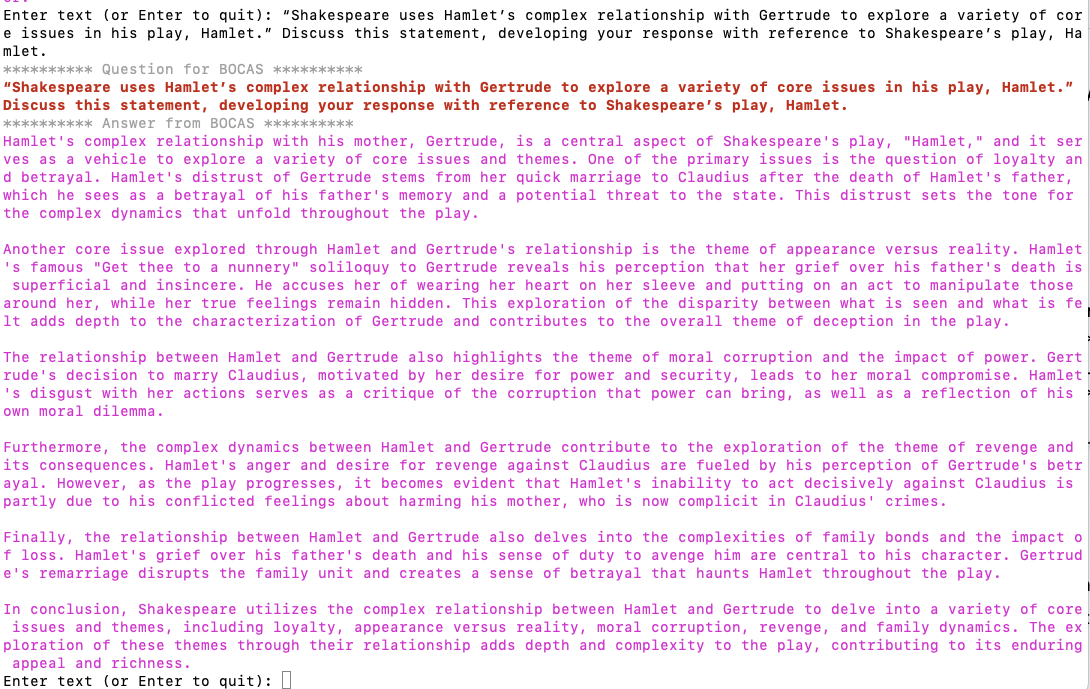
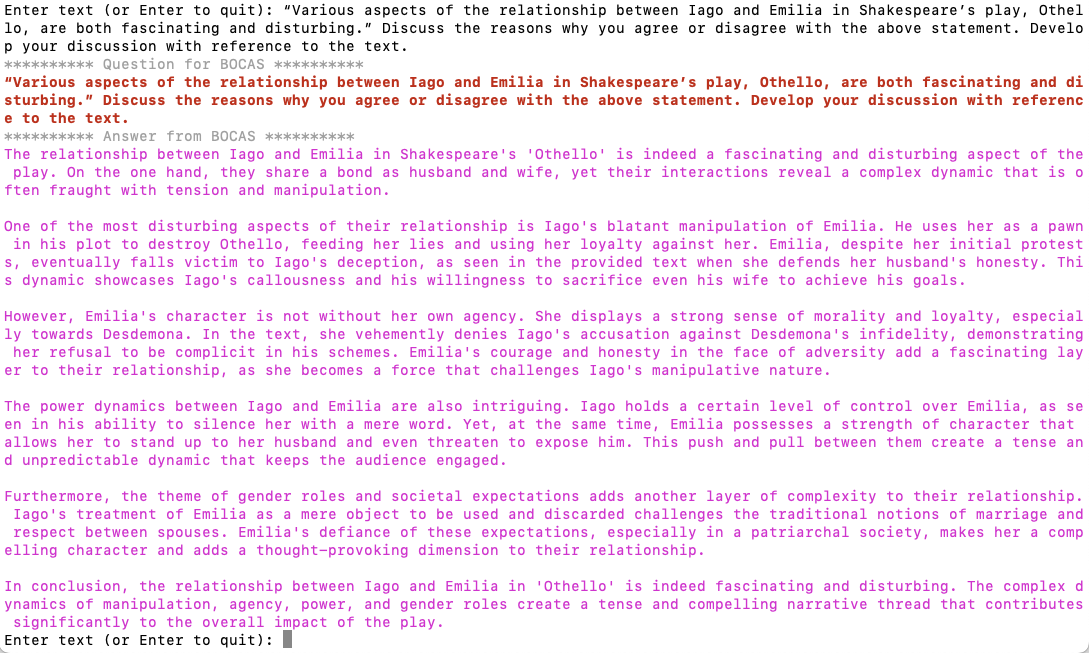
When the above code is run, it will loop, asking for questions, until no question is added and the ‘Enter’ key is pressed. Here is the output of the BOCAS running for some of the questions I asked in my previous post, along with a few others. These questions are based on the Irish Leaving Certificate English Examination.
OCI Gen AI – How to call using Python
Oracle OCI has some Generative AI features, one of which is a Playground allowing you to play or experiment with using several of the Cohere models. The Playground includes Chat, Generation, Summarization and Embedding.
OCI Generative AI services are only available in a few Cloud Regions. You can check the available regions in the documentation. A simple way to check if it is available in your cloud account is to go to the menu and see if it is listed in the Analytics & AI section.

When the webpage opens you can select the Playground from the main page or select one of the options from the menu on the right-hand-side of the page. The following image shows this menu and in this image, I’ve selected the Chat option.

You can enter your questions into the chat box at the bottom of the screen. In the image, I’ve used the following text to generate a Retirement email.
A university professor has decided to retire early. write and email to faculty management and HR of his decision. The job has become very stressful and without proper supports I cannot continue in the role. write me an email for this
Using this playground is useful for trying things out and to see what works and doesn’t work for you. When you are ready to use or deploy such a Generative AI solution, you’ll need to do so using some other coding environment. If you look toward the top right hand corner of this playground page, you’ll see a ‘View code’ button. When you click on this Code will be generated for you in Java and Python. You can copy and paste this to any environment and quickly have a Chatbot up and running in few minutes. I was going to say a few second but you do need to setup a .config file to setup a secure connection to your OCI account. Here is a blog post I wrote about setting this up.
Here is a copy of that Python code with some minor edits, 1) to remove my Compartment ID, 2) I’ve added some message requests. You can comment/uncomment as you like or add something new.
import oci

# Setup basic variables
# Auth Config
# TODO: Please update config profile name and use the compartmentId that has policies grant permissions for using Generative AI Service
compartment_id =  <add your Compartment ID>
CONFIG_PROFILE = "DEFAULT"
config = oci.config.from_file('~/.oci/config', CONFIG_PROFILE)

# Service endpoint
endpoint = "https://inference.generativeai.us-chicago-1.oci.oraclecloud.com"

generative_ai_inference_client = oci.generative_ai_inference.GenerativeAiInferenceClient(config=config, service_endpoint=endpoint, retry_strategy=oci.retry.NoneRetryStrategy(), timeout=(10,240))
chat_detail = oci.generative_ai_inference.models.ChatDetails()

chat_request = oci.generative_ai_inference.models.CohereChatRequest()
#chat_request.message = "Tell me what you can do?"
#chat_request.message = "How does GenAI work?"
chat_request.message = "What's the weather like today where I live?"
chat_request.message = "Could you look it up for me?"
chat_request.message = "Will Elon Musk buy OpenAI?"
chat_request.message = "Tell me about Stargate Project and how it will work?"
chat_request.message = "What is the most recent date your model is built on?"


chat_request.max_tokens = 600
chat_request.temperature = 1
chat_request.frequency_penalty = 0
chat_request.top_p = 0.75
chat_request.top_k = 0
chat_request.seed = None


chat_detail.serving_mode = oci.generative_ai_inference.models.OnDemandServingMode(model_id="ocid1.generativeaimodel.oc1.us-chicago-1.amaaaaaask7dceyanrlpnq5ybfu5hnzarg7jomak3q6kyhkzjsl4qj24fyoq")
chat_detail.chat_request = chat_request
chat_detail.compartment_id = compartment_id
chat_response = generative_ai_inference_client.chat(chat_detail)
# Print result
print("**************************Chat Result**************************")
print(vars(chat_response))
When I run the above code I get the following output.
NB: If you have the OCI Python package already installed you might need to update it to the most recent version
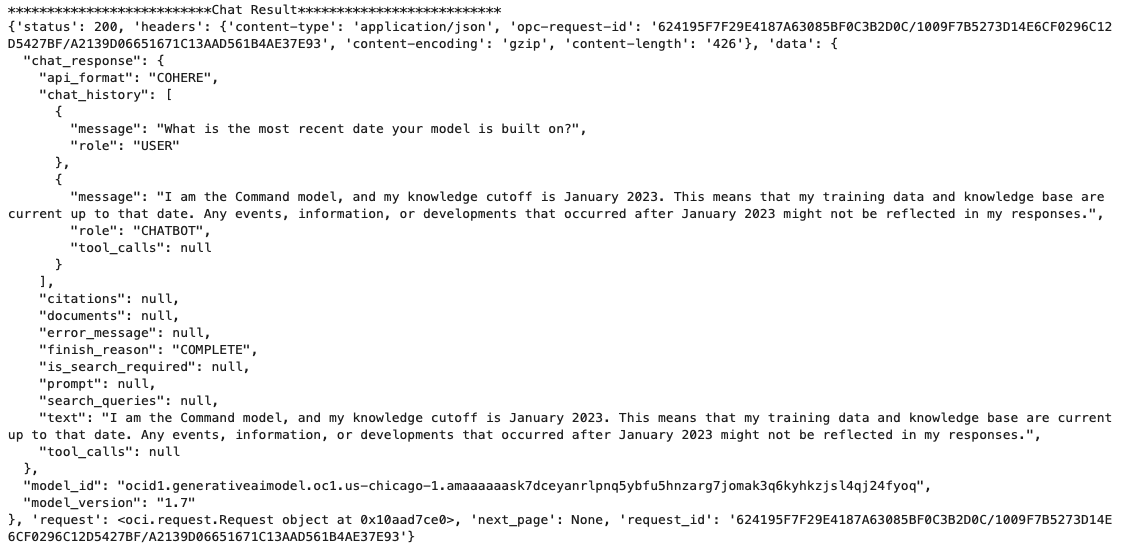
You can see there is a lot generated and returned in the response. We can tidy this up a little using the following and only display the response message.
import json
# Convert JSON output to a dictionary
data = chat_response.__dict__["data"]
output = json.loads(str(data))

# Print the output
print("---Message Returned by LLM---")
print(output["chat_response"]["chat_history"][1]["message"])
That’s it. Give it a try and see how you can build it into your applications.
Using a Gen AI Agent to answer Leaving Certificate English papers
In a previous post, I walked through the steps needed to create a Gen AI Agent on a data set of documents containing the works of Shakespeare. In this post, I’ll look at how this Gen AI Agent can be used to answer questions from the Irish Leaving Certificate Higher Level English examination papers from the past few years.
For this evaluation, I will start with some basic questions before moving on to questions from the Higher Level English examination from 2022, 2023 and 2024. I’ve pasted the output generated below from chatting with the AI Agent.
The main texts we will examine will be Othello, McBeth and Hamlett. Let’s start with some basic questions about Hamlet.
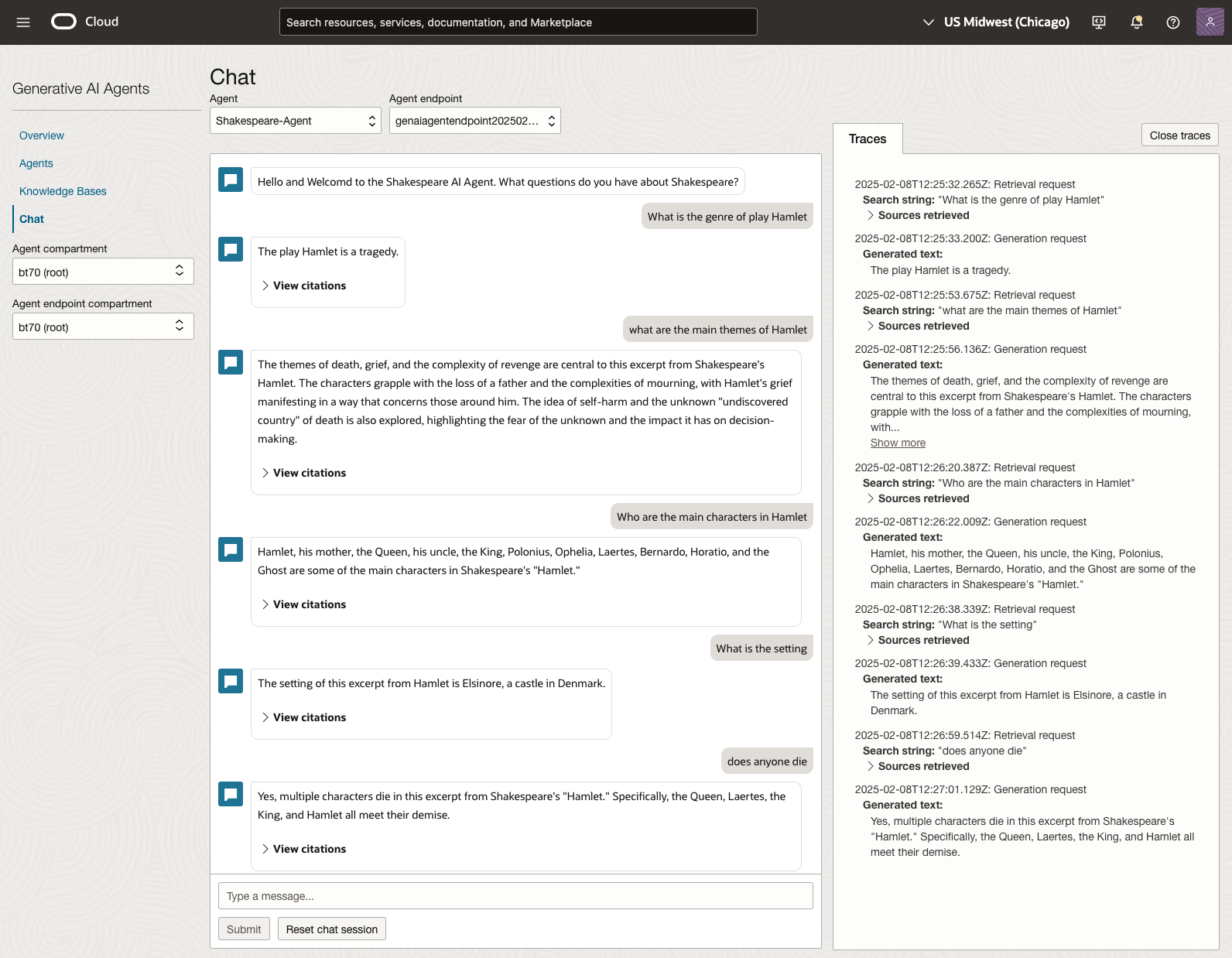
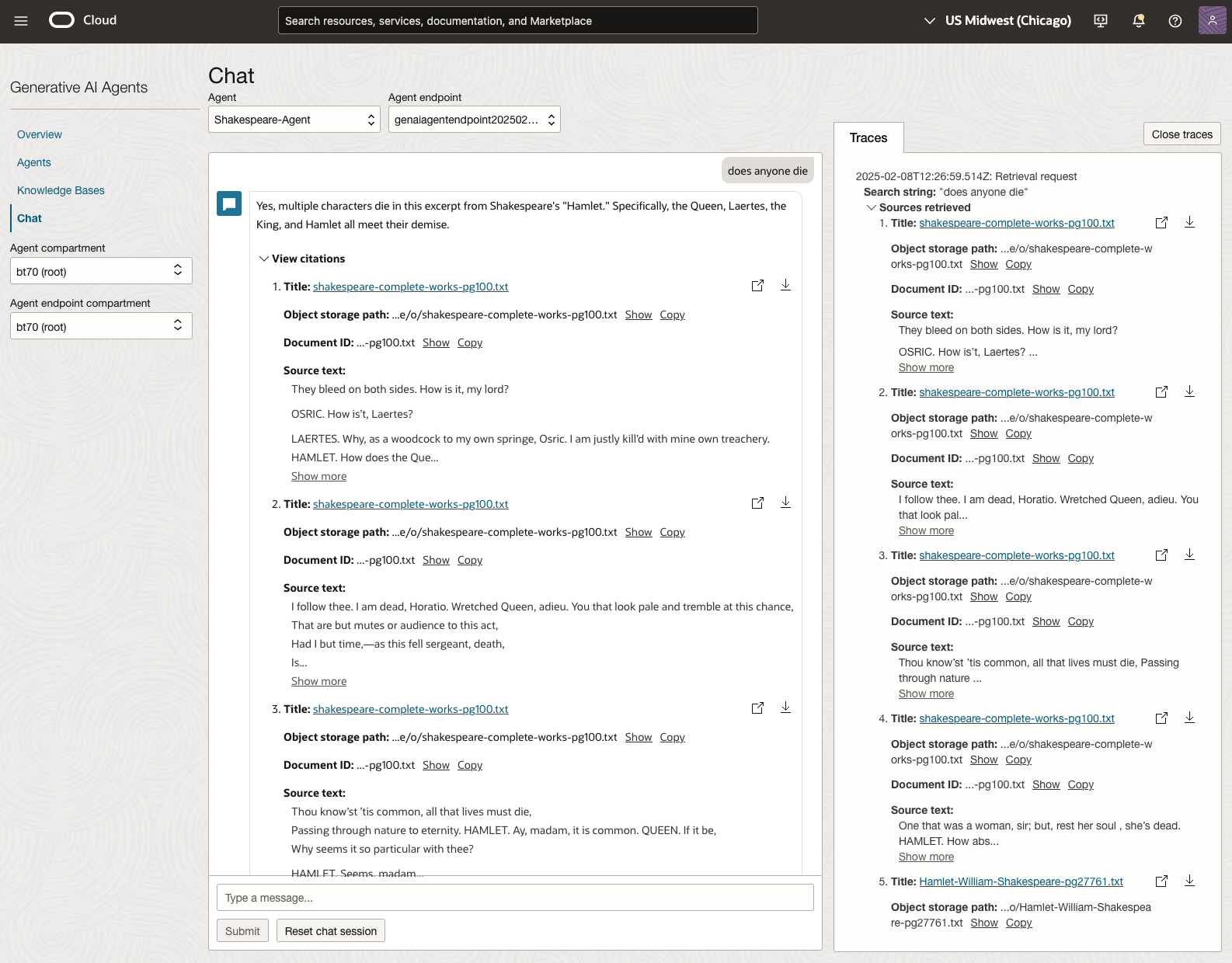
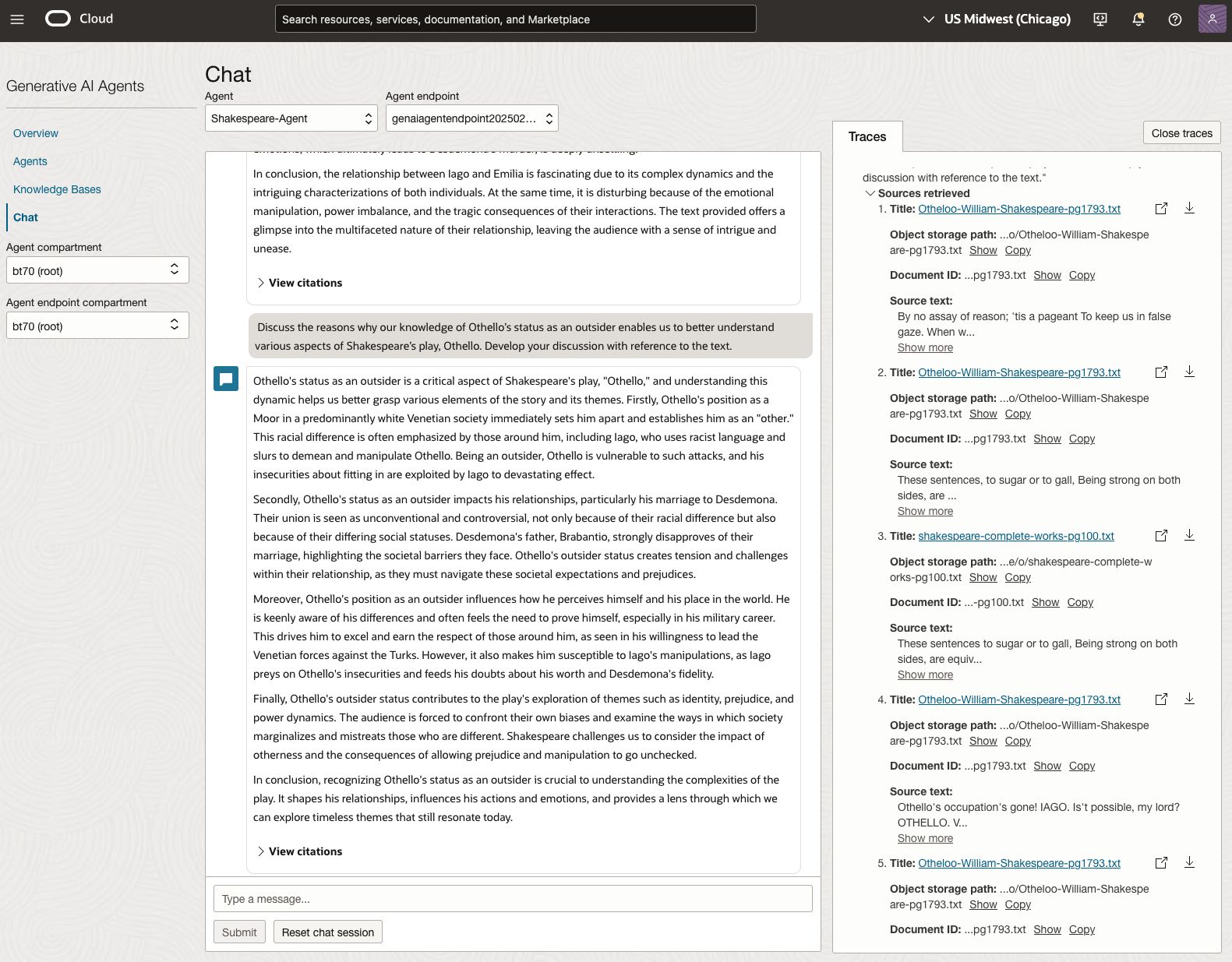
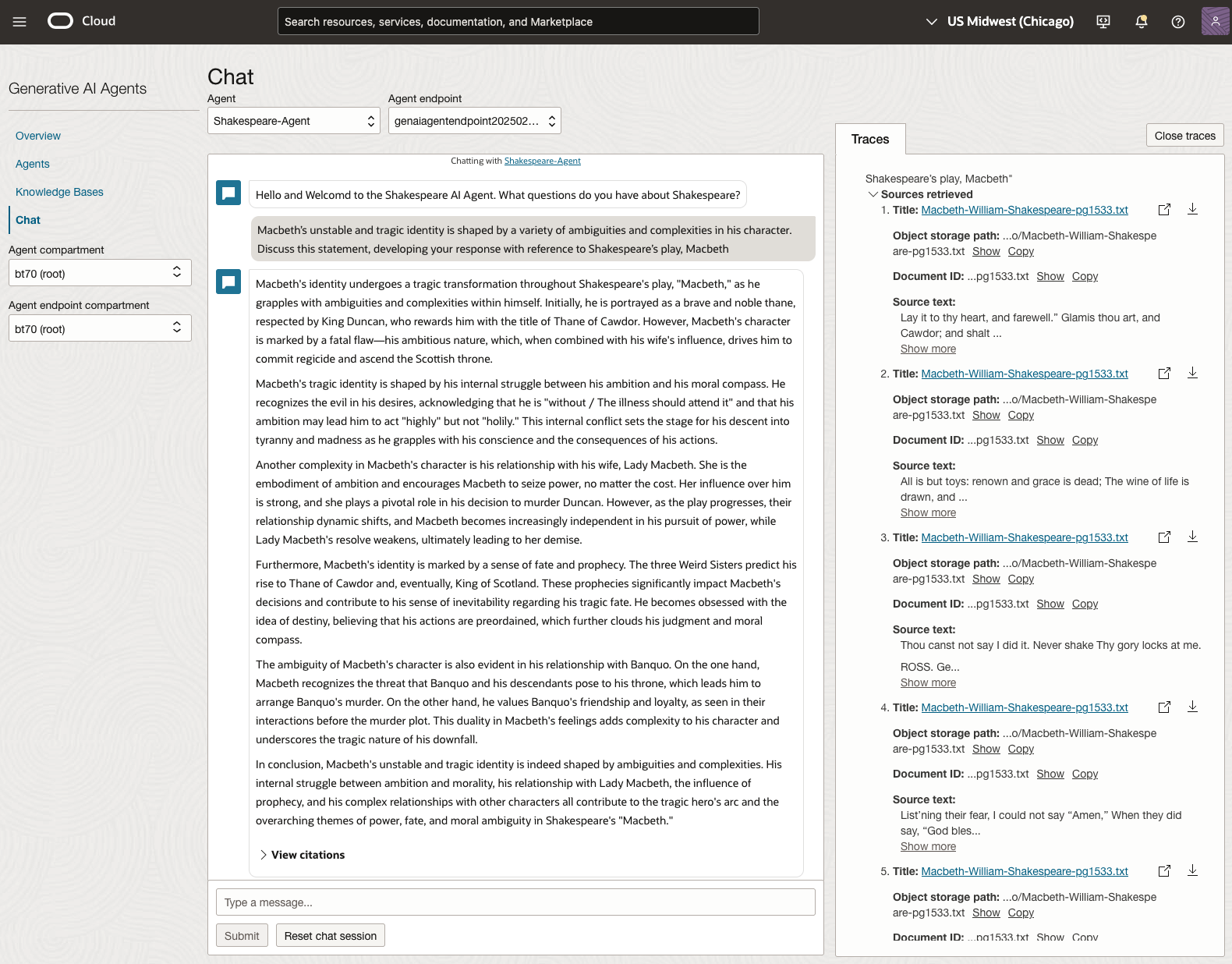
We can look at the sources used by the AI Agent to generate their answer, by clicking on View citations or Sources retrieved on the right-hand side panel.
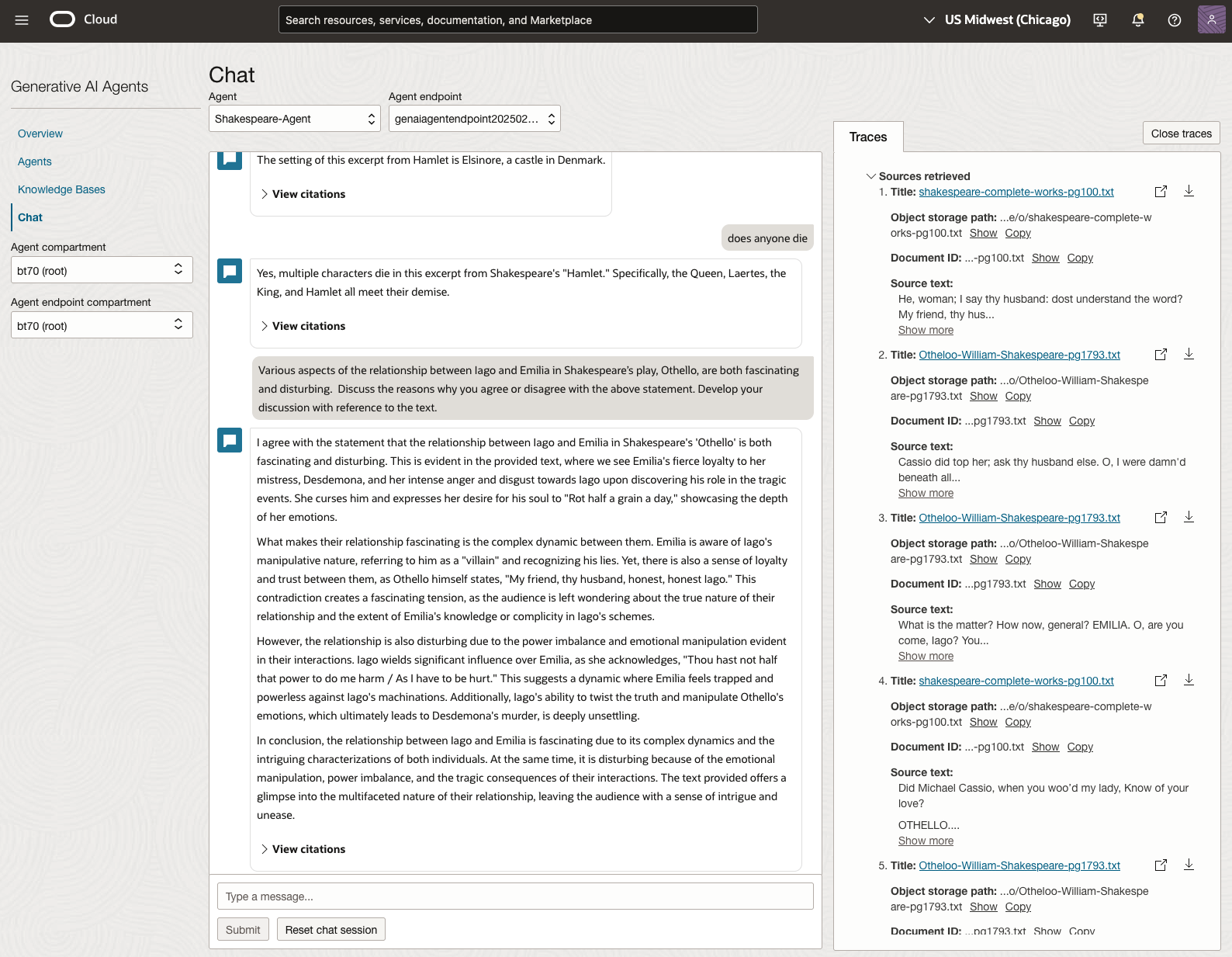
Let’s have a look at the 2022 English examination question on Othello. Students typically have the option of answering one out of two questions.
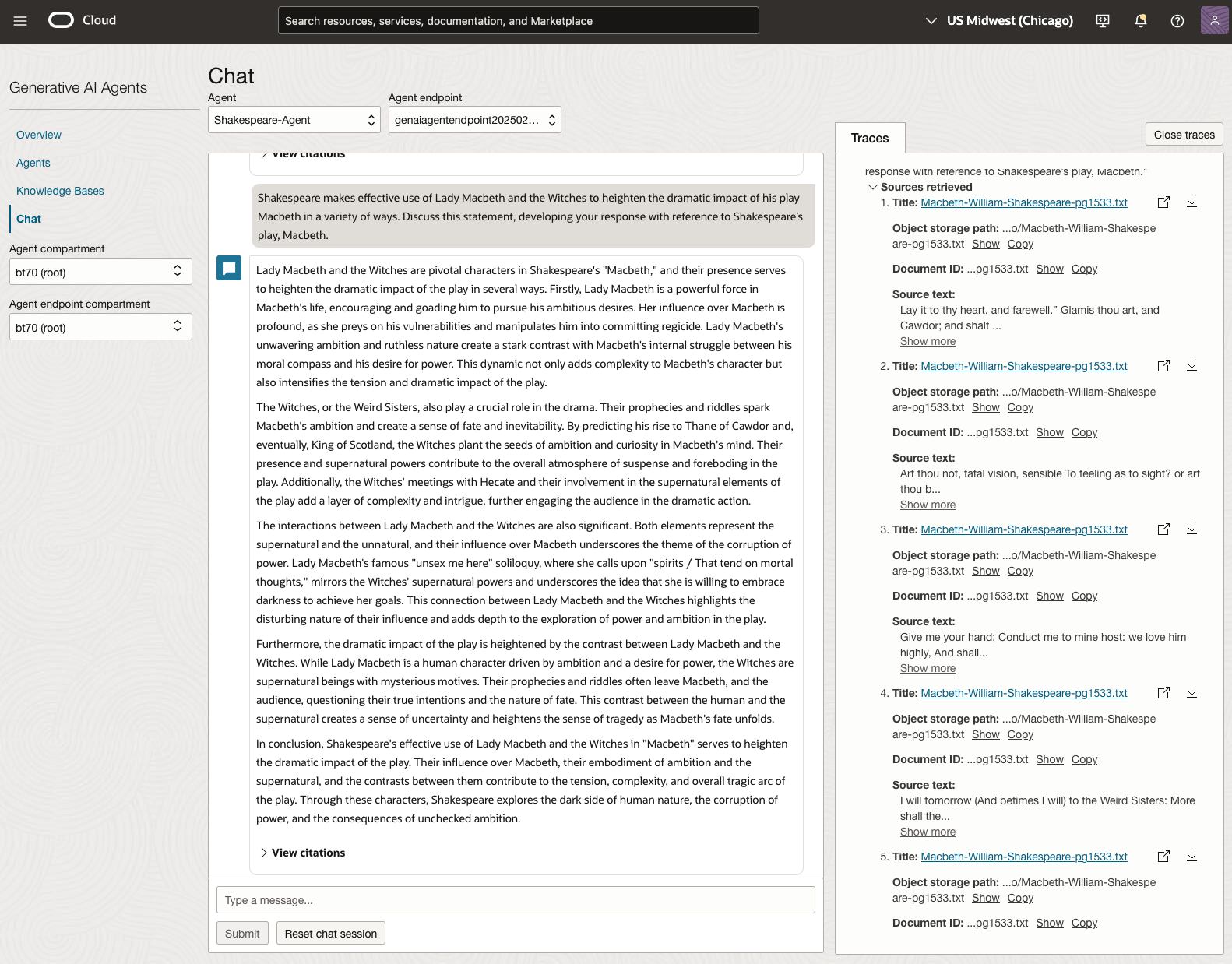
In 2023, the Shakespeare text was McBeth.
In 2024, the Shakespeare text was Hamlet.
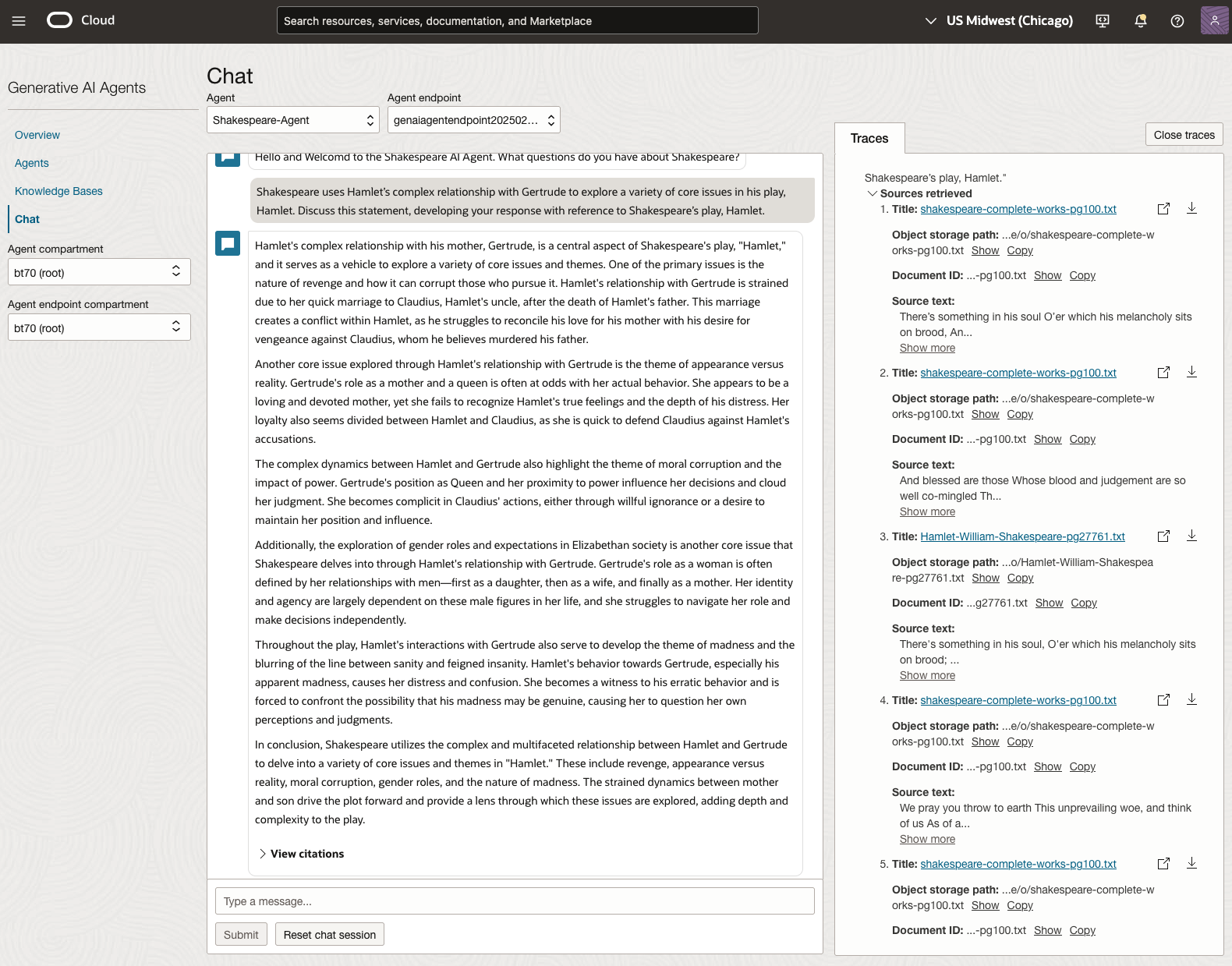
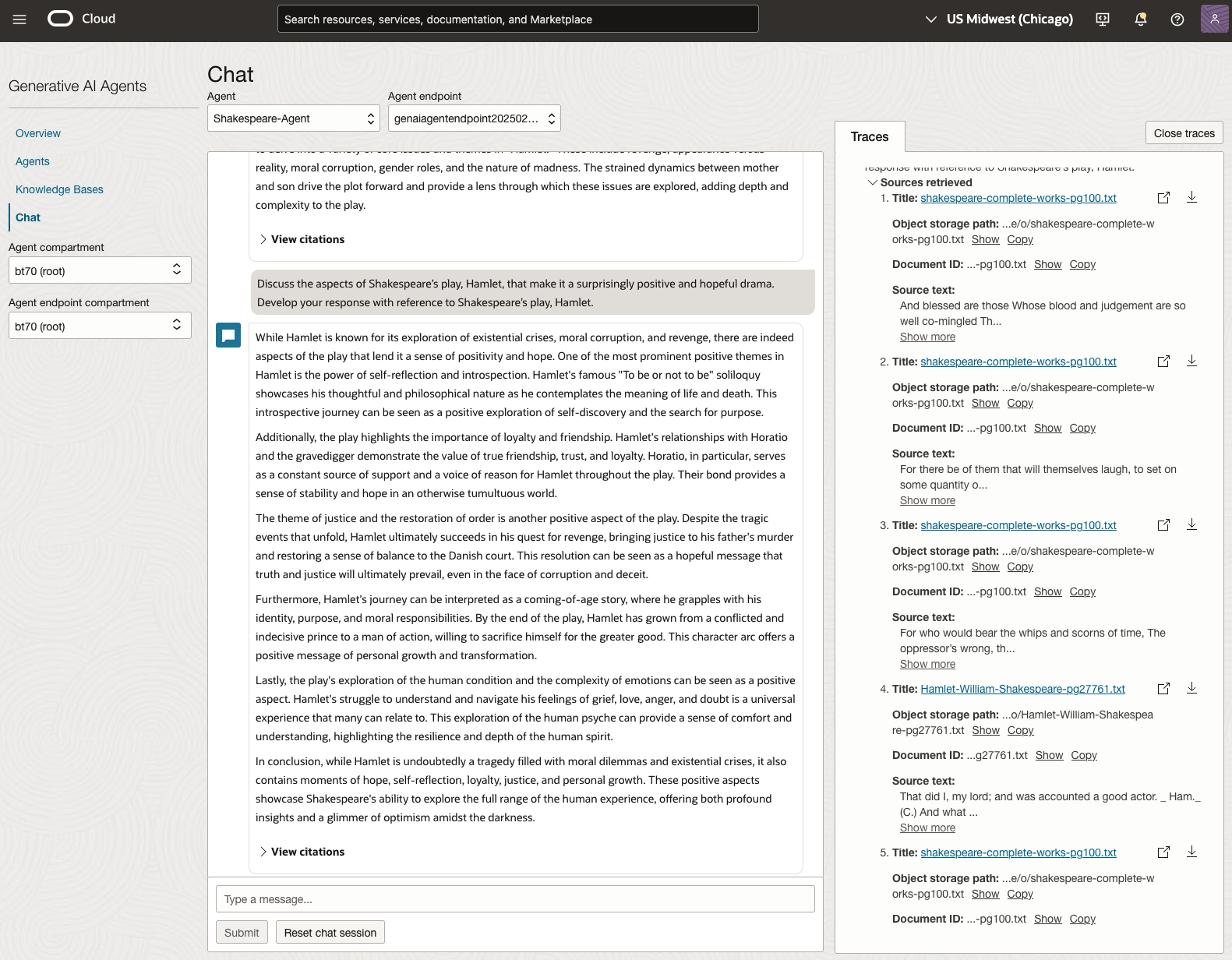
We can see from the above questions, that the AI Agent was able to generate possible answers. As a learning and study resource, it can be difficult to determine the correctness of these answers. Currently, there does seem to be evidence that students typically believe what the AI is generating. But the real question is, should they? Why the AI Agent can give a believable answer for students to memorise, but how good are the answers really? How many marks would they get for these answers? What kind of details are missing from these answers?
To help me answer these questions I enlisted the help of some previous Students who took these English examinations, along with two English teachers who teach higher-level English classes. The students all achieved a H1 grade for English. This is the highest grade possible, where a H1 means they achieved between 90-100%. The feedback from the students and teachers was largely positive. One teacher remarked the answers, to some of the questions, were surprisingly good. When asked about what grade or what percentage range these answers would achieve, again the students and teachers were largely in agreement, with a range between 60-75%. The students tended to give slightly higher marks than the teachers. They were then asked about what was missing from these answers, as in what was needed to get more marks. Again the responses from both the students and teachers were similar, with details of higher-level reasoning, understanding of interpersonal themes, irony, imagery, symbolism, etc were missing.
How to Create an Oracle Gen AI Agent
In this post, I’ll walk you through the steps needed to create a Gen AI Agent on Oracle Cloud. We have seen lots of solutions offered by my different providers for Gen AI Agents. This post focuses on just what is available on Oracle Cloud. You can create a Gen AI Agent manually. However, testing and fine-tuning based on various chunking strategies can take some time. With the automated options available on Oracle Cloud, you don’t have to worry about chunking. It handles all the steps automatically for you. This means you need to be careful when using it. Allocate some time for testing to ensure it meets your requirements. The steps below point out some checkboxes. You need to check them to ensure you generate a more complete knowledge base and outcome.
For my example scenario, I’m going to build a Gen AI Agent for some of the works by Shakespeare. I got the text of several plays from the Gutenberg Project website. The process for creating the Gen AI Agent is:

Step-1 Load Files to a Bucket on OCI
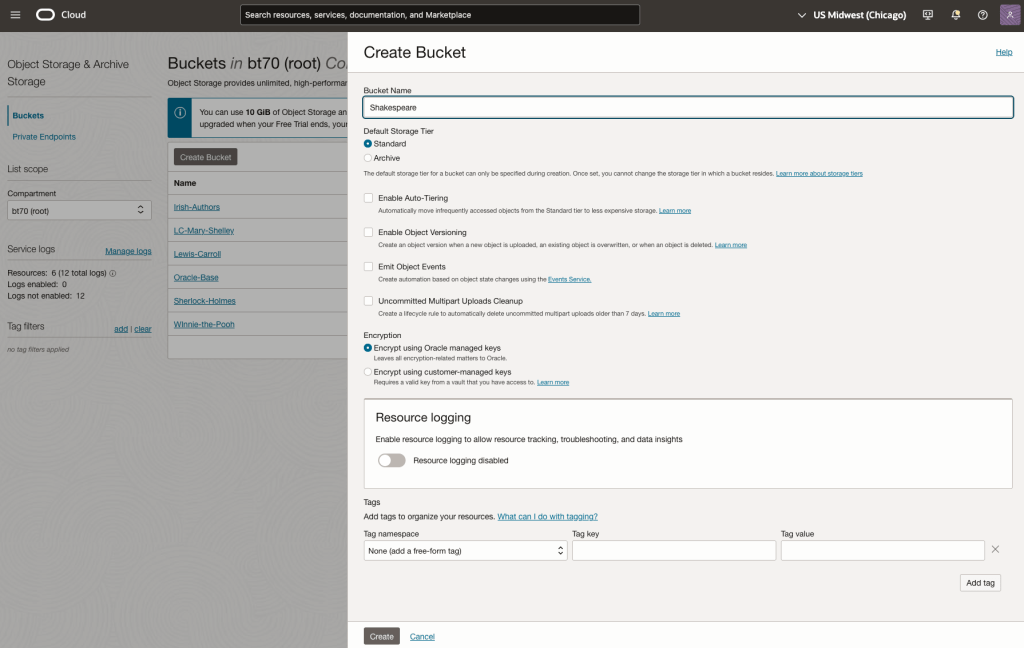
Create a bucket called Shakespeare.
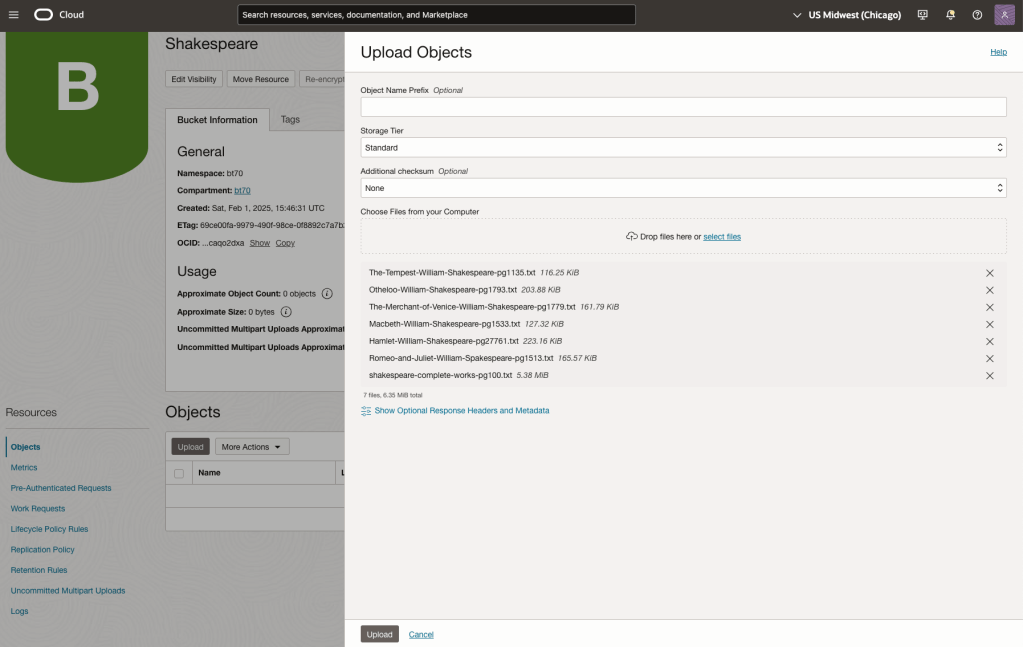
Load the files from your computer into the Bucket. These files were obtained from the Gutenberg Project site.
Step-2 Define a Data Source (documents you want to use) & Create a Knowledge Base
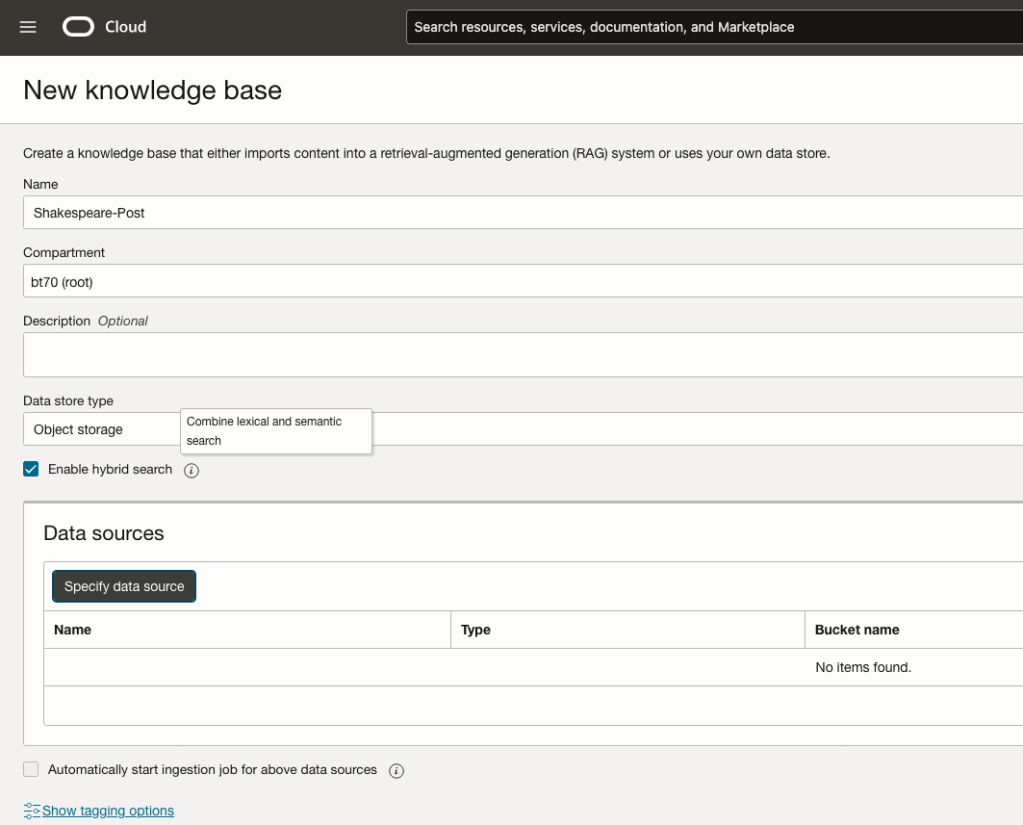
Click on Create Knowledge Base and give it a name ‘Shakespeare’.
Check the ‘Enable Hybrid Search’. checkbox. This will enable both lexical and semantic search. [this is Important]
Click on ‘Specify Data Source’
Select the Bucket from the drop-down list (Shakespeare bucket).
Check the ‘Enable multi-modal parsing’ checkbox.
Select the files to use or check the ‘Select all in bucket’
Click Create.

The Knowledge Base will be created. The files in the bucket will be parsed, and structured for search by the AI Agent. This step can take a few minutes as it needs to process all the files. This depends on the number of files to process, their format and the size of the contents in each file.
Step-3 Create Agent
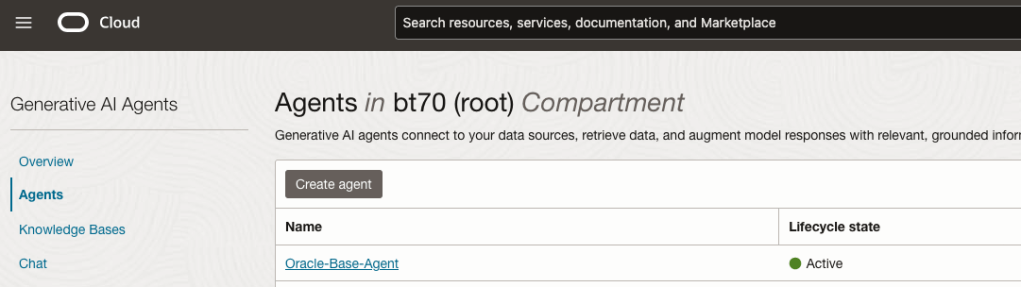
Go back to the main Gen AI menu and select Agent and then Create Agent.
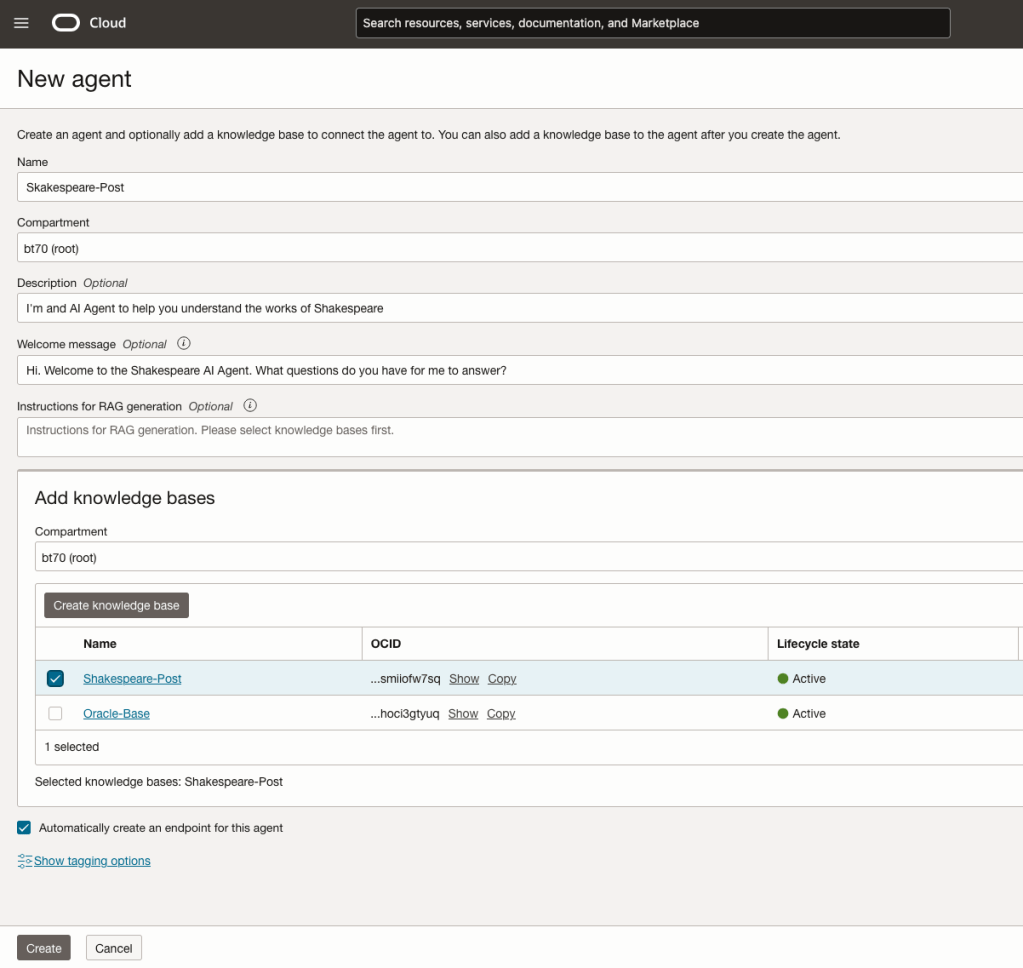
You can enter the following details:
- Name of the Agent
- Some descriptive information
- A Welcome message for people using the Agent
- Select the Knowledge Base from the list.
The checkbox for creating Endpoints should be checked.
Click Create.
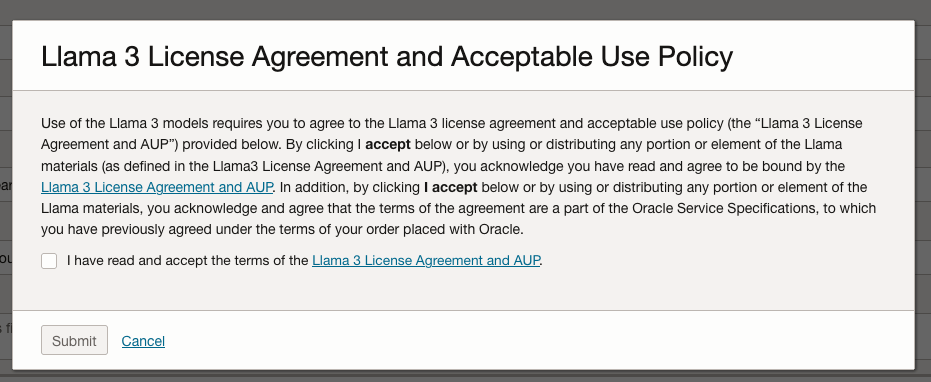
A pop-up window will appear asking you to agree to the Llama 3 License. Check this checkbox and click Submit.
After the agent has been created, check the status of the endpoints. These generally take a little longer to create, and you need these before you can test the Agent using the Chatbot.
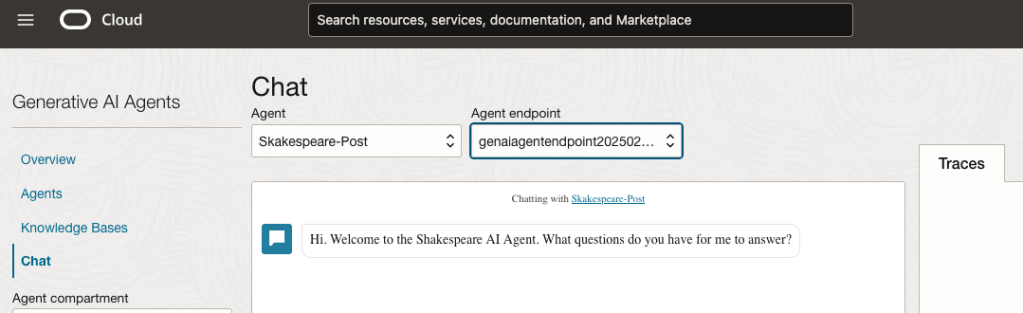
Step-4 Test using Chatbot
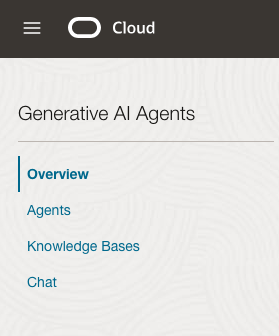
After verifying the endpoints have been created, you can open a Chatbot by clicking on ‘Chat’ from the menu on the left-hand side of the screen.
Select the name of the ‘Agent’ from the drop-down list e.g. Shakespeare-Post.
Select an end-point for the Agent.
After these have been selected you will see the ‘Welcome’ message. This was defined when creating the Agent.
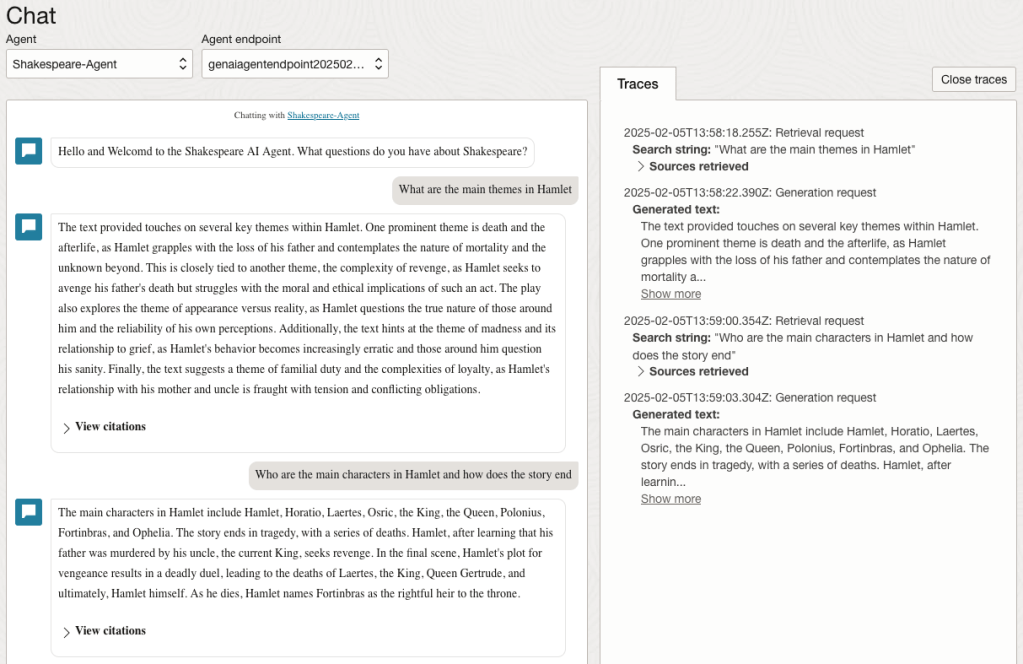
Here are a couple of examples of querying the works by Shakespeare.
In addition to giving a response to the questions, the Chatbot also lists the sections of the underlying documents and passages from those documents used to form the response/answer.
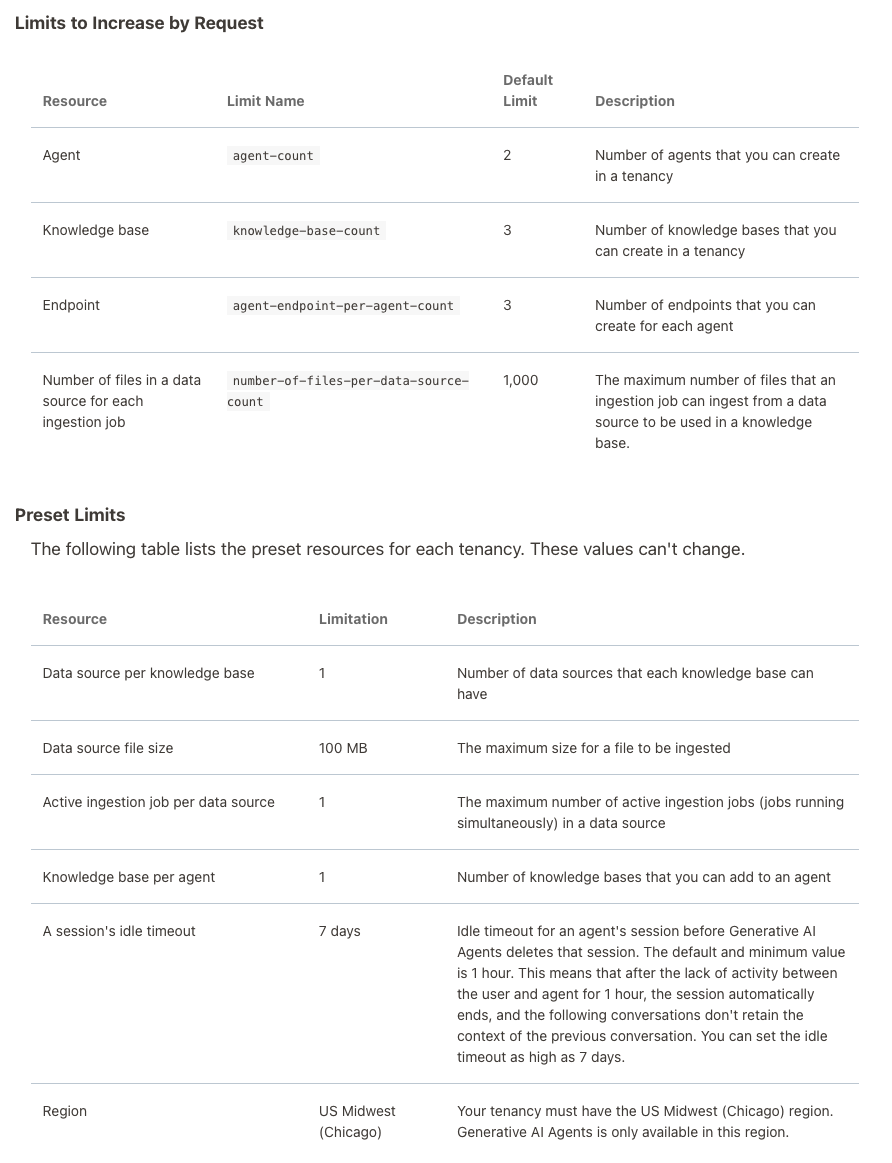
When creating Gen AI Agents, you need to be careful of two things. The first is the Cloud Region. Gen AI Agents are only available in certain Cloud Regions. If they aren’t available in your Region, you’ll need to request access to one of those or setup a new OCI account based in one of those regions. The second thing is the Resource Limits. At the time of writing this post, the following was allowed. Check out the documentation for more details. You might need to request that these limits be increased.
I’ll have another post showing how you can run the Chatbot on your computer or VM as a webpage.
SelectAI – Can metadata help
Continuing with the exploration of Select AI, in this post I’ll look at how metadata can help. In my previous posts on Select AI, I’ve walked through examples of exploring the data in the SH schema and how you can use some of the conversational features. These really give a lot of potential for developing some useful features in your apps.
Many of you might have encountered schemas here either the table names and/or column names didn’t make sense. Maybe their names looked like some weird code or something, and you had to look up a document, often referred to as a data dictionary, to decode the actual meaning. In some instances, these schemas cannot be touched and in others, minor changes are allowed. In these later cases, we can look at adding some metadata to the tables to give meaning to these esoteric names.
For the following example, I’ve taken the simple EMP-DEPT tables and renamed the table and column names to something very generic. You’ll see I’ve added comments to explain the Tables and for each of the Columns. These comments should correspond to the original EMP-DEPT tables.
CREATE TABLE TABLE1(
c1  NUMBER(2) not null primary key,
c2  VARCHAR2(50) not null,
c3  VARCHAR2(50) not null);

COMMENT ON TABLE table1 IS 'Department table. Contains details of each Department including Department Number, Department Name and Location for the Department';

COMMENT ON COLUMN table1.c1 IS 'Department Number. Primary Key. Unique. Used to join to other tables';
COMMENT ON COLUMN table1.c1 IS 'Department Name. Name of department. Description of function';
COMMENT ON COLUMN table1.c3 IS 'Department Location. City where the department is located';

-- create the EMP table as  TABLE2
CREATE TABLE TABLE2(
c1  NUMBER(4) not null primary key,
c2  VARCHAR2(50) not null,
c3  VARCHAR2(50) not null,
c4  NUMBER(4),
c5  DATE,
c6  NUMBER(10,2),
c7  NUMBER(10,2),
c8  NUMBER(2) not null);

COMMENT ON TABLE table2 IS 'Employee table. Contains details of each Employee. Employees';

COMMENT ON COLUMN table2.c1 IS 'Employee Number. Primary Key. Unique. How each employee is idendifed';
COMMENT ON COLUMN table2.c1 IS 'Employee Name. Name of each Employee';
COMMENT ON COLUMN table2.c3 IS 'Employee Job Title. Job Role. Current Position';
COMMENT ON COLUMN table2.c4 IS 'Manager for Employee. Manager Responsible. Who the Employee reports to';
COMMENT ON COLUMN table2.c5 IS 'Hire Date. Date the employee started in role. Commencement Date';
COMMENT ON COLUMN table2.c6 IS 'Salary. How much the employee is paid each month. Dollars';
COMMENT ON COLUMN table2.c7 IS 'Commission. How much the employee can earn each month in commission. This is extra on top of salary';
COMMENT ON COLUMN table2.c8 IS 'Department Number. Foreign Key. Join to Department Table';

insert into table1 values (10,'Accounting','New York');
insert into table1 values (20,'Research','Dallas');
insert into table1 values (30,'Sales','Chicago');
insert into table1 values (40,'Operations','Boston');

alter session set nls_date_format = 'YY/MM/DD';

insert into table2 values (7369,'SMITH','CLERK',7902,'93/6/13',800,0.00,20);
insert into table2 values (7499,'ALLEN','SALESMAN',7698,'98/8/15',1600,300,30);
insert into table2 values (7521,'WARD','SALESMAN',7698,'96/3/26',1250,500,30);
insert into table2 values (7566,'JONES','MANAGER',7839,'95/10/31',2975,null,20);
insert into table2 values (7698,'BLAKE','MANAGER',7839,'92/6/11',2850,null,30);
insert into table2 values (7782,'CLARK','MANAGER',7839,'93/5/14',2450,null,10);
insert into table2 values (7788,'SCOTT','ANALYST',7566,'96/3/5',3000,null,20);
insert into table2 values (7839,'KING','PRESIDENT',null,'90/6/9',5000,0,10);
insert into table2 values (7844,'TURNER','SALESMAN',7698,'95/6/4',1500,0,30);
insert into table2 values (7876,'ADAMS','CLERK',7788,'99/6/4',1100,null,20);
insert into table2 values (7900,'JAMES','CLERK',7698,'00/6/23',950,null,30);
insert into table2 values (7934,'MILLER','CLERK',7782,'00/1/21',1300,null,10);
insert into table2 values (7902,'FORD','ANALYST',7566,'97/12/5',3000,null,20);
insert into table2 values (7654,'MARTIN','SALESMAN',7698,'98/12/5',1250,1400,30);
Can Select AI be used to query this data? The simple answer is ‘ish’. Yes, Select AI can query this data but some care is needed on how you phrase the questions, and some care is needed to refine the metadata descriptions given in the table and column Comments.
To ensure these metadata Comments are exposed to the LLMs, we need to include the following line in our Profile
"comments":"true",Using the same Profile setup I used for OpenAI, we need to include the tables and the (above) comments:true command. See below in bold
BEGIN
  DBMS_CLOUD_AI.drop_profile(profile_name => 'OPEN_AI');
  DBMS_CLOUD_AI.create_profile(
      profile_name => 'OPEN_AI',
      attributes => '{"provider": "openai",
                      "credential_name": "OPENAI_CRED",
                      "comments":"true",
                      "object_list": [{"owner": "BRENDAN", "name": "TABLE1"},
                                     {"owner": "BRENDAN", "name": "TABLE2"}],
            "model":"gpt-3.5-turbo"
       }');
END;
After we set the profile for our session, we can now write some statements to explore the data.
Warning: if you don’t include “comments”:”true”, you’ll get no results being returned.
Here are a few of what I wrote.
select ai what departments do we have;
select AI showsql what departments do we have;

select ai count departments;
select AI showsql count department;

select ai how many employees;
select ai how many employees work in department 30;
select ai count unique job titles;
select ai list cities where departments are located;
select ai how many employees work in New York;
select ai how many people work in each city;
select ai where are the departments located;
select ai what is the average salary for each department;
Check out the other posts about Select AI.
SelectAI – the beginning of a journey
Oracle released Select AI a few months ago, and with any new product it is always a good idea to give it a little time to fix any “bugs” or “features”. To a certain extent, the release of this capability is a long time behind the marketplace. Similar products have been available in different ways, in different products, in different languages, etc for some time now. I’m not going to get into the benefits of this feature/product, as lots have been written about this and most of those are just rehashing the documentation and the marketing materials created for the release. But over all this time, Oracle seems to have been focused on deploying generative AI and LLM related features into their vast collection of applications. Yes, they have done some really cool work with those applications. But during that period the everyday developer, outside of those Apps development teams, has been left waiting for too long to get proper access to this functionality. In most cases, they have gone elsewhere. One thing Oracle does need to address is the public messaging around certain behavioural aspects of Select AI. There has been some contradictory information between what it says in the documentation and what the various Product Managers are saying. This is a problem, as it just confuses customers who will then use something else.
I’m building a particular application that utilizes various OCI products, including some of their AI products, to create a hands-free way of interacting with data and is suitable for those who have various physical and visual impairments. Should I consider including Select AI? Let’s see if it is up to the task.
Let’s get on with setting up and using Select AI. This post focuses on getting it set-up and running with some basic commands, plus a few warnings too as it isn’t all that it’s made out to be! Check out my other posts that explore different aspects (most other posts only show one or two statements), and some of the issues you need to watch out for, as it may not entirely live up to expectations.
The first thing you need to be aware of, this functionality is only available on an ADW/ATP on Oracle Cloud. At some point, we might have it on-premises, but that might be a while coming as I’m sure the developers are still working on improving how it works (and yes it does need some work).
Step 1 – Connect as ADMIN of ADW/ATP
As the ADMIN user for the database, you need to set-up a few things for other users of the Database before they can use Select AI.
Firstly we add the schema which will be using Select AI to the Access Control List. This will allow them to reach things outside of the Database. The following illustrates adding the BRENDAN schema to the list and allowing HTTP calls to the Cohere API interface.
BEGIN
    DBMS_NETWORK_ACL_ADMIN.APPEND_HOST_ACE(
         host => 'api.cohere.ai',
         ace => xs$ace_type(privilege_list => xs$name_list('http'),
         principal_name => 'BRENDAN',
         principal_type => xs_acl.ptype_db)
    );
END;
Next, we need to grant some privileges to some PL/SQL packages.
grant execute on DBMS_CLOUD_AI to BRENDAN;
grant execute on DBMS_CLOUD to BRENDAN;
That’s the admin steps
Step 2 – Connect to your Schema/User – Cohere Example (see OpenAI later in this post)
In my BRENDAN schema, I need to create a Credential.
BEGIN
   -- DBMS_CLOUD.DROP_CREDENTIAL (credential_name => 'COHERE_CRED');

   DBMS_CLOUD.CREATE_CREDENTIAL(
       credential_name => 'COHERE_CRED',
       username => 'COHERE',
       password => '...' );
END;
The … in the above example, indicates where you can place your Cohere API key. It’s very easy to get this and this explains the steps.
Next, you need to create a CLOUD_AI profile.
BEGIN
   --DBMS_CLOUD_AI.drop_profile(profile_name => 'COHERE_AI');

   DBMS_CLOUD_AI.create_profile(
      profile_name => 'COHERE_AI',
      attributes => '{"provider": "cohere",
                      "credential_name": "COHERE_CRED",
                      "object_list": [{"owner": "SH", "name": "customers"},
                                      {"owner": "SH", "name": "sales"},
                                      {"owner": "SH", "name": "products"},
                                      {"owner": "SH", "name": "countries"},
                                      {"owner": "SH", "name": "channels"},
                                      {"owner": "SH", "name": "promotions"},
                                      {"owner": "SH", "name": "times"}]
       }');
END;
When creating the CLOUD_AI profile for your schema, you can list the objects/tables you want to expose to the Cohere or OpenAI models. In theory (so the documentation says) it shares various metadata about these objects/tables, which the models in turn interpret, and use this to formulate their response. I said in theory, as that is what the documentation says, but the PMs on a recent webcast said it did use things like primary keys, foreign keys, etc. There are many other challenges here, and I’ll come back to those at a later time.
At this point, you are all set up to use Select AI.
Step 3 – See if you can get Select AI to work!
Before you can use Select AI, you need to enable it for your session. To do this run,
EXEC DBMS_CLOUD_AI.set_profile('COHERE_AI');If you start a new session/connection or your session/connection gets reset, you will need to run the above command again.
No onto the fun or less fun part. The Fun part is using it and getting results displayed back to you. When this happens (i.e. when it works) it can look like magic is happening. For example here are some commands that worked for me.
select ai how many customers exist;
select AI which customer is the biggest;
select AI what customer is the largest by revenue;
select AI what customer is the largest by sales;
The real challenge with using Select AI is crafting a statement that works i.e. a query is run in the Database and the results are displayed back to you. This can be a real challenge. There are many blog posts out there with lots of examples of using Select AI, along with all the ‘canned’ examples in the documentation and in demos from PMs. I’ve tried all that I could find, and most/all of them didn’t work for me. Something isn’t working correctly behind the scenes. For example here are some examples of statements that didn’t work for me.
select AI how many customers in San Francisco are married;
select AI what is our best selling product by country;
select AI what is our biggest selling product by country;
select AI how many items with the product sub category of Cameras were sold in 1998;
select AI what customer is the biggest;
select AI which customer is the largest by revenue;
Yet some of these statements (above) have been given in docs/posts/demos as working. For a little surprise, have a look at the comment at the bottom of this post.
Don’t let this put you off from trying it. What I’ve shown here is just one part of what Select AI can do. Check out my next post on Select AI where I’ll show examples of the other features, which work and can be used to build some interesting solutions for your users.
Set-up for OpenAI
The steps I’ve given above are for using Cohere. A few others can be used including the popular OpenAI. The setup is very similar to what I’ve shown above and the main difference is the Hostname, OpenAI API key and username. See here for how to get an OpenAI API key.
As ADMIN run.
BEGIN
    DBMS_NETWORK_ACL_ADMIN.APPEND_HOST_ACE(
         host => 'api.openai.com',
         ace  => xs$ace_type(privilege_list => xs$name_list('http'),
                             principal_name => 'BRENDAN',
                             principal_type => xs_acl.ptype_db)
   );
END;
Then in your Schema/user.
BEGIN
   DBMS_CLOUD.DROP_CREDENTIAL (credential_name  => 'OPENAI_CRED');

  DBMS_CLOUD.CREATE_CREDENTIAL(
    credential_name => 'OPENAI_CRED',
    username => '.....',
    password => '...' );
END;
BEGIN
DBMS_CLOUD_AI.drop_profile(profile_name => 'OPEN_AI');
DBMS_CLOUD_AI.create_profile(
profile_name => 'OPEN_AI',
attributes => '{"provider": "openai",
"credential_name": "OPENAI_CRED",
"object_list": [{"owner": "SH", "name": "customers"},
{"owner": "SH", "name": "sales"},
{"owner": "SH", "name": "products"},
{"owner": "SH", "name": "countries"},
{"owner": "SH", "name": "channels"},
{"owner": "SH", "name": "promotions"},
{"owner": "SH", "name": "times"}],
"model":"gpt-3.5-turbo"
}');
END;And then run the following before trying any use Select AI.
EXEC DBMS_CLOUD_AI.set_profile('OPEN_AI');If you look earlier in this post, I listed some questions that couldn’t be answered using Cohere. When I switched to using OpenAPI, all of these worked for me. The question then is, which LLM should you use? based on this simple experiment use Open API and avoid Cohere. But things might be different for you and at a later time when Cohere has time to improve.
Check out the other posts about Select AI.
Cohere and OpenAI API Keys
To access and use the Generative AI features in the Oracle Database you’ll need access to the API of a LLM. In this post, I’ll step through what you need to do to get API keys from Cohere and OpenAI. These are the two main LLMs for use with the database and others will be accessible over time.
Cohere API
First, go to the Cohere API Dashboard. You can sign-up using your Google or GitHub accounts to sign in. Or create an account by clicking on Sign-up? (Bottom right-hand corner of page). Fill in your email address and a suitable password. Then confirm your sign-up using the email they just sent to you.

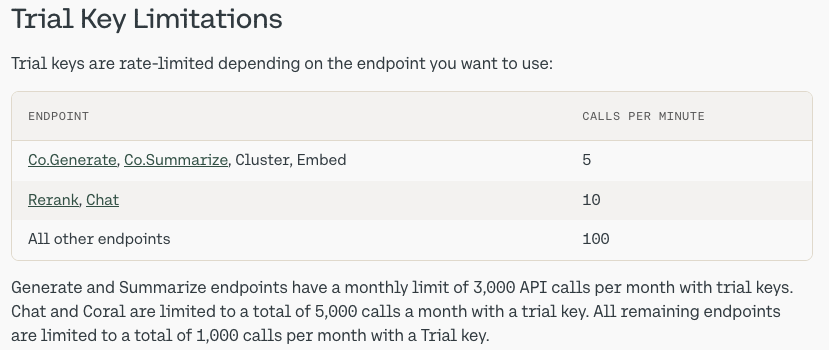
When you sign-up to Cohere, you are initially creating a Trial (Free) account. For now, this will be enough for playing with Select AI. There are some restrictions (shown below) but these might change over time so make sure to check this out.
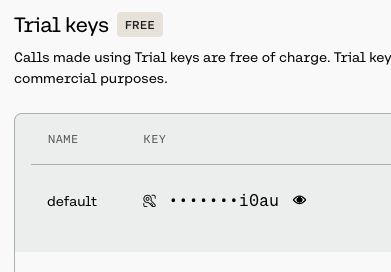
From your Cohere Dashboard, you can access your API key, and use this to set-up your access to the LLM from your remote (app, database, etc) environment. This is a Trial API Key, that is rate-limited, so is kind of ok for testing and evaluation. If you need more, you’ll need to upgrade your account.
Open API
For Open API, you’ll need to create an account – Sign-up here.
Initially, you’ll be set-up with a Trial Account but you may need to upgrade this by depositing some money into your account. The minimum is $10 (plus taxes) and this should be enough to allow you to have a good play with using the API, and only top-up as needed after that, particularly if you go into production use. When you get logged into OpenAI, go to your Dashboard and click on the ‘Create new secret key’ button.

When you’ve obtained the API keys check out my other posts on how to allow access to these from the database and start using the Oracle Select AI features (and other products and code libraries) .
You only need an API key from one of these, but I’ve shown both. This allows you to decide which one you’d like to use.
Check out the other posts about Select AI.
 Ora-lytics
You must be logged in to post a comment.