
Oracle Analytics Cloud
Using NotebookLM to help with understanding Oracle Analytics Cloud or any other product
Over the past few months, we’ve seen a plethora of new LLM related products/agents being released. One such one is NotebookLM from Google. The offical description say “NotebookLM is an AI-powered research and note-taking tool from Google Labs that allows users to ground a large language model (like Gemini) in their own documents, such as PDFs, Google Docs, website URLs, or audio, acting as a personal, intelligent research assistant. It facilitates summarizing, analyzing, and querying information within these specific sources to create study guides, outlines, and, notably, “Audio Overviews” (podcast-style summaries)”
Let’s have a look at using NotebookLM to help with answering questions and how it can help with understanding Oracle Analytics Cloud (OAC).

Yes, you’ll need a Google account, and Yes you need to be OK with uploading your documents to NotebookLM. Make sure you are not breaking any laws (IP, GDPR, etc). It’s really easy to create your first notebook. Simply click on ‘Create new notebook’.
When the notebook opens, you can add your documents and webpages to the notebook. These can be documents in PDF, audio, text, etc to the notebook repository. Currently, there seems to be a limit of 50 documents and webpages that can be added.
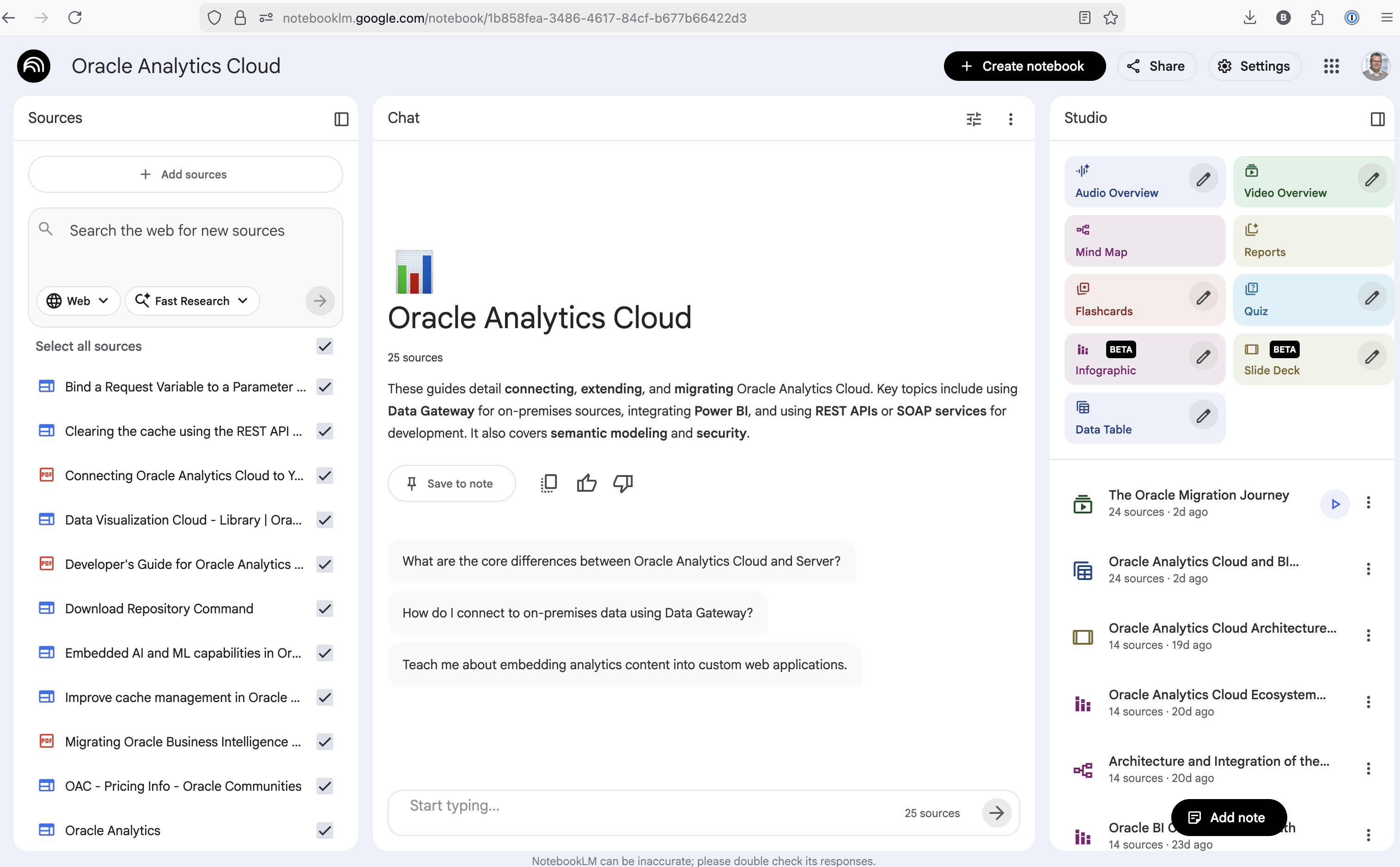
The main part of the NotebookLM provides a chatbot where you can ask questions, and the NotebookLM will search through the documents and webpages to formulate an answer. In addition to this, there are features that allow you to generate Audio Overview, Video Overview, Mind Map, Reports, Flashcards, Quiz, Infographic, Slide Deck and a Data Table.
Before we look at some of these and what they have created for Oracle Analytics Cloud, there is a small warning. Some of these can take a long time to complete, that is, if they complete. I’ve had to run some of these features multiple times to get them to create. I’ve run all of the features, and the output from these can be seen on the right-hand side of the above image.
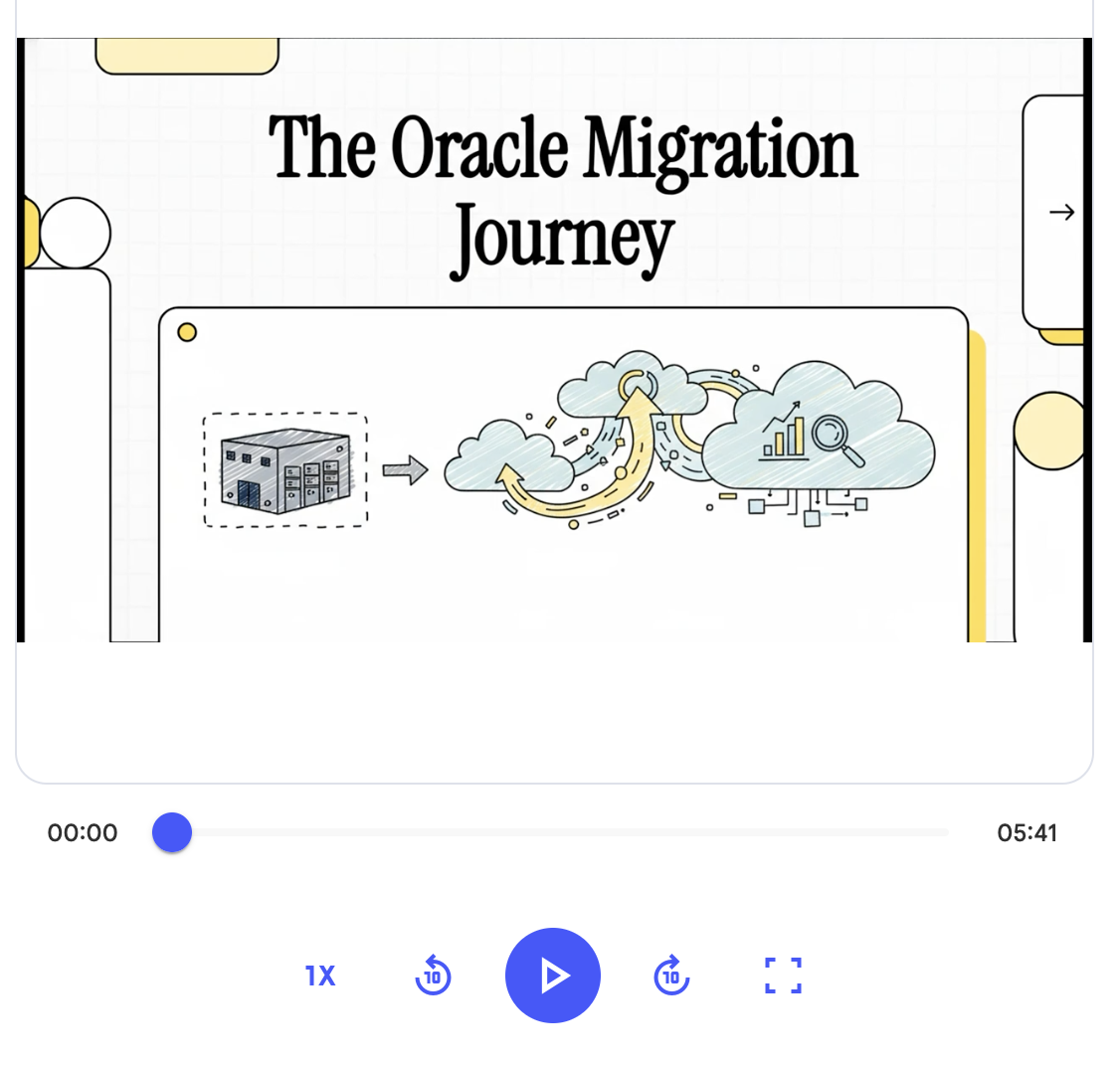
It created a 15-slide presentation on Oracle Analytics Cloud and its various features, and a five minute video on migrating OAC.
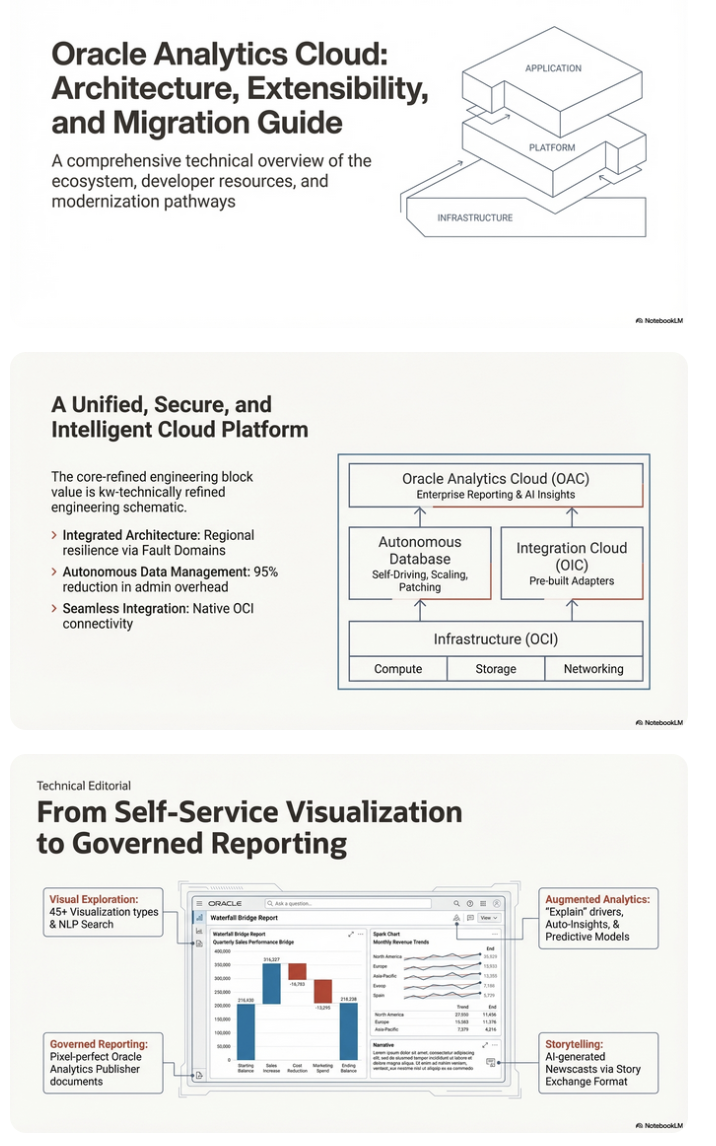
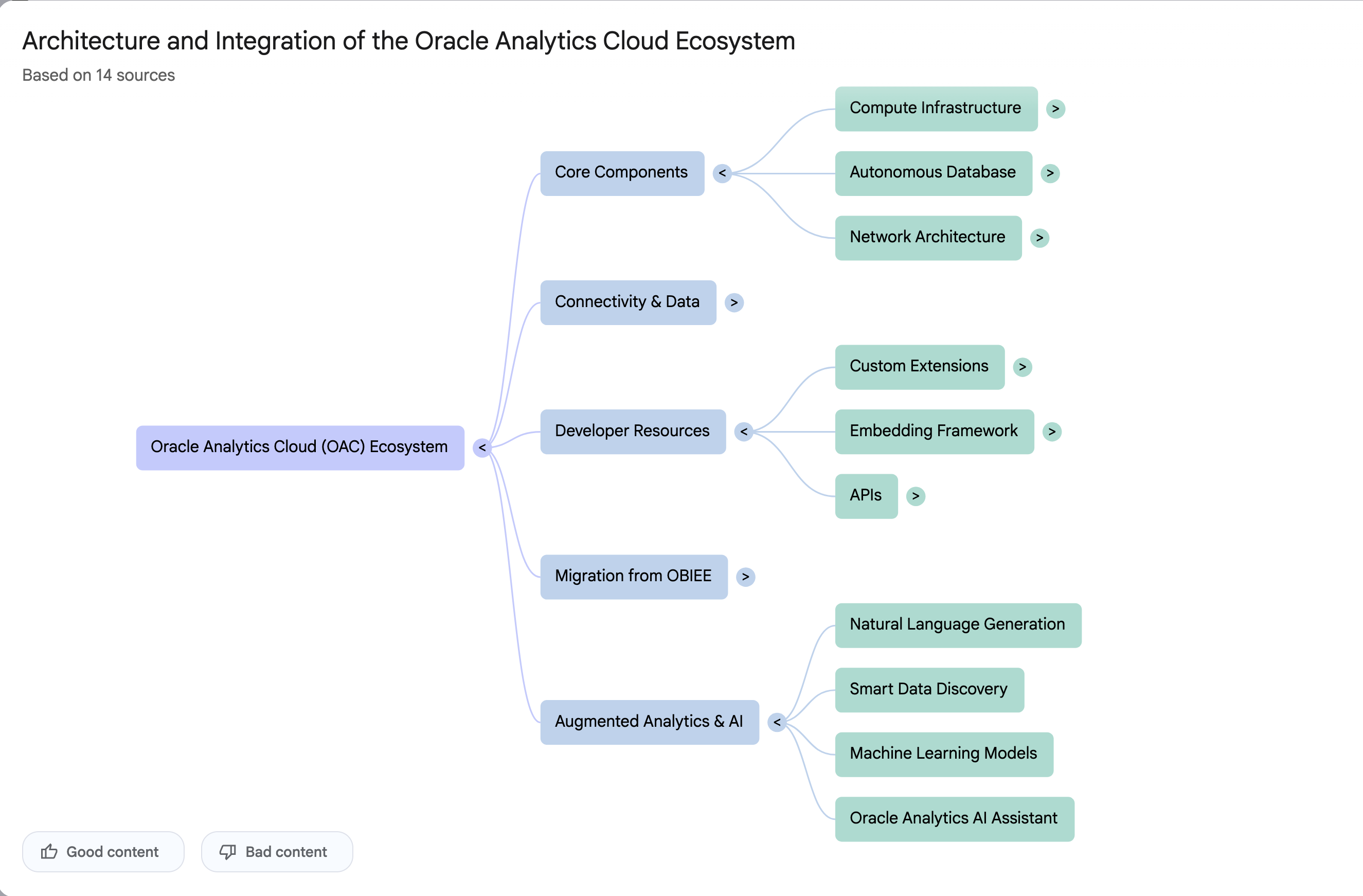
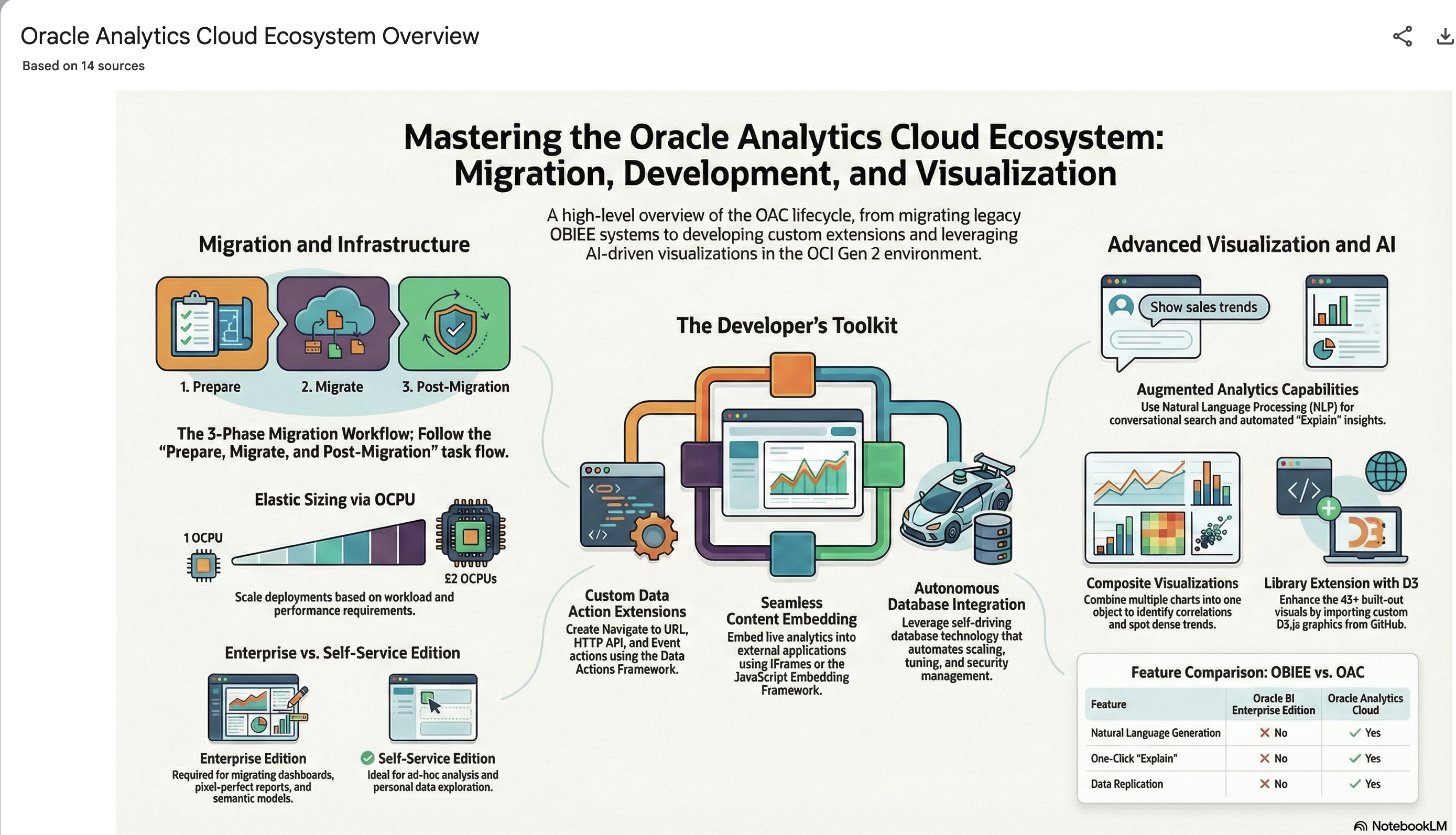
It also created a Mind-map, and an Infographic.
Applying a Machine Learning Model in OAC
There are a number of different tools and languages available for machine learning projects. One such tool is Oracle Analytics Cloud (OAC). Check out my article for Oracle Magazine that takes you through the steps of using OAC to create a Machine Learning workflow/dataflow.

Oracle Analytics Cloud provides a single unified solution for analyzing data and delivering analytics solutions to businesses. Additionally, it provides functionality for processing data, allowing for data transformations, data cleaning, and data integration. Oracle Analytics Cloud also enables you to build a machine learning workflow, from loading, cleaning, and transforming data and creating a machine learning model to evaluating the model and applying it to new data—without the need to write a line of code. My Oracle Magazine article takes you through the various tasks for using Oracle Analytics Cloud to build a machine learning workflow.
That article covers the various steps with creating a machine learning model. This post will bring you through the steps of using that model to score/label new data.
In the Data Flows screen (accessed via Data->Data Flows) click on Create. We are going to create a new Data Flow to process the scoring/labeling of new data.

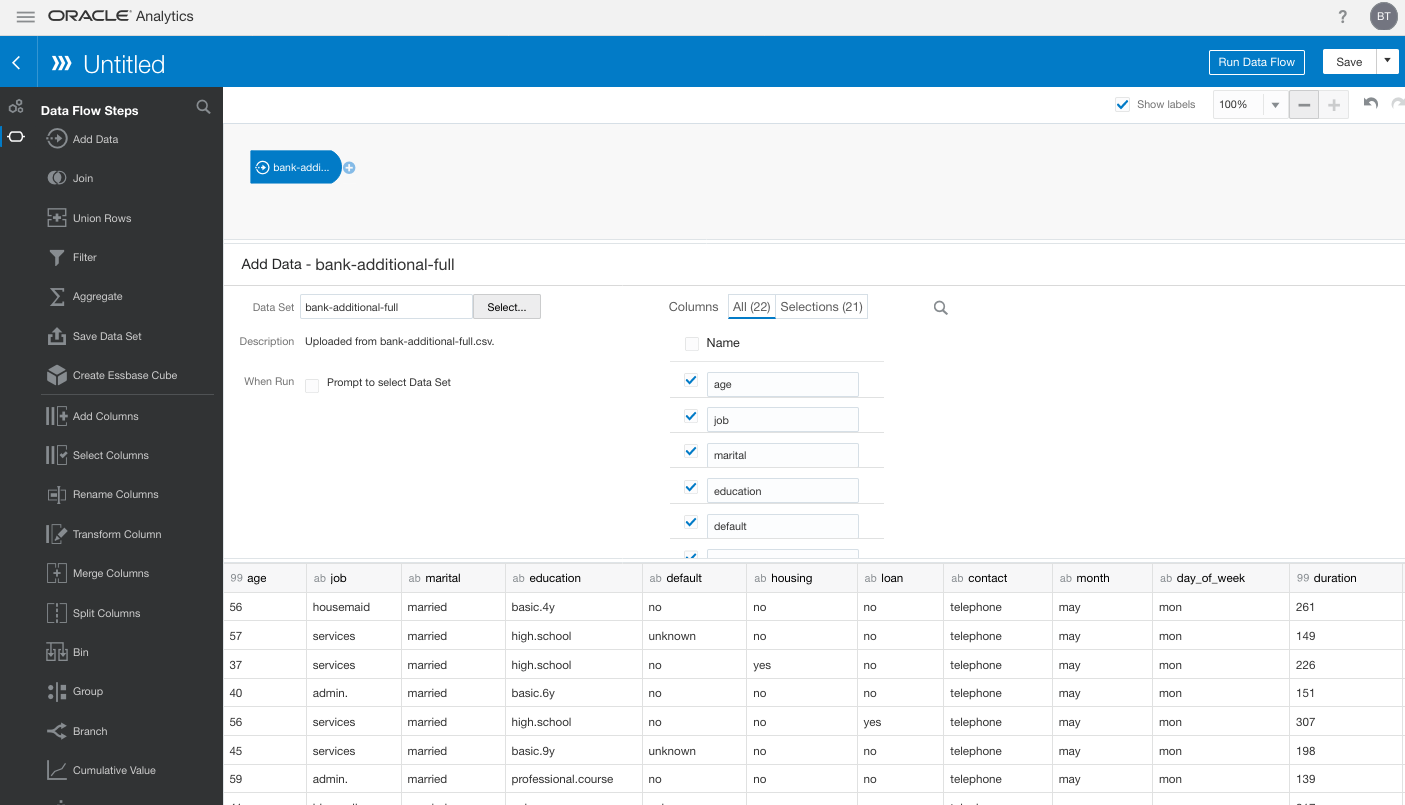
Select Data Flow from the pop-up menu. The ‘Add Data Set’ window will open listing your available data sets. In my example, I’m going to use the same data set that I used in the Oracle Magazine article to build the model. Click on the data set and then click on the Add button.

The initial Data Flow will be created with the node for the Data Set. The screen will display all the attributes for the data set and from this you can select what attributes to include or remove. For example, if you want a subset of the attributes to be used as input to the machine learning model, you can select these attributes at this stage. These can be adjusted at a later stages, but the data flow will need to be re-run to pick up these changes.
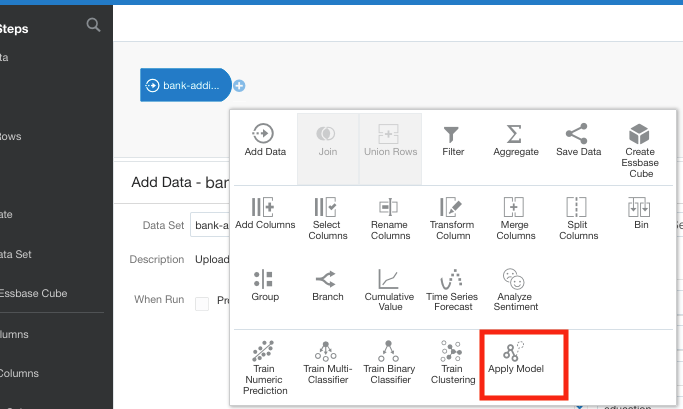
Next step is to create the Apply Model node. To add this to the data flow click on the small plus symbol to the right of the Data Node. This will pop open a window from which you will need to select the Apply Model.
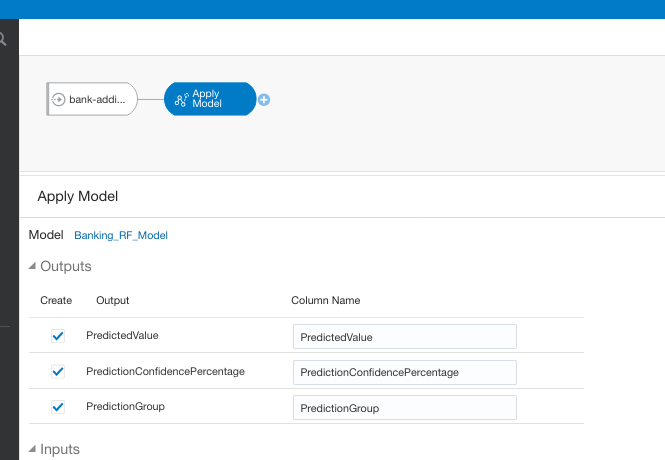
A pop-up window will appear listing the various machine learning models that exist in your OAC environment. Select the model you want to use and click the Ok button.

The next node to add to the data flow is to save the results/outputs from the Apply Model node. Click on the small plus icon to the right of the Apply Model node and select Save Results from the popup window.
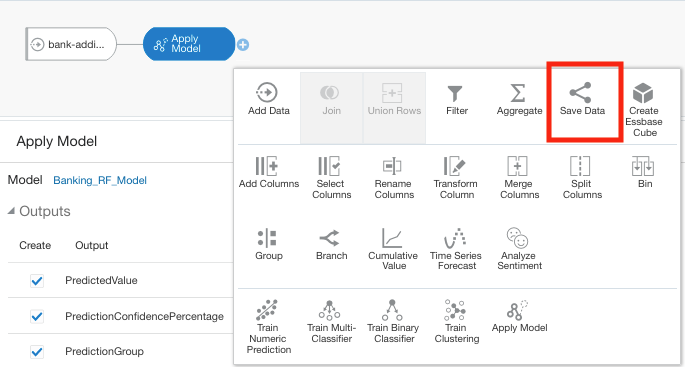
We now have a completed data flow. But before you finish edit the Save Data node to give a name for the Save Data Set, and you can edit what attributes/features you want in the result set.
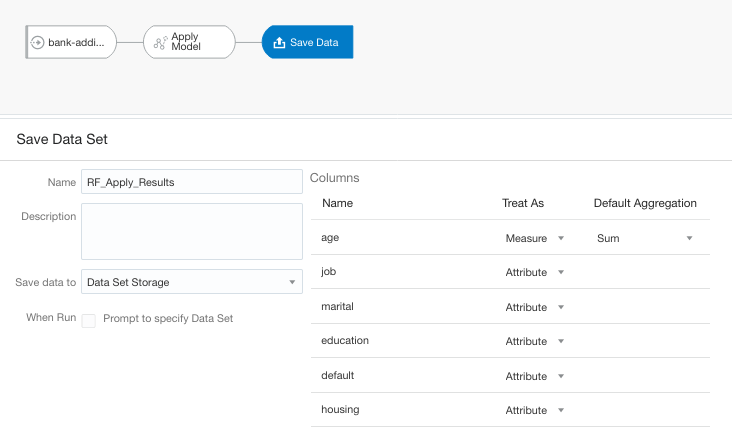
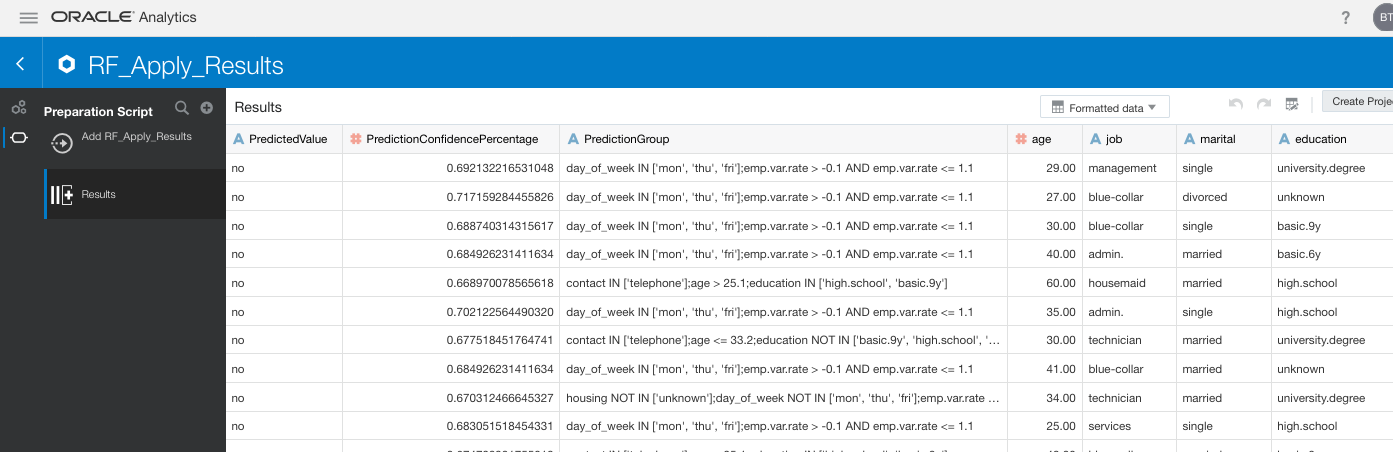
You can now save and run the Data Flow, and view the outputs from applying the machine learning model. The saved data set results can be viewed in the Data menu.
 Ora-lytics
You must be logged in to post a comment.