
Machine Learning on Oracle Autonomous Data Warehouse
Last week I wrote a blog post about how long it took to create machine learning models on Oracle Database Cloud service. There was some impressive results and some surprising results too.
I decided to try out the exact same tests, using the exact same data on the Oracle Autonomous Data Warehouse Cloud service (ADW).
When creating the ADW service I took the basic configuration and didn’t change anything. The inbuilt machine learning for the Autonomous service will magically workout my needs and make the necessary adjustments, Right? It can handle any data volume and any data processing requirements, Right?
Here are the results.

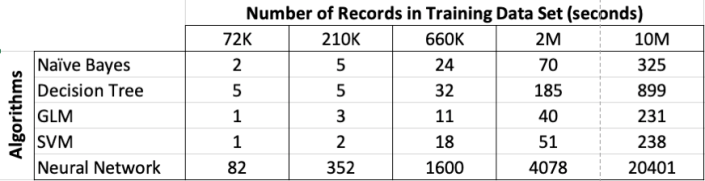
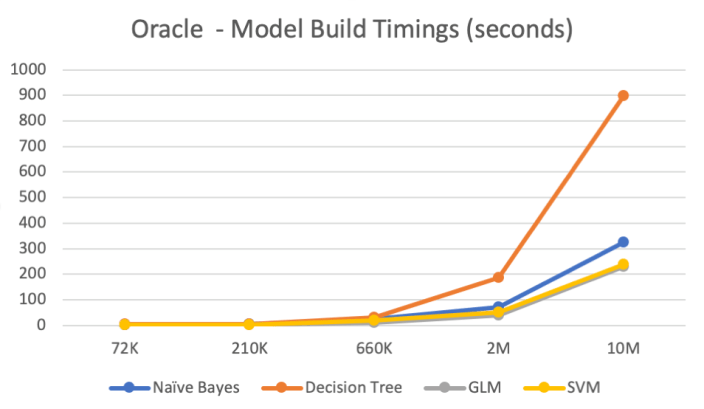
* You will notice that there is no time given for creating a SVM model for the 10M record data set. After waiting for 4 hours I got bored and gave up waiting (I actually did this three time to make sure it wasn’t a once off)
[I also had a 50M record data set. I just didn’t waste time trying that.]
[Neural Networks algorithm hasn’t been ported onto ADW at this point in time]
If you look back at the results from using the DBaaS you will see it was significantly quicker than the ADW. (for some it would be quicker using Python on my laptop)
Before you believe the hype, go test it yourself and make sure it measures up.
I re-ran my test cases over a number of days to see if the machine learning aspect of the Autonomous kicked in to learn from the processing and make any performance improvements. Sadly the results were basically the same or slightly slower. Disappointing.
When some tells you, you should be using this, ask them have they actually used and tested it themselves. And more importantly, don’t believe them. Go test it yourself.
How long does it take to build a Machine Learning model using Oracle Cloud
Everyday someone talks about the the processing power needed for Machine Learning, and the vast computing needed for these tasks. It has become evident that most of these people have never created a machine learning model. Never. But like to make up stuff and try to make themselves look like an expert, or as I and others like to call them a “fake expert”.
When you question these “fake experts” about this topic, they huff and puff about lots of things and never answer the question or try to claim it is so difficult, you simply don’t understand.
Having worked in the area of machine learning for a very very long time, I’ve never really had performance issues with creating models. Yes most of the time I’ve been able to use my laptop. Yes my laptop to build models large models. In a couple of these my laptop couldn’t cope and I moved onto a server.
But over the past few years we keep hearing about using cloud services for machine learning. If you are doing machine learning you need to computing capabilities that are available with cloud services.
So, the results below show the results of building machine learning models, using different algorithms, with different sizes of data sets.
For this test, I used a basic cloud service. Well maybe it isn’t basic, but for others they will consider it very basic with very little compute involved.
I used an Oracle Cloud DBaaS for this experiment. I selected an Oracle 18c Extreme edition cloud service. This comes with the in-database machine learning option. This comes with 1 OCPUs, 7.5G Memory and 170GB storage. This is the basic configuration.
Next I created data sets with different sizes. These were based on one particular data set, as this ensures that as the data set size increases, the same kind of data and processing required remained consistent, instead of using completely different data sets.
The data set consisted of the following number of records, 72K, 660K, 210K, 2M, 10M and 50M.
I then created machine learning models using Decisions Tree, Naive Bayes, Support Vector Machine, Generaliszd Linear Models (GLM) and Neural Networks. Yes it was a typical classification problem.
The following table below shows the length of time in seconds to build the models. All data preparations etc was done prior to this.
Note: It should be noted that Automatic Data Preparation was turned on for these algorithms. This performed additional algorithm specific data preparation for each model. That means the times given in the following tables is for some data preparation time and for building the models.
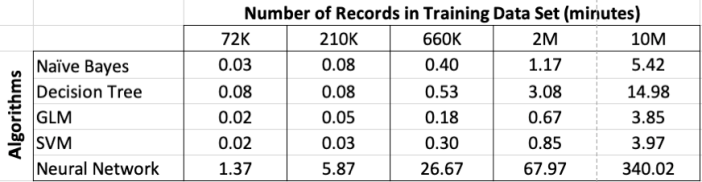
Converting the above table into minutes.
Changing the markers for Google Maps and centering map
In some recent work, I’ve been integrating with Google Maps and some of the other Google API’s a lot. This post is just a reminder for myself on how to change the format, colour, and other properties of the map pointers.
cluster_0_gmap = gmaps.symbol_layer(
    map_locations_c0, fill_color='red',
    stroke_color='red', scale=5 )

cluster_1_gmap = gmaps.symbol_layer(
    map_locations_c1, fill_color='green',
    stroke_color='green', scale=5 )

cluster_2_gmap = gmaps.symbol_layer(
    map_locations_c2, fill_color='purple',
    stroke_color='purple', scale=5 )

cluster_3_gmap = gmaps.symbol_layer(
    map_locations_c3, fill_color='blue',
    stroke_color='blue', scale=5 )
And now for the map initial settings, centred on Athlone town in the middle of Ireland.
fig = gmaps.figure()

figure_layout = {
'width': '950px',
'height': '730px',
'border': '1px solid black',
'padding': '1px',
'margin': '0 auto 0 auto'
}

ireland_coord = (53.42, -7.94)
fig=gmaps.figure(center=ireland_coord, zoom_level=7.5, layout=figure_layout)

fig.add_layer(cluster_0_gmap)
fig.add_layer(cluster_1_gmap)
fig.add_layer(cluster_2_gmap)
fig.add_layer(cluster_3_gmap)
fig
Understanding, Building and Using Neural Network Models using Oracle 18c
I recently had an article published on Oracle Developer Community website about Understanding, Building and Using Neural Network Machine Learning Models with Oracle 18c. I’ve also had a 2 Minute Tech Tip (2MTT) video about this topic and article. Oracle 18c Database brings prominent new machine learning algorithms, including Neural Networks and Random Forests. While many articles are available on machine learning, most of them concentrate on how to build a model. Very few talk about how to use these new algorithms in your applications to score or label new data. This article will explain how Neural Networks work, how to build a Neural Network in Oracle Database, and how to use the model to score or label new data. What are Neural Networks? Over the past couple of years, Neural Networks have attracted a lot of attention thanks to their ability to efficiently find patterns in data—traditional transactional data, as well as images, sound, streaming data, etc. But for some implementations, Neural Networks can require a lot of additional computing resources due to the complexity of the many hidden layers within the network. Figure 1 gives a very simple representation of a Neural Network with one hidden layer. All the inputs are connected to a neuron in the hidden layer (red circles). A neuron takes a set of numeric values as input and maps them to a single output value. (A neuron is a simple multi-input linear regression function, where the output is passed through an activation function.) Two common activation functions are logistic and tanh functions. There are many others, including logistic sigmoid function, arctan function, bipolar sigmoid function, etc. Continue reading the rest of the article here.
Data Science, Machine Learning (and AI) 2019 watch list/predictions
Data Science and Machine Learning have been headline topics for many years now. Even before the Harvard Business Review article, ‘Sexist Job of the 21st Century‘, was published Bach in 2012. The basics of Data Science, Machine Learning and even AI existing for many decades before but over recent years we have seem many advances and many more examples of application areas.
There are many people (Futurists) giving predictions of where things might be heading over the next decade or more. But what about issues that will affect us who are new to the area or for those that have been around doing it for way too long.
The list below is some of the things I believe will become more important and/or we will hear a lot more about these topics during 2019. (There is no particular order or priority to these topics, except for point about Ethics).
Ethics & privacy : With the introduction of EU GDPR there has been a renewed focus on data privacy and ethics surrounding this. This just doesn’t affect the EU but every country around the world that processes data about people in EU. Lots of other countries are now looking at introducing similar laws to GDPR. This is all good, right? It has helped raise awareness of the value of personal data and what companies might be doing with it. We have seen lots of examples over the past 18 months where personal data has been used in ways that we are not happy about. Ethics on data usage is vital for all companies and greater focus will be placed on this going forward to ensure that data is used in an ethical manner, as not doing so can result in a backlash from your customers and they will just go elsewhere. Just because you have certain customer data, doesn’t mean you should use it to exploit them. Expect to see some new job roles in this area.
Clearer distinction between different types of roles for Data Science : Everyone is a Data Scientist and if you aren’t one then you probably want to be one. Data Scientists are the cool kids, at the moment, but with this comes confusion on what is a data scientist. Are these the people building machine learning algorithms? Or people who were called Business Intelligence experts a few years ago? Or are they people who build data pipelines? Or are they problem solvers? Or something else? A few years ago I wrote a blog post about Type I and Type II Data Scientists. This holds true today. A Data Scientist is a confusing term and doesn’t really describe one particular job role. A Data Scientist can come in many different flavours and it is impossible for any one person to be all flavours. Companies don’t have one or a small handful of data scientists, but they now have teams of people performing data science tasks. Yes most of these tasks have been around for a long time and will continue to be, and now we have others joining them. Today and going forward we will see clearer distinction between each of these flavours of data scientists, moving away from a generalist role to specialist roles to include Data Engineer, Business Analyst, Business Intelligence Solution Architect/Specialist, Data Visualization, Analytics Manager, Data Manager, Big Data/Cloud Engineer, Statisticians, Machine Learning Engineer, and a Data Scientist Manager (who plugs all the other roles together).
Data Governance : Do you remember when Data Governance was the whole trend, back five to eight years ago. Well it’s going to come back in 2019. With the increased demands on managing data, in all it’s shapes and locations, knowing what we have, where it is, and what people are doing with it is vital. As highlighted in the previous point, without good controls on our data and good controls over what we can do (in an ethical way) with out data, we will just end up in a mess and potentially annoying our customers. With the expansion of ML and AI, the role of data governance will gain greater attention as we need to manage all the ML and AI to ensure we have efficient delivery of these solutions. As more companies embrace the cloud, there will be a gradual shifting of data from on-premises to on-cloud, and in many instances there will be a hybrid existence. But what data should be stored where, based on requirements, security, laws, privacy concerns, etc. Good data governance is vital.
GDPR and ML : In 2018 we saw the introduction of the EU GDPRs. This has had a bit of an impact on IT in general and there has been lots of work and training on this for everyone. Within the GDPR there are a number of articles (22, 13, 14, etc) that impact upon the use of ML outputs. Some of this is about removing any biases from the data and process, and some is about the explainability of the predictions. The ability to explain a ML prediction is proving very challenging for most companies. This could mean huge rework in how their ML predictions work to ensure they are compliant with EU GDPR. In 2019 (and beyond) we will start to see the impact of this and work being done to address this. This also related to the point on Ethics and Privacy mentioned above.
More intelligent use of Data (let’s call AI for now) : We have grown to know and understand the importance of data within our organisations. Even more so over the past few years with lots of articles from Harvard Business Review, the Economist, and lots of others. The importance of data and being able to use it efficiently and effectively has risen to board room level. We will continue to see in 2019 an increase in the intelligent use of data. Perhaps a better term for this is AI driven development. AI can mean lots of things from a simple IF statement to more complex ML and other algorithms or data processing techniques. Every application from now on needs to look at being more intelligent, more smarter than before. All processing needs to be more tightly integrated and more automation of processing (see below for more on this). This allows us to build smarter applications and with that smarter organisations.
Auto ML : The actual steps of doing the core ML tasks are really boring. I mean really boring. It typically involves running a few lines of R, Python, etc code or creating some nodes in a workflow tool. It isn’t difficult or complicated. It’s boring. What makes it even more boring, is the tuning of the (hyper) parameters. It’s boring!. I wish all of this could be automated! Most of us have scripts that automate this for us, but in 2019 we will see more of this automated in the various languages, libraries and tools. A number of vendors will be bring out new or upgraded ML solutions that will ‘Automate the Boring Stuff’ for ML. Gartner says that by 2020 over 40% of data science tasks will be automated.
Automation : Building upon Auto ML (or Automated ML), we will see more automation of the entire ML process, from start to end. More automation on the data capture, data harvesting, data enrichment, data transformations, etc. Again automating the boring stuff. Additionally we will see more of the automation of ML into production systems. Most ML discussed covers up to creating and (poorly) evaluating a model. But what happens after that. We can automate the usage of the ML model (see next point) but not only that but we can automation of the whole iterative process of updating the models too. There are many example of this already and some are called Adaptive Intelligent applications.
Moving from back office to front of house : Unfortunately when most people talk about ML they are very limited to only creating a model for a particular scenario. But when you want to take such models out of the back room (where the data scientists live) and move it into production there are a number of challenges. Production can mean backend processing as well as front end applications. A lot has been covered on the use of ML for large bulk processing (back end applications). But we will see more and more integration of ML models into the every day applications our company uses. These ML models will all us to develop augmented analytic applications. This is similar to the re-emergence of AI application, whereby ML and other AI methods (eg. using an IF statement), can be used to develop more functionally rich applications. Developers will move beyond providing the required functionality to looking at how can I made my application more intelligent using AI and ML.
ML Micro-Services : To facilitate the automation tasks with putting ML into more production front end applications, an efficient approach is needed for this. With most solutions to-date, this has required a lot of development effort or complicated plumbing to make it work. We are now in age of containerisation. This allows the efficient rollout of new technology and new features for applications without any need for lots of development work. In a similar way for ML we will see more efficient delivery of ML using ML Scoring Engines. These can take an input data set and return the scored the data. This data set can consist of an individual record or many thousands. For ML to score or label new data, it is performing a simple mathematically calculation. Computers can perform these really quickly. By setting up and using ML Micro-services allows for many applications to use the ML model for scoring.
Renewed interest in Citizen Data Scientist : Citizen data scientist was a popular topics/role 3-5 years ago. In 2019 we will see a renewed interest in Citizen Data Scientists. Although there might be a new phrase used. Following on from the points above on automation of ML and to the point near the beginning about clearer distinctions of roles, and with greater education on core ML topics for everyone, we will see a lot more employees using ML and/or AI in their everyday jobs. In addition to this, with the integration of ML and AI in all applications (and not just front end applications), including greater use in reporting and analytic tools. We are already seeing elements of this with Chatbots, Analytics tools, Trends applications, etc.
Slight disillusionment for Deep Learning & renewed interest in solving business problems : It seemed that every day throughout 2018 there was hundreds of articles about the use of Deep Learning and Neural Networks. These are really great tools but are they suitable for everyone and for every type of problem. The simple answer is no they aren’t. Most examples given seemed to be finding a cat or a dog in an image or other noddy examples. Yes deep learning and neural networks can give greater accuracy for predictions, but this level of accuracy comes at a price. In 2019 we will see a tail off on the use of ‘real’ deep learning and neural networks for noddy examples, and see some real use cases coming through. For example I’m working on two projects that uses these technologies to try and save lives. There will be a renewed focus on solving real business problems, and sometimes the best or most accurate solution or tool may not be the best or most efficient tool to use.
Big Data diminishes and (Semi-)Autonomous takes hold : Big Data! What’s big data? Does Big Data really matter? Big data was the trendy topic for the past few years and everyone was claiming to be an expert and if your weren’t doing big data then you felt left behind. With big data we had lots of technologies like Hadoop, Map-Reduce, Spark, HBase, Hive, etc and the list goes on and on. During 2018 there was a definite shift away from using any of these technologies and toward the use of cloud solutions. Many of the vendors had data storage solutions for your “Big Data” problem. But most of these are using PostgreSQL, or some columnar type of data storage engine. What the cloud gave us was a flexible and scalable architecture for our Data Storage problem. Notice the way I’ve dropped the “Big” from that. Data is Data and it comes in many different formats. Most Databases can store, process and query data is these formats. We’ve also seen the drive towards serverless and autonomous environments. For the majority of cases this is fine, but for others a more semi-automonous environment would suit them better. Again some of boring work has been automated. We will see more on this, or perhaps more correctly we will be hearing that everyone is using autonomous and if you aren’t you should be! It isn’t for everyone. Additionally, we will hearing more about ML Cloud Services and this has many issues that the vendors will not talk about about! (See first point on data privacy)
Oracle Machine Learning notebooks
In this blog post I’ll have a look at Oracle Machine Learning notebooks, some of the example notebooks and then how to create a new one.
Check out my previous blog posts on ADWC.
– Create an Autonomous Data Warehouse Cloud Service
– Creating and Managing OML user on ADWC
On entering Oracle Machine Learning on your ADWC service, you will get the following.
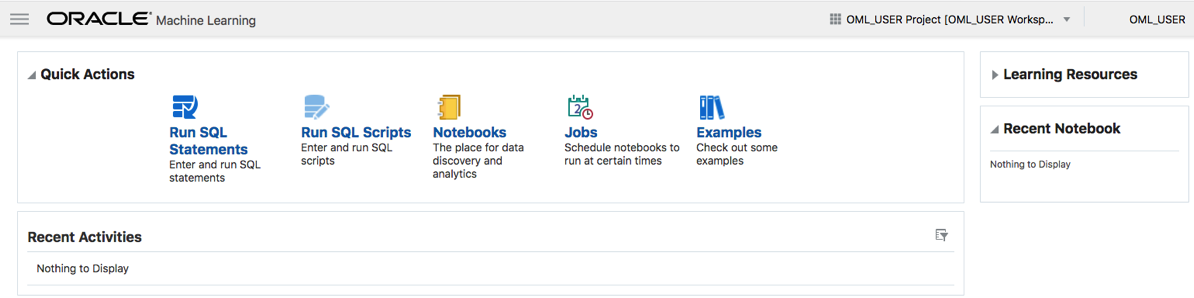
Our starting point is to example what is listed in the Examples section. Click on the Examples link. The following lists the example notebooks.
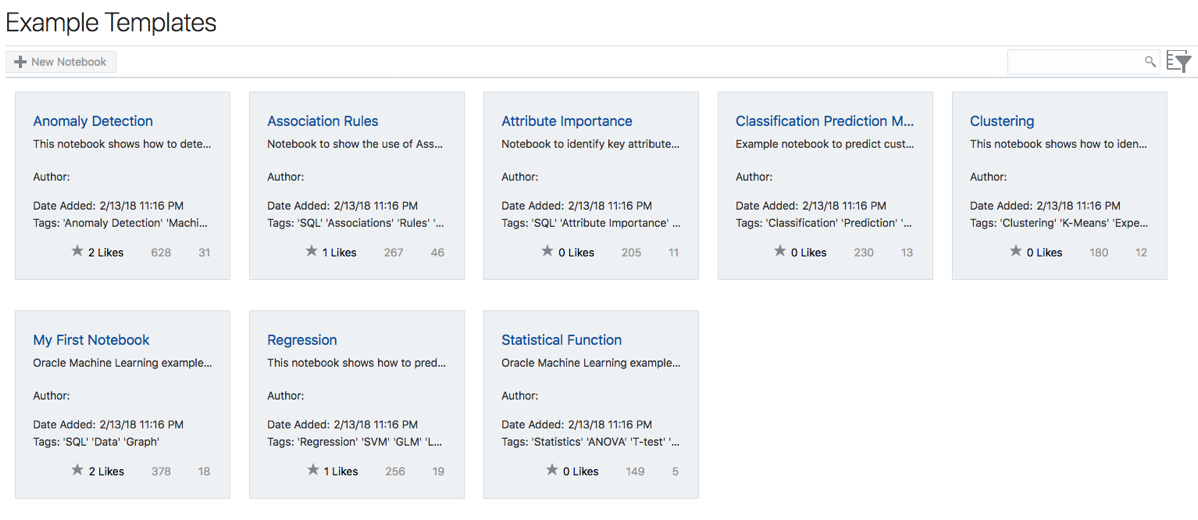
Here we have examples that demonstrate how to build Anomaly Detection, Association Rules, Attribute Importance, Classification, Regression, Clustering and one that contains examples of various statistical function.
Click on one of these to see the notebook. The following is the notebook demoing the Statistical Functions. When you select a notebook it might take a few seconds to setup and open. There is some setup needed in the background and to make sure you have access to the demo data and then runs the notebook, generating the results. Most of the demo data is based on the SH schema.
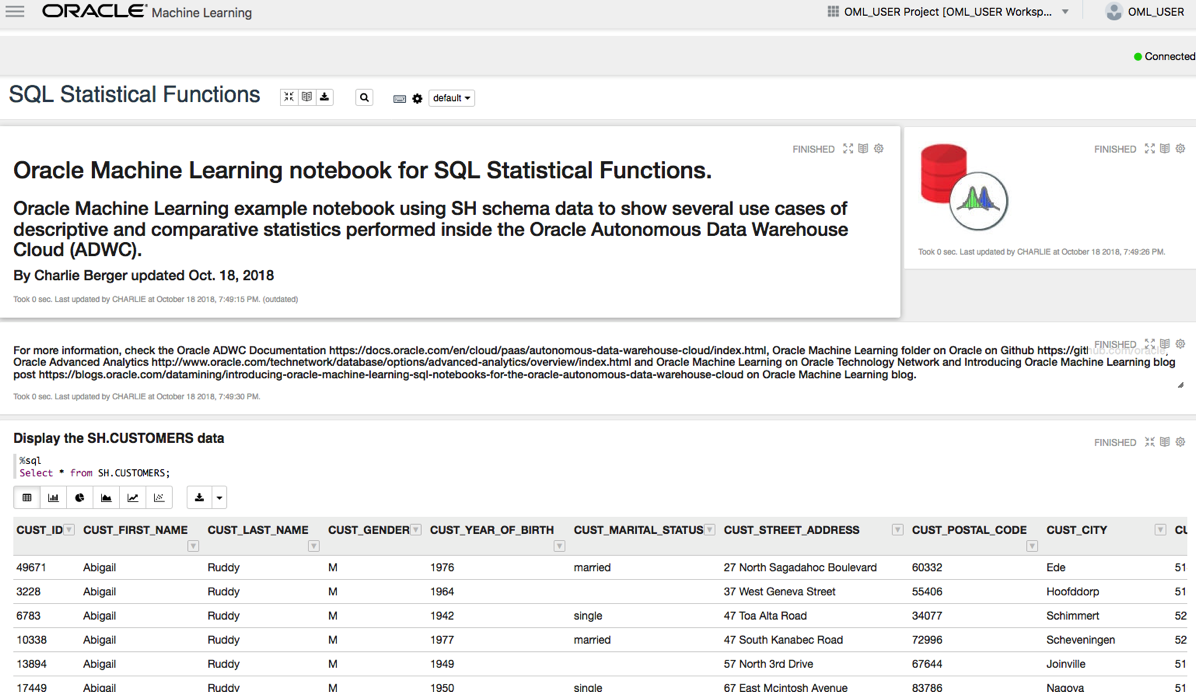
Now let us create our first notebook.
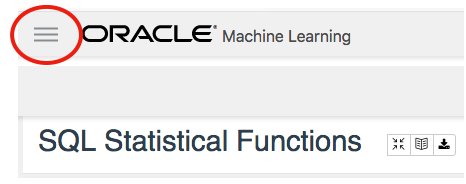
From the screen shown above lift on the menu icon on the top left of the screen.
And then click on Notebooks from the pop-out menu.
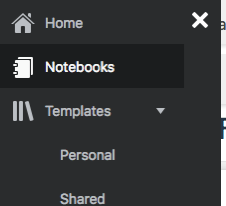
In the Notebooks screen click on the Create button to create your first notebook.

And give it a meaningful name.
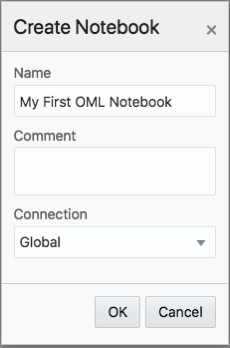
The Notebook shell will be created and then opened for you.
In the grey box, just under the name the name of your Notebook, is where you can enter your first SQL statement. Then over on the right hand side of this Cell you will see a triangle on its side. This is the run button.
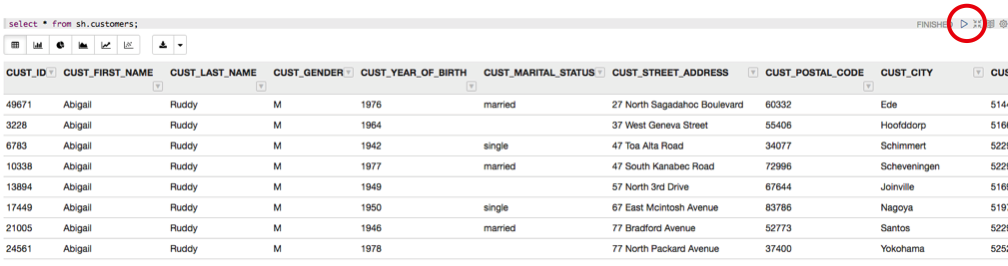
For now you can only run SQL statements, but you also have other notebooks features such as different charting options and these are listed under the grey cell, where your SQL is located.
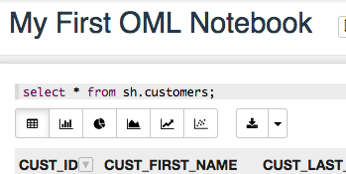
Here you can create Bar, Pie, Area, Line and Scatter charts. Here is an example of a Bar chart.
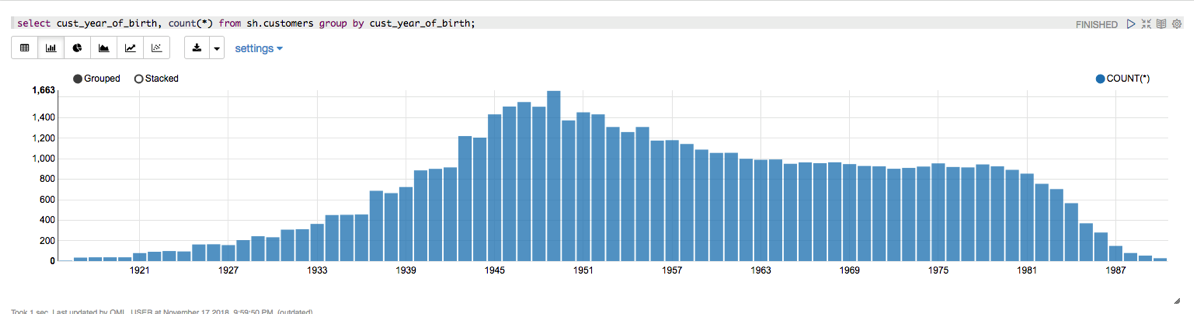
Warning: You do need to be careful of your syntax, as minimal details are given on what is wrong with your code. Not even the error numbers.
Go give it a good and see how far you can take these OML Notebooks.
Reading Data from Oracle Table into Python Pandas – How long & Different arraysize
Here are some results from a little testing I recent did on extracting data from an Oracle database and what effect the arraysize makes and which method might be the quickest.
The arraysize determines how many records will be retrieved in each each batch. When a query is issued to the database, the results are returned to the calling programme in batches of a certain size. Depending on the nature of the application and the number of records being retrieved, will determine the arraysize value. The value of this can have a dramatic effect on your query and application response times. Sometimes a small value works very well but sometimes you might need a larger value.
My test involved using an Oracle Database Cloud instance, using Python and the following values for the arraysize.
arraysize = (5, 50, 500, 1000, 2000, 3000, 4000, 5000)
The first test was to see what effect these arraysizes have on retrieving all the data from a table. The in question has 73,668 records. So not a large table. The test loops through this list of values and fetches all the data, using the fetchall function (part of cx_Oracle), and then displays the time taken to retrieve the results.
# import the Oracle Python library
import cx_Oracle
import datetime
import pandas as pd
import numpy as np

# setting display width for outputs in PyCharm
desired_width = 280
pd.set_option('display.width', desired_width)
np.set_printoptions(linewidth=desired_width)
pd.set_option('display.max_columns',30)

# define the login details
p_username = "************"
p_password = "************"
p_host = "************"
p_service = "************"
p_port = "1521"

print('--------------------------------------------------------------------------')
print(' Testing the time to extract data from an Oracle Database.')
print('    using different approaches.')
print('---')
# create the connection
con = cx_Oracle.connect(user=p_username, password=p_password, dsn=p_host+"/"+p_service+":"+p_port)

print('')
print(' Test 1: Extracting data using Cursor for different Array sizes')
print('    Array Size = 5, 50, 500, 1000, 2000, 3000, 4000, 5000')
print('')
print('   Starting test at : ', datetime.datetime.now())

beginTime = datetime.datetime.now()
cur_array_size = (5, 50, 500, 1000, 2000, 3000, 4000, 5000)
sql = 'select * from banking_marketing_data_balance_v'

for size in cur_array_size:
    startTime = datetime.datetime.now()
    cur = con.cursor()
    cur.arraysize = size
    results = cur.execute(sql).fetchall()
    print('      Time taken : array size = ', size, ' = ', datetime.datetime.now()-startTime, ' seconds,  num of records = ', len(results))
    cur.close()

print('')
print('   Test 1: Time take = ', datetime.datetime.now()-beginTime)
print('')
And here are the results from this first test.
Starting test at :  2018-11-14 15:51:15.530002
      Time taken : array size =  5  =  0:36:31.855690  seconds,  num of records =  73668
      Time taken : array size =  50  =  0:05:32.444967  seconds,  num of records =  73668
      Time taken : array size =  500  =  0:00:40.757931  seconds,  num of records =  73668
      Time taken : array size =  1000  =  0:00:14.306910  seconds,  num of records =  73668
      Time taken : array size =  2000  =  0:00:10.182356  seconds,  num of records =  73668
      Time taken : array size =  3000  =  0:00:20.894687  seconds,  num of records =  73668
      Time taken : array size =  4000  =  0:00:07.843796  seconds,  num of records =  73668
      Time taken : array size =  5000  =  0:00:06.242697  seconds,  num of records =  73668
As you can see the variation in the results.
You may get different performance results based on your location, network connectivity and proximity of the database. I was at home (Ireland) using wifi and my database was located somewhere in USA. I ran the rest a number of times and the timings varied by +/- 15%, which is a lot!
When the data is retrieved in this manner you can process the data set in the returned results set. Or what is more traditional you will want to work with the data set as a panda. The next two test look at a couple of methods of querying the data and storing the result sets in a panda.
For these two test, I’ll set the arraysize = 3000. Let’s see what happens.
For the second test I’ll again use the fetchall() function to retrieve the data set. From that I extract the names of the columns and then create a panda combining the results data set and the column names.
startTime = datetime.datetime.now()
print('   Starting test at : ', startTime)
cur = con.cursor()
cur.arraysize = cur_array_size
results = cur.execute(sql).fetchall()
print('   Fetched ', len(results), ' in ', datetime.datetime.now()-startTime, ' seconds at ', datetime.datetime.now())
startTime2 = datetime.datetime.now()
col_names = []
for i in range(0, len(cur.description)):
    col_names.append(cur.description[i][0])

print('      Fetched data & Created the list of Column names in ', datetime.datetime.now()-startTime, ' seconds at ', datetime.datetime.now())
The results from this are.
      Fetched  73668  in  0:00:07.778850  seconds at  2018-11-14 16:35:07.840910
      Fetched data & Created the list of Column names in  0:00:07.779043  seconds at  2018-11-14 16:35:07.841093
      Finished creating Dataframe in  0:00:07.975074  seconds at  2018-11-14 16:35:08.037134

Test 2: Total Time take =  0:00:07.975614
Now that was quick. Fetching the data set in just over 7.7788 seconds. Creating the column names as fractions of a millisecond, and then the final creation of the panda took approx 0.13 seconds.
For the third these I used the pandas library function called read_sql(). This function takes two inputs. The first is the query to be processed and the second the name of the database connection.
print(' Test 3: Test timing for read_sql into a dataframe')
cur_array_size = 3000
print('   will use arraysize = ', cur_array_size)
print('')
startTime = datetime.datetime.now()
print('   Starting test at : ', startTime)

df2 = pd.read_sql(sql, con)

print('      Finished creating Dataframe in ', datetime.datetime.now()-startTime, ' seconds at ', datetime.datetime.now())
# close the connection at end of experiments
con.close()
and the results from this are.
   Test 3: Test timing for read_sql into a dataframe will use arraysize =  3000

   Starting test at :  2018-11-14 16:35:08.095189
      Finished creating Dataframe in  0:02:03.200411  seconds at  2018-11-14 16:37:11.295611
You can see that it took just over 2 minutes to create the panda data frame using the read_sql() function, compared to just under 8 seconds using the previous method.
It is important to test the various options for processing your data and find the one that works best in your environment. As with most languages there can be many ways to do the same thing. The challenge is to work out which one you should use.
Installing and configuring Oracle 18c XE
The following are the simple steps required to install Oracle 18c XE (express edition) on Oracle Linux. Check out my previous blog post on Oracle 18c XE. Also check out the product webpage for more details and updates. There is a very important word on that webpage. That word is ‘FREE’ and is something you don’t see too often. Go get and use the (all most) full enterprise version of the Oracle Database.
I’ve created a VM using Oracle Linux for the OS.
After setting up the VM, login as root and download the RPM file.
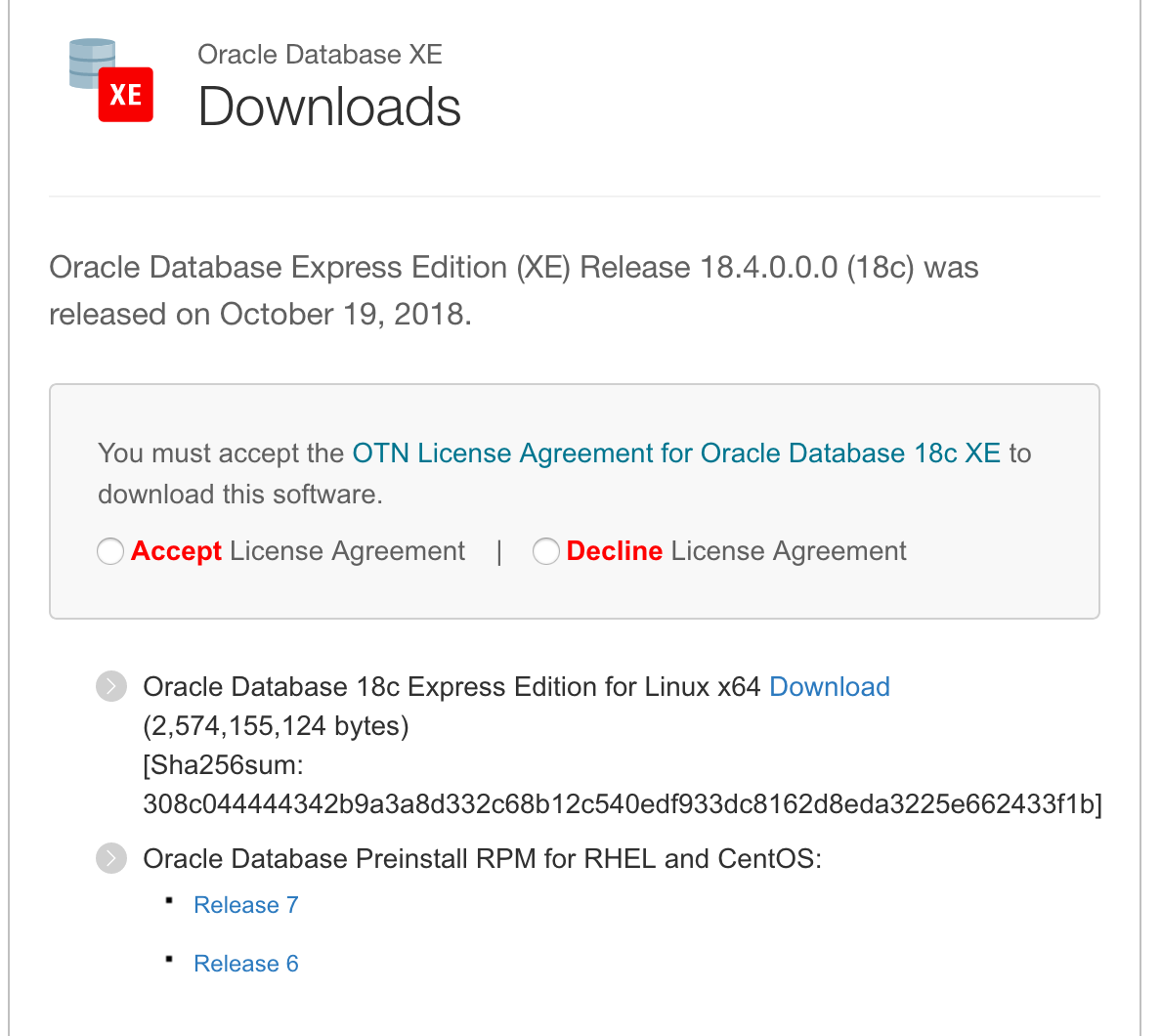
Run the following as root to perform dependency checks and configurations.
yum install -y oracle-database-preinstall-18c
You can now run the install using the following command.
yum -y localinstall oracle-database-xe-18c-1.0-1.x86_64.rpm.
When the install has completed, the next step is to install the database. This is done using the following command.
/etc/init.d/oracle-xe-18c configure
You will be prompted to enter a common password for the SYS, SYSTEM and PDBADMIN users. You will need to change these at a later time.
Then to start the database, run
systemctl start oracle-xe-18c
The next time you restart the VM, you might find that the database hasn’t started or loaded. You will need to do this manually. This is a bit of a pain in the behind.
To avoid having to do this each time, run the following commands as root.
systemctl daemon-reload
systemctl enable oracle-xe-18c
These commands will allow the database to be shutdown when the machine or VM is being shutdown and will automatically start up the database when the machine/VM startups again.
The final step is to connect to the database
sqlplus sys///localhost:1521/XE as sysdba
You can then go and perform all your typical admin tasks, set up SQLDeveloper, and create additional users.
Bingo! All it good now.
Docker
Putting Oracle 18c XE on docker is an excellent way to make it easily deployable and to build out solutions that require a DB.
Check out these links for instructions on how to setup a Docker container with Oracle 18c XE.
RandomForests in R, Python and SQL
I recently wrote a two part article explaining how Random Forests work and how to use them in R, Python and SQL.
These were posted on ToadWorld webpages. Check them out.
Part 1 of article
https://blog.toadworld.com/2018/08/31/random-forest-machine-learning-in-r-python-and-sql-part-1
Part 2 of article
https://blog.toadworld.com/2018/09/01/random-forest-machine-learning-in-r-python-and-sql-part-2
Creating and Managing OML users on Oracle ADWS
(Check out my recent blog post on getting the ADWS up and running. You will need to have following those before you can perform the following steps.
In this post I’ll look at how to setup and manage users specifically for the Oracle Machine Learning (OML) tool. This tool is only available on ADWS and is a zeppelin based notebook for analytics, data science and machine learning.
1. Open the service console for ADWS and click on Administration
Administration can be found on the small menu list on the left hand side of the screen.
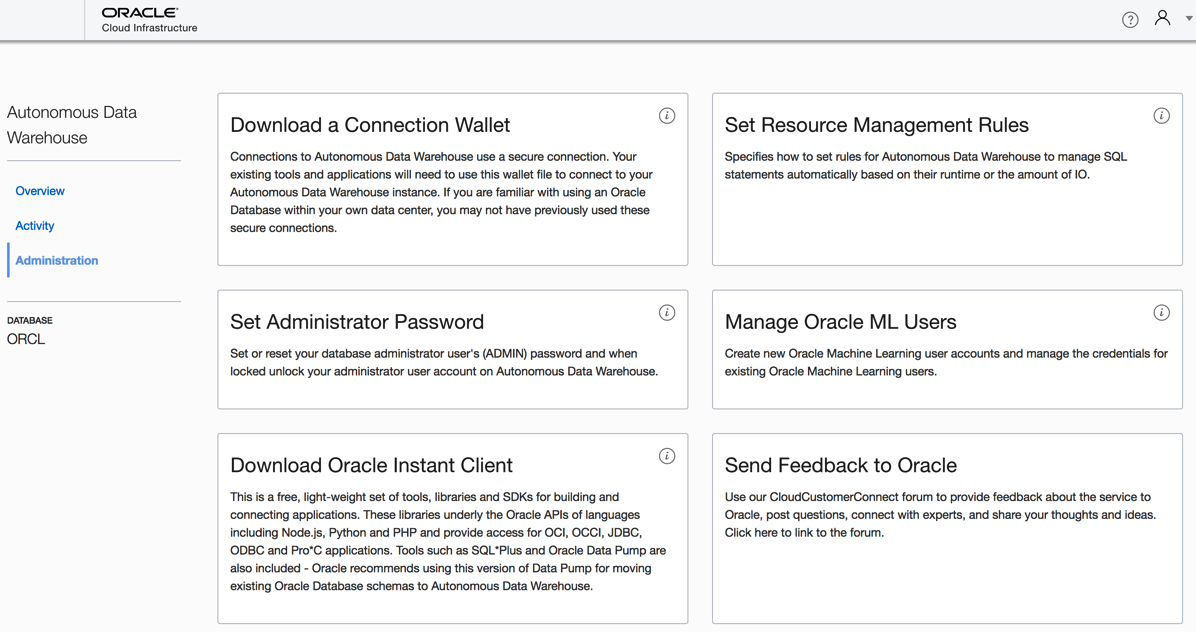
2. Click on Manage Oracle ML Users
As we are only interested in OML and Users for OML, just click on the section titled ‘Oracle ML Users’
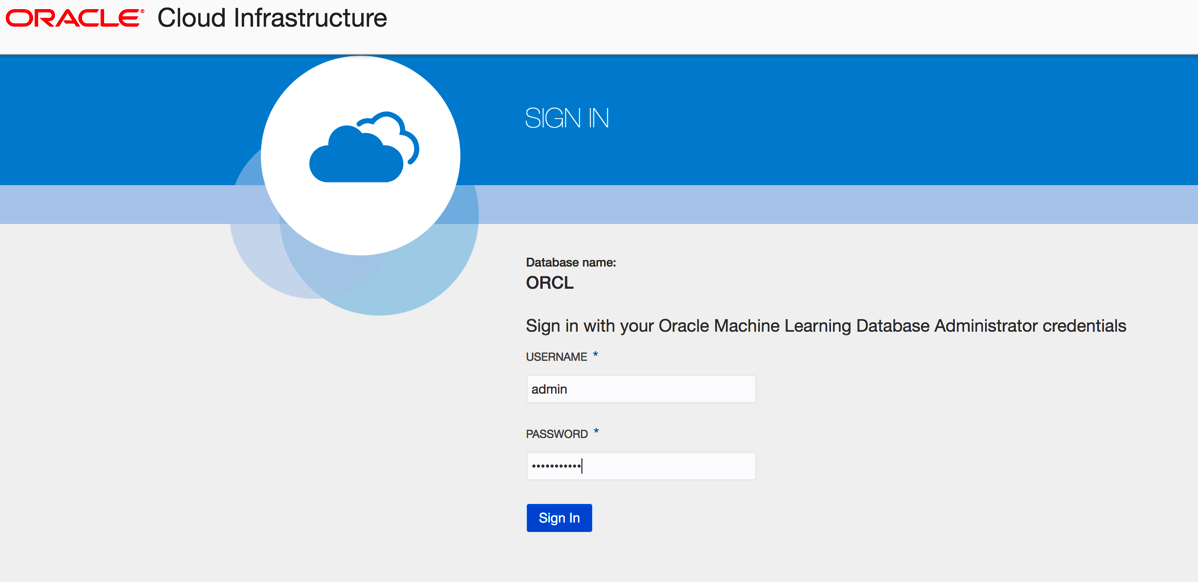
3. Sign-in as Admin user
This user was created in my previous blog post. Hopefully you can remember the password.
4. Create a New User
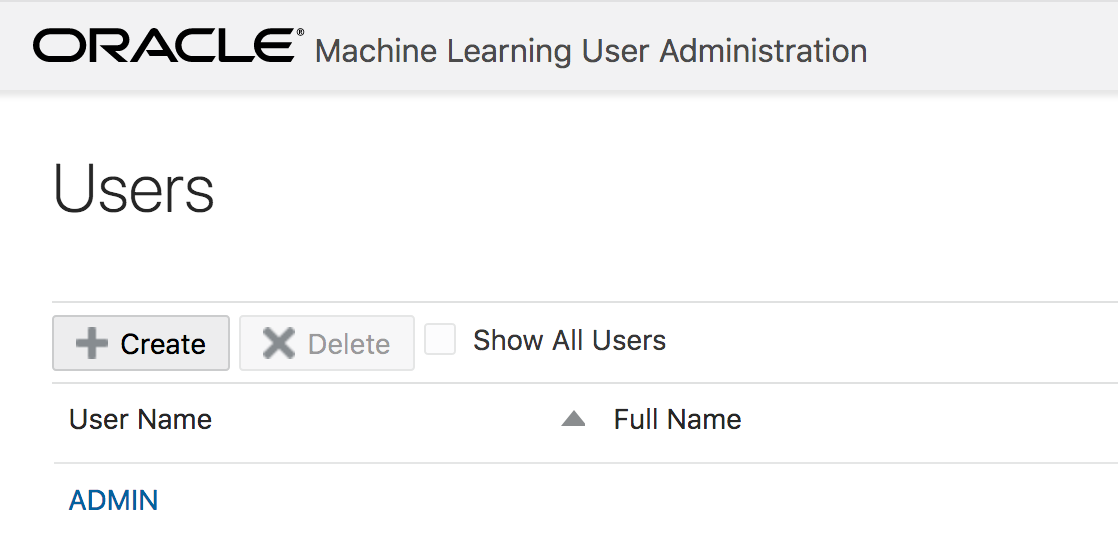
The only user currently enabled for OML is the Admin user.
To create a new OML user click on the Create button
5. Enter OML User details
Enter the details of the OML user. Enter an email address and the person will receive an email with their login details. You have the choice of having a system generated password or uncheck the tick box and add in a password.
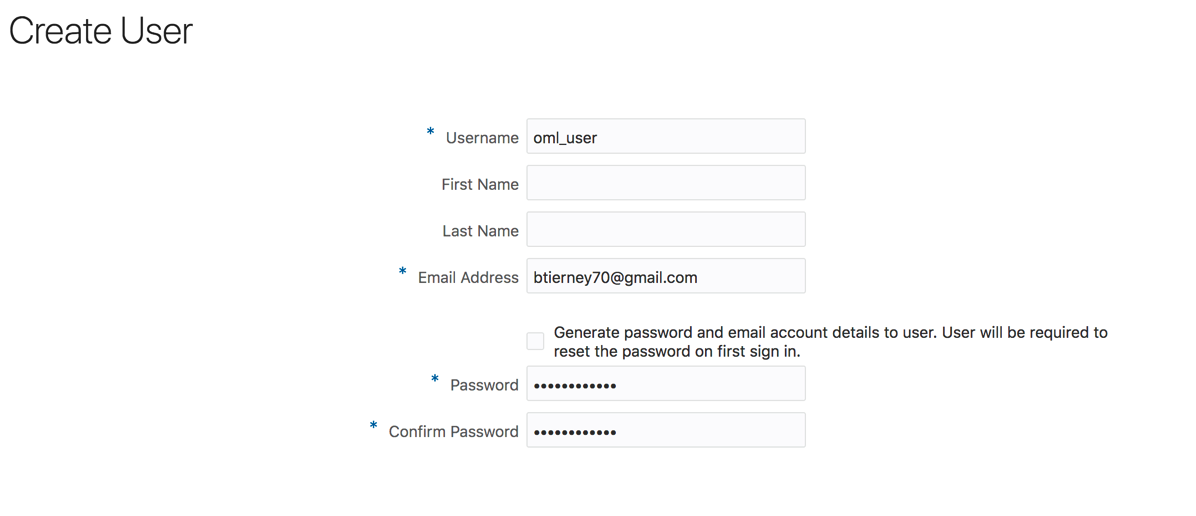
Click the Create button.
And hopefully the user will receive the email. The email may take a little bit of time to arrange in the users email box!
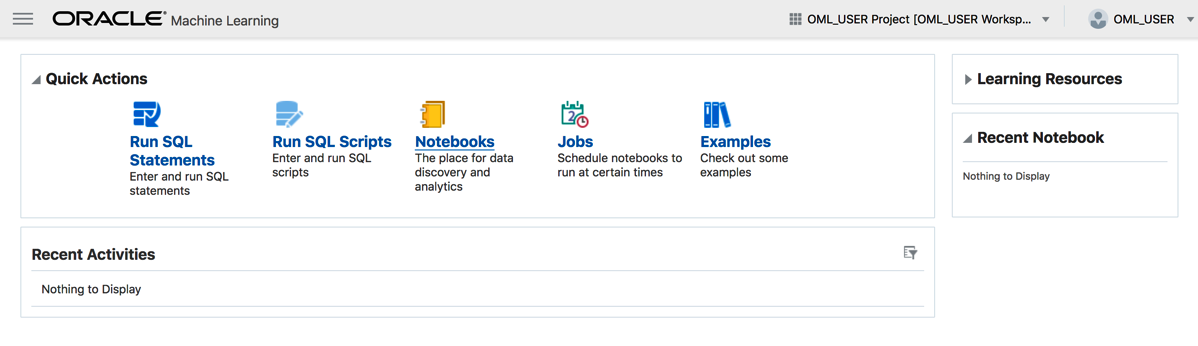
6. Log into Oracle Machine Learning
You have 2 options. The first is to follow the link in the email or click on the Home button on the top right hand side of the screen.

You will then be logged into Oracle Machine Learning. Look out for my blog posts on using this product and how to run the demos.
Slides from my OOW Presentation
Here are the slides from my presentation (with Neil Chandler) at Oracle Open World and Oracle Code One.
1 – Code1-Nnets_REST-joint-ver2

Oracle 18c XE – Comes with in-database and R machine learning
As of today 20th October, Oracle has finally released Oracle 18c XE aka Express Edition
A very important word associated with Oracle 18c XE is the word ‘FREE’
Yes it is FREE
This FREE product is backed full of features. Think of all the features that come with the Enterprise Edition of the Database. It comes with most of those features, including some of the extra add on features.
I said it comes with most features. There are a few features that don’t come with XE, so go check out the full list here.
There are a few restrictions:
- Up to 12 GB of user data
- Up to 2 GB of database RAM
- Up to 2 CPU threads
- Up to 3 Pluggable Databases
I know of so many companies and applications that easily meet the above restrictions.
For the Data Scientists and Machine Learning people, the Advanced Analytics option is now available with Oracle 18c XE. That means you can use the in-memory features for super fast analytics, use the in-database machine learning algorithms, and also use the embedded R feature called Oracle R Enterprise.
Yes you are limited to 12G of user data. That might be OK for most people but for those whose data is BIG then this isn’t an option for you.
There is a phrase, “Your data isn’t as big as you think”, so maybe your data might fit within the 12G.
Either way this can be a great tool to allow you to try out machine learning for Free in a test lab environment.
Go download load it and give it a try.


You must be logged in to post a comment.