
database
Oracle 21c XE Database and Docker setup
You know when you are waiting for the 39 bus for ages, and then two of them turn up at the same time. It’s a bit like this with Oracle 21c XE Database Docker image being released a few days after the 18XE Docker image!
Again we have Gerald Venzi to thank for putting these together and making them available.
23c Database – If you want to use the 23c Database, Check out this post for the command to install
Are you running an Apple M1 chip Laptop? If so, follow these instructions (and ignore the rest of this post)
If you want to install Oracle 21c XE yourself then go to the download page and within a few minutes you are ready to go. Remember 21c XE is a fully featured version of their main Enterprise Database, with a few limitations, basically on size of deployment. You’d be surprised how many organisations who’s data would easily fit within these limitations/restrictions. The resource limits of Oracle Database 21 XE include:
- 2 CPU threads
- 2 GB of RAM
- 12GB of user data (Compression is included so you can store way way more than 12G)
- 3 pluggable Databases
It is important to note, there are some additional restrictions on feature availability, for example Parallel Query is not possible, etc.
Remember the 39 bus scenario I mentioned above. A couple of weeks ago the Oracle 18c XE Docker image was released. This is a full installation of the database and all you need to do is to download it and run it. Nothing else is required. Check out my previous post on this.
To download, install and run Oracle 21c XE Docker image, just run the following commands.
docker pull gvenzl/oracle-xe:21-full

docker run -d -p 1521:1521 -e ORACLE_PASSWORD=SysPassword1 -v oracle-volume:/opt/oracle/XE21CFULL/oradata gvenzl/oracle-xe:21-full

docker rename da37a77bb436 21cFull

sqlplus system/SysPassword1@//localhost/XEPDB1
It’s a good idea to create a new schema for your work. Here is an example to create a schema called ‘demo’. First log into system using sqlplus, as shown above, and then run these commands.
create user demo identified by demo quota unlimited on users;
grant connect, resource to demo;
To check that schema was created you can connect to it using sqlplus.
connect demo/demo@//localhost/XEPDB1
Then to stop the image from running and to restart it, just run the following
docker stop 21cFull
docker start 21cFull
Check out my previous post on Oracle 18c XE setup for a few more commands.
SQL Developer Connection Setup
An alternative way to connect to the Database is to use SQL Developer. The following image shows and example of connecting to a schema called DEMO, which I created above. See the connection details in this image. They are the same as what is shown above when connecting using sqlplus.

Oracle 18c XE Docker setup
During August (2021) Gerald Venzi of Oracle released a new set of Docker images and these included Oracle 18c XE Database. Check out Gerald’s blog post about this for a lot more details on these images. Great work Gerald, and it’s way simpler to set this up compared to previous.
The following is really just a reminder to myself of the commands needed to install and run one of the 18c XE docker images.
Gerald has provided 3 different versions of 18c XE Database. Check out his blog post for more details of what is included/excluded in each image.
I decided to go with the FULL docker image (oracle-xe-full), just because I use most of the DB features and like to play around with the rest. If you just want a Database then go with the medium or small sized docker images
| Docker Image Name | Description |
|---|---|
| oracle-xe-full | Contains full Oracle 18c XE Database installation. Containing all the bells and whistles. This is the largest docker image. |
| oralce-xe | This medium sized image has some things stripped out from the installation. Contains most of the functionality from the full image, but some of the edge case functionality has been removed. |
| oracle-xe-slim | This is the smallest image and has a lot of extra features remove. Probably only suitable if you want a basic Database. |
Before you run the following commands you will need to install Docker.
Step 1: Download the 18c XE image
docker pull gvenzl/oracle-xe
Step 2: Check the image exist in your Docker env
docker images
Step 3: Run the image
docker run -d -p 1521:1521 -e ORACLE_PASSWORD=SysPassword1 -v oracle-volume:/opt/oracle/oradata gvenzl/oracle-xe
This command remaps the 1521 port to local 1521, changed/set the password and gives volume details to all any changes to the database and image to be persisted i.e. when you restart the image your previous work will be there
Step 4: Rename image [you can skip this step if you want. I just wanted a different name]
docker ps
docker rename d95a3db95747 18XE
NB: Use the code/reference for your docker image. It will be different to mine (d95a3db95747)
Step 5: Connect to the Database as DBA/Admin schema
You can use SQL*Plus or some other client side tool to connect to the database
sqlplus system/SysPassword1@//localhost/XEPDB1
A simple query to check we are connected to the database.
select username from dba_users;
Step 6: Create your own (developer) Schema
create user demo identified by demo quota unlimited on users;
grant connect, resource to demo;
Exit SQL*Plus and log back into the Database using the DEMO schema you just created.
connect demo/demo@//localhost/XEPDB1
Step 7: Create a Table and enter some Records
create table test (col1 NUMBER, col2 VARCHAR2(10));
insert into test values (1, 'Brendan');
Step 8: Test the Docker image persists the data
Stop the docker image
docker stop 18XE
Check it is no-longer running
docker ps
Nothing will be displayed
Step 9: Start the 18XE Docker image and Check data was persisted
docker start 18XE
docker ps
You should see the docker image is running
sqlplus demo/demo@//localhost/XEPDB1
select table_name from user_tables;
select * from test;
These last two commands should show the table and the record in the table. This means the data was persisted.
All done you now have a working Docker image of Oracle 18XE running.
Just remember to stop the image when you don’t need it on your computer. These will save you some resource usage.
Collection of Oracle 21c posts on new Machine Learning and Statistical functions
Oracle 21c was officially released a few days about and this post contains links to some blog posts I’ve written on new machine learning and statistical functions in the new Oracle 21c.
- Adam Optimization Solver for Neural Network Algorithm
- MSET-SPRT Algorithm
- XGBoost Algorithm
- Measuring SKEWNESS Function
- Measuring tailedness of data with KURTOSIS Function
I also have posts on new OML4Py and AutoML too, and I’ll have a different set of posts for those, so look out them.
Also check out my previous blog post that covers new machine learning feature introduced in Oracle 19c.
18c is now available (but only on the Cloud)
On Friday afternoon (16th February) we started to see tweets and blog posts from people in Oracle saying that Oracle 18c was now available. But is only available on Oracle Cloud and Engineered Systems.
It looks like we will have to wait until the Autumn before we can install it ourselves on our own servers 😦
Here is the link to the official announcement for Oracle 18c.
Oracle 18c is really Oracle 12.2.0.2. The next full new release of the Oracle database is expected to be Oracle 19.
The new features and incremental enhancements in Oracle 18c are:
- Multitenant
- In-Memory
- Sharding
- Memory Optimized Fetches
- Exadata RAC Optimizations
- High Availability
- Security
- Online Partition Merge
- Improved Machine Learning (OAA)
- Polymorphic Table Functions
- Spatial and Graph
- More JSON improvements
- Private Temporary Tablespaces
- New mode for Connection Manager
And now the all important links to the documentation.
To give Oracle 18c a try you will need to go to cloud.oracle.com and select Database from the drop down list from the Platform menu. Yes you are going to need an Oracle Cloud account and some money or some free credit. Go and get some free cloud credits at the upcoming Oracle Code events.
If you want a ‘free’ way of trying out Oracle 18c, you can use Oracle Live SQL. They have setup some examples of the new features for you to try.
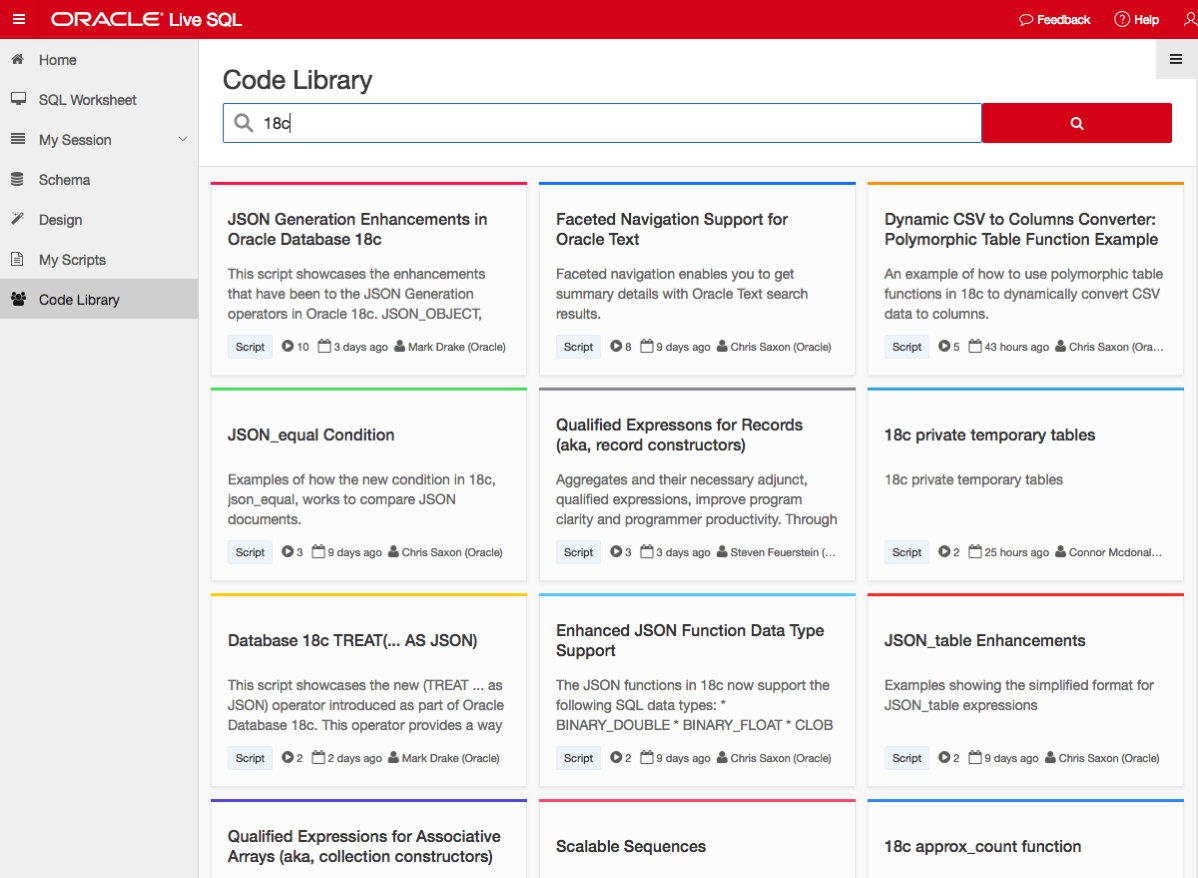
NOTE: Oracle 18c is not Autonomous. Check out Tim Hall’s blog posts about this. The Autonomous Oracle Database is something different, and we will be hearing more about this going forward.
12.2 DBaaS (Extreme Edition) possible bug/issue with the DB install/setup
A few weeks ago the 12.2 Oracle Database was released on the cloud. I immediately set an account and got my 12.2 DBaaS setup. This was a relatively painless process and quick.
For me I wanted to test out all the new Oracle Advanced Analytics new features and the new features in SQL Developer 4.2 that only become visible when you are using the 12.2 Database.
When you are go to use the Oracle Data Miner (GUI tool) in SQL Developer 4.2, it will check to see if the ODMr repository is installed in the database. If it isn’t then you will be promoted for the SYS password.
This is the problem. In previous version of the DBaaS (12.1, etc) this was not an issue.
When you go to create your DBaaS you are asked for a password that will be used for the admin accounts of the database.
But when I entered the password for SYS, I got an error saying invalid password.
After using ssh to create a terminal connection to the DBaaS I was able to to connect to the container using
sqlplus / as sysdba
and also using
sqlplus sys/ as sysdba
Those worked fine. But when I tried to connect to the PDB1 I got the invalid username and/or password error.
sqlplus sys/@pdb1 as sysdba
I reconnected as follows
sqlplus / as sysdba
and then changed the password for SYS with containers=all
This command completed without errors but when I tried using the new password to connect the the PDB1 I got the same error.
After 2 weeks working with Oracle Support they eventually pointed me to the issue of the password file for the PDB1 was missing. They claim this is due to an error when I was creating/installing the database.
But this was a DBaaS and I didn’t install the database. This is a problem with how Oracle have configured the installation.
The answer was to create a password file for the PDB1 using the following
- ← Previous
- 1
- 2
 Ora-lytics
You must be logged in to post a comment.