
My presentations at UKOUG 2015
Video Posted on Updated on
The annual conferences of the UKOUG are coming up soon and I just wanted to give you a quick overview of the 3 presentations I will be giving at these conferences in Birmingham between Sunday 6th and Wednesday 9th December.
I’ll be making references to 50 Shades of Gray and Lord of the Rings in some of these presentations. Come along to find out why.
It all kicks off on the Sunday (12:30-14:20) with an almost 2 hour presentation titled ‘Predictive Analytics in Oracle: Mining the Gold & Creating Valuable Products’. We have being hearing about Predictive Analytics for a few years now. But most people are still unsure of what it really means and how it could be used in their company. This presentations aims to simplify what Predictive Analytics means and to illustrate how various companies from a wide range of industries have been using Predictive Analytics to gain deeper, valuable and actionable insights of their data. A number of case studies will be presented, based on some of my recent projects, illustrating how predictive analytics has been used to generate significant benefits for each company. These case studies will include examples from Banking, Telecommunications, Financial Fraud Detection, Retail and Merchandising. The second half of this seminar will look at what functionality is available from Oracle that allows you to build and deploy Predictive Analytics in your applications. We will at what you can do with SQL, PL/SQL, Oracle Data Miner, Oracle R Enterprise and Real-Time Decisions. We will then look at how you can build these features and tools into your front end applications. In the final section of the seminar we will look at what you need to do to get started with Predictive Analytics and how you can avoid some of the typical pitfalls.
On Monday 7th, I have a presentation between 9:00 and 9:50 titled ‘Is Oracle SQL the Best Language for Statistics?’. Did you know that Oracle comes with over 280+ statistical functions? and that these statistical functions are available in all versions of the Database? Most people do not seem to know this.When we hear about people performing statistical analytics we can hear them talking about Excel and R. But what if we could do statistical analysis in the database, without having to extract any data onto client machines. That would be really good and just think of the possible data security issues with using Excel, R and other tools.This presentation will explore the various statistical areas available in SQL and I will give a number of demonstrations on some of the more commonly used statistical techniques. With the introduction of Big Data SQL we can now use these same 280+ Oracle statistical functions on all our data including Hadoop and NoSQL. We can also greatly expand our statistical capabilities by using Oracle R Enterprise using the embedded capabilities in SQL.
My final presentation will on Wednesday (14:30-15:20) titled ‘Automating Predictive Analytics in Your Applications’. What does your Oracle DBA and Oracle Developer need to know to implement Data Mining? How can the Oracle DBA and Oracle Developer use Data Mining. This presentation will look at what the Oracle DBA and Oracle Developer needs to know to deploying, implementing and integrating the predictive models produced by the Data Miner. These predictive models can be used in multiple databases and across their many applications. Examples will be given of the typical tasks data mining task for the DBA and for the Oracle Developer. These examples will include SQL, PL/SQL and embedded Oracle R Enterprise. I will show how easy it is to build automated Predictive Analytics into, not only your Dashboards, but your everyday applications.
Here is a short video that gives an overview of my presentations for TECH15.
Error when trying to use GLM in ORE
If you have tried to use the ore.odmGLM function in ORE and some other functions in ORE and you are using the Oracle 12.1.0.2 Database you will be getting an error something like the following in R.
> GLMmodel <- ore.odmGLM(AFFINITY_CARD ~., ANALYTIC_RECORD)
Error in .oci.GetQuery(conn, statement, data = data, prefetch = prefetch,  :
  ORA-29400: data cartridge error
ORA-40024: solution to least squares problem could not be found
ORA-06512: at "SYS.DBMS_DATA_MINING", line 2153
ORA-06512: at line 1
or you get something like the following when using ore.glm
Error in .External(C_pt, q, df, lower.tail, log.p) :
  NULL value passed as symbol address
Similarly if you are using these functions with embedded R execution when the R code is warpped in SQL, you will see similar errors.
What you need to do is to download and install the stand alond Patch 20173897.
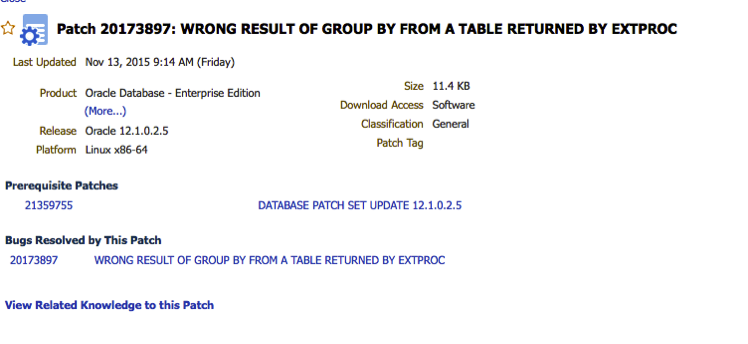
Alternatively this patch is included in the latest Oracle 12.1.2 Database patch.
Slide from my OOW15 Presentations
At Oracle Open World (OOW15) I gave 2 presentations on the Sunday during the Oracle User Group Forum. The slides are now available for download from the Oracle Open World website.
Go get them now!
More Than Another 12 on Oracle Database 12c [UGF3190]
During this sessions I was one of 16 presenters talking about various features in the Oracle Database. All of the presenters where from the EOUC region.
Real Business Value from Big Data and Advanced Analytics [UGF4519]
I co-presented with Antony Heljula from Peak Indicators. During this presentation we talked about some of the Advanced Analytics projects we have worked on over the past 18-24 months. We also announced a new Analytics-as-a-Service offering.
The slides are also available for most of the other Oracle Open World Presentations and these can be accessed here. Just go search for the topic you are interested in.
Check out my previous blog post that summarises just a small part of what I got up to at OOW15.
Slide from my OOW15 Presentations
At Oracle Open World (OOW15) I gave 2 presentations on the Sunday during the Oracle User Group Forum. The slides are now available for download from the Oracle Open World website.
Go get them now!
More Than Another 12 on Oracle Database 12c [UGF3190]
During this sessions I was one of 16 presenters talking about various features in the Oracle Database. All of the presenters where from the EOUC region.
Real Business Value from Big Data and Advanced Analytics [UGF4519]
I co-presented with Antony Heljula from Peak Indicators. During this presentation we talked about some of the Advanced Analytics projects we have worked on over the past 18-24 months. We also announced a new Analytics-as-a-Service offering.
The slides are also available for most of the other Oracle Open World Presentations and these can be accessed here. Just go search for the topic you are interested in.
My OOW15 is not over
It seems to be traditional for people to write a blog post that summaries their Oracle Open World (OOW) experience. Well here is my attempt and it really only touches on a fraction of what I did at OOW, which was one of busiest OOWs I’ve experienced.
It all began back on Wednesday 21st October when I began my journey. Yes that is 9 days ago, a long long 9 days ago. I will be glad to get to home.
The first 2 days here in San Francisco was down at Oracle HQ were the traditional Oracle ACE Directors briefings are held. I’m one of the small (but growing) number of ACEDs and it is an honour he take part in the programme. The ACE Director briefings are 2 days of packed (did I say they are packed) full on talks by the leading VPs, SVPs, EVPs and especially Thomas Kurian. Yes we had Thomas Kurian come into talk to us for 60-90 minutes of pure gold. We get told all the things that Oracle is going to release or announce at OOW and for the next few months and beyond. Some of things that I was particularly interested in was the 12.2 database stuff.
Unfortunately we are under NDA for all of the stuff we were told, until Oracle announce it themselves.
On the Thursday night a few of us meet up with Bryn Llewellyn (the god father of PL/SQL) for a meal. Here is a photo to prove it. It was a lively dinner with some “interesting” discussions.
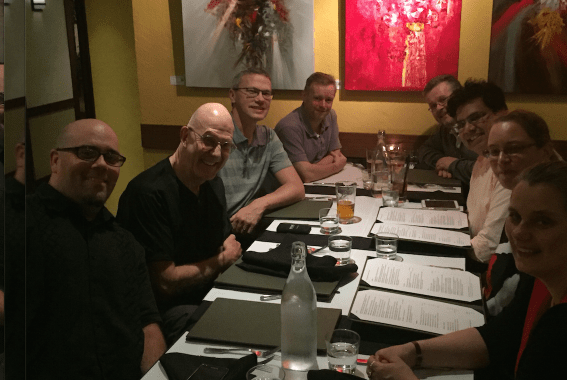
On the Friday we all transferred hotels into a hotel beside Union Square.
We had the Saturday free, and I’m struggling to remember what I actually did. But it did consist of going out and about around San Francisco. Later that evening there was a meet up arranged by “That” Jeff Smyth in a local bar.
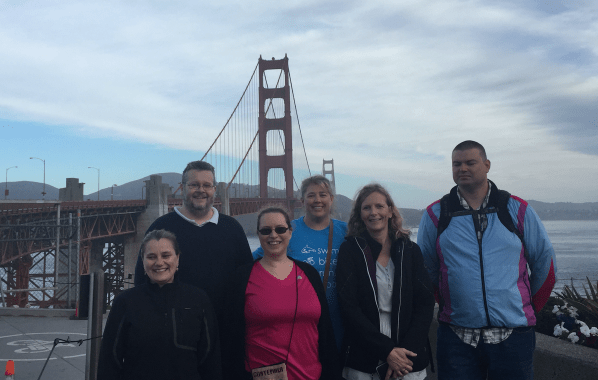
Sunday began with me walking across (and back) the Golden Gate Bridge with a few other ACEDs and ACEs.
The rest of the Sunday was spent at the User Groups Forum. I was giving 2 presentations. The first presentation was part of the “Another 12 things about Oracle 12c”. For this session there was 15 presenters and we each had 7 minutes to talk about a topic. Mine was on Oracle R Enterprise. It was an almost full room, which was great.
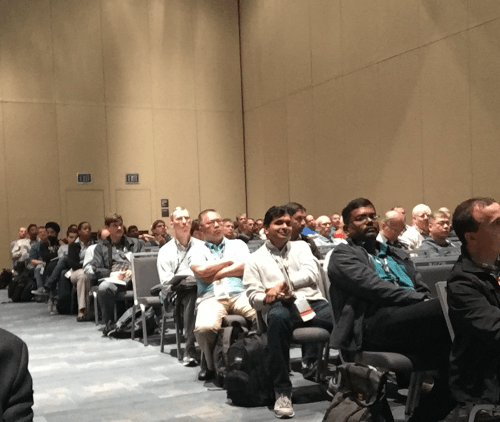

Then I had my second presentation right afterwards and for that we had a full room. I was co-presenting with Tony Heljula and we were talking about some of the projects we have done using Oracle Advanced Analytics.
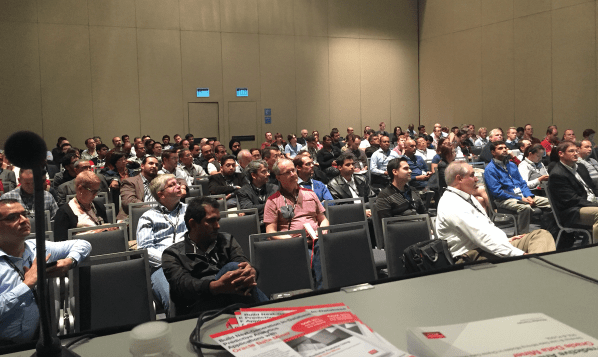
After that my conference duties were done and I got to enjoy the rest of the conference.
Monday and Tuesday were a bit mental for me. I was basically in sessions from 8am until 6pm without a break. There was lots of really good topics, but unfortunately there was a couple presentations that were total rubbish. Where the title and abstract had no relevance to what was covered in the presentation, and even the presentation was rubbish. There was only a couple of these.
Wednesday was the same as Monday and Tuesday but this time I had time for lunch.
As usual the evenings are taken up with lots of socials and although I had great plans to go to lots of them, I failed and only got to one or two each evening.
On Wednesday night we ended up out at Treasure Island to be entertained by Elton John and Becks, and then back into Union Square for another social.
Thursday was very quiet and as things started to wind down at OOW finishing up at 3pm. A few of us went down to Fishermans Wharf and Pier39 for a wander around and a meal. Here are the some photos from the restaurant.


Friday has finally arrived and it is time to go home. OTN are very generous and put on a limo for the ACEDs to bring us out to the airport.

SQL and PL/SQL icons and stickers
Over the past couple of weeks I’ve been preparing my slides and presentations for Oracle Open World (2015).
One thing that occurred to me was that there was no icon or image to represent Oracle SQL and PL/SQL. I needed something that I could include in my presentations to represent these.
After a bit of Tweeting it turns out that there is no (official) icons or images for Oracle SQL and Oracle PL/SQL.
So I created some and here they are.
and there are these
Feel free to use these in your presentations and share around. All I ask is that you give me an odd acknowledgement from time to time.Stickers
If you would like to get these as stickers and put them on your laptop, notebooks, or anywhere really, you can order them on Stickermule.
Extending vmdk Size for VirtualBox VM
Recently I ran out of space on one of my Windows virtual machines. I needed to increase the size of the disk to allow me to install some new software. When creating the VM I had created the disks as VMDK. Yes I know now that is not the best format to use 😦 VMDK disks/files do not allow you to dynamically change their size 😦 So what can you do? Is it possible in any way? If so how? Well this is what I did (after a bit of research using the google and StackOverFlow.
- Make a copy of the vmdk file on the OS. Just in case anything happens! (always have a backup)
- Clone the vmdk disk file into vdi format. To do this you need to use the VBoxManage command/app to clone the file into a vdi formatted file. For example this is what I ran.
VBoxManage clonehd “Win7-11.2.0.3-ORE-03-Jan-14-disk1.vmdk” “cloned.vdi” –format vdi
- There was some suggestions that you could then clone the vdi file back into vmdk format. This did not work for me. It kept on giving me errors when the cloning process was nearly finished. After a bit of time researching this I wasn’t able to find a solution to fix this. Instead I did the following
- Replace the vodka disk/file with the vdi disk/file in my VirtualBox VM. Open VirtualBox, select the VM and then click on the Storage section. In this I was able to add the new vdi disk/file and then removed the old vodka disk/file.

- Start up the VM. The VM starts up as normal and everything works OK.
- To allocate and make the extract space useable you need to allocated the new space to the c:\ drive. To do this I did the following:
- Click on Start Button, then right click on Computer and select Manage from the drop down menu.
- In the Computer Management console select Disk Management. A screen something like the following appears shows the amount of allocated and unallocated disk.

- Right click on the area for the c:\ drive and select Extend Volume from the drop down menu.
- Select all the defaults are you go through the Wizard to Extend the Volume. When you are finished the c:\ drive will be extended with all the extra space, as shown below.

- All done. You now have a larger disk/drive for your Windows VM.
Oracle Magazine – March/April 2001
The headline articles of Oracle Magazine for March/April 2001 were on using Oracle 9i Application server to deliver e-business and web based applications. There was some case studies of companies using this technologies including Tantalus Communications, Digital River Commerce System, Tomatoland.com and Oracle themselves.

Other articles included:
- Tom Kyte’s column looked at tips on automation, cleanup and database maintenance. Some of the details included index rebuilds, indexing interMedia files, killing and cleaning up sessions, how to specify the column at runtime in an order by, and how to use DBMS_JOB for database maintenance.
- Oracle announces the release of PORTAL.ORACLE.COM and MY.ORACLE.COM.
- Fre Sansmark has an article on Database Benchmarking and discusses what it means and how well they address real-world performance questions.
- Understanding XML Standards gives a brief introduction to what XML is about, explains the three layers of XML Grammar, XML based Protocols and XML Vocabularies. .
- Part 3 of ‘Exploring Oracle Text Basics’ looks at text searching and comparisons, creating, indexing and loading data.
- Creating Updatable Views explores the various requirements for creating an View that can be used to update data that is based on a single table or based on the joining of multiple tables..
- Linking to Remote Databases explores the basics of Database Links and that the DBA needs to know to setup and manages these..
- Steven Feuerstein’s article looks at Advanced Native Dynamic SQL and the use of bind variables and their limitations.
To view the cover page and the table of contents click on the image at the top of this post or click here.
My Oracle Magazine Collection can be found here. You will find links to my blog posts on previous editions and a PDF for the very first Oracle Magazine from June 1987.
Go to www.oralytics.com
This WordPress site is only a temporary version of my main blog. To get all my content at my official site go to
www.oralytics.com
PMML in Oracle Data Mining
PMML (Predictive Model Markup Langauge) is an XML formatted output that defines the core elements and settings for your Predictive Models. This XML formatted output can be used to migrate your models from one data mining or predictive modelling tool to another data mining or predictive modelling tool, such as Oracle.
Using PMML to migrate your models from one tool to another allows for you to use the most appropriate tools for developing your models and then allows them to be imported into another tool that will be used for deploying your predictive models in batch or real-time mode. In particular the ability to use your Predictive Model within your everyday applications enables you to work in the area of Automatic or Prescriptive Analytics. Oracle Data Mining and the Oracle Database are ideal or even the best possible tools to allow for Automatic and Prescriptive Analytics for your transa
PMML is an XML based standard specified by the Data Mining Group
Oracle Data Mining supports the importing of PMML models that are compliant with version 3.1 of the standard and for Regression Models only. The regression models can be for linear regression or binary logistic regression.
The Data Mining Group Archive webpage have a number of sample PMML files for you to download and then to load into your Oracle database.
To Load the PMML file into your Oracle Database you can use the DBMS_DATA_MINING.IMPORT_MODEL function. I’ve given examples of how you can use this function to import an Oracle Data Mining model that was exported using the EXPORT_MODEL function.
The syntax of the IMPORT_MODEL function when importing a PMML file is the following
DBMS_DATA_MINING.IMPORT_MODEL (
      model_name        IN  VARCHAR2,
      pmmldoc           IN  XMLTYPE
      strict_check      IN  BOOLEAN DEFAULT FALSE);
The following example shows how you can load the version 3.1 Logistic Regression PMML file from the Data Mining Group archive webpage

BEGIN
   dbms_data_mining.IMPORT_MODEL (‘PMML_MODEL',
        XMLType (bfilename (‘IMPORT_DIR', 'sas_3.1_iris_logistic_reg.xml'),
          nls_charset_id ('AL32UTF8')
        ));
END;
This example uses the default value for STRICT_CHECK as FALASE. In this case if there are any errors in the PMML structure then these will be ignored and the imported model may contain “features” that may make it perform in a slightly odd manner.
PMML in Oracle Data Mining
PMML (Predictive Model Markup Langauge) is an XML formatted output that defines the core elements and settings for your Predictive Models. This XML formatted output can be used to migrate your models from one data mining or predictive modelling tool to another data mining or predictive modelling tool, such as Oracle.
Using PMML to migrate your models from one tool to another allows for you to use the most appropriate tools for developing your models and then allows them to be imported into another tool that will be used for deploying your predictive models in batch or real-time mode. In particular the ability to use your Predictive Model within your everyday applications enables you to work in the area of Automatic or Prescriptive Analytics. Oracle Data Mining and the Oracle Database are ideal or even the best possible tools to allow for Automatic and Prescriptive Analytics for your transa
PMML is an XML based standard specified by the Data Mining Group
Oracle Data Mining supports the importing of PMML models that are compliant with version 3.1 of the standard and for Regression Models only. The regression models can be for linear regression or binary logistic regression.
The Data Mining Group Archive webpage have a number of sample PMML files for you to download and then to load into your Oracle database.
To Load the PMML file into your Oracle Database you can use the DBMS_DATA_MINING.IMPORT_MODEL function. I’ve given examples of how you can use this function to import an Oracle Data Mining model that was exported using the EXPORT_MODEL function.
The syntax of the IMPORT_MODEL function when importing a PMML file is the following
DBMS_DATA_MINING.IMPORT_MODEL (
      model_name        IN  VARCHAR2,
      pmmldoc           IN  XMLTYPE
      strict_check      IN  BOOLEAN DEFAULT FALSE);
The following example shows how you can load the version 3.1 Logistic Regression PMML file from the Data Mining Group archive webpage
BEGIN
   dbms_data_mining.IMPORT_MODEL (‘PMML_MODEL',
        XMLType (bfilename (‘IMPORT_DIR', 'sas_3.1_iris_logistic_reg.xml'),
          nls_charset_id ('AL32UTF8')
        ));
END;
This example uses the default value for STRICT_CHECK as FALASE. In this case if there are any errors in the PMML structure then these will be ignored and the imported model may contain “features” that may make it perform in a slightly odd manner.
R (ROracle) and Oracle DATE formats
When you comes to working with R to access and process your data there are a number of little features and behaviours you need to look out for.
One of these is the DATE datatype.
The main issue that you have to look for is the TIMEZONE conversion that happens then you extract the data from the database into your R environment.
There is a datatype conversions from the Oracle DATE into the POSIXct format. The POSIXct datatype also includes the timezone. But the Oracle DATE datatype does not have a Timezone part of it.
When you look into this a bit more you will see that the main issue is what Timezone your R session has. By default your R session will inherit the OS session timezone. For me here in Ireland we have the time timezone as the UK. You would time that the timezone would therefore be GMT. But this is not the case. What we have for timezone is BST (or British Standard Time) and this takes into account the day light savings time. So on the 26th May, BST is one hour ahead of GMT.
This issue is not just between R and Oracle, but there are some inconsistencies in some of Oracle’s other tools list SQL Developer, SQLcl and SQL*Plus.
SQL*Plus

SQLcl & SQL Developer


OK. Let’s get back to the issue with we are using R to analyse our data.
The Problem
As mentioned above, when I select date of type DATE from Oracle into R, using ROracle, I end up getting a different date value than what was in the database. Similarly when I process and store the data.
The following outlines the data setup and some of the R code that was used to generate the issue/problem.
Data Set-up
Create a table that contains a DATE field and insert some records.
CREATE TABLE STAFF
(STAFF_NUMBER VARCHAR2(20),
FIRST_NAME VARCHAR2(20),
SURNAME VARCHAR2(20),
DOB DATE,
PROG_CODE VARCHAR2(6 BYTE),
PRIMARY KEY (STAFF_NUMBER));
insert into staff values (123456789, 'Brendan', 'Tierney', to_date('01/06/1975', 'DD/MM/YYYY'), 'DEPT_1');
insert into staff values (234567890, 'Sean', 'Reilly', to_date('21/10/1980', 'DD/MM/YYYY'), 'DEPT_2');
insert into staff values (345678901, 'John', 'Smith', to_date('12/03/1973', 'DD/MM/YYYY'), 'DEPT_3');
insert into staff values (456789012, 'Barry', 'Connolly', to_date('25/01/1970', 'DD/MM/YYYY'), 'DEPT_4');
You can query this data in SQL without any problems. As you can see there is no timezone element to these dates.
Selecting the data
I now establish my connection to my schema in my 12c database using ROracle. I won’t bore you with the details here of how to do it but check out point 3 on this post for some details.
When I select the data I get the following.
> res<-dbSendQuery(con, “select * from staff”) > data data$DOB
[1] “1975-06-01 01:00:00 BST” “1980-10-21 01:00:00 BST” “1973-03-12 00:00:00 BST”
[4] “1970-01-25 01:00:00 BST”
As you can see two things have happened to my date data when it has been extracted from Oracle. Firstly it has assigned a timezone to the data, even though there was no timezone part of the original data. Secondly it has performed some sort of timezone conversion to from GMT to BST. The difference between GMT and BTS is the day light savings time. Hence the 01:00:00 being added to the time element that was extract. This time should have been 00:00:00. You can see we have a mixture of times!
So there appears to be some difference between the R date or timezone to what is being used in Oracle.
To add to this problem I was playing around with some dates and different records. I kept on getting this scenario but I also got the following, where we have a mixture of GMT and BST times and timezones. I’m not sure why we would get this mixture.
> data$DOB
[1] “1995-01-19 00:00:00 GMT” “1965-06-20 01:00:00 BST” “1973-10-20 01:00:00 BST”
[4] “2000-12-28 00:00:00 GMT”
This is all a bit confusing and annoying. So let us look at how you can now fix this.
The Solution
Fixing the problem : Setting Session variables
What you have to do to fix this and to ensure that there is consistency between that is in Oracle and what is read out and converted into R (POSIXct) format, you need to define two R session variables. These session variables are used to ensure the consistency in the date and time conversions.
These session variables are TZ for the R session timezone setting and Oracle ORA_SDTZ setting for specifying the timezone to be used for your Oracle connections.
The trick there is that these session variables need to be set before you create your ROracle connection. The following is the R code to set these session variables.
> Sys.setenv(TZ = “GMT”)
> Sys.setenv(ORA_SDTZ = “GMT”)
So you really need to have some knowledge of what kind of Dates you are working with in the database and if a timezone if part of it or is important. Alternatively you could set the above variables to UDT.
Selecting the data (correctly this time)
Now when we select our data from our table in our schema we now get the following, after reconnecting or creating a new connection to your Oracle schema.
> data$DOB
[1] “1975-06-01 GMT” “1980-10-21 GMT” “1973-03-12 GMT” “1970-01-25 GMT”
Now you can see we do not have any time element to the dates and this is correct in this example. So all is good.
We can now update the data and do whatever processing we want with the data in our R script.
But what happens when we save the data back to our Oracle schema. In the following R code we will add 2 days to the DOB attribute and then create a new table in our schema to save the updated data.
I’ve used the R package Libridate to do the date and time processing.
> data$DOB
[1] “1975-06-01 GMT” “1980-10-21 GMT” “1973-03-12 GMT” “1970-01-25 GMT”
> data$DOB data$DOB
[1] “1975-06-03 GMT” “1980-10-23 GMT” “1973-03-14 GMT” “1970-01-27 GMT”
> dbWriteTable(con, “STAFF_2”, data, overwrite = TRUE, row.names = FALSE)
[1] TRUE
When we look at this newly created table in our Oracle schema we will see that we don’t have DATA datatype for DOB, but instead it is created using a TIMESTAMP data type.

If you are working with TIMESTAMP etc type of data types (i.e. data types that have a timezone element that is part of it) then that is a slightly different problem. Perhaps one that I’ll look at soonish.


You must be logged in to post a comment.