
Vector Databases – Part 1
A Vector Database is a specialized database designed to efficiently store, search, and retrieve high-dimensional vectors, which are often used to represent complex data like images, text, or audio. Vector Databases handle the growing need for managing unstructured and semi-structured data generated by AI models, particularly in applications such as recommendation systems, similarity search, and natural language processing. By enabling fast and scalable operations on vector embeddings, vector databases play a crucial role in unlocking the power of modern AI and machine learning applications.

While traditional Databases are very efficient with storing, processing and searching structured data, but over the past 10+ years they have expanded to include many of the typical NoSQL Database features. This allows ‘modern’ multi-model Databases to be capable of processing structured, semi-structured and unstructured data all within a single Database. Such NoSQL capabilities now available in ‘modern’ multi-model Databases include unstructured data, dynamic models, columnar data, in-memory data, distributed data, big data volumes, high performance, graph data processing, spatial data, documents, streaming, machine learning, artificial intelligence, etc. That is a long list of features and I haven’t listed everything. As new data processing paradigms emerge, they are evaluated and businesses identify the usefulness or not of each. If the new data processing paradigms are determined to be useful, apart from some niche use cases, these capabilities are integrated by the vendors of these ‘modern’ multi-model Database vendors. We have seen similar happen with Vector Databases over the past year or so. Yes Vector Databases have existed for many years but we now have the likes of Oracle, PostgreSQL, MySQL, SQL Server and even DB2 including Vector Embedding and Search.

Vector databases are specifically designed to store and search high-dimensional vector embeddings, which are generated by machine learning models. Here are some key use cases for vector databases:
1. Similarity Search:
- Image Search: Vector databases can be used to perform image similarity searches. For example, e-commerce platforms can allow users to search for products by uploading an image, and the system finds visually similar items using image embeddings.
- Document Search: In NLP (Natural Language Processing) tasks, vector databases help find semantically similar documents or text snippets by comparing their embeddings.
2. Recommendation Systems:
- Product Recommendations: Vector databases enable personalized product recommendations by comparing user and item embeddings to suggest items that are similar to a user’s past interactions or preferences.
- Content Recommendation: For media platforms (e.g., video streaming or news), vector databases power recommendation engines by finding content that matches the user’s interests based on embeddings of past behavior and content characteristics.
3. Natural Language Processing (NLP):
- Semantic Search: Vector databases are used in semantic search engines that understand the meaning behind a query, rather than just matching keywords. This is useful for applications like customer support or knowledge bases, where users may phrase questions in various ways.
- Question-Answering Systems: Vector databases can be employed to match user queries with relevant answers by comparing their vector representations, improving the accuracy and relevance of responses.
4. Anomaly Detection:
- Fraud Detection: In financial services, vector databases help detect anomalies or potential fraud by comparing transaction embeddings with a normal behavior profile.
- Security: Vector databases can be used to identify unusual patterns in network traffic or user behavior by comparing embeddings of normal activity to detect security threats.
5. Audio and Video Processing:
- Audio Search: Vector databases allow users to search for similar audio files or songs by comparing audio embeddings, which capture the characteristics of sound.
- Video Recommendation and Search: Embeddings of video content can be stored and queried in a vector database, enabling more accurate content discovery and recommendation in streaming platforms.
6. Geospatial Applications:
- Location-Based Services: Vector databases can store embeddings of geographical locations, enabling applications like nearest-neighbor search for finding the closest points of interest or users in a given area.
- Spatial Queries: Vector databases can be used in applications where spatial relationships matter, such as in logistics and supply chain management, where efficient searching of locations is crucial.
7. Biometric Identification:
- Face Recognition: Vector databases store face embeddings, allowing systems to compare and identify faces for authentication or security purposes.
- Fingerprint and Iris Matching: Similar to face recognition, vector databases can store and search biometric data like fingerprints or iris scans by comparing vector representations.
8. Drug Discovery and Genomics:
- Molecular Similarity Search: In the pharmaceutical industry, vector databases can help in searching for chemical compounds that are structurally similar to known drugs, aiding in drug discovery processes.
- Genomic Data Analysis: Vector databases can store and search genomic sequences, enabling fast comparison and clustering for research and personalized medicine.
9. Customer Support and Chatbots:
- Intelligent Response Systems: Vector databases can be used to store and retrieve relevant answers from a knowledge base by comparing user queries with stored embeddings, enabling more intelligent and context-aware responses in chatbots.
10. Social Media and Networking:
- User Matching: Social networking platforms can use vector databases to match users with similar interests, friends, or content, enhancing the user experience through better connections and content discovery.
- Content Moderation: Vector databases help in identifying and filtering out inappropriate content by comparing content embeddings with known examples of undesirable content.
These use cases highlight the versatility of vector databases in handling various applications that rely on similarity search, pattern recognition, and large-scale data processing in AI and machine learning environments.
This post is the first in a series on Vector Databases. Some will be background details and some will be technical examples using Oracle Database. I’ll post links to the following posts below as they are published.
2024 Leaving Certificate Results – Inline
The 2024 Leaving Certificate results are out. Up, down and across the country there have been tears of joy and some muted celebrations. But there have been some disappointments too. Although the government has been talking about how the marks have been increased, with post mark adjustments, this doesn’t help students come to terms with their results.
In previous years, I’ve looked at the profile of marks across some (not all) of the Leaving Certificate tools (the tools I used included an Oracle Database, and used Oracle Analytics Cloud to do some of the analysis along with other tools). Check out these previous posts
- Leaving Certificate 2023 – Inline or more adjustments
- CAO Points 2023
- Leaving Certificate 2022 – Inflation, deflation or in-line
- CAO Points 2022
From analysing the results for 2024, both numerically and graphically, we can see the results this year are broadly inline with last year. That news might bring some joy to some students but will be slightly disappointing for others. You can see this for yourself from the graphics below. However, in some subjects, there appears to be some minor (yes very minor) changes in the profiles, with a slight shift to the left, indicating a slight decrease in the higher grades and a corresponding increase in lower grades. But across many subjects, we have seen a slight increase in those achieving a H1 grade. The impact of these slight changes will be seen in the CAO points needed for the courses in the 550+ courses. But for the courses below 500 points, we might not see much of a change in CAO points. Although there might be some minor fluctuations based on demand for certain courses, which is typical most years.
I’ll have another post looking at the CAO points after they are released, so look out for that post.
The charts below give the profile of marks for each year between 2019 (pre-Covid) and 2024. The chart on the left includes all years, and the chart on the right is for the last four years. This allows us to see if there have been any adjustments in the profiles over those years. For most subjects, we can see a marked reduction of marks for certain subjects since the 2021 exceptionally high marks. While some subjects are almost back to matching the 2019 profile (science subjects, Irish), for others the stepback needed is small. Based on the messaging from the government, the stepping back will commence in 2025
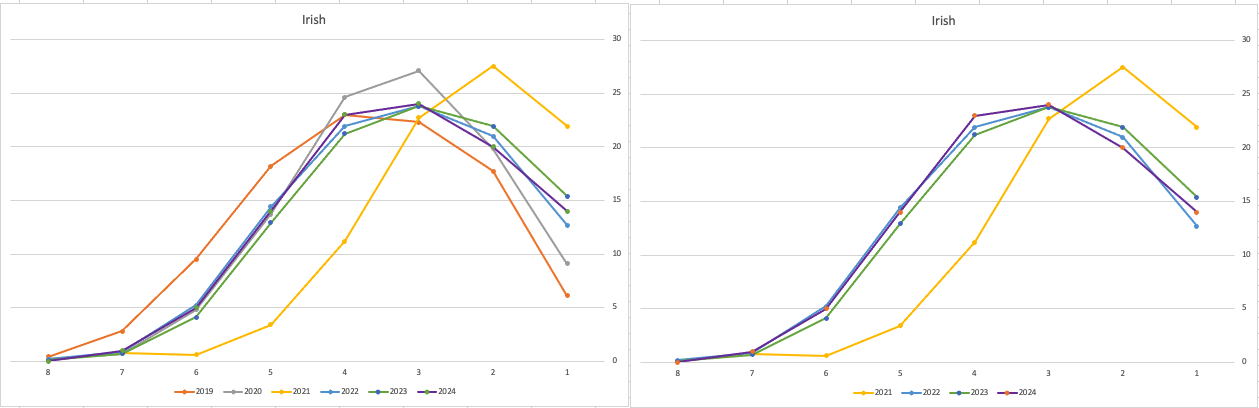
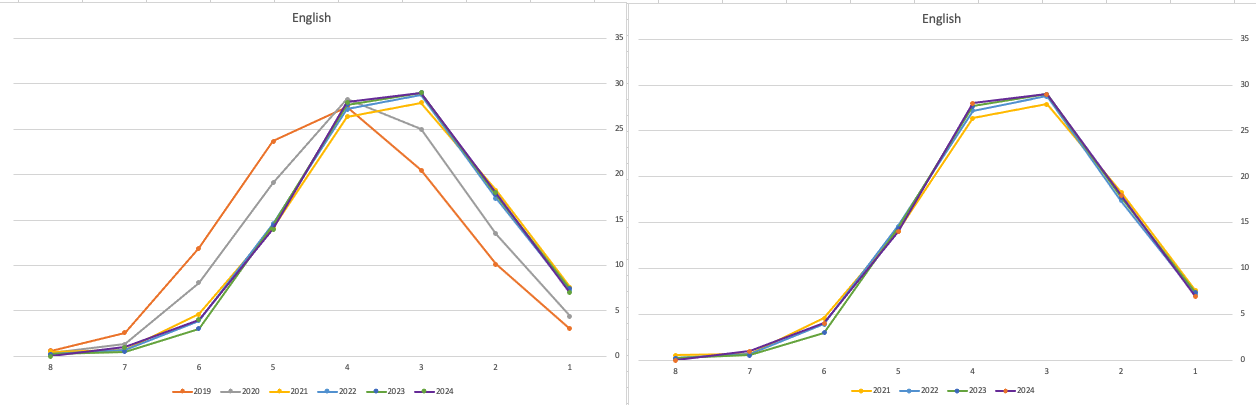
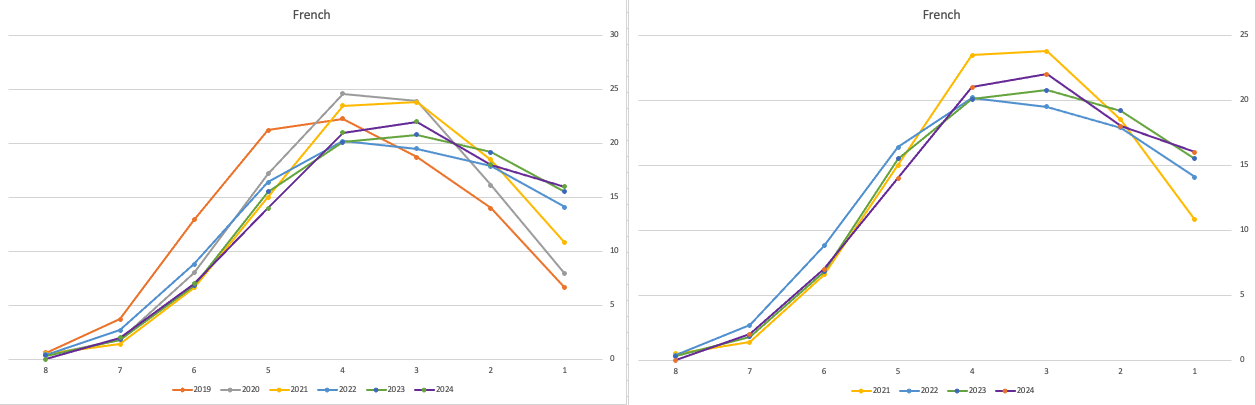
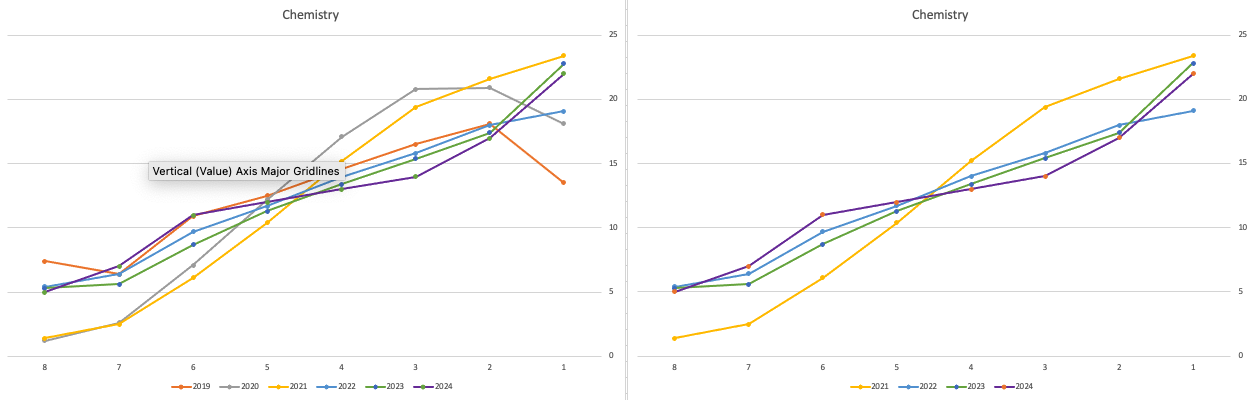
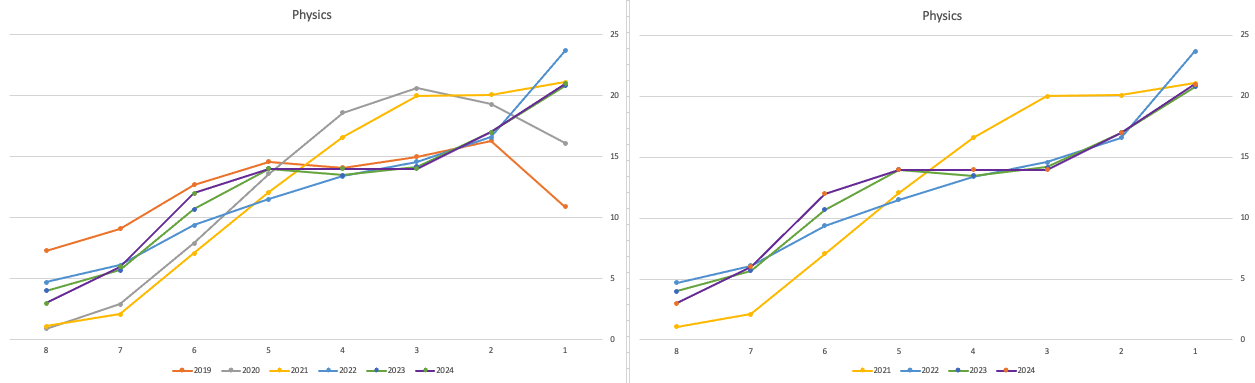
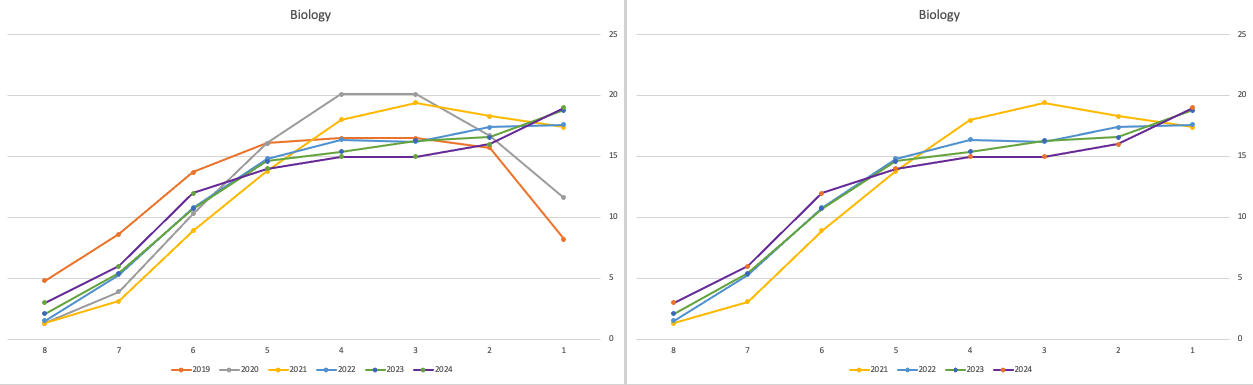
Back in April, an Irish Times article discussed the changes coming from 2025, where there will be a gradual return to “normal” (pre-Covid) profile of marks. Looking at the profile of marks over the past couple of years we can clearly see there has been some stepping back in the profile of marks. Some subjects are back to pre-Covid 2019 profiles. In some subjects, this is more evident than in others. They’ve used the phrase “on aggregate” to hide the stepping back in some subjects and less so in others.
Using Cohere to Generate Vector Embeddings
When using Vector Databases or Vector Embedding features in most (modern, multi-model) Databases, you can gain additional insights. The Vector Embeddings can be utilised for semantic searches, where you can find related data or information based on the values of the Vectors. One of the challenges is generating suitable vectors. There are a lot of options available for generating these Vector Embeddings. In this post, I’ll illustrate how to generate these using Cohere, and in a future post, I’ll illustrate using OpenAI. There are advantages and disadvantages to using these solutions. I’ll point out some of these for each solution (Cohere and OpenAI), using their Python API library.
The first step is to install the Cohere Python library
pip install cohereNext, you need to create an account with Cohere. This will allow you to get an API key. You can get a Trial API key, but you will be restricted to the number of calls you are allowed. As with most free or trial keys these allow you to do a limited number of calls. This is commonly referred to as Rate Limiting. The trial key for the embedding models allows you to have up to 40 calls per minute. This is very very limited and each call is very slow. (I’ll discuss related issues about OpenAI rate limiting in another post)
The dataset I’ll be using is the Wine Reviews 130K (dropbox link). This is widely available on many sites. I want to create Vector Embeddings for the ‘Description’ field in this dataset which contains a review of each wine. There are some columns with no values, and these need to be handled. For each wine review, I’ll create a SQL INSERT statement and print this out to a file. This file will contain an INSERT statement for each wine review, including the vector embedding.
Here’s the code, (you’ll need to enter an API key and change the directory for the data file)
import numpy as np
import os
import time
import pandas as pd
import cohere

co = cohere.Client(api_key="...")

data_file = ".../VectorDatabase/winemag-data-130k-v2.csv"
df = pd.read_csv(data_file)

print_every = 200
rate_limit = 1000 #Cohere limits to 40 API calls per minute

print("Input file :", data_file)
v_file = os.path.splitext(data_file)[0]+'.cohere'
print(v_file)

#Open file with write (over-writes previous file)
f=open(v_file,"w")
for index,row in df.head(rate_limit).iterrows():
    phrases=list(row['description'])
    model="embed-english-v3.0"
    input_type="search_query"
    #####
    res = co.embed(texts=phrases,
                model=model,
                input_type=input_type) #,
#                embedding_types=['float'])

    v_embedding = str(res.embeddings[0])
    tab_insert="INSERT into WINE_REVIEWS_130K VALUES ("+str(row["Seq"])+"," \
        +'"'+str(row["description"])+'",' \
        +'"'+str(row["designation"])+'",' \
        +str(row["points"])+"," \
        +'"'+str(row["province"])+'",' \
        +str(row["price"])+"," \
        +'"'+str(row["region_1"])+'",' \
        +'"'+str(row["region_2"])+'",' \
        +'"'+str(row["taster_name"])+'",' \
        +'"'+str(row["taster_twitter_handle"])+'",' \
        +'"'+str(row["title"])+'",' \
        +'"'+str(row["variety"])+'",' \
        +'"'+str(row["winery"])+'",' \
        +"'"+v_embedding+"'"+");\n"

    f.write(tab_insert)
    if (index%print_every == 0):
        print(f'Processed {index} vectors ', time.strftime("%H:%M:%S", time.localtime()))

#Close vector file
f.close()
print(f"Finished writing file with Vector data [{index+1} vectors]", time.strftime("%H:%M:%S", time.localtime()))
The vector generated has 1024 dimensions. At this time there isn’t a parameter to change/reduce the number of dimensions.
The output file can now be run in your database, assuming you’ve created a table called WINE_REVIEWS_130K and has a column with the appropriate data type (e.g. VECTOR)
Warnings: When using the Cohere API you are limited to maximum of 40 calls per minute. I’ve found this to be incorrect and it was more like 38 calls (for me). I also found the ‘per minute’ to be incorrect. I had to wait several minutes and up to five minutes before I could attempt another run.
In an attempt to overcome this, I create a production API key. This involved giving some payment details, and this in theory should remove the ‘per minute’ rate limit, among other things. Unfortunately, for me this was not a good experience, as I had to make multiple attempts to run for 1000 records before I could have a successful outcome. I experienced multiple Server 500 errors and other errors that related to Cohere server problems.
I wasn’t able to process more that 600 records before the errors occurred and I wasn’t able to generate for a larger percentage of the dataset.
An additional issue is with the response time from Cohere. It was taking approx. 5 minutes to process 200 API calls.
So overall a rather poor experience. I then switched to OpenAI and had a slightly different experience. Check out that post for more details.
EU AI Act: Key Dates and Impact on AI Developers
The official text of the EU AI Act has been published in the EU Journal. This is another landmark point for the EU AI Act, as these regulations are set to enter into force on 1st August 2024. If you haven’t started your preparations for this, you really need to start now. See the timeline for the different stages of the EU AI Act below.
The EU AI Act is a landmark piece of legislation and similar legislation is being drafted/enacted in various geographic regions around the world. The EU AI Act is considered the most extensive legal framework for AI developers, deployers, importers, etc and aims to ensure AI systems introduced or currently being used in the EU internal market (even if they are developed and located outside of the EU) are secure, compliant with existing and new laws on fundamental rights and align with EU principles.
The key dates are:
- 2 February 2025: Prohibitions on Unacceptable Risk AI
- 2 August 2025: Obligations come into effect for providers of general purpose AI models. Appointment of member state competent authorities. Annual Commission review of and possible legislative amendments to the list of prohibited AI.
- 2 February 2026: Commission implements act on post market monitoring
- 2 August 2026: Obligations go into effect for high-risk AI systems specifically listed in Annex III, including systems in biometrics, critical infrastructure, education, employment, access to essential public services, law enforcement, immigration and administration of justice. Member states to have implemented rules on penalties, including administrative fines. Member state authorities to have established at least one operational AI regulatory sandbox. Commission review, and possible amendment of, the list of high-risk AI systems.
- 2 August 2027: Obligations go into effect for high-risk AI systems not prescribed in Annex III but intended to be used as a safety component of a product. Obligations go into effect for high-risk AI systems in which the AI itself is a product and the product is required to undergo a third-party conformity assessment under existing specific EU laws, for example, toys, radio equipment, in vitro diagnostic medical devices, civil aviation security and agricultural vehicles.
- By End of 2030: Obligations go into effect for certain AI systems that are components of the large-scale information technology systems established by EU law in the areas of freedom, security and justice, such as the Schengen Information System.
Here is the link to the official text in the EU Journal publication.

Select AI – OpenAI changes
A few weeks ago I wrote a few blog posts about using SelectAI. These illustrated integrating and using Cohere and OpenAI with SQL commands in your Oracle Cloud Database. See these links below.
- SelectAI – the beginning of a journey
- SelectAI – Doing something useful
- SelectAI – Can metadata help
- SelectAI – the APEX version
With the constantly changing world of APIs, has impacted the steps I outlined in those posts, particularly if you are using the OpenAI APIs. Two things have changed since writing those posts a few weeks ago. The first is with creating the OpenAI API keys. When creating a new key you need to define a project. For now, just select ‘Default Project’. This is a minor change, but it has caused some confusion for those following my steps in this blog post. I’ve updated that post to reflect the current setup in defining a new key in OpenAI. This is a minor change, oh and remember to put a few dollars into your OpenAI account for your key to work. I put an initial $10 into my account and a few minutes later API key for me from my Oracle (OCI) Database.
The second change is related to how the OpenAI API is called from Oracle (OCI) Databases. The API is now expecting a model name. From talking to the Oracle PMs, they will be implementing a fix in their Cloud Databases where the default model will be ‘gpt-3.5-turbo’, but in the meantime, you have to explicitly define the model when creating your OpenAI profile.
BEGIN
   --DBMS_CLOUD_AI.drop_profile(profile_name => 'COHERE_AI');

   DBMS_CLOUD_AI.create_profile(
      profile_name => 'COHERE_AI',
      attributes => '{"provider": "cohere",
                      "credential_name": "COHERE_CRED",
                      "object_list": [{"owner": "SH", "name": "customers"},
                                      {"owner": "SH", "name": "sales"},
                                      {"owner": "SH", "name": "products"},
                                      {"owner": "SH", "name": "countries"},
                                      {"owner": "SH", "name": "channels"},
                                      {"owner": "SH", "name": "promotions"},
                                      {"owner": "SH", "name": "times"}],
                      "model":"gpt-3.5-turbo"
       }');
END;
Other model names you could use include gpt-4 or gpt-4o.
Oracle Object Storage – Parallel Downloading
In previous posts, I’ve given example Python code (and functions) for processing files into and out of OCI Object and Bucket Storage. One of these previous posts includes code and a demonstration of uploading files to an OCI Bucket using the multiprocessing package in Python.
Building upon these previous examples, the code below will download a Bucket using parallel processing. Like my last example, this code is based on the example code I gave in an earlier post on functions within a Jupyter Notebook.
Here’s the code.
import oci
import os
import argparse
from multiprocessing import Process
from glob import glob
import time

####
def upload_file(config, NAMESPACE, b, f, num):
    file_exists = os.path.isfile(f)
    if file_exists == True:
        try:
            start_time = time.time()
            object_storage_client = oci.object_storage.ObjectStorageClient(config)
            object_storage_client.put_object(NAMESPACE, b, os.path.basename(f), open(f,'rb'))
            print(f'. Finished {num} uploading {f}   in {round(time.time()-start_time,2)} seconds')
        except Exception as e:
            print(f'Error uploading file {num}. Try again.')
            print(e)
    else:
        print(f'... File {f} does not exist or cannot be found. Check file name and full path')

####
def check_bucket_exists(config, NAMESPACE, b_name):
    #check if Bucket exists
    is_there = False
    object_storage_client = oci.object_storage.ObjectStorageClient(config)
    l_b = object_storage_client.list_buckets(NAMESPACE, config.get("tenancy")).data
    for bucket in l_b:
        if bucket.name == b_name:
            is_there = True

    if is_there == True:
        print(f'Bucket {b_name} exists.')
    else:
        print(f'Bucket {b_name} does not exist.')

    return is_there

####

def download_bucket_file(config, NAMESPACE, b, d, f, num):
    print(f'..Starting Download File ({num}):',f, ' from Bucket', b, ' at ', time.strftime("%H:%M:%S"))

    try:
        start_time = time.time()
        object_storage_client = oci.object_storage.ObjectStorageClient(config)
        get_obj = object_storage_client.get_object(NAMESPACE, b, f)
        with open(os.path.join(d, f), 'wb') as f:
            for chunk in get_obj.data.raw.stream(1024 * 1024, decode_content=False):
                f.write(chunk)

        print(f'..Finished Download ({num}) in ', round(time.time()-start_time,2), 'seconds.')
    except:
        print(f'Error trying to download file {f}. Check parameters and try again')

####

if __name__ == "__main__":
	#setup for OCI
    config = oci.config.from_file()
    object_storage = oci.object_storage.ObjectStorageClient(config)
    NAMESPACE = object_storage.get_namespace().data

    ####
    description = "\n".join(["Upload files in parallel to OCI storage.",
                             "All files in <directory> will be uploaded. Include '/' at end.",
                             "",
                             "<bucket_name> must already exist."])

    parser = argparse.ArgumentParser(description=description,
                                     formatter_class=argparse.RawDescriptionHelpFormatter)
    parser.add_argument(dest='bucket_name',
                        help="Name of object storage bucket")
    parser.add_argument(dest='directory',
                        help="Path to local directory containing files to upload.")
    args = parser.parse_args()

    ####
    bucket_name = args.bucket_name
    directory = args.directory
    if not os.path.isdir(directory):
        parser.usage()
    else:
        dir = directory + os.path.sep + "*"

    start_time = time.time()
    print('Starting Downloading Bucket - Parallel:', bucket_name, '  at ', time.strftime("%H:%M:%S"))
    object_storage_client = oci.object_storage.ObjectStorageClient(config)
    object_list = object_storage_client.list_objects(NAMESPACE, bucket_name).data
    count = 0
    for i in object_list.objects:
        count+=1

    print(f'... {count} files to download')

    proc_list = []
    num=0
    for o in object_list.objects:
        p = Process(target=download_bucket_file, args=(config, NAMESPACE, bucket_name, directory, o.name, num))
        p.start()
        num+=1
        proc_list.append(p)

    for job in proc_list:
        job.join()

    print('---')
    print(f'Download Finished in {round(time.time()-start_time,2)} seconds.({time.strftime("%H:%M:%S")})')

#### the end ####
I’ve saved the code to a file called bucket_parallel_download.py.
To call this, I run the following using the same DEMO_Bucket and directory of files I used in my previous posts.
python bucket_parallel_download.py DEMO_Bucket /Users/brendan.tierney/Dropbox/OCI-Vision-Images/Blue-Peter/
This creates the following output, and between 3.6 seconds to 4.4 seconds to download the 13 files, based on my connection.
[16:30~/Dropbox]> python bucket_parallel_download.py DEMO_Bucket /Users/brendan.tierney/DEMO_BUCKET
Starting Downloading Bucket - Parallel: DEMO_Bucket   at  16:30:05
... 13 files to download
..Starting Download File (0): 2017-08-31 19.46.42.jpg  from Bucket DEMO_Bucket  at  16:30:08
..Starting Download File (1): 2017-10-16 13.13.20.jpg  from Bucket DEMO_Bucket  at  16:30:08
..Starting Download File (2): 2017-11-22 20.18.58.jpg  from Bucket DEMO_Bucket  at  16:30:08
..Starting Download File (3): 2018-12-03 11.04.57.jpg  from Bucket DEMO_Bucket  at  16:30:08
..Starting Download File (11): thumbnail_IMG_2333.jpg  from Bucket DEMO_Bucket  at  16:30:08
..Starting Download File (5): IMG_2347.jpg  from Bucket DEMO_Bucket  at  16:30:08
..Starting Download File (9): thumbnail_IMG_1711.jpg  from Bucket DEMO_Bucket  at  16:30:08
..Starting Download File (4): 347397087_620984963239631_2131524631626484429_n.jpg  from Bucket DEMO_Bucket  at  16:30:08
..Starting Download File (10): thumbnail_IMG_1712.jpg  from Bucket DEMO_Bucket  at  16:30:08
..Starting Download File (8): thumbnail_IMG_1710.jpg  from Bucket DEMO_Bucket  at  16:30:08
..Starting Download File (7): oug_ire18_1.jpg  from Bucket DEMO_Bucket  at  16:30:08
..Starting Download File (6): IMG_6779.jpg  from Bucket DEMO_Bucket  at  16:30:08
..Starting Download File (12): thumbnail_IMG_2336.jpg  from Bucket DEMO_Bucket  at  16:30:08
..Finished Download (9) in  0.67 seconds.
..Finished Download (11) in  0.74 seconds.
..Finished Download (10) in  0.7 seconds.
..Finished Download (5) in  0.8 seconds.
..Finished Download (7) in  0.7 seconds.
..Finished Download (1) in  1.0 seconds.
..Finished Download (12) in  0.81 seconds.
..Finished Download (4) in  1.02 seconds.
..Finished Download (6) in  0.97 seconds.
..Finished Download (2) in  1.25 seconds.
..Finished Download (8) in  1.16 seconds.
..Finished Download (0) in  1.47 seconds.
..Finished Download (3) in  1.47 seconds.
---
Download Finished in 4.09 seconds.(16:30:09)Oracle Object Storage – Parallel Uploading
In my previous posts on using Python to work with OCI Object Storage, I gave code examples and illustrated how to create Buckets, explore Buckets, upload files, download files and delete files and buckets, all using Python and files on your computer.
- Oracle Object Storage – Setup and Explore
- Oracle Object Storage – Buckets & Loading files
- Oracle Object Storage – Downloading and Deleting
- Oracle Object Storage – Parallel Uploading
Building upon the code I’ve given for uploading files, which did so sequentially, in his post I’ve taken that code and expanded it to allow the files to be uploaded in parallel to an OCI Bucket. This is achieved using the Python multiprocessing library.
Here’s the code.
import oci
import os
import argparse
from multiprocessing import Process
from glob import glob
import time

####
def upload_file(config, NAMESPACE, b, f, num):
    file_exists = os.path.isfile(f)
    if file_exists == True:
        try:
            start_time = time.time()
            object_storage_client = oci.object_storage.ObjectStorageClient(config)
            object_storage_client.put_object(NAMESPACE, b, os.path.basename(f), open(f,'rb'))
            print(f'. Finished {num} uploading {f}   in {round(time.time()-start_time,2)} seconds')
        except Exception as e:
            print(f'Error uploading file {num}. Try again.')
            print(e)
    else:
        print(f'... File {f} does not exist or cannot be found. Check file name and full path')

####
def check_bucket_exists(config, NAMESPACE, b_name):
    #check if Bucket exists
    is_there = False
    object_storage_client = oci.object_storage.ObjectStorageClient(config)
    l_b = object_storage_client.list_buckets(NAMESPACE, config.get("tenancy")).data
    for bucket in l_b:
        if bucket.name == b_name:
            is_there = True

    if is_there == True:
        print(f'Bucket {b_name} exists.')
    else:
        print(f'Bucket {b_name} does not exist.')

    return is_there

####
if __name__ == "__main__":
	#setup for OCI
    config = oci.config.from_file()
    object_storage = oci.object_storage.ObjectStorageClient(config)
    NAMESPACE = object_storage.get_namespace().data

    ####
    description = "\n".join(["Upload files in parallel to OCI storage.",
                             "All files in <directory> will be uploaded. Include '/' at end.",
                             "",
                             "<bucket_name> must already exist."])

    parser = argparse.ArgumentParser(description=description,
                                     formatter_class=argparse.RawDescriptionHelpFormatter)
    parser.add_argument(dest='bucket_name',
                        help="Name of object storage bucket")
    parser.add_argument(dest='directory',
                        help="Path to local directory containing files to upload.")
    args = parser.parse_args()

    ####
    bucket_name = args.bucket_name
    directory = args.directory
    if not os.path.isdir(directory):
        parser.usage()
    else:
        dir = directory + os.path.sep + "*"

    #### Check if Bucket Exists ####
    b_exists = check_bucket_exists(config, NAMESPACE, bucket_name)
    if b_exists == True:
        try:
            proc_list = []
            num=0
            start_time = time.time()
            #### Start uploading files ####
            for file_path in glob(dir):
                print(f"Starting {num} upload for {file_path}")
                p = Process(target=upload_file, args=(config, NAMESPACE, bucket_name, file_path, num))
                p.start()
                num+=1
                proc_list.append(p)
        except Exception as e:
            print(f'Error uploading file ({num}). Try again.')
            print(e)
    else:
        print('... Create Bucket before uploading Directory.')

    for job in proc_list:
        job.join()

    print('---')
    print(f'Finished uploading all files ({num}) in {round(time.time()-start_time,2)} seconds')
#### the end ####
I’ve saved the code to a file called bucket_parallel.py.
To call this, I run the following using the same DEMO_Bucket and directory of files I used in my previous posts.
python bucket_parallel.py DEMO_Bucket /Users/brendan.tierney/Dropbox/OCI-Vision-Images/Blue-Peter/
This creates the following output, and between 3.3 seconds to 4.6 seconds to upload the 13 files, based on my connection.
[15:29~/Dropbox]> python bucket_parallel.py DEMO_Bucket /Users/brendan.tierney/Dropbox/OCI-Vision-Images/Blue-Peter/
Bucket DEMO_Bucket exists.
Starting 0 upload for /Users/brendan.tierney/Dropbox/OCI-Vision-Images/Blue-Peter/thumbnail_IMG_2336.jpg
Starting 1 upload for /Users/brendan.tierney/Dropbox/OCI-Vision-Images/Blue-Peter/2017-08-31 19.46.42.jpg
Starting 2 upload for /Users/brendan.tierney/Dropbox/OCI-Vision-Images/Blue-Peter/thumbnail_IMG_2333.jpg
Starting 3 upload for /Users/brendan.tierney/Dropbox/OCI-Vision-Images/Blue-Peter/347397087_620984963239631_2131524631626484429_n.jpg
Starting 4 upload for /Users/brendan.tierney/Dropbox/OCI-Vision-Images/Blue-Peter/thumbnail_IMG_1712.jpg
Starting 5 upload for /Users/brendan.tierney/Dropbox/OCI-Vision-Images/Blue-Peter/thumbnail_IMG_1711.jpg
Starting 6 upload for /Users/brendan.tierney/Dropbox/OCI-Vision-Images/Blue-Peter/2017-11-22 20.18.58.jpg
Starting 7 upload for /Users/brendan.tierney/Dropbox/OCI-Vision-Images/Blue-Peter/thumbnail_IMG_1710.jpg
Starting 8 upload for /Users/brendan.tierney/Dropbox/OCI-Vision-Images/Blue-Peter/2018-12-03 11.04.57.jpg
Starting 9 upload for /Users/brendan.tierney/Dropbox/OCI-Vision-Images/Blue-Peter/IMG_6779.jpg
Starting 10 upload for /Users/brendan.tierney/Dropbox/OCI-Vision-Images/Blue-Peter/oug_ire18_1.jpg
Starting 11 upload for /Users/brendan.tierney/Dropbox/OCI-Vision-Images/Blue-Peter/2017-10-16 13.13.20.jpg
Starting 12 upload for /Users/brendan.tierney/Dropbox/OCI-Vision-Images/Blue-Peter/IMG_2347.jpg
. Finished 2 uploading /Users/brendan.tierney/Dropbox/OCI-Vision-Images/Blue-Peter/thumbnail_IMG_2333.jpg   in 0.752561092376709 seconds
. Finished 5 uploading /Users/brendan.tierney/Dropbox/OCI-Vision-Images/Blue-Peter/thumbnail_IMG_1711.jpg   in 0.7750208377838135 seconds
. Finished 4 uploading /Users/brendan.tierney/Dropbox/OCI-Vision-Images/Blue-Peter/thumbnail_IMG_1712.jpg   in 0.7535321712493896 seconds
. Finished 0 uploading /Users/brendan.tierney/Dropbox/OCI-Vision-Images/Blue-Peter/thumbnail_IMG_2336.jpg   in 0.8419861793518066 seconds
. Finished 7 uploading /Users/brendan.tierney/Dropbox/OCI-Vision-Images/Blue-Peter/thumbnail_IMG_1710.jpg   in 0.7582859992980957 seconds
. Finished 10 uploading /Users/brendan.tierney/Dropbox/OCI-Vision-Images/Blue-Peter/oug_ire18_1.jpg   in 0.8714470863342285 seconds
. Finished 12 uploading /Users/brendan.tierney/Dropbox/OCI-Vision-Images/Blue-Peter/IMG_2347.jpg   in 0.8753311634063721 seconds
. Finished 1 uploading /Users/brendan.tierney/Dropbox/OCI-Vision-Images/Blue-Peter/2017-08-31 19.46.42.jpg   in 1.2201581001281738 seconds
. Finished 11 uploading /Users/brendan.tierney/Dropbox/OCI-Vision-Images/Blue-Peter/2017-10-16 13.13.20.jpg   in 1.2848408222198486 seconds
. Finished 3 uploading /Users/brendan.tierney/Dropbox/OCI-Vision-Images/Blue-Peter/347397087_620984963239631_2131524631626484429_n.jpg   in 1.325110912322998 seconds
. Finished 9 uploading /Users/brendan.tierney/Dropbox/OCI-Vision-Images/Blue-Peter/IMG_6779.jpg   in 1.6633048057556152 seconds
. Finished 8 uploading /Users/brendan.tierney/Dropbox/OCI-Vision-Images/Blue-Peter/2018-12-03 11.04.57.jpg   in 1.8549730777740479 seconds
. Finished 6 uploading /Users/brendan.tierney/Dropbox/OCI-Vision-Images/Blue-Peter/2017-11-22 20.18.58.jpg   in 2.018144130706787 seconds
---
Finished uploading all files (13) in 3.9126579761505127 seconds
Oracle Object Storage – Downloading and Deleting
In my previous posts on using Object Storage I illustrated what you needed to do to setup your connect, explore Object Storage, create Buckets and how to add files. In this post, I’ll show you how to download files from a Bucket, and to delete Buckets.
- Oracle Object Storage – Setup and Explore
- Oracle Object Storage – Buckets & Loading files
- Oracle Object Storage – Downloading and Deleting
- Oracle Object Storage – Parallel Uploading
Let’s start with downloading the files in a Bucket. In my previous post, I gave some Python code and functions to perform these steps for you. The Python function below will perform this for you. A Bucket needs to be empty before it can be deleted. The function checks for files and if any exist, will delete these files before proceeding with deleting the Bucket.
Namespace needs to be defined, and you can see how that is defined by looking at my early posts on this topic.
def download_bucket(b, d):
    if os.path.exists(d) == True:
        print(f'{d} already exists.')
    else:
        print(f'Creating {d}')
        os.makedirs(d)

    print('Downloading Bucket:',b)
    object_list = object_storage_client.list_objects(NAMESPACE, b).data
    count = 0
    for i in object_list.objects:
        count+=1

    print(f'... {count} files')

    for o in object_list.objects:
        print(f'Downloading object {o.name}')
        get_obj = object_storage_client.get_object(NAMESPACE, b, o.name)
        with open(os.path.join(d,o.name), 'wb') as f:
            for chunk in get_obj.data.raw.stream(1024 * 1024, decode_content=False):
                f.write(chunk)

    print('Download Finished.')
Here’s an example of this working.
download_dir = '/Users/brendan.tierney/DEMO_BUCKET'
download_bucket(BUCKET_NAME, download_dir)

/Users/brendan.tierney/DEMO_BUCKET already exists.
Downloading Bucket: DEMO_Bucket
... 14 files
Downloading object .DS_Store
Downloading object 2017-08-31 19.46.42.jpg
Downloading object 2017-10-16 13.13.20.jpg
Downloading object 2017-11-22 20.18.58.jpg
Downloading object 2018-12-03 11.04.57.jpg
Downloading object 347397087_620984963239631_2131524631626484429_n.jpg
Downloading object IMG_2347.jpg
Downloading object IMG_6779.jpg
Downloading object oug_ire18_1.jpg
Downloading object thumbnail_IMG_1710.jpg
Downloading object thumbnail_IMG_1711.jpg
Downloading object thumbnail_IMG_1712.jpg
Downloading object thumbnail_IMG_2333.jpg
Downloading object thumbnail_IMG_2336.jpg
Download Finished.
We can also download individual files. Here’s a function to do that. It’s a simplified version of the previous function
def download_bucket_file(b, d, f):
    print('Downloading File:',f, ' from Bucket', b)

    try:
        get_obj = object_storage_client.get_object(NAMESPACE, b, f)
        with open(os.path.join(d, f), 'wb') as f:
            for chunk in get_obj.data.raw.stream(1024 * 1024, decode_content=False):
                f.write(chunk)
        print('Download Finished.')
    except:
        print('Error trying to download file. Check parameters and try again')
download_dir = '/Users/brendan.tierney/DEMO_BUCKET'
file_download = 'oug_ire18_1.jpg'
download_bucket_file(BUCKET_NAME, download_dir, file_download)

Downloading File: oug_ire18_1.jpg  from Bucket DEMO_Bucket
Download Finished.
The final function is to delete a Bucket from your OCI account.
def delete_bucket(b_name):
    bucket_exists = check_bucket_exists(b_name)
    objects_exist = False
    if bucket_exists == True:
        print('Starting - Deleting Bucket '+b_name)
        print('... checking if objects exist in Bucket (bucket needs to be empty)')
        try:
            object_list = object_storage_client.list_objects(NAMESPACE, b_name).data
            objects_exist = True
        except Exception as e:
            objects_exist = False

        if objects_exist == True:
            print('... ... Objects exists in Bucket. Deleting these objects.')
            count = 0
            for o in object_list.objects:
                count+=1
                object_storage_client.delete_object(NAMESPACE, b_name, o.name)

            if count > 0:
                print(f'... ... Deleted {count} objects in {b_name}')
            else:
                print(f'... ... Bucket is empty. No objects to delete.')

        else:
            print(f'... No objects to delete, Bucket {b_name} is empty')


        print(f'... Deleting bucket {b_name}')
        response = object_storage_client.delete_bucket(NAMESPACE, b_name)
        print(f'Deleted bucket {b_name}')
Before running this function, lets do a quick check to see what Buckets I have in my OCI account.
list_bucket_counts()

Bucket name:  ADW_Bucket
... num of objects : 2
Bucket name:  Cats-and-Dogs-Small-Dataset
... num of objects : 100
Bucket name:  DEMO_Bucket
... num of objects : 14
Bucket name:  Demo
... num of objects : 210
Bucket name:  Finding-Widlake-Bucket
... num of objects : 424
Bucket name:  Planes-in-Satellites
... num of objects : 89
Bucket name:  Vision-Demo-1
... num of objects : 10
Bucket name:  root-bucket
... num of objects : 2
I’ve been using DEMO_Bucket in my previous examples and posts. We’ll use this to demonstrate the deleting of a Bucket.
delete_bucket(BUCKET_NAME)

Bucket DEMO_Bucket exists.
Starting - Deleting Bucket DEMO_Bucket
... checking if objects exist in Bucket (bucket needs to be empty)
... ... Objects exists in Bucket. Deleting these objects.
... ... Deleted 14 objects in DEMO_Bucket
... Deleting bucket DEMO_Bucket
Deleted bucket DEMO_Bucket
Oracle Object Storage – Buckets & Loading files
In a previous post, I showed what you need to do to setup your local PC/laptop to be able to connect to OCI. I also showed how to perform some simple queries on your Object Storage environment. Go check out that post before proceeding with the examples in this blog.
- Oracle Object Storage – Setup and Explore
- Oracle Object Storage – Buckets & Loading files
- Oracle Object Storage – Downloading and Deleting
- Oracle Object Storage – Parallel Uploading
In this post, I’ll build upon my previous post by giving some Python functions to:
- Check if Bucket exists
- Create a Buckets
- Delete a Bucket
- Upload an individual file
- Upload an entire directory
Let’s start with a function to see if a Bucket already exists.
def check_bucket_exists(b_name):
    #check if Bucket exists
    is_there = False
    l_b = object_storage_client.list_buckets(NAMESPACE, COMPARTMENT_ID).data
    for bucket in l_b:
        if bucket.name == b_name:
            is_there = True

    if is_there == True:
        print(f'Bucket {b_name} exists.')
    else:
        print(f'Bucket {b_name} does not exist.')

    return is_there
A simple test for a bucket called ‘DEMO_bucket’. This was defined in a variable previously (see previous post). I’ll use this ‘DEMO_bucket’ throughout these examples.
b_exists = check_bucket_exists(BUCKET_NAME)
print(b_exists)

---
Bucket DEMO_Bucket does not exist.
False
Next we can more onto a function for creating a Bucket.
def create_bucket(b):
    #create Bucket if it does not exist
    bucket_exists = check_bucket_exists(b)
    if bucket_exists == False:
        try:
            create_bucket_response = object_storage_client.create_bucket(
                NAMESPACE,
                oci.object_storage.models.CreateBucketDetails(
                    name=demo_bucket_name,
                    compartment_id=COMPARTMENT_ID
                )
            )
            bucket_exists = True
            # Get the data from response
            print(f'Created Bucket {create_bucket_response.data.name}')
        except Exception as e:
            print(e.message)
    else:
        bucket_exists = True
        print(f'... nothing to create.')

    return bucket_exists
A simple test for a bucket called ‘DEMO_bucket’. This was defined in a variable previously (see previous post).
b_exists = create_bucket(BUCKET_NAME)
---
Bucket DEMO_Bucket does not exist.
Created Bucket DEMO_Bucket
Next, let’s delete a Bucket and any files stored in it.
def delete_bucket(b_name):
    bucket_exists = check_bucket_exists(b_name)
    objects_exist = False
    if bucket_exists == True:
        print('Starting - Deleting Bucket '+b_name)
        print('... checking if objects exist in Bucket (bucket needs to be empty)')
        try:
            object_list = object_storage_client.list_objects(NAMESPACE, b_name).data
            objects_exist = True
        except Exception as e:
            objects_exist = False

        if objects_exist == True:
            print('... ... Objects exists in Bucket. Deleting these objects.')
            count = 0
            for o in object_list.objects:
                count+=1
                object_storage_client.delete_object(NAMESPACE, b_name, o.name)

            if count > 0:
                print(f'... ... Deleted {count} objects in {b_name}')
            else:
                print(f'... ... Bucket is empty. No objects to delete.')

        else:
            print(f'... No objects to delete, Bucket {b_name} is empty')


        print(f'... Deleting bucket {b_name}')
        response = object_storage_client.delete_bucket(NAMESPACE, b_name)
        print(f'Deleted bucket {b_name}')
The example output below shows what happens when I’ve already loaded data into the Bucket (which I haven’t shown in the examples so far – but I will soon).
delete_bucket(BUCKET_NAME)

---
Bucket DEMO_Bucket exists.
Starting - Deleting Bucket DEMO_Bucket
... checking if objects exist in Bucket (bucket needs to be empty)
... ... Objects exists in Bucket. Deleting these objects.
... ... Bucket is empty. No objects to delete.
... Deleting bucket DEMO_Bucket
Deleted bucket DEMO_Bucket
Now that we have our functions for managing Buckets, we can now have a function for uploading a file to a bucket.
def upload_file(b, f):
    file_exists = os.path.isfile(f)
    if file_exists == True:
        #check to see if Bucket exists
        b_exists = check_bucket_exists(b)
        if b_exists == True:
            print(f'... uploading {f}')
            try:
                object_storage_client.put_object(NAMESPACE, b, os.path.basename(f), io.open(f,'rb'))
                print(f'. finished uploading {f}')
            except Exception as e:
                print(f'Error uploading file. Try again.')
                print(e)
        else:
            print('... Create Bucket before uploading file.')

    else:
        print(f'... File {f} does not exist or cannot be found. Check file name and full path')
Just select a file from your computer and give the full path to that file and the Bucket name.
up_file = '/Users/brendan.tierney/Dropbox/bill.xls'
upload_file(BUCKET_NAME, up_file)

---
Bucket DEMO_Bucket does not exist.
... Create Bucket before uploading file.
Our final function is an extended version of the previous one. This function takes a Directory path and uploads all the files to the Bucket.
def upload_directory(b, d):
    count = 0

    #check to see if Bucket exists
    b_exists = check_bucket_exists(b)
    if b_exists == True:
        #loop files
        for filename in os.listdir(d):
            print(f'... uploading {filename}')
            try:
                object_storage_client.put_object(NAMESPACE, b, filename, io.open(os.path.join(d,filename),'rb'))
                count += 1
            except Exception as e:
                print(f'... ... Error uploading file. Try again.')
                print(e)

    else:
        print('... Create Bucket before uploading files.')

    if count == 0:
        print('... Empty directory. No files uploaded.')
    else:
        print(f'Finished uploading Directory : {count} files into {b} bucket')
and to call it …
up_directory = '/Users/brendan.tierney/Dropbox/OCI-Vision-Images/Blue-Peter/'
upload_directory(BUCKET_NAME, up_directory)

---
Bucket DEMO_Bucket exists.
... uploading thumbnail_IMG_2336.jpg
... uploading .DS_Store
... uploading 2017-08-31 19.46.42.jpg
... uploading thumbnail_IMG_2333.jpg
... uploading 347397087_620984963239631_2131524631626484429_n.jpg
... uploading thumbnail_IMG_1712.jpg
... uploading thumbnail_IMG_1711.jpg
... uploading 2017-11-22 20.18.58.jpg
... uploading thumbnail_IMG_1710.jpg
... uploading 2018-12-03 11.04.57.jpg
... uploading IMG_6779.jpg
... uploading oug_ire18_1.jpg
... uploading 2017-10-16 13.13.20.jpg
... uploading IMG_2347.jpg
Finished uploading Directory : 14 files into DEMO_Bucket bucket
Oracle Object Storage – Setup and Explore
This blog post will walk you through how to access Oracle OCI Object Storage and explore what buckets and files you have there, using Python and the OCI Python library. There will be additional posts which will walk through some of the other typical tasks you’ll need to perform with moving files into and out of OCI Object Storage.
- Oracle Object Storage – Buckets & Loading files
- Oracle Object Storage – Downloading and Deleting
- Oracle Object Storage – Parallel Uploading
The first thing you’ll need to do is to install the OCI Python library. You can do this by running pip command or if using Anaconda using their GUI for doing this. For example,
pip3 install ociCheck out the OCI Python documentation for more details.
Next, you’ll need to get and setup the configuration settings and download the pem file.
We need to create the config file that will contain the required credentials and information for working with OCI. By default, this file is stored in : ~/.oci/config
mkdir ~/oci
cd oci
Now create the config file, using vi or something similar.
vi config
Edit the file to contain the following, but look out for the parts that need to be changed/updated to match your OCI account details.
[ADMIN_USER]user=ocid1.user.oc1..<unique_ID>
fingerprint=<your_fingerprint>
tenancy = ocid1.tenancy.oc1..<unique_ID>
region = us-phoenix-1key_file=
<path to key .pem file>
The above details can be generated by creating an API key for your OCI user. Copy and paste the default details to the config file.
- [ADMIN_USER] > you can name this anything you want, but it will referenced in Python.
- user > enter the user ocid. OCID is the unique resource identifier that OCI provides for each resource.
- fingerprint > refers to the fingerprint of the public key you configured for the user.
- tenancy > your tenancy OCID.
- region > the region that you are subscribed to.
- key_file > the path to the .pem file you generated.

Just download the .pem file and the config file details. Add them to the config file, and give the full path to the .epm file, including its name.
You are now ready to use the OCI Python library to access and use your OCI cloud environment. Let’s run some tests to see if everything works and connects ok.
#import libraries
import oci
import json
import os
import io

#load the config file
config = oci.config.from_file("~/.oci/config")
config

#only part of the output is displayed due to security reasons
{'log_requests': False, 'additional_user_agent': '', 'pass_phrase': None, 'user': 'oci...........
We can now define some core variables.
#My Compartment ID
COMPARTMENT_ID = "ocid1.tenancy.oc1..............

#Object storage Namespace
object_storage_client = oci.object_storage.ObjectStorageClient(config)
NAMESPACE = object_storage_client.get_namespace().data

#Name of Bucket for this demo
BUCKET_NAME = 'DEMO_Bucket'
We can now define some functions to:
- List the Buckets in my OCI account
- List the number of files in each Bucket
- Number of files in a particular Bucket
- Check for Bucket Existence
def list_buckets():
    l_buckets = object_storage_client.list_buckets(NAMESPACE, COMPARTMENT_ID).data
    # Get the data from response
    for bucket in l_buckets:
        print(bucket.name)

def list_bucket_counts():
    l_buckets = object_storage_client.list_buckets(NAMESPACE, COMPARTMENT_ID).data
    for bucket in l_buckets:
        print("Bucket name: ",bucket.name)
        buck_name = bucket.name
        objects = object_storage_client.list_objects(NAMESPACE, buck_name).data
        count = 0
        for i in objects.objects:
            count+=1

        print('... num of objects :', count)

def check_bucket_exists(b_name):
    #check if Bucket exists
    is_there = False
    l_b = object_storage_client.list_buckets(NAMESPACE, COMPARTMENT_ID).data
    for bucket in l_b:
        if bucket.name == b_name:
            is_there = True

    if is_there == True:
        print(f'Bucket {b_name} exists.')
    else:
        print(f'Bucket {b_name} does not exist.')

    return is_there

def list_bucket_details(b):
    bucket_exists = check_bucket_exists(b)
    if bucket_exists == True:
        objects = object_storage_client.list_objects(NAMESPACE, b).data
        count = 0
        for i in objects.objects:
            count+=1

        print(f'Bucket {b} has objects :', count)
Now we can run these functions to test them. Before running these make sure you can create a connection to OCI.

SelectAI – the APEX version
I’ve written a few blog posts about the new Select AI feature on the Oracle Database. In this post, I’ll explore how to use this within APEX, because you have to do things in a different way.
The previous posts on Select AI are:
- SelectAI – the beginning of a journey
- SelectAI – Doing something useful
- SelectAI – Can metadata help
- SelectAI – the APEX version
We have seen in my previous posts how the PL/SQL package called DBMS_CLOUD_AI was used to create a profile. This profile provided details of what provided to use (Cohere or OpenAI in my examples), and what metadata (schemas, tables, etc) to send to the LLM. When you look at the DBMS_CLOUD_AI PL/SQL package it only contains seven functions (at time of writing this post). Most of these functions are for managing the profile, such as creating, deleting, enabling, disabling and setting the profile attributes. But there is one other important function called GENERATE. This function can be used to send your request to the LLM.
Why is the DBMS_CLOUD_AI.GENERATE function needed? We have seen in my previous posts using Select AI using common SQL tools such as SQL Developer, SQLcl and SQL Developer extension for VSCode. When using these tools we need to enable the SQL session to use Select AI by setting the profile. When using APEX or creating your own PL/SQL functions, etc. You’ll still need to set the profile, using
EXEC DBMS_CLOUD_AI.set_profile('OPEN_AI');We can now use the DBMS_CLOUD_AI.GENERATE function to run our equivalent Select AI queries. We can use this to run most of the options for Select AI including showsql, narrate and chat. It’s important to note here that runsql is not supported. This was the default action when using Select AI. Instead, you obtain the necessary SQL using showsql, and you can then execute the returned SQL yourself in your PL/SQL code.
Here are a few examples from my previous posts:
SELECT DBMS_CLOUD_AI.GENERATE(prompt       => 'what customer is the largest by sales',
                              profile_name => 'OPEN_AI',
                              action       => 'showsql')
FROM dual;

SELECT DBMS_CLOUD_AI.GENERATE(prompt       => 'how many customers in San Francisco are married',
                              profile_name => 'OPEN_AI',
                              action       => 'narrate')
FROM dual;

SELECT DBMS_CLOUD_AI.GENERATE(prompt       => 'who is the president of ireland',
                              profile_name => 'OPEN_AI',
                              action       => 'chat')
FROM dual;
If using Oracle 23c or higher you no longer need to include the FROM DUAL;
SelectAI – Can metadata help
Continuing with the exploration of Select AI, in this post I’ll look at how metadata can help. In my previous posts on Select AI, I’ve walked through examples of exploring the data in the SH schema and how you can use some of the conversational features. These really give a lot of potential for developing some useful features in your apps.
Many of you might have encountered schemas here either the table names and/or column names didn’t make sense. Maybe their names looked like some weird code or something, and you had to look up a document, often referred to as a data dictionary, to decode the actual meaning. In some instances, these schemas cannot be touched and in others, minor changes are allowed. In these later cases, we can look at adding some metadata to the tables to give meaning to these esoteric names.
For the following example, I’ve taken the simple EMP-DEPT tables and renamed the table and column names to something very generic. You’ll see I’ve added comments to explain the Tables and for each of the Columns. These comments should correspond to the original EMP-DEPT tables.
CREATE TABLE TABLE1(
c1  NUMBER(2) not null primary key,
c2  VARCHAR2(50) not null,
c3  VARCHAR2(50) not null);

COMMENT ON TABLE table1 IS 'Department table. Contains details of each Department including Department Number, Department Name and Location for the Department';

COMMENT ON COLUMN table1.c1 IS 'Department Number. Primary Key. Unique. Used to join to other tables';
COMMENT ON COLUMN table1.c1 IS 'Department Name. Name of department. Description of function';
COMMENT ON COLUMN table1.c3 IS 'Department Location. City where the department is located';

-- create the EMP table as  TABLE2
CREATE TABLE TABLE2(
c1  NUMBER(4) not null primary key,
c2  VARCHAR2(50) not null,
c3  VARCHAR2(50) not null,
c4  NUMBER(4),
c5  DATE,
c6  NUMBER(10,2),
c7  NUMBER(10,2),
c8  NUMBER(2) not null);

COMMENT ON TABLE table2 IS 'Employee table. Contains details of each Employee. Employees';

COMMENT ON COLUMN table2.c1 IS 'Employee Number. Primary Key. Unique. How each employee is idendifed';
COMMENT ON COLUMN table2.c1 IS 'Employee Name. Name of each Employee';
COMMENT ON COLUMN table2.c3 IS 'Employee Job Title. Job Role. Current Position';
COMMENT ON COLUMN table2.c4 IS 'Manager for Employee. Manager Responsible. Who the Employee reports to';
COMMENT ON COLUMN table2.c5 IS 'Hire Date. Date the employee started in role. Commencement Date';
COMMENT ON COLUMN table2.c6 IS 'Salary. How much the employee is paid each month. Dollars';
COMMENT ON COLUMN table2.c7 IS 'Commission. How much the employee can earn each month in commission. This is extra on top of salary';
COMMENT ON COLUMN table2.c8 IS 'Department Number. Foreign Key. Join to Department Table';

insert into table1 values (10,'Accounting','New York');
insert into table1 values (20,'Research','Dallas');
insert into table1 values (30,'Sales','Chicago');
insert into table1 values (40,'Operations','Boston');

alter session set nls_date_format = 'YY/MM/DD';

insert into table2 values (7369,'SMITH','CLERK',7902,'93/6/13',800,0.00,20);
insert into table2 values (7499,'ALLEN','SALESMAN',7698,'98/8/15',1600,300,30);
insert into table2 values (7521,'WARD','SALESMAN',7698,'96/3/26',1250,500,30);
insert into table2 values (7566,'JONES','MANAGER',7839,'95/10/31',2975,null,20);
insert into table2 values (7698,'BLAKE','MANAGER',7839,'92/6/11',2850,null,30);
insert into table2 values (7782,'CLARK','MANAGER',7839,'93/5/14',2450,null,10);
insert into table2 values (7788,'SCOTT','ANALYST',7566,'96/3/5',3000,null,20);
insert into table2 values (7839,'KING','PRESIDENT',null,'90/6/9',5000,0,10);
insert into table2 values (7844,'TURNER','SALESMAN',7698,'95/6/4',1500,0,30);
insert into table2 values (7876,'ADAMS','CLERK',7788,'99/6/4',1100,null,20);
insert into table2 values (7900,'JAMES','CLERK',7698,'00/6/23',950,null,30);
insert into table2 values (7934,'MILLER','CLERK',7782,'00/1/21',1300,null,10);
insert into table2 values (7902,'FORD','ANALYST',7566,'97/12/5',3000,null,20);
insert into table2 values (7654,'MARTIN','SALESMAN',7698,'98/12/5',1250,1400,30);
Can Select AI be used to query this data? The simple answer is ‘ish’. Yes, Select AI can query this data but some care is needed on how you phrase the questions, and some care is needed to refine the metadata descriptions given in the table and column Comments.
To ensure these metadata Comments are exposed to the LLMs, we need to include the following line in our Profile
"comments":"true",Using the same Profile setup I used for OpenAI, we need to include the tables and the (above) comments:true command. See below in bold
BEGIN
  DBMS_CLOUD_AI.drop_profile(profile_name => 'OPEN_AI');
  DBMS_CLOUD_AI.create_profile(
      profile_name => 'OPEN_AI',
      attributes => '{"provider": "openai",
                      "credential_name": "OPENAI_CRED",
                      "comments":"true",
                      "object_list": [{"owner": "BRENDAN", "name": "TABLE1"},
                                     {"owner": "BRENDAN", "name": "TABLE2"}],
            "model":"gpt-3.5-turbo"
       }');
END;
After we set the profile for our session, we can now write some statements to explore the data.
Warning: if you don’t include “comments”:”true”, you’ll get no results being returned.
Here are a few of what I wrote.
select ai what departments do we have;
select AI showsql what departments do we have;

select ai count departments;
select AI showsql count department;

select ai how many employees;
select ai how many employees work in department 30;
select ai count unique job titles;
select ai list cities where departments are located;
select ai how many employees work in New York;
select ai how many people work in each city;
select ai where are the departments located;
select ai what is the average salary for each department;
Check out the other posts about Select AI.
 Ora-lytics
You must be logged in to post a comment.