
SQL Firewall – Part 1
Typically, most IT architectures involve a firewall to act as a barrier, to monitor and to control network traffic. Its aim is to prevent unauthorised access and malicious activity. The firewall enforces rules to allow or block specific traffic (and commands/code). The firewall tries to protect our infrastructure and data. Over time, we have seen examples of how such firewalls have failed. We’ve also seen how our data (and databases) can be attacked internally. There are many ways to access the data and database without using the application. Many different people can have access to the data/database for many different purposes. There has been a growing need to push the idea of and the work of the firewall back to being closer to the data, that is, into the database.
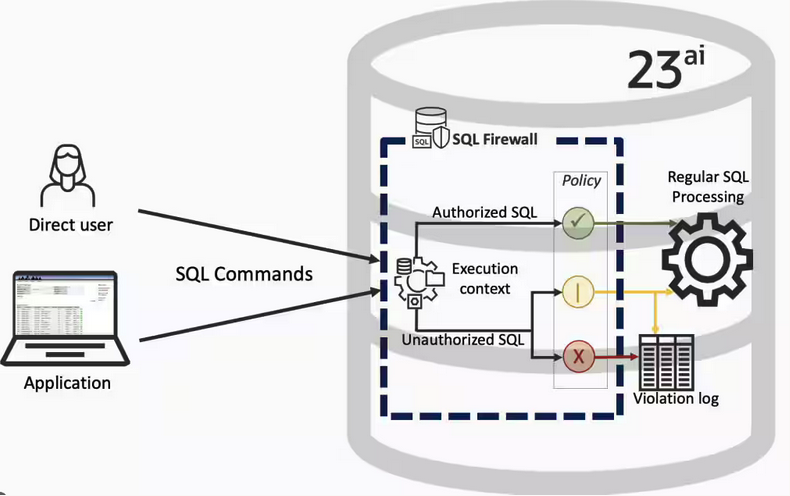
SQL Firewall allows you to implement a firewall within the database to control what commands are allowed to be run on the data. With SQL Firewall you can:
- Monitor the SQL (and PL/SQL) activity to learn what the normal or typical SQL commands are being run on the data
- Captures all commands and logs them
- Manage a list of allowed commands, etc, using Policies
- Block and log all commands that are not allowed. Some commands might be allowed to run
Let’s walk through a simple example of setting this up and using it. For this example I’m assuming you have access to SYSTEM and another schema, for example SCOTT schema with the EMP, DEPT, etc tables.
Step 1 involves enabling SQL Firewall. To do this, we need to connect to the SYS schema and run the function to enable it.
grant sql_firewall_admin to system;Then connect to SYSTEM to enable the firewall.
exec dbms_sql_firewall.enable;For Step 2 we need to turn it on, as in we want to capture some of the commands being performed on the Database. We are using the SCOTT schema, so let’s capture what commands are run in that schema. [remember we are still connected to SYSTEM schema]
begin
  dbms_sql_firewall.create_capture (
    username=>'SCOTT',
    top_level_only=>true);
end;
Now that SQL Firewall is running, Step 3, we can switch to and connect to the SCOTT schema. When logged into SCOTT we can run some SQL commands on our tables.
select * from dept;
select deptno, count(*) from emp group by deptno;
select * from emp where job = 'MANAGER';
For Step 4, we can log back into SYSTEM and stop the capture of commands.
exec dbms_sql_firewall.stop_capture('SCOTT');We can then use the dictionary view DBA_SQL_FIREWALL_CAPTURE_LOG to see what commands were captured and logged.
column command_type format a12
column current_user format a15
column client_program format a45
column os_user format a10
column ip_address format a10
column sql_text format a30

select command_type,
       current_user,
       client_program,
       os_user,
       ip_address,
       sql_text
from   dba_sql_firewall_capture_logs
where  username = 'SCOTT';
The screen isn’t wide enough to display the results, but if you run the above command, you’ll see the three SELECT commands we ran above.
Other SQL Firewall dictionary views include DBA_SQL_FIREWALL_ALLOWED_IP_ADDR, DBA_SQL_FIREWALL_ALLOWED_OS_PROG, DBA_SQL_FIREWALL_ALLOWED_OS_USER and DBA_SQL_FIREWALL_ALLOWED_SQL.
For Step 5, we want to say that those commands are the only commands allowed in the SCOTT schema. We need to create an allowed list. Individual commands can be added, or if we want to add all the commands captured in our log, we can simple run
exec dbms_sql_firewall.generate_allow_list ('SCOTT');
exec  dbms_sql_firewall.enable_allow_list (username=>'SCOTT',block=>true);
Step 6 involves testing to see if the generated allowed list for SQL Firewall work. For this we need to log back into SCOTT schema, and run some commands. Let’s start with the three previously run commands. These should run without any problems or errors.
select * from dept;
select deptno, count(*) from emp group by deptno;
select * from emp where job = 'MANAGER';
Now write a different query and see what is returned.
select count(*) from dept;

Error starting at line : 1 in command -
select count(*) from dept
*
ERROR at line 1:
ORA-47605: SQL Firewall violation
Our new SQL command has been blocked. Which is what we wanted.
As an Administrator of the Database (DBA) you can monitor for violations of the Firewall. Log back into SYSTEM and run the following.
set lines 150
column occurred_at format a40

select sql_text,
       firewall_action,
       ip_address,
       cause,
       occurred_at
from   dba_sql_firewall_violations
where  username = 'SCOTT';

SQL_TEXT		       FIREWAL IP_ADDRESS CAUSE 	    OCCURRED_AT
------------------------------ ------- ---------- ----------------- ----------------------------------------
SELECT COUNT (*) FROM DEPT     Blocked 10.0.2.2   SQL violation     18-SEP-25 06.55.25.059913 PM +00:00
If you decide this command is ok to be run in the schema, you can add it to the allowed list.
exec dbms_sql_firewall.append_allow_list('SCOTT', dbms_sql_firewall.violation_log);The example above gives you the steps to get up and running with SQL Firewall. But there is lots more you can do with SQL Firewall, from monitoring of commands etc, to managing violations, to managing the logs, etc. Check out my other post covering some of these topics.
OCI Speech Real-time Capture
Capturing Speech-to-Text is a straight forward step. I’ve written previously about this, giving an example. But what if you want the code to constantly monitor for text input, giving a continuous. For this we need to use the asyncio python library. Using the OCI Speech-to-Text API in combination with asyncio we can monitor a microphone (speech input) on a continuous basis.
There are a few additional configuration settings needed, including configuring a speech-to-text listener. Here is an example of what is needed
lass MyListener(RealtimeSpeechClientListener):
    def on_result(self, result):
        if result["transcriptions"][0]["isFinal"]:
            print(f"1-Received final results: {transcription}")
        else:
            print(f"2-{result['transcriptions'][0]['transcription']} \n")

    def on_ack_message(self, ackmessage):
        return super().on_ack_message(ackmessage)

    def on_connect(self):
        return super().on_connect()

    def on_connect_message(self, connectmessage):
        return super().on_connect_message(connectmessage)

    def on_network_event(self, ackmessage):
        return super().on_network_event(ackmessage)

    def on_error(self, error_message):
        return super().on_error(error_message)

    def on_close(self, error_code, error_message):
        print(f'\nOCI connection closing.')

async def start_realtime_session(customizations=[], compartment_id=None, region=None):
    rt_client = RealtimeSpeechClient(
        config=config,
        realtime_speech_parameters=realtime_speech_parameters,
        listener=MyListener(),
        service_endpoint=realtime_speech_url,
        signer=None,   #authenticator(),
        compartment_id=compartment_id,
    )
    asyncio.create_task(send_audio(rt_client))

if __name__ == "__main__":
    asyncio.run(
        start_realtime_session(
            customizations=customization_ids,
            compartment_id=COMPARTMENT_ID,
            region=REGION_ID,
        )
    )
Additional customizations can be added to the Listener, for example, what to do with the Audio captured, what to do with the text, how to mange the speech-to-text (there are lots of customizations)
Using Annotations to Improve Responses from SelectAI
In my previous posts on using SelectAI, I illustrated how adding metadata to your tables and columns can improve the SQL generated by the LLMs. Some of the results from those where a bit questionable. Going forward (from 23.9 onwards, although it might get backported), it appears that we need to add additional metadata to obtain better responses from the LLMs, by way of Annotations. Check out my previous posts on SelectAI at post-1, post-2, post-3, post-4, post-5.
Let’s have a look at how to add Annotations to support SelectAI with generating better responses.
NB: Support for additional LLMs is constantly being updated. Check out the current list here.
The following is an example from my previous post on adding table and column comments.
CREATE TABLE TABLE1(
c1  NUMBER(2) not null primary key,
c2  VARCHAR2(50) not null,
c3  VARCHAR2(50) not null);

COMMENT ON TABLE table1 IS 'Department table. Contains details of each Department including Department Number, Department Name and Location for the Department';

COMMENT ON COLUMN table1.c1 IS 'Department Number. Primary Key. Unique. Used to join to other tables';
COMMENT ON COLUMN table1.c1 IS 'Department Name. Name of department. Description of function';
COMMENT ON COLUMN table1.c3 IS 'Department Location. City where the department is located';

-- create the EMP table as  TABLE2
CREATE TABLE TABLE2(
c1  NUMBER(4) not null primary key,
c2  VARCHAR2(50) not null,
c3  VARCHAR2(50) not null,
c4  NUMBER(4),
c5  DATE,
c6  NUMBER(10,2),
c7  NUMBER(10,2),
c8  NUMBER(2) not null);

COMMENT ON TABLE table2 IS 'Employee table. Contains details of each Employee. Employees';

COMMENT ON COLUMN table2.c1 IS 'Employee Number. Primary Key. Unique. How each employee is idendifed';
COMMENT ON COLUMN table2.c1 IS 'Employee Name. Name of each Employee';
COMMENT ON COLUMN table2.c3 IS 'Employee Job Title. Job Role. Current Position';
COMMENT ON COLUMN table2.c4 IS 'Manager for Employee. Manager Responsible. Who the Employee reports to';
COMMENT ON COLUMN table2.c5 IS 'Hire Date. Date the employee started in role. Commencement Date';
COMMENT ON COLUMN table2.c6 IS 'Salary. How much the employee is paid each month. Dollars';
COMMENT ON COLUMN table2.c7 IS 'Commission. How much the employee can earn each month in commission. This is extra on top of salary';
COMMENT ON COLUMN table2.c8 IS 'Department Number. Foreign Key. Join to Department Table';
Annotations is a way of adding additional metadata for a database object. The Annotation is in the form of a <key, value>, which are both freeform text. The database object can have multiple Annotations.
ANNOTATIONS ([ADD|DROP] annotation_name [ annotation_value ] [ , annotation_name [ annotation_value ]... )For example, using Table 1 from about, which represents DEPT, we could add the following:
CREATE TABLE TABLE1(
...
c3  VARCHAR2(50) not null)
annotations (display 'departments');
We can also add annotations are column level.
CREATE TABLE TABLE1(
c1  NUMBER(2) not null primary key ANNOTATION(key 'Department Number'),
c2  VARCHAR2(50) not null ANNOTATION(display 'Department Name. Name of department. Description of function'),
c3  VARCHAR2(50) not null) ANNOTATION(display 'Department Location. City where the department is located');
At some point, only the Annotations will be passed to the LLMs, so in the meantime, you’ll need to consider the addition of Comments and Annotations.
Annotations have their own data dictionary views called USER_ANNOTATIONS, USER_ANNOTATIONS_USAGE.
Some care is needed to ensure consistency of Annotation definitions used across all database objects.
SQL History Monitoring
New in Oracle 23ai is a feature to allow tracking and monitoring the last 50 queries per session. Previously, we had other features and tools for doing this, but with SQL History we have some of this information in one location. SQL History will not replace what you’ve been using previously, but is just another tool to assist you in your monitoring and diagnostics. Each user can access their own current session history, while SQL and DBAs can view the history of all current user sessions.
If you want to use it, a user with ALTER SYTEM privilege must first change the initialisation parameter SQL_HISTORY_ENABLED instance wide to TRUE in the required PDB. The default is FALSE.
To see if it is enabled.
SELECT name,
       value,
       default_value,
       isdefault
FROM  v$parameter
WHERE name like 'sql_hist%';

NAME                 VALUE      DEFAULT_VALUE             ISDEFAULT
-------------------- ---------- ------------------------- ----------
sql_history_enabled  FALSE      FALSE                     TRUE
In the above example, the parameter is not enabled.
To enable the parameter, you need to do so using a user with SYSTEM level privileges. Use the ALTER SYSTEM privilege to enable it. For example,
alter system set sql_history_enabled=true scope=both;When you connect back to your working/developer schema you should be able to see the parameter has been enabled.
connect student/Password!@DB23

show parameter sql_history_enabled

NAME                            TYPE        VALUE
------------------------------- ----------- ------------------------------
sql_history_enabled             boolean     TRUE
A simple test to see it is working is to query the DUAL table
SELECT sysdate;

SYSDATE
---------
11-JUL-25
1 row selected.

SQL> select XYZ from dual;
select XYZ from dual
 *
ERROR at line 1:
ORA-00904: "XYZ": invalid identifier
Help: https://docs.oracle.com/error-help/db/ora-00904/
When we query the V$SQL_HISTORY view we get.
SELECT sql_text,
       error_number
FROM v$sql_history;

SQL_TEXT                                                ERROR_NUMBER
------------------------------------------------------- ------------
SELECT DECODE(USER, 'XS$NULL',  XS_SYS_CONTEXT('XS$SESS            0
SELECT sysdate                                                     0
SELECT xxx FROM dual                                             904
[I’ve truncated the SQL_TEXT above to fit on one line. By default, only the first 100 characters of the query are visible in this view]
This V$SQL_HISTORY view becomes a little bit more interesting when you look at some of the other columns that are available. in addition to the basic information for each statement like CON_ID, SID, SESSION_SERIAL#, SQL_ID and PLAN_HASH_VALUE, there are also lots of execution statistics like ELAPSED_TIME, CPU_TIME, BUFFER_GETS or PHYSICAL_READ_REQUESTS, etc. which will be of most interest.
The full list of columns is.
DESC v$sql_history

Name                                       Null?    Type
------------------------------------------ -------- -----------------------
 KEY                                                NUMBER
 SQL_ID                                             VARCHAR2(13)
 ELAPSED_TIME                                       NUMBER
 CPU_TIME                                           NUMBER
 BUFFER_GETS                                        NUMBER
 IO_INTERCONNECT_BYTES                              NUMBER
 PHYSICAL_READ_REQUESTS                             NUMBER
 PHYSICAL_READ_BYTES                                NUMBER
 PHYSICAL_WRITE_REQUESTS                            NUMBER
 PHYSICAL_WRITE_BYTES                               NUMBER
 PLSQL_EXEC_TIME                                    NUMBER
 JAVA_EXEC_TIME                                     NUMBER
 CLUSTER_WAIT_TIME                                  NUMBER
 CONCURRENCY_WAIT_TIME                              NUMBER
 APPLICATION_WAIT_TIME                              NUMBER
 USER_IO_WAIT_TIME                                  NUMBER
 IO_CELL_UNCOMPRESSED_BYTES                         NUMBER
 IO_CELL_OFFLOAD_ELIGIBLE_BYTES                     NUMBER
 SQL_TEXT                                           VARCHAR2(100)
 PLAN_HASH_VALUE                                    NUMBER
 SQL_EXEC_ID                                        NUMBER
 SQL_EXEC_START                                     DATE
 LAST_ACTIVE_TIME                                   DATE
 SESSION_USER#                                      NUMBER
 CURRENT_USER#                                      NUMBER
 CHILD_NUMBER                                       NUMBER
 SID                                                NUMBER
 SESSION_SERIAL#                                    NUMBER
 MODULE_HASH                                        NUMBER
 ACTION_HASH                                        NUMBER
 SERVICE_HASH                                       NUMBER
 IS_FULL_SQLTEXT                                    VARCHAR2(1)
 ERROR_SIGNALLED                                    VARCHAR2(1)
 ERROR_NUMBER                                       NUMBER
 ERROR_FACILITY                                     VARCHAR2(4)
 STATEMENT_TYPE                                     VARCHAR2(5)
 IS_PARALLEL                                        VARCHAR2(1)
CON_ID NUMBEROCI Stored Video Analysis
OCI Video Analysis is a part of the OCI Vision service, designed to process stored videos and identify labels, objects, texts, and faces within each frame. It can analyze the entire video or every frame in the video using pre-trained or custom models. The feature provides information about the detected labels, objects, texts, and faces, and provides the time at which they’re detected. With a timeline bar, you can directly look for a label or object and navigate to the exact timestamp in the video where a particular label or object is found.
To use this feature, you’ll need to upload your video to an OCI Bucket. Here is an example of a video stored in a bucket called OCI-Vision-Video-Demos.
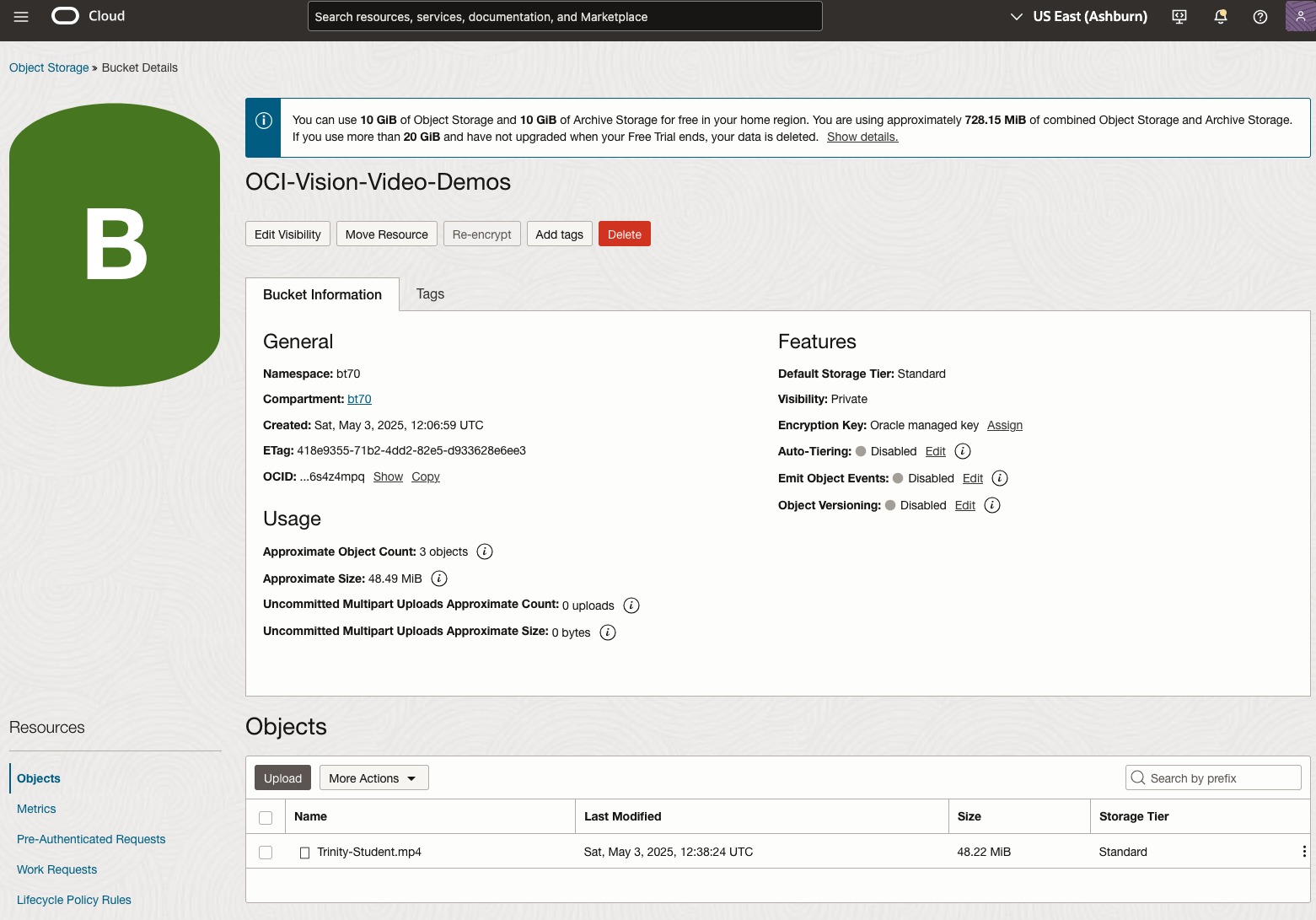
You might need to allow Pre-Authenticated Requests for this bucket. If you don’t do this, you will be prompted by the tool to allow this.
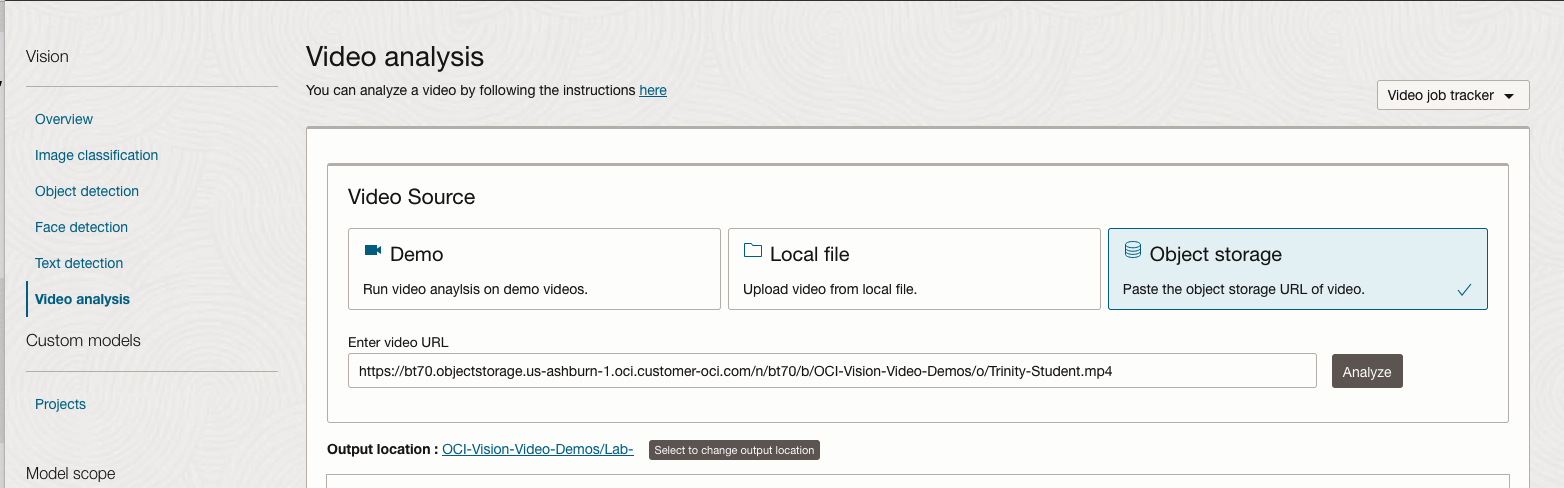
Next, go to the OCI Vision page. You’ll find the Video Analysis tool at the bottom of the menu on the left-hand side of the page.
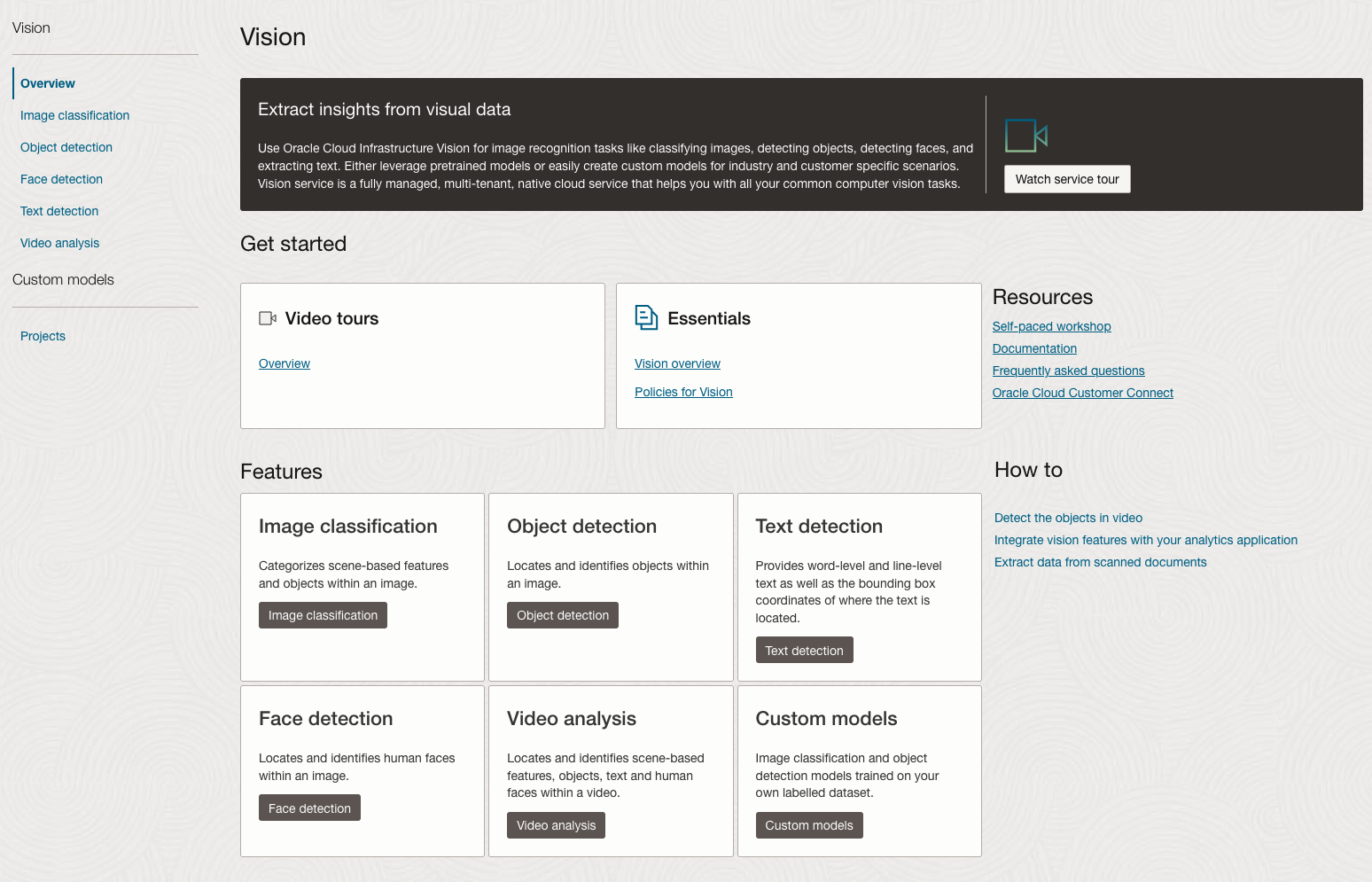
You can check out the demo videos, or load your own video from the Local File system of you computer, or use a file from your OCI Storage. If you select a video from the Local File system, the video will be loaded in the object storage before it is processed.
For this example, I’m going to use the video I uploaded earlier called Trinity-Student.mp4. Copy the link to this file from the file information in object storage.

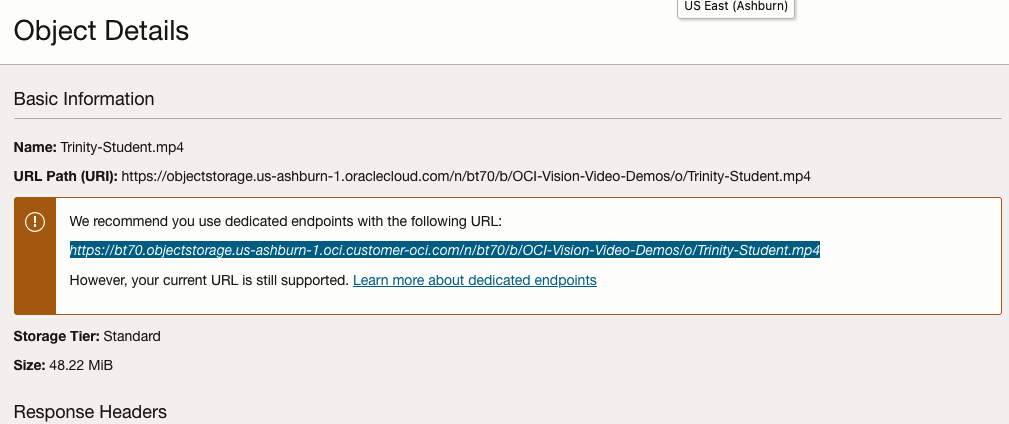
On the Video Analysis page, select Object Storage and paste the link to the file into the URL field. Then click Analyze button. It is at this point that you might get asked to Generate a PAR URL. Do this and then proceed.
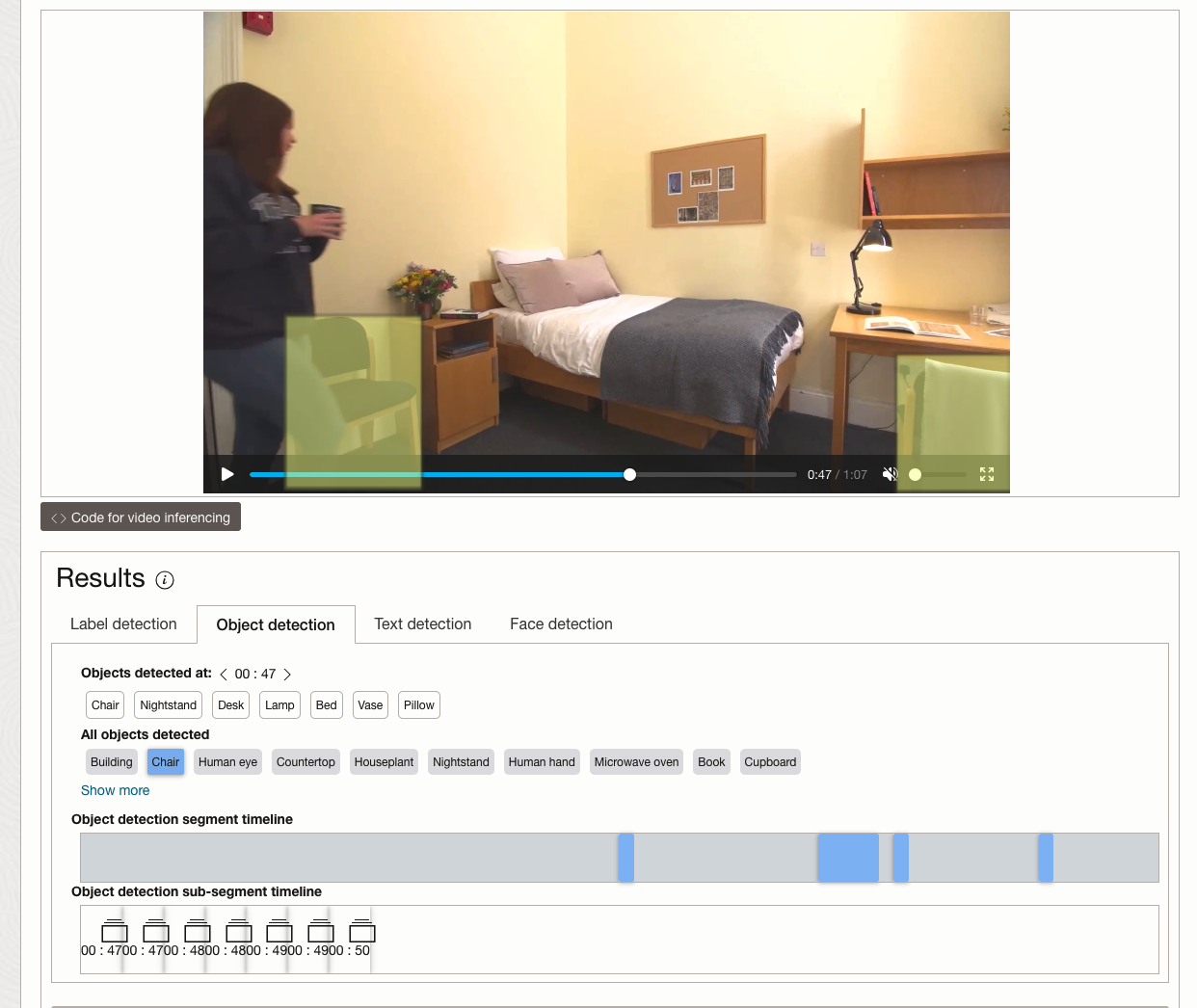
While the video is being parsed, it will appear on the webpage and will start playing. When the video has been Analyzed the details will be displayed below the video. The Analysis will consist of Label Detection, Object Detection, Text Dection and Face Detection.
By clicking on each of these, you’ll see what has been detected, and by clicking on each of these, you’ll be able to see where in the video they were detected. For example, where a Chair was detected.
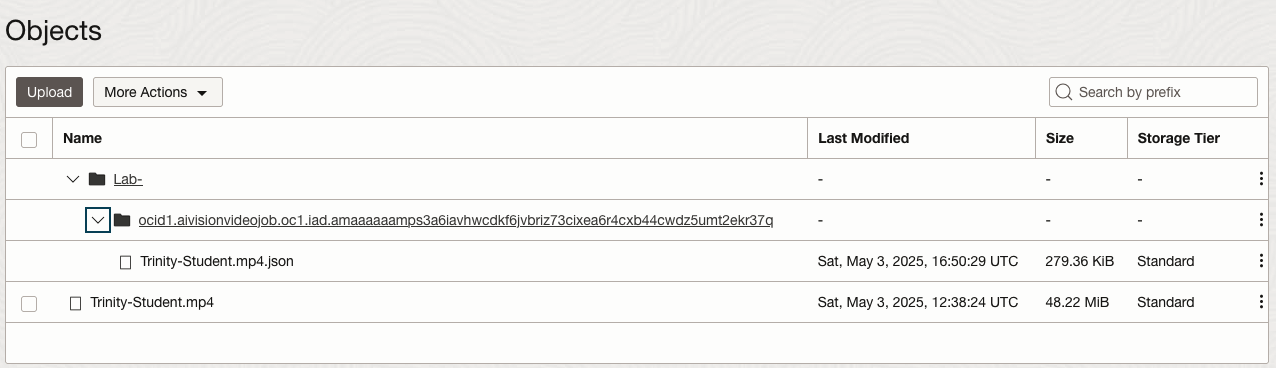
You can also inspect the JSON file containing all the details of various objects detected in the video and the location in the videos they can be found.
This JSON response file is also saved to Object Storage in the same directory, or a sub-directory, where the video is located.
OCI Text to Speech example
In this post, I’ll walk through the steps to get a very simple example of Text-to-Speech working. This example builds upon my previous posts on OCI Language, OCI Speech and others, so make sure you check out those posts.
The first thing you need to be aware of, and to check, before you proceed, is whether the Text-to-Speech is available in your region. At the time of writing, this feature was only available in Phoenix, which is one of the cloud regions I have access to. There are plans to roll it out to other regions, but I’m not aware of the timeline for this. Although you might see Speech listed on your AI menu in OCI, that does not guarantee the Text-to-Speech feature is available. What it does mean is the text trans scribing feature is available.
So if Text-to-Speech is available in your region, the following will get you up and running.
The first thing you need to do is read in the Config file from the OS.
#initial setup, read Config file, create OCI Client
import oci
from oci.config import from_file
##########
from oci_ai_speech_realtime import RealtimeSpeechClient, RealtimeSpeechClientListener
from oci.ai_speech.models import RealtimeParameters
##########

CONFIG_PROFILE = "DEFAULT"
config = oci.config.from_file('~/.oci/config', profile_name=CONFIG_PROFILE)
###
ai_speech_client = ai_speech_client = oci.ai_speech.AIServiceSpeechClient(config)
###
print(config)
### Update region to point to Phoenix
config.update({'region':'us-phoenix-1'})
A simple little test to see if the Text-to-Speech feature is enabled for your region is to display the available list of voices.
list_voices_response = ai_speech_client.list_voices(
    compartment_id=COMPARTMENT_ID,
    display_name="Text-to-Speech")
#    opc_request_id="1GD0CV5QIIS1RFPFIOLF<unique_ID>")

# Get the data from response
print(list_voices_response.data)
This produces a long json object with many characteristics of the available voices. A simpler listing gives the names and gender)
for i in range(len(list_voices_response.data.items)):
    print(list_voices_response.data.items[i].display_name + ' [' + list_voices_response.data.items[i].gender + ']\t' + list_voices_response.data.items[i].language_description )
------
Brian [MALE]	English (United States)
Annabelle [FEMALE]	English (United States)
Bob [MALE]	English (United States)
Stacy [FEMALE]	English (United States)
Phil [MALE]	English (United States)
Cindy [FEMALE]	English (United States)
Brad [MALE]	English (United States)
Richard [MALE]	English (United States)
Now lets setup a Text-to-Speech example using the simple text, Hello. My name is Brendan and this is an example of using Oracle OCI Speech service. First lets define a function to save the audio to a file.
def save_audi_response(data):
    with open(filename, 'wb') as f:
        for b in data.iter_content():
            f.write(b)
    f.close()
We can now establish a connection, define the text, call the OCI Speech function to create the audio, and then to save the audio file.
import IPython.display as ipd

# Initialize service client with default config file
ai_speech_client = oci.ai_speech.AIServiceSpeechClient(config)

TEXT_DEMO = "Hello. My name is Brendan and this is an example of using Oracle OCI Speech service"

#speech_response = ai_speech_client.synthesize_speech(compartment_id=COMPARTMENT_ID)

speech_response = ai_speech_client.synthesize_speech(
    synthesize_speech_details=oci.ai_speech.models.SynthesizeSpeechDetails(
        text=TEXT_DEMO,
        is_stream_enabled=True,
        compartment_id=COMPARTMENT_ID,

        configuration=oci.ai_speech.models.TtsOracleConfiguration(
            model_family="ORACLE",
            model_details=oci.ai_speech.models.TtsOracleTts2NaturalModelDetails(
                model_name="TTS_2_NATURAL",
                voice_id="Annabelle"),
            speech_settings=oci.ai_speech.models.TtsOracleSpeechSettings(
                text_type="SSML",
                sample_rate_in_hz=18288,
                output_format="MP3",
                speech_mark_types=["WORD"])),

        audio_config=oci.ai_speech.models.TtsBaseAudioConfig(config_type="BASE_AUDIO_CONFIG") #, save_path='I'm not sure what this should be')
    ) )

# Get the data from response
#print(speech_response.data)
save_audi_response(speech_response.data)Translating Text using OCI AI Services
I’ve written several blog posts on using various features and functions of the OCI AI Services, and the most recent of these have been about some of the Language features. In this blog post, I’ll show you how to use the OCI Language Translation service.
As with the previous posts, there is some initial configuration and setup for your computer to access the OCI cloud services. Check out my previous posts on this. The following examples assume you have that configuration setup.
The OCI Translation service can translate text into over 30 different languages, with more being added over time.
There are 3 things needed to use the Translation Service. The Text to be translated, what language that text is in and what language you’d like the text translated into. Sounds simple. Well, it kind of is, but some care is needed to ensure it all works smoothly.
Let’s start with the basic setup of importing libraries, reading the config file and initialising the OCI AI Client.
import oci
from oci.config import from_file

#Read in config file - this is needed for connecting to the OCI AI Services
#COMPARTMENT_ID = "ocid1.tenancy.oc1..aaaaaaaaop3yssfqnytz5uhc353cmel22duc4xn2lnxdr4f4azmi2fqga4qa"
CONFIG_PROFILE = "DEFAULT"
config = oci.config.from_file('~/.oci/config', profile_name=CONFIG_PROFILE)
###
ai_language_client = oci.ai_language.AIServiceLanguageClient(config)
Next, we can define what text we want to translate and what Language we want to translate the text into. In this case, I want to translate the text into French and to do so, we need to use the language abbreviation.
text_to_trans = "Hello. My name is Brendan and this is an example of using Oracle OCI Language translation service"
print(text_to_trans)
target_lang = "fr"
Next, we need to prepare the text and then send it to the translation service. Then, print the returned object
t_doc = oci.ai_language.models.TextDocument(key="Demo", text=text_to_trans, language_code="en")
trans_response = ai_language_client.batch_language_translation(oci.ai_language.models.BatchLanguageTranslationDetails(documents=[t_doc], target_language_code=target_lang))
print(trans_response.data)
The returned translated object is the following.
{
  "documents": [
    {
      "key": "Demo",
      "source_language_code": "en",
      "target_language_code": "fr",
      "translated_text": "Bonjour. Je m'appelle Brendan et voici un exemple d'utilisation du service de traduction Oracle OCI Language"
    }
  ],
  "errors": []
}
We can automate this process a little to automatically detect the input language. For example:
source_lang = ai_language_client.detect_dominant_language(oci.ai_language.models.DetectLanguageSentimentsDetails(text=text_to_trans))

t_doc = oci.ai_language.models.TextDocument(key="Demo", text=text_to_trans, language_code=source_lang.data.languages[0].code)
trans_response = ai_language_client.batch_language_translation(oci.ai_language.models.BatchLanguageTranslationDetails(documents=[t_doc], target_language_code=target_lang))
print(trans_response.data)
And we can also automate the translation into multiple different langues.
text_to_trans = "Hello. My name is Brendan and this is an example of using Oracle OCI Language translation service"
print(text_to_trans)
#target_lang = "fr"
target_lang = {"fr":"French", "nl":"Dutch", "de":"German", "it":"Italian", "ja":"Japaneese", "ko":"Korean", "pl":"polish"}

for lang_key, lang_name in target_lang.items():
    t_doc = oci.ai_language.models.TextDocument(key="Demo", text=text_to_trans, language_code="en")
    trans_response = ai_language_client.batch_language_translation(oci.ai_language.models.BatchLanguageTranslationDetails(documents=[t_doc], target_language_code=lang_key))
    ####
    print('    [' +  lang_name + '] ' + trans_response.data.documents[0].translated_text)
Hello. My name is Brendan and this is an example of using Oracle OCI Language translation service
[French] Bonjour. Je m'appelle Brendan et voici un exemple d'utilisation du service de traduction Oracle OCI Language
[Dutch] Hallo. Mijn naam is Brendan en dit is een voorbeeld van het gebruik van de Oracle OCI Language vertaalservice.
[German] Hallo. Mein Name ist Brendan und dies ist ein Beispiel für die Verwendung des Oracle OCI Language-Übersetzungsservice
[Italian] Ciao. Il mio nome è Brendan e questo è un esempio di utilizzo del servizio di traduzione di Oracle OCI Language
[Japaneese] こんにちは。私の名前はBrendanで、これはOracle OCI Language翻訳サービスの使用例です
[Korean] 안녕하세요. 내 이름은 브렌단이며 Oracle OCI 언어 번역 서비스를 사용하는 예입니다.
[polish] Dzień dobry. Nazywam się Brendan i jest to przykład korzystania z usługi tłumaczeniowej OCI LanguageHow to access and use Multilingual embedding models using OML for Python 2.1
With the release of OML for Python 2.1, we have a newer approach for accessing and generating embedding models in ONNX format (from Hugging Face), which can then be loaded into the Database (>=23.7ai). Although with this newer approach, we need to be aware of the previous way of doing it (<=23.6). As of 23.7ai this previous approach is now deprecated. Given the short time the previous approach was around, things could yet change with subsequent releases.
As the popularity of Vector Search spreads, there have been some challenges relating to obtaining and using suitable models within a Database. Oracle 23ai introduced the ability to load an embedding model in ONNX format into the database. These could be easily used to create and update embedding vectors for your data. But there were some limitations and challenges with what ONNX models could be used, and sometimes this was limited to the formatting of the ONNX metadata and the pretrained models themselves.
To ease the process of locating, converting and loading an embedding model into an Oracle Database, Oracle Machine Learning for Python 2.1 has been released with some new features and methods to make the process slightly easier. There are three constraints for doing this: 1) you need to use Oracle Machine Learning for Python 2.1 (OML4Py 2.1), and 2) you need to use Oracle 23.7ai (or greater) Database (This later requirement is to allow for the expanded range of embedding models) and 3) Python 3.12 (or greater).
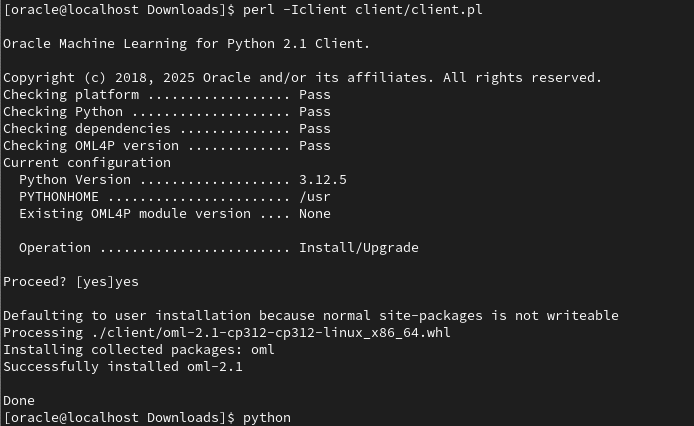
There are a few additional Python libraries needed, so check the documentation for more details on what the most recent version of these should be. But do be careful of the documentation as the version I followed there was some inconsistencies in different sections regarding the requirements and steps to follow for installation. Hopefully this will be tidied up by the time you read the documentation.
With OML4Py 2.1 there is a class called oml.utils.onnxpipeline, with a number of methods to support the exploration of preconfigured models. These include: from_preconfigured(), from_template() and show_preconfigured(). This last one displays the list of preconfigured models.
oml.ONNXPipelineConfig.show_preconfigured()
['sentence-transformers/all-mpnet-base-v2', 'sentence-transformers/all-MiniLM-L6-v2', 'sentence-transformers/multi-qa-MiniLM-L6-cos-v1', 'sentence-transformers/distiluse-base-multilingual-cased-v2', 'sentence-transformers/all-MiniLM-L12-v2', 'BAAI/bge-small-en-v1.5', 'BAAI/bge-base-en-v1.5', 'taylorAI/bge-micro-v2', 'intfloat/e5-small-v2', 'intfloat/e5-base-v2', 'thenlper/gte-base', 'thenlper/gte-small', 'TaylorAI/gte-tiny', 'sentence-transformers/paraphrase-multilingual-mpnet-base-v2', 'intfloat/multilingual-e5-base', 'intfloat/multilingual-e5-small', 'sentence-transformers/stsb-xlm-r-multilingual', 'Snowflake/snowflake-arctic-embed-xs', 'Snowflake/snowflake-arctic-embed-s', 'Snowflake/snowflake-arctic-embed-m', 'mixedbread-ai/mxbai-embed-large-v1', 'openai/clip-vit-large-patch14', 'google/vit-base-patch16-224', 'microsoft/resnet-18', 'microsoft/resnet-50', 'WinKawaks/vit-tiny-patch16-224', 'Falconsai/nsfw_image_detection', 'WinKawaks/vit-small-patch16-224', 'nateraw/vit-age-classifier', 'rizvandwiki/gender-classification', 'AdamCodd/vit-base-nsfw-detector', 'trpakov/vit-face-expression', 'BAAI/bge-reranker-base']
We can inspect the full details of all models or for an individual model by changing some of the parameters.
oml.ONNXPipelineConfig.show_preconfigured(include_properties=True, model_name='microsoft/resnet-50')
[{'checksum': 'fca7567354d0cb0b7258a44810150f7c1abf8e955cff9320b043c0554ba81f8e', 'model_type': 'IMAGE_CONVNEXT', 'pre_processors_img': [{'name': 'DecodeImage', 'do_convert_rgb': True}, {'name': 'Resize', 'enable': True, 'size': {'height': 384, 'width': 384}, 'resample': 'bilinear'}, {'name': 'Rescale', 'enable': True, 'rescale_factor': 0.00392156862}, {'name': 'Normalize', 'enable': True, 'image_mean': 'IMAGENET_STANDARD_MEAN', 'image_std': 'IMAGENET_STANDARD_STD'}, {'name': 'OrderChannels', 'order': 'CHW'}], 'post_processors_img': []}]
Let’s prepare a preconfigured model using the simplest approach. In this example we’ll use the 'sentence-transformers/multi-qa-MiniLM-L6-cos-v1' model. Start by defining a pipeline.
pipeline = oml.utils.ONNXPipeline(model_name="sentence-transformers/multi-qa-MiniLM-L6-cos-v1")We now have the choice of loading it straight to your database using an already established OML connection.
pipeline.export2db("my_onnx_model_db")or you can export the model to a file
pipeline.export2file("my_onnx_model", output_dir="/home/oracle/onnx")
When you check the file system, you’ll see something like the following. Depending on the model you exported and any configuration changes to the model, the file size will vary in size.
-rw-r--r--. 1 oracle oracle 90636512 Apr 22 12:00 my_onnx_model.onnxIs you ran the export2file() function you’ll need to move that file to the database server. This will involve talking gently with the DBA to get their assistance. Once permission is obtained from the DBA, the ONNX file will be copied into a directory that is referenced from within the database. This is a simple task of defining an external file system directory where the file is located. In the example below the directory is referenced as ONNX_DIR. This is the reference defined in the database, which has a pointer to directory on the file system. The next task is to load the ONNX file into your Database schema.
BEGIN
   DBMS_VECTOR.LOAD_ONNX_MODEL(
        directory => 'ONNX_DIR',
        file_name => 'my_onnx_model.onnx',
        model_name => 'Multi-qa-MiniLM-L6-Cos-v1');
END;
Once loaded the model can be used to create Vector Embeddings.
Unlock Text Analytics with Oracle OCI Python – Part 2
This is my second post on using Oracle OCI Language service to perform Text Analytics. These include Language Detection, Text Classification, Sentiment Analysis, Key Phrase Extraction, Named Entity Recognition, Private Data detection and masking, and Healthcare NLP.
In my Previous post (Part 1), I covered examples on Language Detection, Text Classification and Sentiment Analysis.
In this post (Part 2), I’ll cover:
- Key Phrase
- Named Entity Recognition
- Detect private information and marking
Make sure you check out Part 1 for details on setting up the client and establishing a connection. These details are omitted in the examples below.
Key Phrase Extraction
With Key Phrase Extraction, it aims to identify the key works and/or phrases from the text. The keywords/phrases are selected based on what are the main topics in the text along with the confidence score. The text is parsed to extra the words/phrase that are important in the text. This can aid with identifying the key aspects of the document without having to read it. Care is needed as these words/phrases do not represent the meaning implied in the text.
Using some of the same texts used in Part-1, let’s see what gets generated for the text about a Hotel experience.
t_doc = oci.ai_language.models.TextDocument(
    key="Demo",
    text="This hotel is a bad place, I would strongly advise against going there. There was one helpful member of staff",
    language_code="en")

key_phrase = ai_language_client.batch_detect_language_key_phrases((oci.ai_language.models.BatchDetectLanguageKeyPhrasesDetails(documents=[t_doc])))

print(key_phrase.data)
print('==========')
for i in range(len(key_phrase.data.documents)):
        for j in range(len(key_phrase.data.documents[i].key_phrases)):
            print("phrase: ", key_phrase.data.documents[i].key_phrases[j].text +' [' + str(key_phrase.data.documents[i].key_phrases[j].score) + ']')
{
"documents": [
{
"key": "Demo",
"key_phrases": [
{
"score": 0.9998106383818767,
"text": "bad place"
},
{
"score": 0.9998106383818767,
"text": "one helpful member"
},
{
"score": 0.9944029848214838,
"text": "staff"
},
{
"score": 0.9849306609397931,
"text": "hotel"
}
],
"language_code": "en"
}
],
"errors": []
}
==========
phrase: bad place [0.9998106383818767]
phrase: one helpful member [0.9998106383818767]
phrase: staff [0.9944029848214838]
phrase: hotel [0.9849306609397931]The output from the Key Phrase Extraction is presented into two formats about. The first is the JSON object returned from the function, containing the phrases and their confidence score. The second (below the ==========) is a formatted version of the same JSON object but parsed to extract and present the data in a more compact manner.
The next piece of text to be examined is taken from an article on the F1 website about a change of divers.
text_f1 = "Red Bull decided to take swift action after Liam Lawsons difficult start to the 2025 campaign, demoting him to Racing Bulls and promoting Yuki Tsunoda to the senior team alongside reigning world champion Max Verstappen. F1 Correspondent Lawrence Barretto explains why… Sergio Perez had endured a painful campaign that saw him finish a distant eighth in the Drivers Championship for Red Bull last season – while team mate Verstappen won a fourth successive title – and after sticking by him all season, the team opted to end his deal early after Abu Dhabi finale."

t_doc = oci.ai_language.models.TextDocument(
    key="Demo",
    text=text_f1,
    language_code="en")

key_phrase = ai_language_client.batch_detect_language_key_phrases(oci.ai_language.models.BatchDetectLanguageKeyPhrasesDetails(documents=[t_doc]))
print(key_phrase.data)
print('==========')
for i in range(len(key_phrase.data.documents)):
        for j in range(len(key_phrase.data.documents[i].key_phrases)):
            print("phrase: ", key_phrase.data.documents[i].key_phrases[j].text +' [' + str(key_phrase.data.documents[i].key_phrases[j].score) + ']')
I won’t include all the output and the following shows the key phrases in the compact format
phrase:  red bull [0.9991468440416812]
phrase:  swift action [0.9991468440416812]
phrase:  liam lawsons difficult start [0.9991468440416812]
phrase:  2025 campaign [0.9991468440416812]
phrase:  racing bulls [0.9991468440416812]
phrase:  promoting yuki tsunoda [0.9991468440416812]
phrase:  senior team [0.9991468440416812]
phrase:  sergio perez [0.9991468440416812]
phrase:  painful campaign [0.9991468440416812]
phrase:  drivers championship [0.9991468440416812]
phrase:  red bull last season [0.9991468440416812]
phrase:  team mate verstappen [0.9991468440416812]
phrase:  fourth successive title [0.9991468440416812]
phrase:  all season [0.9991468440416812]
phrase:  abu dhabi finale [0.9991468440416812]
phrase:  team [0.9420016064526977]
While some aspects of this is interesting, care is needed to not overly rely upon it. It really depends on the usecase.
Named Entity Recognition
For Named Entity Recognition is a natural language process for finding particular types of entities listed as words or phrases in the text. The named entities are a defined list of items. For OCI Language there is a list available here. Some named entities have a sub entities. The return JSON object from the function has a format like the following.
{
  "documents": [
    {
      "entities": [
        {
          "length": 5,
          "offset": 5,
          "score": 0.969588577747345,
          "sub_type": "FACILITY",
          "text": "hotel",
          "type": "LOCATION"
        },
        {
          "length": 27,
          "offset": 82,
          "score": 0.897526216506958,
          "sub_type": null,
          "text": "one helpful member of staff",
          "type": "QUANTITY"
        }
      ],
      "key": "Demo",
      "language_code": "en"
    }
  ],
  "errors": []
}
For each named entity discovered the returned object will contain the Text identifed, the Entity Type, the Entity Subtype, Confidence Score, offset and length.
Using the text samples used previous, let’s see what gets produced. The first example is for the hotel review.
t_doc = oci.ai_language.models.TextDocument(
    key="Demo",
    text="This hotel is a bad place, I would strongly advise against going there. There was one helpful member of staff",
    language_code="en")

named_entities = ai_language_client.batch_detect_language_entities(
            batch_detect_language_entities_details=oci.ai_language.models.BatchDetectLanguageEntitiesDetails(documents=[t_doc]))

for i in range(len(named_entities.data.documents)):
        for j in range(len(named_entities.data.documents[i].entities)):
            print("Text: ", named_entities.data.documents[i].entities[j].text, ' [' + named_entities.data.documents[i].entities[j].type + ']'
                 + '[' + str(named_entities.data.documents[i].entities[j].sub_type) + ']' + '{offset:'
                 + str(named_entities.data.documents[i].entities[j].offset) + '}')
Text: hotel [LOCATION][FACILITY]{offset:5}
Text: one helpful member of staff [QUANTITY][None]{offset:82}The last two lines above are the formatted output of the JSON object. It contains two named entities. The first one is for the text “hotel” and it has a Entity Type of Location, and a Sub Entitity Type of Location. The second named entity is for a long piece of string and for this it has a Entity Type of Quantity, but has no Sub Entity Type.
Now let’s see what is creates for the F1 text. (the text has been given above and the code is very similar/same as above).
Text:  Red Bull  [ORGANIZATION][None]{offset:0}
Text:  swift  [ORGANIZATION][None]{offset:25}
Text:  Liam Lawsons  [PERSON][None]{offset:44}
Text:  2025  [DATETIME][DATE]{offset:80}
Text:  Yuki Tsunoda  [PERSON][None]{offset:138}
Text:  senior  [QUANTITY][AGE]{offset:158}
Text:  Max Verstappen  [PERSON][None]{offset:204}
Text:  F1  [ORGANIZATION][None]{offset:220}
Text:  Lawrence Barretto  [PERSON][None]{offset:237}
Text:  Sergio Perez  [PERSON][None]{offset:269}
Text:  campaign  [EVENT][None]{offset:304}
Text:  eighth in the  [QUANTITY][None]{offset:343}
Text:  Drivers Championship  [EVENT][None]{offset:357}
Text:  Red Bull  [ORGANIZATION][None]{offset:382}
Text:  Verstappen  [PERSON][None]{offset:421}
Text:  fourth successive title  [QUANTITY][None]{offset:438}
Text:  Abu Dhabi  [LOCATION][GPE]{offset:545}
Detect Private Information and Marking
The ability to perform data masking has been available in SQL for a long time. There are lots of scenarios where masking is needed and you are not using a Database or not at that particular time.
With Detect Private Information or Personal Identifiable Information the OCI AI function search for data that is personal and gives you options on how to present this back to the users. Examples of the types of data or Entity Types it will detect include Person, Adddress, Age, SSN, Passport, Phone Numbers, Bank Accounts, IP Address, Cookie details, Private and Public keys, various OCI related information, etc. The list goes on. Check out the documentation for more details on these. Unfortunately the documentation for how the Python API works is very limited.
The examples below illustrate some of the basic options. But there is lots more you can do with this feature like defining you own rules.
For these examples, I’m going to use the following text which I’ve assigned to a variable called text_demo.
Hi Martin. Thanks for taking my call on 1/04/2025. Here are the details you requested. My Bank Account Number is 1234-5678-9876-5432 and my Bank Branch is Main Street, Dublin. My Date of Birth is 29/02/1993 and I’ve been living at my current address for 15 years. Can you also update my email address to brendan.tierney@email.com. If toy have any problems with this you can contact me on +353-1-493-1111. Thanks for your help. Brendan.
m_mode = {"ALL":{"mode":'MASK'}}

t_doc = oci.ai_language.models.TextDocument(key="Demo", text=text_demo,language_code="en")

pii_entities = ai_language_client.batch_detect_language_pii_entities(oci.ai_language.models.BatchDetectLanguagePiiEntitiesDetails(documents=[t_doc], masking=m_mode))

print(text_demo)
print('--------------------------------------------------------------------------------')
print(pii_entities.data.documents[0].masked_text)
print('--------------------------------------------------------------------------------')
for i in range(len(pii_entities.data.documents)):
        for j in range(len(pii_entities.data.documents[i].entities)):
            print("phrase: ", pii_entities.data.documents[i].entities[j].text +' [' + str(pii_entities.data.documents[i].entities[j].type) + ']')
Hi Martin. Thanks for taking my call on 1/04/2025. Here are the details you requested. My Bank Account Number is 1234-5678-9876-5432 and my Bank Branch is Main Street, Dublin. My Date of Birth is 29/02/1993 and I've been living at my current address for 15 years. Can you also update my email address to brendan.tierney@email.com. If toy have any problems with this you can contact me on +353-1-493-1111. Thanks for your help. Brendan.
--------------------------------------------------------------------------------
Hi ******. Thanks for taking my call on *********. Here are the details you requested. My Bank Account Number is ******************* and my Bank Branch is Main Street, Dublin. My Date of Birth is ********** and I've been living at my current address for ********. Can you also update my email address to *************************. If toy have any problems with this you can contact me on ***************. Thanks for your help. *******.
--------------------------------------------------------------------------------
phrase:  Martin [PERSON]
phrase:  1/04/2025 [DATE_TIME]
phrase:  1234-5678-9876-5432 [CREDIT_DEBIT_NUMBER]
phrase:  29/02/1993 [DATE_TIME]
phrase:  15 years [DATE_TIME]
phrase:  brendan.tierney@email.com [EMAIL]
phrase:  +353-1-493-1111 [TELEPHONE_NUMBER]
phrase:  Brendan [PERSON]
The above this the basic level of masking.
A second option is to use the REMOVE mask. For this, change the mask format to the following.
m_mode = {"ALL":{'mode':'REMOVE'}} For this option the indentified information is removed from the text.
Hi . Thanks for taking my call on . Here are the details you requested. My Bank Account Number is  and my Bank Branch is Main Street, Dublin. My Date of Birth is  and I've been living at my current address for . Can you also update my email address to . If toy have any problems with this you can contact me on . Thanks for your help. .
--------------------------------------------------------------------------------
phrase:  Martin [PERSON]
phrase:  1/04/2025 [DATE_TIME]
phrase:  1234-5678-9876-5432 [CREDIT_DEBIT_NUMBER]
phrase:  29/02/1993 [DATE_TIME]
phrase:  15 years [DATE_TIME]
phrase:  brendan.tierney@email.com [EMAIL]
phrase:  +353-1-493-1111 [TELEPHONE_NUMBER]
phrase:  Brendan [PERSON]
For the REPLACE option we have.
m_mode = {"ALL":{'mode':'REPLACE'}} Which gives us the following, where we can see the key information is removed and replace with the name of Entity Type.
Hi <PERSON>. Thanks for taking my call on <DATE_TIME>. Here are the details you requested. My Bank Account Number is <CREDIT_DEBIT_NUMBER> and my Bank Branch is Main Street, Dublin. My Date of Birth is <DATE_TIME> and I've been living at my current address for <DATE_TIME>. Can you also update my email address to <EMAIL>. If toy have any problems with this you can contact me on <TELEPHONE_NUMBER>. Thanks for your help. <PERSON>.
--------------------------------------------------------------------------------
phrase:  Martin [PERSON]
phrase:  1/04/2025 [DATE_TIME]
phrase:  1234-5678-9876-5432 [CREDIT_DEBIT_NUMBER]
phrase:  29/02/1993 [DATE_TIME]
phrase:  15 years [DATE_TIME]
phrase:  brendan.tierney@email.com [EMAIL]
phrase:  +353-1-493-1111 [TELEPHONE_NUMBER]
phrase:  Brendan [PERSON]
We can also change the character used for the masking. In this example we change the masking character to + symbol.
m_mode = {"ALL":{'mode':'MASK','maskingCharacter':'+'}} Hi ++++++. Thanks for taking my call on +++++++++. Here are the details you requested. My Bank Account Number is +++++++++++++++++++ and my Bank Branch is Main Street, Dublin. My Date of Birth is ++++++++++ and I've been living at my current address for ++++++++. Can you also update my email address to +++++++++++++++++++++++++. If toy have any problems with this you can contact me on +++++++++++++++. Thanks for your help. +++++++.I mentioned at the start of this section there was lots of options available to you, including defining your own rules, using regular expressions, etc. Let me know if you’re interested in exploring some of these and I can share a few more examples.
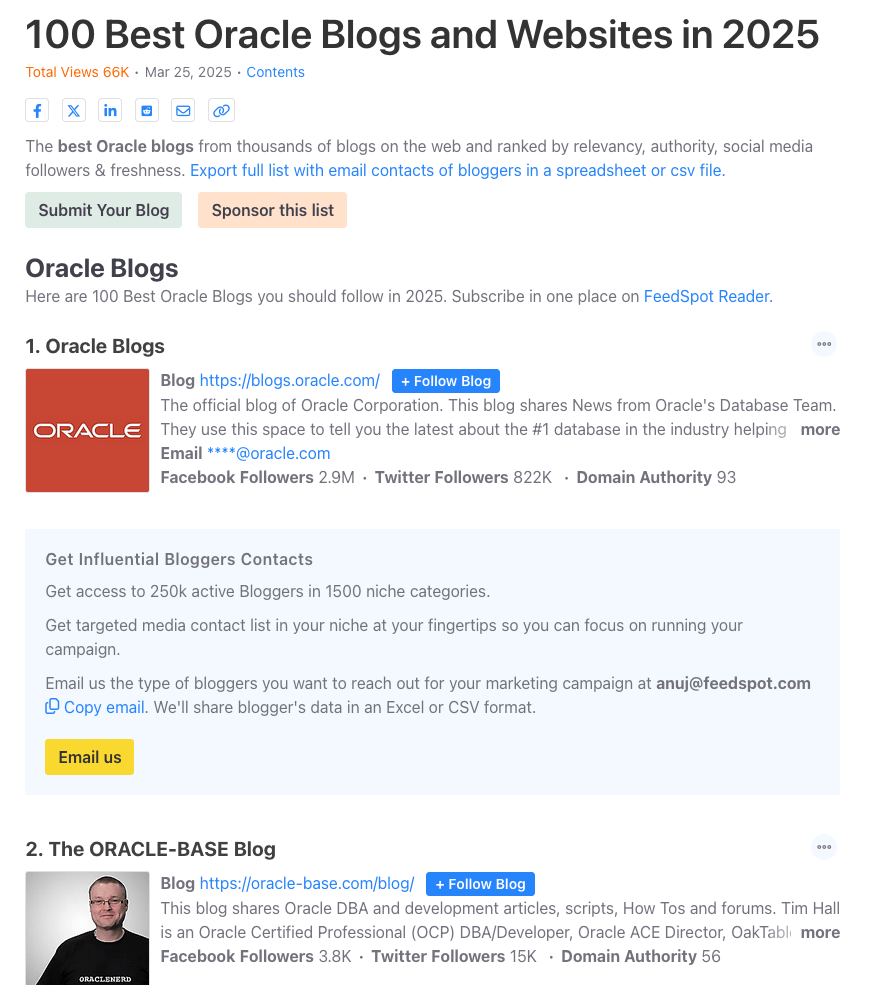
Where to find Blogs on Oracle Database
A regular question I get asked is, “is there a list of Oracle-related Blogs?” and “what people/blogs should I follow to learn more about Oracle Database?” This typically gets asked by people in the early stages of their careers and even by those who have been around for a while.
You could ask these questions to twenty different (experienced) people, and you’d get largely the same answers with some variations. These variations would be down to their preferences on how certain people cover certain topics. This comes down to experience of following lots of people and learning over time.
But where can people get started quickly with a list of 100 blogs. Feedspot is one such place where you can find such a place and subscribe for update emails when new blog posts are written.
Go check out the list. You might discover some new bloggers and content.
Unlock Text Analytics with Oracle OCI Python – Part 1
Oracle OCI has a number of features that allows you to perform Text Analytics such as Language Detection, Text Classification, Sentiment Analysis, Key Phrase Extraction, Named Entity Recognition, Private Data detection and masking, and Healthcare NLP.

While some of these have particular (and in some instances limited) use cases, the following examples will illustrate some of the main features using the OCI Python library. Why am I using Python to illustrate these? This is because most developers are using Python to build applications.
In this post, the Python examples below will cover the following:
- Language Detection
- Text Classification
- Sentiment Analysis
In my next post on this topic, I’ll cover:
- Key Phrase
- Named Entity Recognition
- Detect private information and marking
Before you can use any of the OCI AI Services, you need to set up a config file on your computer. This will contain the details necessary to establish a secure connection to your OCI tendency. Check out this blog post about setting this up.
The following Python examples illustrate what is possible for each feature. In the first example, I include what is needed for the config file. This is not repeated in the examples that follow, but it is still needed.
Language Detection
Let’s begin with a simple example where we provide a simple piece of text and as OCI Language Service, using OCI Python, to detect the primary language for the text and display some basic information about this prediction.
import oci
from oci.config import from_file

#Read in config file - this is needed for connecting to the OCI AI Services
CONFIG_PROFILE = "DEFAULT"
config = oci.config.from_file('~/.oci/config', profile_name=CONFIG_PROFILE)
###

ai_language_client = oci.ai_language.AIServiceLanguageClient(config)

# French :
text_fr = "Bonjour et bienvenue dans l'analyse de texte à l'aide de ce service cloud"

response = ai_language_client.detect_dominant_language(
    oci.ai_language.models.DetectLanguageSentimentsDetails(
        text=text_fr
    )
)

print(response.data.languages[0].name)
----------
French
In this example, I’ve a simple piece of French (for any native French speakers, I do apologise). We can see the language was identified as French. Let’s have a closer look at what is returned by the OCI function.
print(response.data)
----------
{
  "languages": [
    {
      "code": "fr",
      "name": "French",
      "score": 1.0
    }
  ]
}
We can see from the above, the object contains the language code, the full name of the language and the score to indicate how strong or how confident the function is with the prediction. When the text contains two or more languages, the function will return the primary language used.
Note: OCI Language can detect at least 113 different languages. Check out the full list here.
Let’s give it a try with a few other languages, including Irish, which localised to certain parts of Ireland. Using the same code as above, I’ve included the same statement (google) translated into other languages. The code loops through each text statement and detects the language.
import oci
from oci.config import from_file

###
CONFIG_PROFILE = "DEFAULT"
config = oci.config.from_file('~/.oci/config', profile_name=CONFIG_PROFILE)
###

ai_language_client = oci.ai_language.AIServiceLanguageClient(config)

# French :
text_fr = "Bonjour et bienvenue dans l'analyse de texte à l'aide de ce service cloud"
# German:
text_ger = "Guten Tag und willkommen zur Textanalyse mit diesem Cloud-Dienst"
# Danish
text_dan = "Goddag, og velkommen til at analysere tekst ved hjælp af denne skytjeneste"
# Italian
text_it = "Buongiorno e benvenuti all'analisi del testo tramite questo servizio cloud"
# English:
text_eng = "Good day, and welcome to analysing text using this cloud service"
# Irish
text_irl = "Lá maith, agus fáilte romhat chuig anailís a dhéanamh ar théacs ag baint úsáide as an tseirbhís scamall seo"

for text in [text_eng, text_ger, text_dan, text_it, text_irl]:
    response = ai_language_client.detect_dominant_language(
        oci.ai_language.models.DetectLanguageSentimentsDetails(
            text=text
        )
    )
    print('[' + response.data.languages[0].name + ' ('+ str(response.data.languages[0].score) +')' + '] '+ text)

----------
[English (1.0)] Good day, and welcome to analysing text using this cloud service
[German (1.0)] Guten Tag und willkommen zur Textanalyse mit diesem Cloud-Dienst
[Danish (1.0)] Goddag, og velkommen til at analysere tekst ved hjælp af denne skytjeneste
[Italian (1.0)] Buongiorno e benvenuti all'analisi del testo tramite questo servizio cloud
[Irish (1.0)] Lá maith, agus fáilte romhat chuig anailís a dhéanamh ar théacs ag baint úsáide as an tseirbhís scamall seo
When you run this code yourself, you’ll notice how quick the response time is for each.
Text Classification
Now that we can perform some simple language detections, we can move on to some more insightful functions. The first of these is Text Classification. With Text Classification, it will analyse the text to identify categories and a confidence score of what is covered in the text. Let’s have a look at an example using the English version of the text used above. This time, we need to perform two steps. The first is to set up and prepare the document to be sent. The second step is to perform the classification.
### Text Classification
text_document = oci.ai_language.models.TextDocument(key="Demo", text=text_eng, language_code="en")
text_class_resp = ai_language_client.batch_detect_language_text_classification(
            batch_detect_language_text_classification_details=oci.ai_language.models.BatchDetectLanguageTextClassificationDetails(
                documents=[text_document]
            )
        )
print(text_class_resp.data)
----------
{
  "documents": [
    {
      "key": "Demo",
      "language_code": "en",
      "text_classification": [
        {
          "label": "Internet and Communications/Web Services",
          "score": 1.0
        }
      ]
    }
  ],
  "errors": []
}
We can see it has correctly identified the text is referring to or is about “Internet and Communications/Web Services”. For a second example, let’s use some text about F1. The following is taken from an article on F1 app and refers to the recent Driver issues, and we’ll use the first two paragraphs.
{
  "documents": [
    {
      "key": "Demo",
      "language_code": "en",
      "text_classification": [
        {
          "label": "Sports and Games/Motor Sports",
          "score": 1.0
        }
      ]
    }
  ],
  "errors": []
}
We can format this response object as follows.
print(text_class_resp.data.documents[0].text_classification[0].label
      + ' [' + str(text_class_resp.data.documents[0].text_classification[0].score) + ']')
----------
Sports and Games/Motor Sports [1.0]
It is possible to get multiple classifications being returned. To handle this we need to use a couple of loops.
for i in range(len(text_class_resp.data.documents)):
        for j in range(len(text_class_resp.data.documents[i].text_classification)):
            print("Label: ", text_class_resp.data.documents[i].text_classification[j].label)
            print("Score: ", text_class_resp.data.documents[i].text_classification[j].score)
----------
Label:  Sports and Games/Motor Sports
Score:  1.0
Yet again, it correctly identified the type of topic area for the text. At this point, you are probably starting to get ideas about how this can be used and in what kinds of scenarios. This list will probably get longer over time.
Sentiement Analysis
For Sentiment Analysis we are looking to gauge the mood or tone of a text. For example, we might be looking to identify opinions, appraisals, emotions, attitudes towards a topic or person or an entity. The function returned an object containing a positive, neutral, mixed and positive sentiments and a confidence score. This feature currently supports English and Spanish.
The Sentiment Analysis function provides two way of analysing the text:
- At a Sentence level
- Looks are certain Aspects of the text. This identifies parts/words/phrase and determines the sentiment for each
Let’s start with the Sentence level Sentiment Analysis with a piece of text containing two sentences with both negative and positive sentiments.
#Sentiment analysis
text = "This hotel was in poor condition and I'd recommend not staying here. There was one helpful member of staff"

text_document = oci.ai_language.models.TextDocument(key="Demo", text=text, language_code="en")
text_doc=oci.ai_language.models.BatchDetectLanguageSentimentsDetails(documents=[text_document])

text_sentiment_resp = ai_language_client.batch_detect_language_sentiments(text_doc, level=["SENTENCE"])

print (text_sentiment_resp.data)
The response object gives us:
{
  "documents": [
    {
      "aspects": [],
      "document_scores": {
        "Mixed": 0.3458947,
        "Negative": 0.41229093,
        "Neutral": 0.0061426135,
        "Positive": 0.23567174
      },
      "document_sentiment": "Negative",
      "key": "Demo",
      "language_code": "en",
      "sentences": [
        {
          "length": 68,
          "offset": 0,
          "scores": {
            "Mixed": 0.17541811,
            "Negative": 0.82458186,
            "Neutral": 0.0,
            "Positive": 0.0
          },
          "sentiment": "Negative",
          "text": "This hotel was in poor condition and I'd recommend not staying here."
        },
        {
          "length": 37,
          "offset": 69,
          "scores": {
            "Mixed": 0.5163713,
            "Negative": 0.0,
            "Neutral": 0.012285227,
            "Positive": 0.4713435
          },
          "sentiment": "Mixed",
          "text": "There was one helpful member of staff"
        }
      ]
    }
  ],
  "errors": []
}
There are two parts to this object. The first part gives us the overall Sentiment for the text, along with the confidence scores for all possible sentiments. The second part of the object breaks the test into individual sentences and gives the Sentiment and confidence scores for the sentence. Overall, the text used in “Negative” with a confidence score of 0.41229093. When we look at the sentences, we can see the first sentence is “Negative” and the second sentence is “Mixed”.
When we switch to using Aspect we can see the difference in the response.
text_sentiment_resp = ai_language_client.batch_detect_language_sentiments(text_doc, level=["ASPECT"])

print (text_sentiment_resp.data)
The response object gives us:
{
  "documents": [
    {
      "aspects": [
        {
          "length": 5,
          "offset": 5,
          "scores": {
            "Mixed": 0.17299445074935532,
            "Negative": 0.8268503302365734,
            "Neutral": 0.0,
            "Positive": 0.0001552190140712097
          },
          "sentiment": "Negative",
          "text": "hotel"
        },
        {
          "length": 9,
          "offset": 23,
          "scores": {
            "Mixed": 0.0020200687053503,
            "Negative": 0.9971282906307877,
            "Neutral": 0.0,
            "Positive": 0.0008516406638620019
          },
          "sentiment": "Negative",
          "text": "condition"
        },
        {
          "length": 6,
          "offset": 91,
          "scores": {
            "Mixed": 0.0,
            "Negative": 0.002300517913679934,
            "Neutral": 0.023815747524769032,
            "Positive": 0.973883734561551
          },
          "sentiment": "Positive",
          "text": "member"
        },
        {
          "length": 5,
          "offset": 101,
          "scores": {
            "Mixed": 0.10319573538533408,
            "Negative": 0.2070680870320537,
            "Neutral": 0.0,
            "Positive": 0.6897361775826122
          },
          "sentiment": "Positive",
          "text": "staff"
        }
      ],
      "document_scores": {},
      "document_sentiment": "",
      "key": "Demo",
      "language_code": "en",
      "sentences": []
    }
  ],
  "errors": []
}
The different aspects are extracted, and the sentiment for each within the text is determined. What you need to look out for are the labels “text” and “sentiment.
- ← Previous
- 1
- 2
- 3
- …
- 57
- Next →
 Ora-lytics

You must be logged in to post a comment.