
Change the size of ORE PNG graphics using in-database R functions
In a previous blog post I showed you how create and display a ggplot2 R graphic using SQL. Make sure to check it out before reading the rest of this blog post.
In my previous blog post, I showed and mentioned that the PNG graphic returned by the embedded R execution SQL statement was not the same as what was produced if you created the graphic in an R session.
Here is the same ggplot2 graphic. The first one is what is produced in an R session and the section is what is produced by SQL query and the embedded R execution in Oracle.
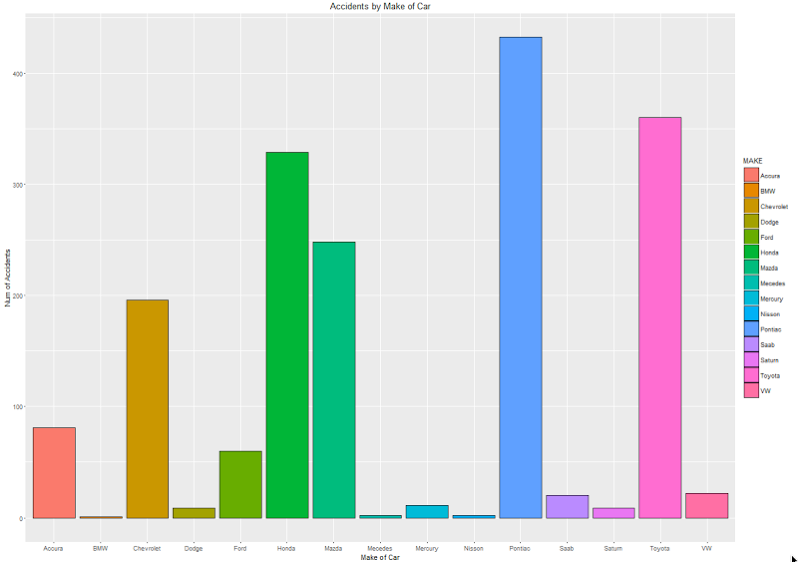
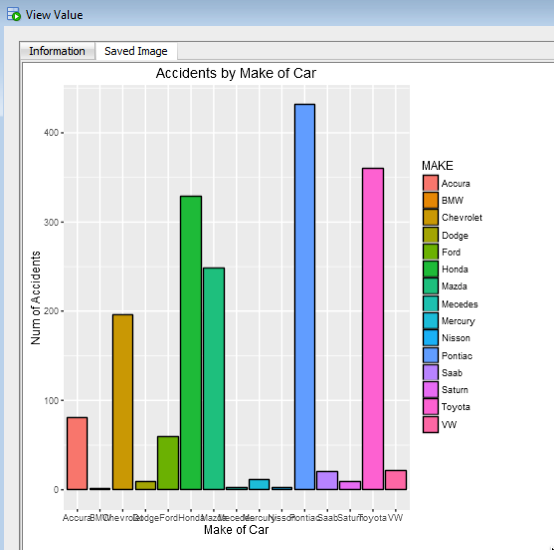
As you can see the second image (produced using the embedded R execution) gives a very square image.
The reason for this is that Oracle R Enterprise (ORE) creates the graphic image in PNG format. The default setting from this is 480 x 480. You will find this information when you go digging in the R documentation and not in the Oracle documentation.
So, how can I get my ORE produced graphic to appear like what is produced in R?
What you need to do is to change the height and width of the PNG image produced by ORE. You can do this by passing parameters in the SQL statement used to call the user defined R function, that in turn produces the ggplot2 image.
In my previous post, I gave the SQL statement to call and produce the graphic (shown above). One of the parameters to the rqTableEval function was set to null. This was because we didn’t have any parameters to pass, apart from the data set.
We can replace this null with any parameters we want to pass to the user defined R function (demo_ggpplot). To pass the parameters we need to define them using a SELECT statement.
cursor(select 500 as "ore.png.height", 850 as "ore.png.width" from dual),
The full SELECT statement now becomes
select *
from table(rqTableEval( cursor(select * from claims),
                        cursor(select 500 as "ore.png.height", 850 as "ore.png.width" from dual),
                        'PNG',
                        'demo_ggpplot'));
When you view the graphic in SQL Developer, you will get something that looks a bit more like what you would expect or want to see.
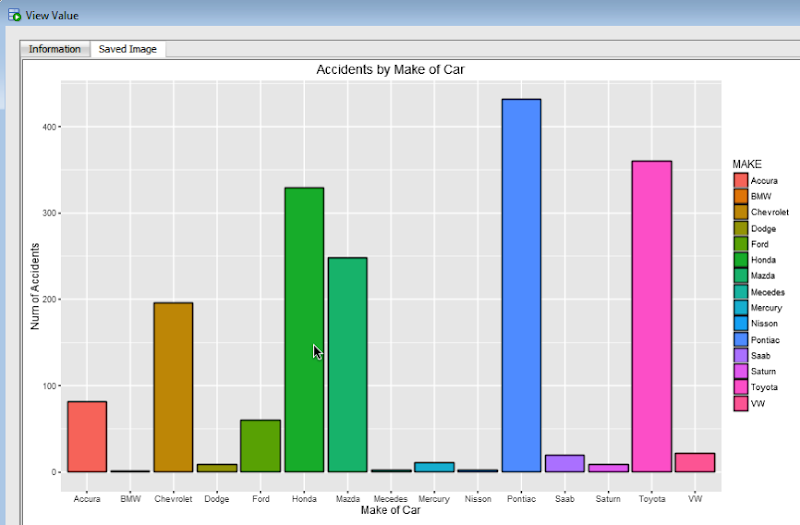
For each graphic image you want to produce using ORE you will need to figure out that are the best PNG height and width settings to use. Plus it also depends on what tool or application you are going to use to display the images (eg. APEX etc)
Why Data Science projects fail
Over the past few weeks or months (maybe even years) I’ve had several conversations with various people about why Data Science (or whatever you want to call it) projects fail or never really get started.
Before we go any further perhaps we need to define what ‘fail’ means in these conversations. Typically fail means that the project doesn’t deliver what was hoped for, it got bogged down is some technical or political issues, it did not deliver useful results, and more typically it is run once (or a couple of times) and never run again. You get the idea.
The following points outline some of the most typical reasons why Data Science projects fail, but this is not an exhaustive list. This list is just some of the most typical reason.
- We need Big Data: It seems like everything that you read says you need Big Data for your data science project. Firstly what big data means to one person or company can be very different to what it means for another person/company. One possible definition is that it might include all the various social media and log type of data. If you don’t have all of this data then no big deal. You can still do data science projects. You have lots and lots of other data. The data that you generate every day for the general running of your business. You can use that. If you have some history of this data going back over a few months or a couple of years then even better (and most of you will say Yes I have that data). Work with the data that you already have, that you already understand, that you are already using, etc and use that data to see if you can gain extra insights that will have some value to your business (it needs to have value otherwise whats the point). Some people call this everyday type of data you have, ‘Small Data’. Big Data or Small Data are really bad terms. It is just Data. Let us work with data we already have and incrementally add in newer data (from your typical ‘Big Data’ sources) with each iteration of the data science project.
- We need Big Technology: This kind of follows on from the mistake of believing we need Big Data to do our data science projects. As most companies will be working with the data that they already have, and you will have various technology solutions in place to manage this data. Then do we really need Big Data Technology solutions for our Data Science projects? Technologies like Hadoop and everything that goes along with it. The simple answer is ‘No You Don’t’. Now don’t get me wrong. These technologies are important with it comes to managing Big Data, but you don’t needs these to perform your data science projects. Many, many companies both large and small are performing data science projects using their existing technology solutions and have perhaps just added some analytics tools to support their project using the data that they are already managing. Most companies have databases to store and manage their data. You can use your analytics software to work with the data in these database to analyse, model and predict. Any results that are produced can be easily integrated back into these databases and the results can then be used by various groups within your organisation. Use the technologies you have, that you understand, that you can use to the max, supplemented with some newer analytics software that works with all of these for your data science projects. (An example: one project I’ve worked on included a retail organisation for one of the largest countries in the work. I was working with 3 years of sales data. Is this big data? I was able to use my laptop to perform advanced analytics on all their data)
- Old School Data Science: Give me all your data, I’ll analyse it and tell you what is happening. Unfortunately this kind of phrases are still very common. They are common and considered out of date 20 years ago when I worked on my first data science project (it wasn’t called data science back then). If you do come across someone saying this to you, I would question their ability to deliver anything. If it was me, I would just say ‘No thank you’, and move onto someone else. You as a company will already know a lot of what is happening in your business, what data is currently being used for and any potential areas where you know advanced analytics and data science can help. You will know that the focus areas should be and how good or not your data is. You need someone who can help you to identify the key areas and what data science techniques can be used to help you to gain (a possible) greater insight into what is happening.
- No clear objective or business question/problem and no measurable outcomes: In a way this is very similar to the previous point. You don’t get into your car each morning and start driving, with the eventual hope that you arrive at work on time. No, you plan what you want to do (get to work), how you are going to get then (using your car) and when you want to get there by (your work start time). Using these you then plan out what is the best route you need to take to get to work, in the most efficient way you can, using your knowledge and experience of the road network, supplemented by traffic reports and making adjustments as necessary, to ensure that you get to work on time. This is exactly the same for data science projects. You need a good clear objective, that can be broken down into distinct problems, that will each require a specific set of advanced analytics to generate a measurable outcome. The measurable outcomes should allow you to measure if the advanced analytics actually gives you a valuable return. For example if you predict that you can increase sales by 3%, this sound good. But if the cost of implementing the solution is treating any the profit generated then you might decide that this solution is not worth continuing with.
- Not productionalising the outcomes: This point follows on from the previous two points. A lot of what you read and a lot of what I’ve seen is that Data Science looks are discovering some new (and actionable) insights. But that is where the discussion ends. As if a report is produced that makes a recommendation or a list of customers to target, and that is it. What happens to your data science project then. It really gets canned or you might be told that we will come back to it in a few months (and possibly a year) from now. This is not what you really want. Why? because when you finally remember to come back to review the project and to do another run, the people who where involved in the original project have moved on or are not available. It then become too difficult to start over again and that is when the data science project fails. I’ve used the word ‘productionalising’ (is that a real word?) What I mean by that is that we need to take our data science project and build it into our every day applications and processes. For example if we build a customer risk model for loans in a bank. This should be built into the application that captures the loan application by the customer. That way when the bank employee is entering the loan application they can be given live feedback. They can then use this live feedback to address any issues with the customer. What can be typical is that this is discovered some weeks later when the loan has already been approved. We need to automate the use of our data science work. Another example is fraud detection. I know of several companies who have fraud detection measures in place. It can take them 4-6 weeks to identify a potential fraud case that needs investigation. Using data science and building this into their transaction monitoring systems they can now detect potential fraud cases in near real time )no big data architectures being used). By automating it we get quicker response and take actions at the right time. The quicker we can react the more money we can make or save. This is an area that a lot of companies are now focusing on when they are looking at data science project as this is they way that they can get a quicker return on their investment in their data science projects.
- Very little senior management support: I think most of the data science projects are supported by senior management to some extent. The more successful the data science project the more involved the senior managers are and the more they understand of what these projects can potentially deliver. But with the ever changing and evolving world of IT most of the senior managers are very focused on the here and now, keeping the lights on, making sure their day-to-day applications are up and running, the backups and recovery processes are in place (and tested), and future proofing their application. It is well known that very little time and resources (human and money) are available for adding new functionality. Most of what I’ve mentioned is very IT related and perhaps the IT managers are not the most suitable people to sponsor data science projects. I’ve already some of the reasons but sometimes IT can get a bit caught up with the technology and trying to use the newest thing. Some of the most successful projects I’ve worked on have had senior managers from a business function. They will not be focused on the technology but on the processes around the data science project and how the outputs of the data science project can be used. The more focused they are on this the more successful the project will be. They will then act as the key to informing (and selling) the rest of the business on the success of the project. This in turn create more and more data scicene projects and will keep you busy for a long time to come
- Ticking the box: Unfortunately I’ve seen this in way too many companies. Board level or the senior management team have hear about data science and all the magic that is can produce. The message is then passed down through the organisation that we need to be doing more and more of this. A business unit is chosen as for the pilot project. The pilot is completed, successfully, and the good news message is fed back up the ladder. But that is when enthusiasm ends. We have done a data science project, it was successful and now lets move on to the next thing. I’ve seen pilot or POC project that have proven to potentially save $10+M a year with a cost of $100K per year, being canned. Yes I’ve been told this is fantastic, this is beyond our wildest dreams. Only for nothing else to happen.
- The data is no good: You need data, you need historical data. The more you have more more useful it will be for the data science project. But what if the data is of poor quality? How can this happen? Well it can happen very frequently. You may have applications that are poorly designed, that have a very poor data model, the staff are not trained correctly to ensure that good data gets entered, etc. etc. The list could go on and on. It is one thing for an application to capture data but if that data cannot be used for any meaningful purposes then it has very little value. Some companies have people hired that constantly inspect the data, assess the quality of the data and are then feeding back ideas on how to improve the quality of the data captured by the applications and also by the people inputting the data. Without good quality data then there is very little a data science project can do to magically convert it into good quality data. I’ve been in the situation where >90% of the data was unusable. We give them a list what improvements they needed to make and only come back to use then they have completed these and have at least 6 months of good quality data. We might be able to do something then. We never heard from them again. Also I get to talk to a lot of start ups who want to have data science build in from day one. These have very little ‘real’ data. Again I get to tell them come back to me when you have 6 months of data.
- Too much focus on descriptive analytics: Although descriptive analytics is an important step in the early stages of all data science projects, they is still a huge number of consulting and product companies who are promoting this as a data science project. Like I said descriptive analytics is an important step, but it doesn’t end there. It is just the beginning. When selecting a consulting or product company to partner with on your data science projects you need to ensure that they are offering more than just descriptive analytics. In a similar way to what I’ve mentioned in the points above, you need to look at how you can make use of these descriptive analytics and share them with the wider community in your company. But you also need to have some control over the proliferation of various visualisation tools. Descriptive analytics and visualisations is not data science or a major output of data science. It is only one part of a data science project and far more value outputs from a data science project can be achieved by using one or more of the advanced analytics methods that are available to you.
- Ignoring your BI/DW: Unfortunately when it comes to a lot of data science projects your have two very different approaches to working with the data. One approach seems to be that we will look at your data that is available in the transactional databases (and other data sources), we will then look at how to integrate and clean this data before getting onto the fund stuff of exploring and then performing the advanced analytics. This approach completely ignores the BI team and any data warehouse that might exist. If a data warehouse already exists then it probably contains all or most of the data you are going to use. Therefore you can avoid all that them spent integrating and cleaning the data. The data warehouse will have this done for you. Plus the data warehouse will have a lot more data than what the current transactional databases will contain. Please, Please, Please use the data in the data warehouse and you will find that you will save a lot of time on your data science project. In addition to the time saved you will have a lot more (possibly years of) data to work with. I always try to work with data warehouse data. When I do I can go back 5 years and build predictive models from back then. I can then roll these through various time periods and can easily measure how good the level of predictive I’m getting. I also get to see if there are any changes in the data and how they affect the models. Plus I also get to see how the various algorithms and their associated models change and evolve over time. This allows me to demonstrate to the customer how the use of data science and predictive models works with their data over the past 5 years. This build up confidence with the customer on what is being done and what can be achieved. In one case I was able to demonstrate that if they implemented my solution 5 years ago, they would have save $40+M in that time period. If I didn’t use the data warehouse I wouldn’t have been able to prove this. Needless to say the customer was very happy.
- Make up of team is wrong: You don’t need a team of PhDs: There has been lots written about what the make up of skills what your data science team should be. Back a few years ago all the talk was that you need to have people with PhDs maths, stats or related states. Plus all you needed to do was to hire one of these. We all know that this is not true but was part of the rubbish that people were talking about. We all know that you really need a team of people and perhaps you already have some of these people already employed in your company already. You have database people, you have ETL people, you have data integration people, you have data analysts, you have project managers, you have business analysts, you have domain experts, etc. How many of those people have PhDs or require a PhD to do their job. But perhaps you don’t have people with the skills of applying advanced analytic techniques to your data and business problems. Perhaps it is these people who you really need the most. Do these people really need to have a PhD? No they don’t. You need someone who knows and understands the various techniques and most importantly how to use these to solve business problems. All too often people try to show off about using a particular technique or parameter setting, or a particular formula, or graphic technique, or using a certain language over another, or what library or package is the best. Don’t engage in this. Look for people that can apply the correct technique or combination of techniques to your business problems. But despite what I said in the first two point, as your data management requirements grow you are going to need some addition people with some big data technologies.
- Communication: being able to explain what data science can do, what it is producing and relating that back to the business. Being able to work with the management team, end users and all involved to show and explain what and how the data science project can do to support their work. Most technical people are not good at this. Bus some people are and these are a very valuable resource as part of your data science team or are keen supporter of what data science can do and how it can be used to help the business developed new and interesting actionable insights.
- The output is not a report => You need to operationise/productionalise the data science project: See the point above on productionalising your data science work. The outputs should not be a report or a list of some form. With proper planning data science can become a central to all the operational systems in your company. They can help you make better and quicker decisions on how you interact with your customers, improve the efficiencies of your processes, etc. The list goes on and on. All data science projects are cyclical in nature. For example you developer a churn prediction system. You use this to interact with your customers. You are trying to change or alter their behaviour and this in turn changes them as a customer. This in turn affect the churn prediction system. It will no longer be as effective. So you will need to update it on a semi-regular basis. This could be every 3, 4, 6, or 12 months. It all depends. You can build in checks into your productionalised data science projects to detect when the predictive models need updating. This in turn helps your data science team to be more productive, with quicker turn around times of each iteration. Also with each iteration you can look to see if new data is available for you to include and use. Maybe at this point some of your big data sources are coming online with some useful data.
So when looking to start a Data Science project it is important to know a few things before you start. The following attempts to use the 5 W’s to try explains these.
- what you are doing
- why you are doing it
- who it is for and what they will gain from it
- where will it be used within your applications/processes
- when you are going to commence the project and how it will fit into strategic goals of your organisation
There has been plenty written about what magic Data Science projects will produce and bring to your organisation. You need to be careful of people who only talk about the magic. You also need to understand that it may not work or deliver what you are lead to believe. In all the projects I’ve worked on we have had some amazing results. But in one or two projects we have had results that where only a percentage or two better than what they are already doing.
Perhaps I need to write another blog post on ‘Why Data Science projects succeed’, and this will only be based on what I’ve experienced (in the real-world).
Like I said at the beginning, this is not an exhaustive list. There are many more and I’m sure you will have a few of your own. These are the typical reasons that I’ve come across in my 20 years of doing these kind of projects and long before the term data science existed.
Checking out the Oracle Reserved Words using V$RESERVED_WORDS
When working with SQL or PL/SQL we all know there are some words we cannot use in our code or to label various parts of it. These languages have a number of reserved words that form the language.
Somethings it can be a challenge to know what is or isn’t a reserved word. Yes we can check the Oracle documentation for the SQL reserved words and the PL/SQL reserved words. There are other references and list in the Oracle documentation listing the reserved and key words.
But we also have the concept of Key Words (as opposed to reserved words). In the SQL documentation these are are not listed. In the PL/SQL documentation most are listed.
What is a Key Word in Oracle ?
Oracle SQL keywords are not reserved. BUT Oracle uses them internally in specific ways. If you use these words as names for objects and object parts, then your SQL statements may be more difficult to read and may lead to unpredictable results.
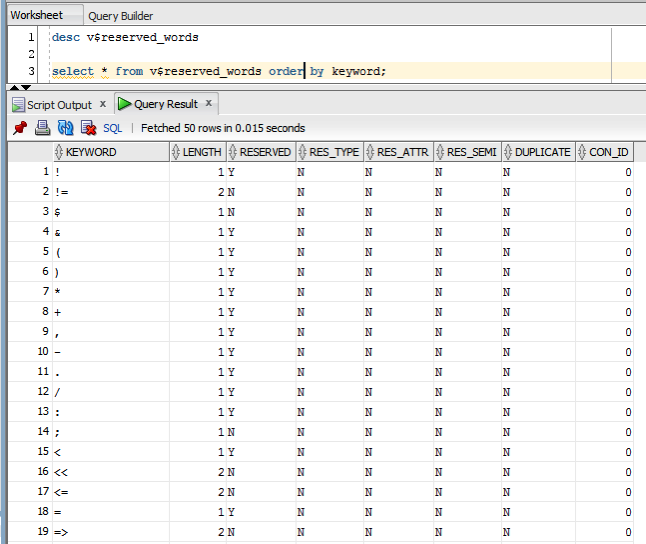
But if we didn’t have access to the documentation (or google) how can we find out what the key words are. You can use the data dictionary view called V$RESERVED_WORDS.
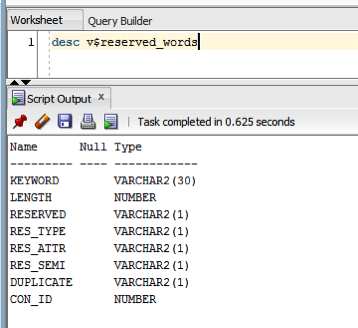
But this view isn’t available to version. So if you want to get your hands on it you will need the SYS user. Alternatively if you are a DBA you could share this with all your developers.
When we query this view we get 2,175 entries (for 12.1.0.2 Oracle Database).
Oracle Text, Oracle R Enterprise and Oracle Data Mining – Part 1
A project that I’ve been working on for a while now involves the use of Oracle Text, Oracle R Enterprise and Oracle Data Mining. Oracle Text comes with your Oracle Database licence. Oracle R Enterprise and Oracle Data Mining are part of the Oracle Advanced Analytics (extra cost) option.
What I will be doing over the course of 4 or maybe 5 blog posts is how these products can work together to help you gain a grater insight into your data, and part of your data being large text items like free format text, documents (in various forms e.g. html, xml, pdf, ms word), etc.
Unfortunately I cannot show you examples from the actual project I’ve been working on (and still am, from time to time). But what I can do is to show you how products and components can work together.
In this blog post I will just do some data setup. As with all project scenarios there can be many ways of performing the same tasks. Some might be better than others. But what I will be showing you is for demonstration purposes.
The scenario: The scenario for this blog post is that I want to extract text from some webpages and store them in a table in my schema. I then want to use Oracle Text to search the text from these webpages.
Schema setup: We need to create a table that will store the text from the webpages. We also want to create an Oracle Text index so that this text is searchable.
drop sequence my_doc_seq;
create sequence my_doc_seq;

drop table my_documents;

create table my_documents (
doc_pk number(10) primary key,
doc_title varchar2(100),
doc_extracted date,
data_source varchar2(200),
doc_text clob);

create index my_documents_ot_idx on my_documents(doc_text)
indextype is CTXSYS.CONTEXT;
In the table we have a number of descriptive attributes and then a club for storing the website text. We will only be storing the website text and not the html document (More on that later). In order to make the website text searchable in the DOC_TEXT attribute we need to create an Oracle Text index of type CONTEXT.
There are a few challenges with using this type of index. For example when you insert a new record or update the DOC_TEXT attribute, the new values/text will not be reflected instantly, just like we are use to with traditional indexes. Instead you have to decide when you want to index to be updated. For example, if you would like the index to be updated after each commit then you can create the index using the following.
create index my_documents_ot_idx on my_documents(doc_text)
indextype is CTXSYS.CONTEXT
parameters ('sync (on commit)');
Depending on the number of documents you have being committed to the DB, this might not be for you. You need to find the balance. Alternatively you could schedule the index to be updated by passing an interval to the ‘sync’ in the above command. Alternatively you might want to use DBMS_JOB to schedule the update.
To manually sync (or via DBMS_JOB) the index, assuming we used the first ‘create index’ statement, we would need to run the following.
EXEC CTX_DDL.SYNC_INDEX('my_documents_ot_idx');
This function just adds the new documents to the index. This can, over time, lead to some fragmentation of the index, and will require it to the re-organised on a semi-regular basis. Perhaps you can schedule this to happen every night, or once a week, or whatever makes sense to you.
BEGIN
  CTX_DDL.OPTIMIZE_INDEX('my_documents_ot_idx','FULL');
END;
(I could talk a lot more about setting up some basics of Oracle Text, the indexes, etc. But I’ll leave that for another day or you can read some of the many blog posts that already exist on the topic.)
Extracting text from a webpage using R: Some time ago I wrote a blog post on using some of the text mining features and packages in R to produce a word cloud based on some of the Oracle Advanced Analytics webpages.
I’m going to use the same webpages and some of the same code/functions/packages here.
The first task you need to do is to get your hands on the ‘htmlToText function. You can download the htmlToText function on github. This function requires the ‘Curl’ and ‘XML’ R packages. So you may need to install these.
I also use the str_replace_all function (“stringer’ R package) to remove some of the html that remains, to remove some special quotes and to replace and occurrences of ‘&’ with ‘and’.
# Load the function and required R packages
source(“c:/app/htmltotext.R”)
library(stringr)
data1 <- str_replace_all(htmlToText("http://www.oracle.com/technetwork/database/options/advanced-analytics/overview/index.html"), "[\r\n\t\"\'\u201C\u201D]" , "")
data1 <- str_replace_all(data1, "&", "and")
data2 <- str_replace_all(str_replace_all(htmlToText("http://www.oracle.com/technetwork/database/options/advanced-analytics/odm/index.html"), "[\r\n\t\"\'\u201C\u201D]" , ""), "&", "and")
data2 <- str_replace_all(data2, "&", "and")
data3 <- str_replace_all(str_replace_all(htmlToText("http://www.oracle.com/technetwork/database/database-technologies/r/r-technologies/overview/index.html"), "[\r\n\t\"\'\u201C\u201D]" , ""), "&", "and")
data3 <- str_replace_all(data3, "&", "and")
data4 <- str_replace_all(str_replace_all(htmlToText("http://www.oracle.com/technetwork/database/database-technologies/r/r-enterprise/overview/index.html"), "[\r\n\t\"\'\u201C\u201D]" , ""), "&", "and")
data4 <- str_replace_all(data4, "&", "and")
We now have the text extracted and cleaned up.
Create a data frame to contain all our data: Now that we have the text extracted, we can prepare the other data items we need to insert the data into our table (‘my_documents’). The first stept is to construct a data frame to contain all the data.
data_source = c("http://www.oracle.com/technetwork/database/options/advanced-analytics/overview/index.html",
                 "http://www.oracle.com/technetwork/database/options/advanced-analytics/odm/index.html",
                 "http://www.oracle.com/technetwork/database/database-technologies/r/r-technologies/overview/index.html",
                 "http://www.oracle.com/technetwork/database/database-technologies/r/r-enterprise/overview/index.html")
doc_title = c("OAA_OVERVIEW", "OAA_ODM", "R_TECHNOLOGIES", "OAA_ORE")
doc_extracted = Sys.Date()
data_text <- c(data1, data2, data3, data4)

my_docs <- data.frame(doc_title, doc_extracted, data_source, data_text)
Insert the data into our database table: With the data in our data fram (my_docs) we can now use this data to insert into our database table. There are a number of ways of doing this in R. What I’m going to show you here is how to do it using Oracle R Enterprise (ORE). The thing with ORE is that there is no explicit functionality for inserting and updating records in a database table. What you need to do is to construct, in my case, the insert statement and then use ore.exec to execute this statement in the database.
Creating ggplot2 graphics using SQL
Did you read the title of this blog post! Read it again.
Yes, Yes, I know what you are saying, “SQL cannot produce graphics or charts and particularly not ggplot2 graphics”.
You are correct to a certain extent. SQL is rubbish a creating graphics (and I’m being polite).
But with Oracle R Enterprise you can now produce graphics on your data using the embedded R execution feature of Oracle R Enterprise using SQL. In this blog post I will show you how.
1. Pre-requisites
You need to have installed Oracle R Enterprise on your Oracle Database Server. Plus you need to install the ggplot2 R package.
In your R session you will need to setup a ORE connection to your Oracle schema.
2. Write and Test your R code to produce the graphic
It is always a good idea to write and test your R code before you go near using it in a user defined function.
For our (first) example we are going to create a bar chart using the ggplot2 R package. This is a basic example and the aim is to illustrate the steps you need to go through to call and produce this graphic using SQL.
The following code using the CLAIMS data set that is available with/for Oracle Advanced Analytics. The first step is to pull the data from the table in your Oracle schema to your R session. This is because ggplot2 cannot work with data referenced by an ore.frame object.
data.subset <- ore.pull(CLAIMS)
Next we need to aggregate the data. Here we are counting the number of records for each Make of car.
aggdata2 <- aggregate(data.subset$POLICYNUMBER,
                      by = list(MAKE = data.subset$MAKE),
                      FUN = length)
Now load the ggplot2 R package and use it to build the bar chart.
ggplot(data=aggdata2, aes(x=MAKE, y=x, fill=MAKE)) +
       geom_bar(color="black", stat="identity") +
       xlab("Make of Car") +
       ylab("Num of Accidents") +
       ggtitle("Accidents by Make of Car")
The following is the graphic that our call to ggplot2 produces in R.
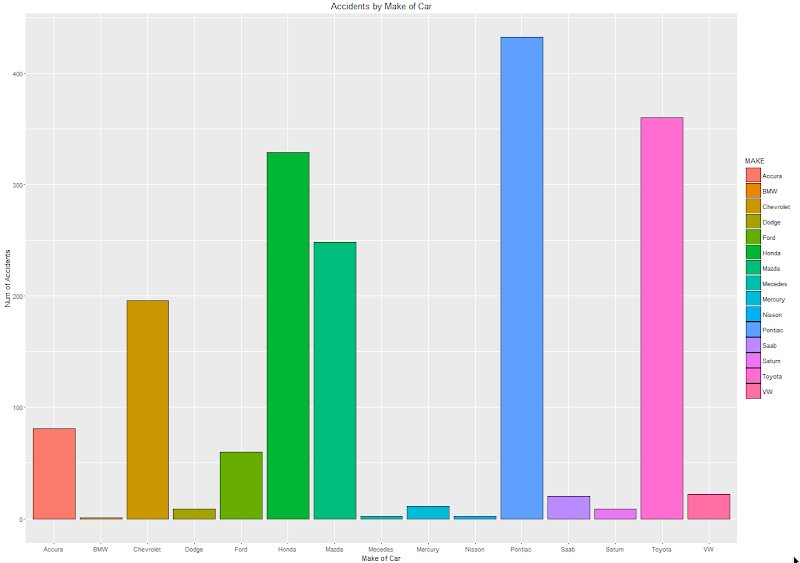
At this point we have written and tested our R code and know that it works.
3. Create a user defined R function and store it in the Oracle Database
Our next step in the process is to create an in-database user defined R function. This is were we store R code in our Oracle Database and make this available as an R function. To create the user defined R function we can use some PL/SQL to define it, and then take our R code (see above) and in it.
BEGIN
   -- sys.rqScriptDrop('demo_ggpplot');
   sys.rqScriptCreate('demo_ggpplot',
      'function(dat) {
         library(ggplot2)

         aggdata2 <- aggregate(dat$POLICYNUMBER,
                      by = list(MAKE = dat$MAKE),
                      FUN = length)

        g <-ggplot(data=aggdata2, aes(x=MAKE, y=x, fill=MAKE)) + geom_bar(color="black", stat="identity") +
                   xlab("Make of Car") + ylab("Num of Accidents") + ggtitle("Accidents by Make of Car")

        plot(g)
   }');
END;
We have to make a small addition to our R code. We need need to include a call to the plot function so that the image can be returned as a BLOB object. If you do not do this then the SQL query in step 4 will return no rows.
4. Write the SQL to call it
To call our defined R function we will need to use one of the ORE SQL API functions. In the following example we are using the rqTableEval function. The first parameter for this function passes in the data to be processed. In our case this is the data from the CLAIMS table. The second parameter is set to null. The third parameter is set to the output format and in our case we want this to be PNG. The fourth parameter is the name of the user defined R function.
select *
from table(rqTableEval( cursor(select * from claims),
                        null,
                        'PNG',
                        'demo_ggpplot'));
5. How to view the results
The SQL query in Step 4 above will return one row and this row will contain a column with a BLOB data type.

The easiest way to view the graphic that is produced is to use SQL Developer. It has an inbuilt feature that allows you to display BLOB objects. All you need to do is to double click on the BLOB cell (under the column labeled IMAGE). A window will open called ‘View Value’. In this window click the ‘View As Image’ check box on the top right hand corner of the window. When you do the R ggplot2 graphic will be displayed.

Yes the image is not 100% the same as the image produced in our R session. I will have another blog post that deals with this at a later date.
But, now you have written a SQL query, that calls R code to produce an R graphic (using ggplot2) of our data.
6. Now you can enhance the graphics (without changing your SQL)
What if you get bored with the bar chart and you want to change it to a different type of graphic? All you need to do is to change the relevant code in the user defined R function.
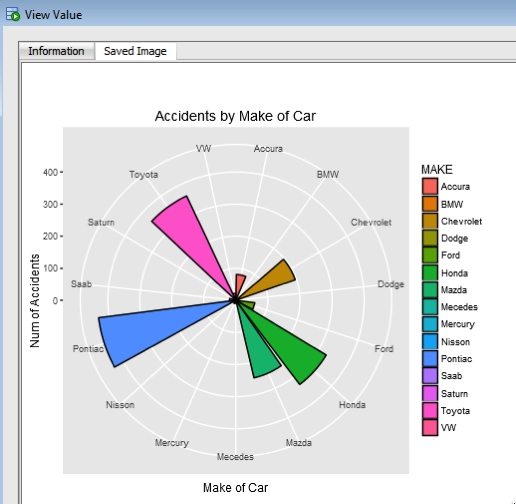
For example, if we want to change the graphic to a polar plot. The following is the PL/SQL code that re-defines the user defined R script.
BEGIN
   sys.rqScriptDrop('demo_ggpplot');
   sys.rqScriptCreate('demo_ggpplot',
      'function(dat) {
         library(ggplot2)

         aggdata2 <- aggregate(dat$POLICYNUMBER,
                      by = list(MAKE = dat$MAKE),
                      FUN = length)

         n <- nrow(aggdata2)
         degrees <- 360/n

        aggdata2$MAKE_ID <- 1:nrow(aggdata2)

        g<- ggplot(data=aggdata2, aes(x=MAKE, y=x, fill=MAKE)) + geom_bar(color="black", stat="identity") +
               xlab("Make of Car") + ylab("Num of Accidents") + ggtitle("Accidents by Make of Car") + coord_polar(theta="x")
        plot(g)
   }');
END;
We can use the exact same SQL query we defined in Step 4 above to call the next graphic.
All done.
Now that was easy! Right?
I kind of is easy once you have been shown. There are a few challenges when working in-database user defined R functions and writing the SQL to call them. Most of the challenges are around the formatting of R code in the function and the syntax of the SQL statement to call it. With a bit of practice it does get easier.
7. Where/How can you use these graphics ?
Any application or program that can call and process a BLOB data type can display these images. For example, I’ve been able to include these graphics in applications developed in APEX.
Cluster Distance using SQL with Oracle Data Mining – Part 4
This is the fourth and last blog post in a series that looks at how you can examine the details of predicted clusters using Oracle Data Mining. In the previous blog posts I looked at how to use CLUSER_ID, CLUSTER_PROBABILITY and CLUSTER_SET.
In this blog post we will look at CLUSTER_DISTANCE. We can use the function to determine how close a record is to the centroid of the cluster. Perhaps we can use this to determine what customers etc we might want to focus on most. The customers who are closest to the centroid are one we want to focus on first. So we can use it as a way to prioritise our workflows, particularly when it is used in combination with the value for CLUSTER_PROBABILITY.
Here is an example of using CLUSTER_DISTANCE to list all the records that belong to Cluster 14 and the results are ordered based on closeness to the centroid of this cluster.
SELECT customer_id,
       cluster_probability(clus_km_1_37 USING *) as cluster_Prob,
       cluster_distance(clus_km_1_37 USING *) as cluster_Distance
FROM   insur_cust_ltv_sample
WHERE   cluster_id(clus_km_1_37 USING *) = 14
order by cluster_Distance asc;
Here is a subset of the results from this query.
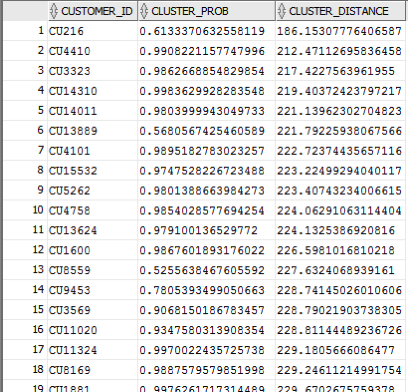
When you examine the results you may notice that the records that is listed first and closest record to the centre of cluster 14 has a very low probability. You need to remember that we are working in a N-dimensional space here. Although this first record is closest to the centre of cluster 14 it has a really low probability and if we examine this record in more detail we will find that it is at an overlapping point between a number of clusters.
This is why we need to use the CLUSTER_DISTANCE and CLUSTER_PROBABILITY functions together in our workflows and applications to determine how we need to process records like these.
googleVis R package for creating google charts in R
I’ve recently come across the ‘googleVis’ R package. This allows you to create a variety of different (typical and standard) charts in R but with the look and feel of the charts we can get from a number of different Google sites.
I won’t bore you with some examples in the post but I’ll point you to a good tutorial on the various charts.
Here is the link to the mini-tutorial.
Before you can use the package you will need to install it. The simplest way is to run the following in your R session.
> install.packages("googleVis")
Depending on your version of R you may need to upgrade.
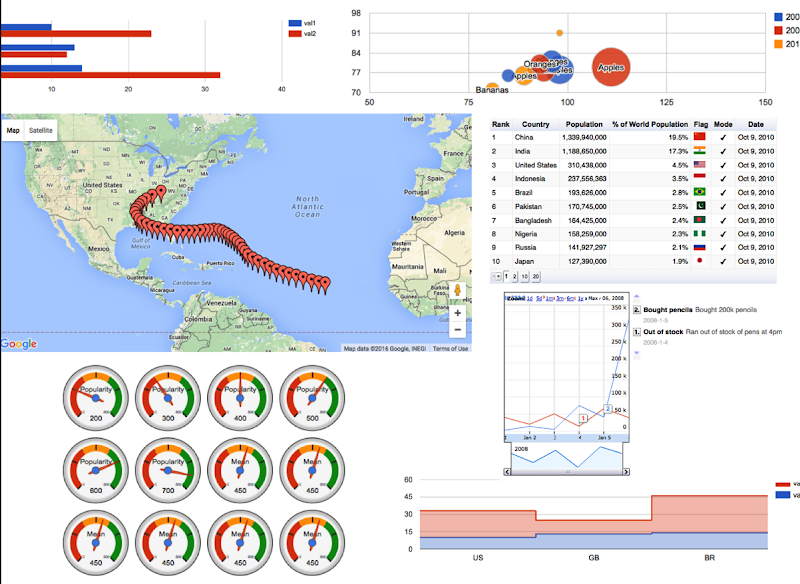
Here is a selection of some of the charts you can create, and there are many, many more.
Some of you might be familiar with the presenting that Hans Rosling gives. Some of the same technology is behind these bubble charts from Google, as they bought the software years ago. Hans typically uses a data set that consists of GDP, Population and Life Expectancy for countries around the World. You too can use this same data set and is available from rdatamarket. The following R codes will extract this data set to you local R session and you can then use it as input to the various charts in the googleVis functions.
install.packages("rdatamarket")
library(rdatamarket)
dminit(NULL)

# Pull in life expectancy and population data
life_expectancy <- dmlist("15r2!hrp")
population <- dmlist("1cfl!r3d")

# Pull in the yearly GDP for each country
gdp <- dmlist("15c9!hd1")

# Load in the plyr package
library("plyr")

# Rename the Value for each dataset
names(gdp)[3] <- "GDP"

# Use plyr to join your three data frames into one: development
gdp_life_exp <- join(gdp, life_expectancy)
names(gdp_life_exp)[4] <- "LifeExpectancy"
development <- join(gdp_life_exp, population)
names(development)[5] <- "Population"
Here is an example of the bubble chart using this data set.
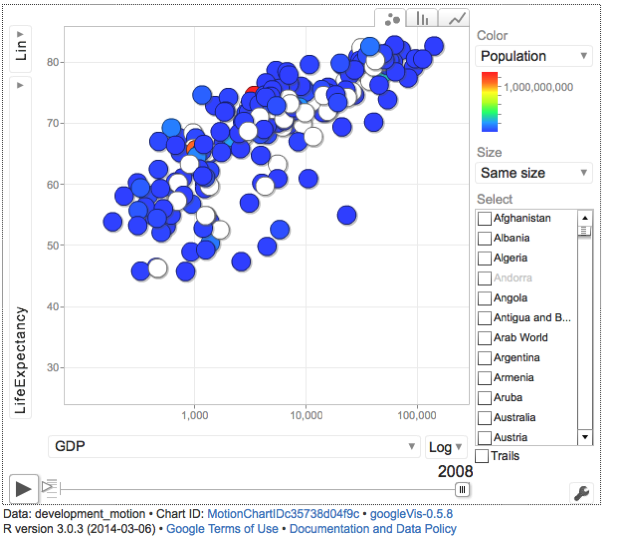
There are a few restrictions with using this package. All the results will be displayed in a web browser, so you need to make sure that this is possible. Some of the charts are require flash. Again you need to make sure you are the latest version and/or you many have restrictions in your workplace on using it.
Cluster Sets using SQL with Oracle Data Mining – Part 3
This is the third blog post on my series on examining the Clusters that were predicted by an Oracle Data Mining model. Check out the previous blog posts.
- Part 1 – Examining predicted Clusters and Cluster details using SQL
- Part 2 – Cluster Details with Oracle Data Mining
In the previous posts we were able to list the predicted cluster for each record in our data set. This is the cluster that the records belonged to the most. I also mentioned that a record could belong to many clusters.
So how can you list all the clusters that the a record belongs to?
You can use the CLUSTER_SET SQL function. This will list the Cluster Id and a probability measure for each cluster. This function returns a array consisting of the set of all clusters that the record belongs to.
The following example illustrates how to use the CLUSTER_SET function for a particular cluster model.
SELECT t.customer_id, s.cluster_id, s.probability
FROM   (select customer_id, cluster_set(clus_km_1_37 USING *) as Cluster_Set
        from   insur_cust_ltv_sample
        WHERE  customer_id in ('CU13386', 'CU100')) T,
      TABLE(T.cluster_set) S
order by t.customer_id, s.probability desc;
The output from this query will be an ordered data set based on the customer id and then the clusters listed in descending order of probability. The cluster with the highest probability is what would be returned by the CLUSTER_ID function. The output from the above query is shown below.

If you would like to see the details of each of the clusters and to examine the differences between these clusters then you will need to use the CLUSTER_DETAILS function (see previous blog post).
You can specify topN and cutoff to limit the number of clusters returned by the function. By default, both topN and cutoff are null and all clusters are returned.
– topN is the N most probable clusters. If multiple clusters share the Nth probability, then the function chooses one of them.
– cutoff is a probability threshold. Only clusters with probability greater than or equal to cutoff are returned. To filter by cutoff only, specify NULL for topN.
You may want to use these individually or combined together if you have a large number of customers. To return up to the N most probable clusters that are greater than or equal to cutoff, specify both topN and cutoff.
The following example illustrates using the topN value to return the top 4 clusters.
SELECT t.customer_id, s.cluster_id, s.probability
FROM   (select customer_id, cluster_set(clus_km_1_37, 4, null USING *) as Cluster_Set
        from   insur_cust_ltv_sample
        WHERE  customer_id in ('CU13386', 'CU100')) T,
      TABLE(T.cluster_set) S
order by t.customer_id, s.probability desc;
and the output from this query shows only 4 clusters displayed for each record.

Alternatively you can select the clusters based on a cut off value for the probability. In the following example this is set to 0.05.
SELECT t.customer_id, s.cluster_id, s.probability
FROM   (select customer_id, cluster_set(clus_km_1_37, NULL, 0.05 USING *) as Cluster_Set
        from   insur_cust_ltv_sample
        WHERE  customer_id in ('CU13386', 'CU100')) T,
      TABLE(T.cluster_set) S
order by t.customer_id, s.probability desc;
and the output this time looks a bit different.

Finally, yes you can combine these two parameters to work together.
SELECT t.customer_id, s.cluster_id, s.probability
FROM (select customer_id, cluster_set(clus_km_1_37, 2, 0.05 USING *) as Cluster_Set
from insur_cust_ltv_sample
WHERE customer_id in (‘CU13386’, ‘CU100’)) T,
TABLE(T.cluster_set) S
order by t.customer_id, s.probability desc;
Examining predicted Clusters and Cluster details using SQL
In a previous blog post I gave some details of how you can examine some of the details behind a prediction made using a classification model. This seemed to spark a lot of interest. But before I come back to looking at classification prediction details and other information, this blog post is the first in a 4 part blog post on examining the details of Clusters, as identified by a cluster model created using Oracle Data Mining.
The 4 blog posts will consist of:
- 1 – (this blog post) will look at how to determine the predicted cluster and cluster probability for your record.
- 2 – will show you how to examine the details behind and used to predict the cluster.
- 3 – A record could belong to many clusters. In this blog post we will look at how you can determine what clusters a record can belong to.
- 4 – Cluster distance is a measure of how far the record is from the cluster centroid. As a data point or record can belong to many clusters, it can be useful to know the distances as you can build logic to perform different actions based on the cluster distances and cluster probabilities.
Right. Let’s have a look at the first set of these closer functions. These are CLUSTER_ID and CLUSTER_PROBABILITY.
CLUSER_ID : Returns the number of the cluster that the record most closely belongs to. This is measured by the cluster distance to the centroid of the cluster. A data point or record can belong or be part of many clusters. So the CLUSTER_ID is the cluster number that the data point or record most closely belongs too.
CLUSTER_PROBABILITY : Is a probability measure of the likelihood of the data point or record belongs to a cluster. The cluster with the highest probability score is the cluster that is returned by the CLUSTER_ID function.
Now let us have a quick look at the SQL for these two functions. This first query returns the cluster number that each record most strong belongs too.
SELECT customer_id,
       cluster_id(clus_km_1_37 USING *) as Cluster_Id,
FROM   insur_cust_ltv_sample
WHERE  customer_id in ('CU13386', 'CU6607', 'CU100');

Now let us add in the cluster probability function.
SELECT customer_id,
       cluster_id(clus_km_1_37 USING *) as Cluster_Id,
       cluster_probability(clus_km_1_37 USING *) as cluster_Prob
FROM   insur_cust_ltv_sample
WHERE  customer_id in ('CU13386', 'CU6607', 'CU100');
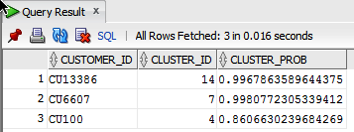
These functions gives us some insights into what the cluster predictive model is doing. In the remaining blog posts in this series I will look at how you can delve deeper into the predictions that the cluster algorithm is make.
PREDICTION_DETAILS function in Oracle
When building predictive models the data scientist can spend a large amount of time examining the models produced and how they work and perform on their hold out sample data sets. They do this to understand is the model gives a good general representation of the data and can identify/predict many different scenarios. When the “best” model has been selected then this is typically deployed is some sort of reporting environment, where a list is produced. This is typical deployment method but is far from being ideal. A more ideal deployment method is that the predictive models are build into the everyday applications that the company uses. For example, it is build into the call centre application, so that the staff have live and real-time feedback and predictions as they are talking to the customer.
But what kind of live and real-time feedback and predictions are possible. Again if we look at what is traditionally done in these applications they will get a predicted outcome (will they be a good customer or a bad customer) or some indication of their value (maybe lifetime value, possible claim payout value) etc.
But can we get anymore information? Information like what was reason for the prediction. This is sometimes called prediction insight. Can we get some details of what the prediction model used to decide on the predicted value. In more predictive analytics products this is not possible, as all you are told is the final out come.
What would be useful is to know some of the thinking that the predictive model used to make its thinking. The reasons when one customer may be a “bad customer” might be different to that of another customer. Knowing this kind of information can be very useful to the staff who are dealing with the customers. For those who design the workflows etc can then build more advanced workflows to support the staff when dealing with the customers.
Oracle as a unique feature that allows us to see some of the details that the prediction model used to make the prediction. This functions (based on using the Oracle Advanced Analytics option and Oracle Data Mining to build your predictive model) is called PREDICTION_DETAILS.
When you go to use PREDICTION_DETAILS you need to be careful as it will work differently in the 11.2g and 12c versions of the Oracle Database (Enterprise Editions). In Oracle Database 11.2g the PREDICTION_DETAILS function would only work for Decision Tree models. But in 12c (and above) it has been opened to include details for models created using all the classification algorithms, all the regression algorithms and also for anomaly detection.
The following gives an example of using the PREDICTION_DETAILS function.
select cust_id,
       prediction(clas_svm_1_27 using *) pred_value,
       prediction_probability(clas_svm_1_27 using *) pred_prob,
       prediction_details(clas_svm_1_27 using *) pred_details
from mining_data_apply_v;
The PREDICTION_DETAILS function produces its output in XML, and this consists of the attributes used and their values that determined why a record had the predicted value. The following gives some examples of the XML produced for some of the records.
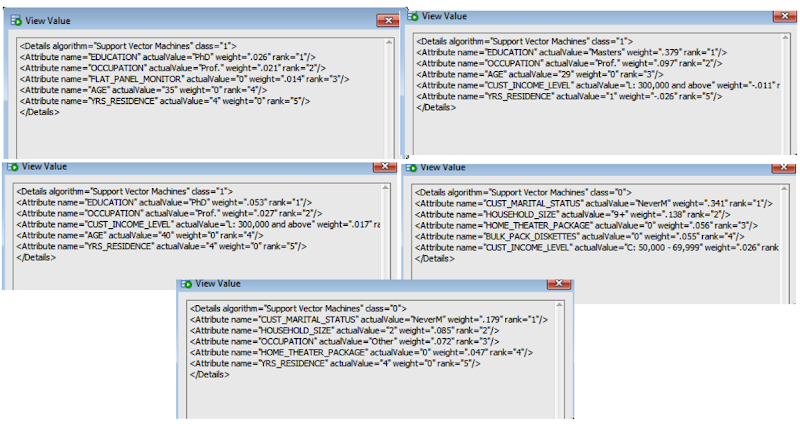
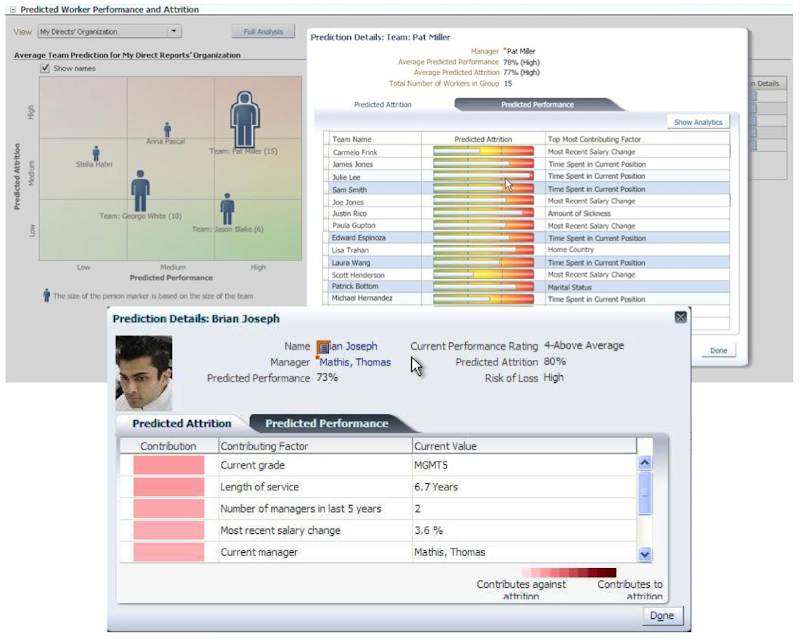
I’ve used this particular function in lots of my projects and particularly when building the applications for a particular business unit. Oracle too has build this functionality into many of their applications. The images below are from the HCM application where you can examine the details why an employee may or may not leave/churn. You can when perform real-time what-if analysis by changing some of attribute values to see if the predicted out come changes.
Oracle Data Visualisation Desktop : Enabling Advanced Analytics (R)
Oracle Data Visualization comes with all the typical features you have with Visual Analyzer that is part of BICS, DVCS and OBIEE.
An additional install you may want to do is to install the R language for Oracle Data Visualization Desktop. This is required to enable the Advanced Analytics feature of the tool.
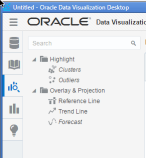
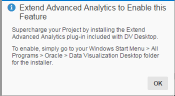
After installing Data Visualisation Desktop when you open the Advanced Analytics section and try to add one of the Advanced Analytics graphing option you will get an errors message as, shown below.
In Windows, click on the Start button, then go to Programs and then Oracle. In there you will see a menu item called install Advanced Analytics i.e. install Oracle R Distribution on your machine.
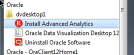
When you click on this menu option a new command line window will open and will proceed with the installation of Oracle R Distribution (in this case version 3.1.1, which is not the current version of Oracle R Distribution).
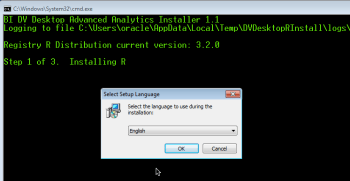
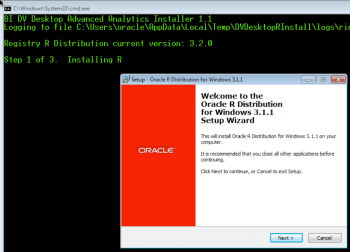
By accepting the defaults and clicking next, Oracle R Distribution will be installed. The following images will step you through the installation.
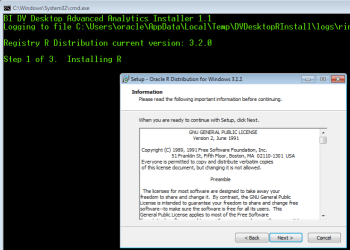
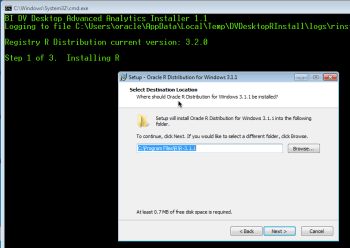
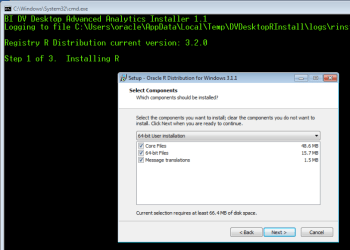
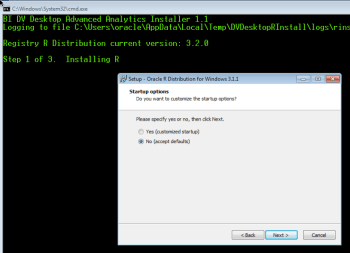
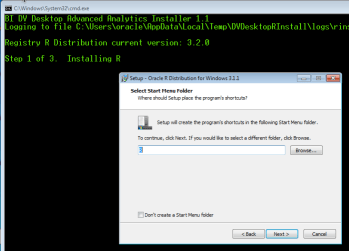
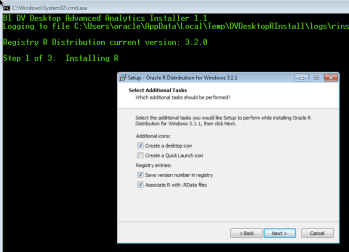
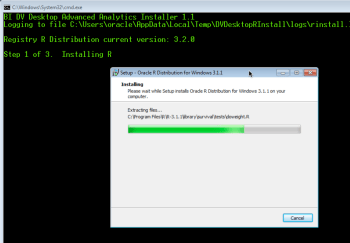
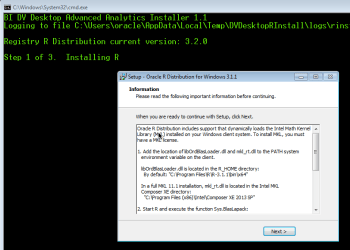
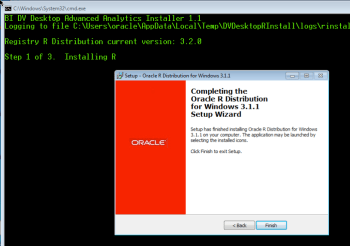
The final part of the installation is download and install lots and lots of supporting R packages.
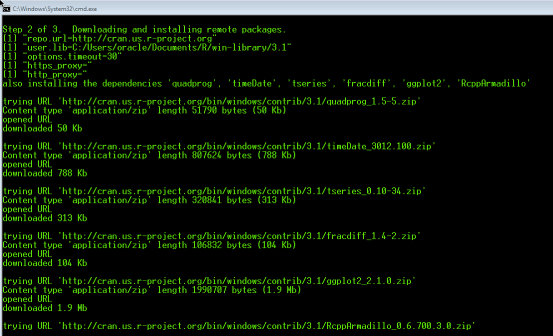
When these supporting R packages have been installed, you can now use the Advanced Analytics features of Oracle Data Visualisation Desktop.
If you had the tool open during this installation you will need to close/shutdown the tool and restart it.
Oracle Data Visualisation : Setting up a Connection to your DB
Using Oracle Data Visualisation is just the same or very similar as to using the Cloud version of the tool.
In this blog post I will walk you through the steps you need to perform the first time you use the Oracle Data Visualization client tool and to quickly create some visualizations.
Step 1 – Create a Connection to your Oracle DB and Schema
After opening Oracle Data Visualisation client tool client on the Data Sources icon that is displayed along the top of the screen.
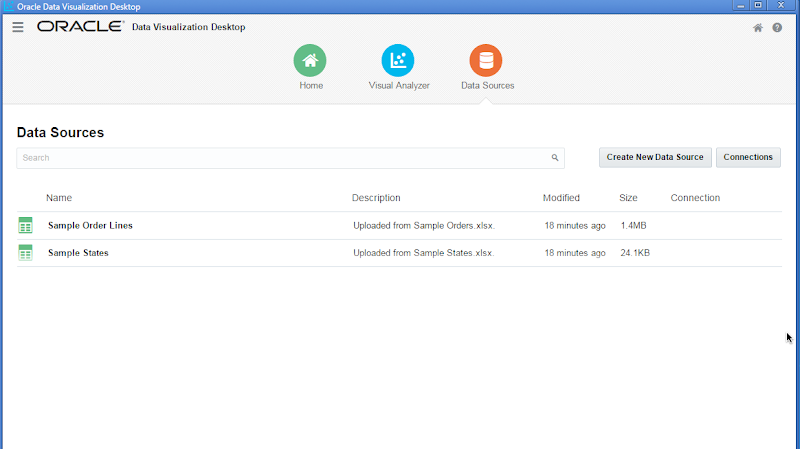
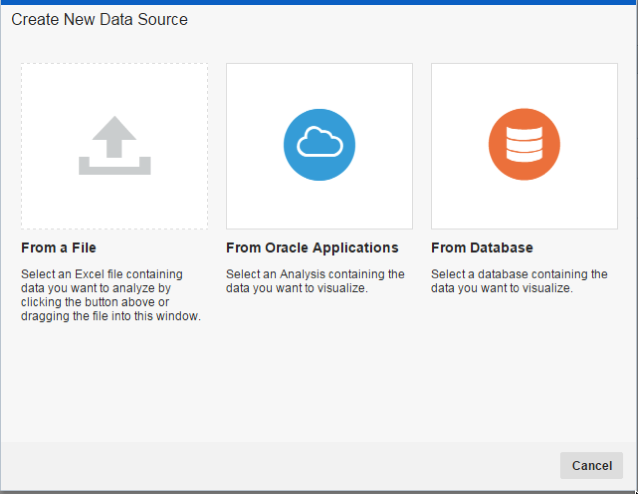
Then click on the ‘Connection’ button. You need to create a connection to your schema in the Oracle Database. Other options exist to create a connection to files etc. But for this example click on ‘From Database.
Enter you connections details for your schema in your Oracle Database. This is exactly the same kind of information that you would enter for creating a SQL Developer connection. Then click the Save button.
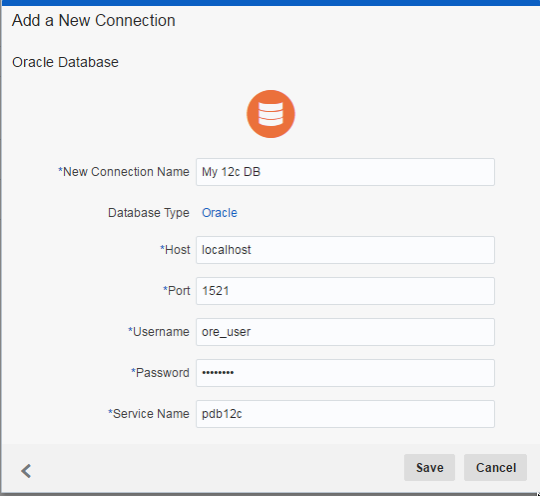
Step 2 – Defining the data source for your analytics
You need to select the tables or views that you are going to use to build up your data visualizations. In the Data Sources section of the tool (see the first image above) click on the ‘Create Data New Data Source’ button and then select ‘From Database’. The following window (or one like it) will be displayed. This will contain all the schemas in the DB that you have some privileges for. You may just see your schema or others.
Select your schema from the list. The window will be updated to display the tables and views in the schema. You can change the layout from icon based to being a list. You can also define a query that contains the data you want to analyse using the SQL tab.
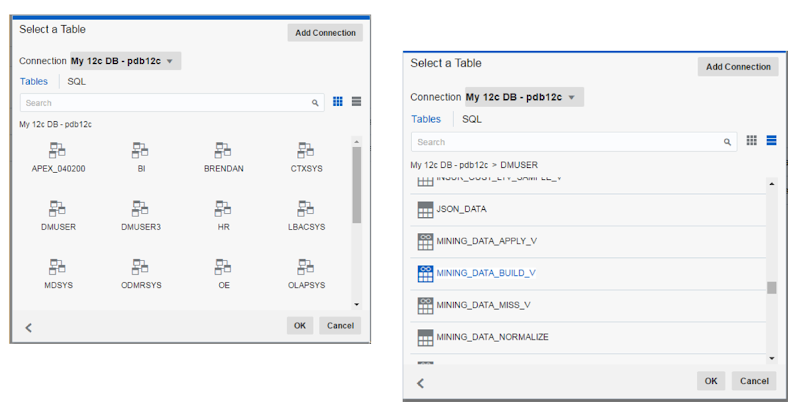
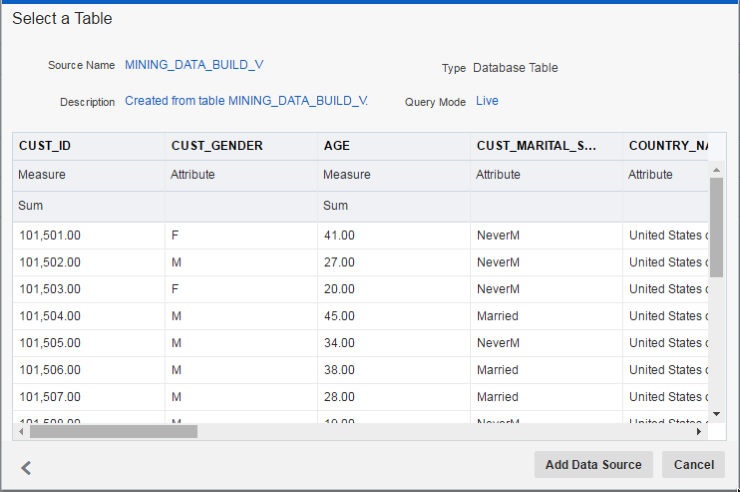
When you have select the table or view to use or have defined the SQL for the data set, a window will be displayed showing you a sample of the data. You can use this window to quickly perform a visual inspection of the data to make sure it is the data you want to use.
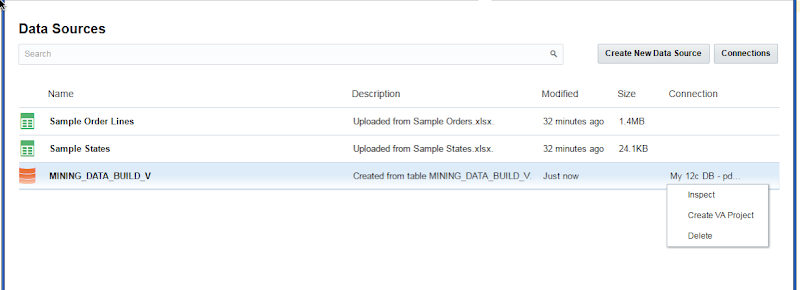
The data source you have defined will now be listed data sources part of the tool. You can click on the option icon (3 vertical dots) on the right hand side of the data source and then select Create VA Project from the pop up menu.
Step 3 – Create your Oracle Data Visualization project
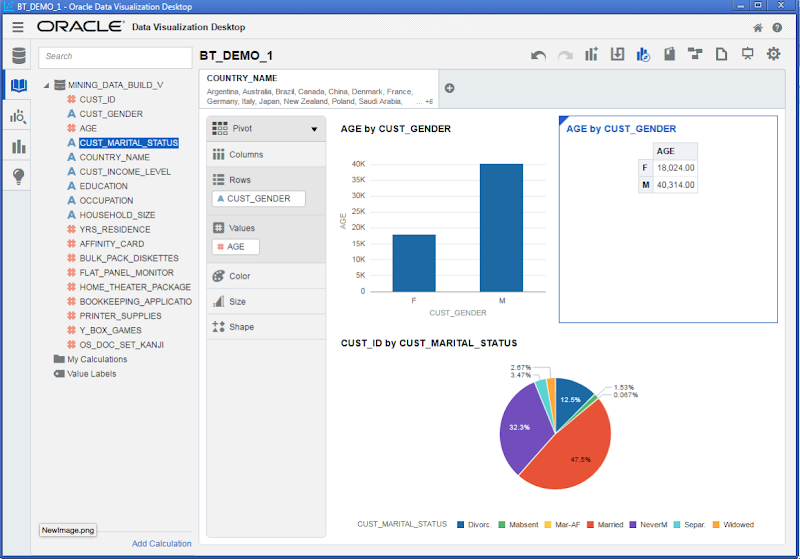
When the Visual Analyser part of the tool opens, you can click and drag the columns from your data set on to the workspace. The data will be automatically formatted and displayed on the screen. You can also quickly generate lots of graphics and again click and drag the columns on the graphics to define various element.
 Ora-lytics
You must be logged in to post a comment.